> ## Documentation Index
> Fetch the complete documentation index at: https://docs.blinkops.com/llms.txt
> Use this file to discover all available pages before exploring further.
# AI Settings
## AI Features
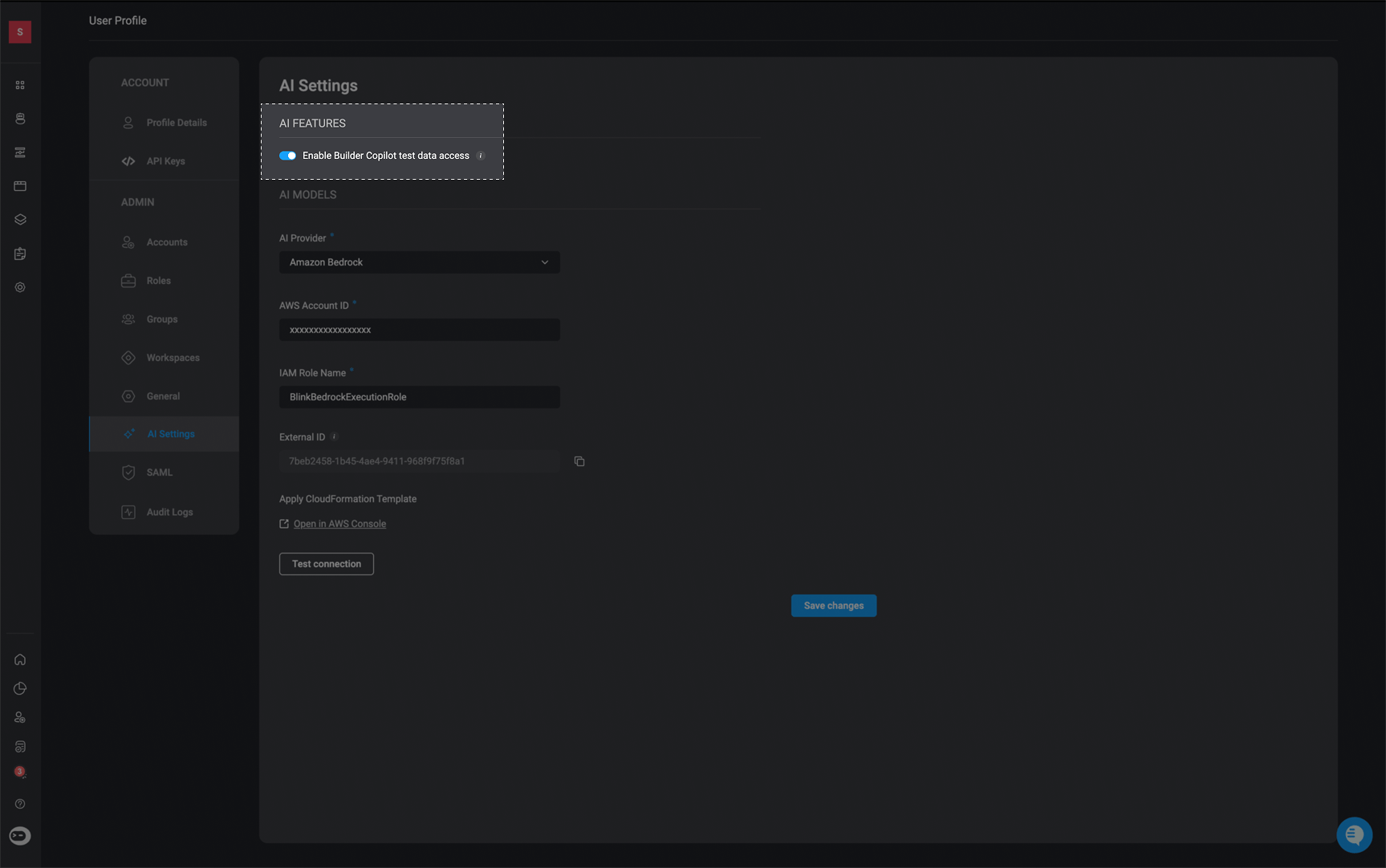
**Enable Builder Copilot test data access**- When enabled, the Builder Copilot can access workflow testing execution data from the current session to generate more context-aware and precise configuration suggestions. When disabled, suggestions are based only on the workflow definition and user input.
 ***
## AI Models
Blink supports two options for AI infrastructure:
* **Blink** *(recommended)* – Uses Blink-managed AI infrastructure through Blink's Amazon Bedrock account. This is the default option and provides a fully managed experience, with all AI requests routed through Blink.
* **Amazon Bedrock** – Uses your own Amazon Bedrock account. When selected, all AI-related requests are executed through your AWS infrastructure, giving you full control over your AI resources and billing.
***
## AI Models
Blink supports two options for AI infrastructure:
* **Blink** *(recommended)* – Uses Blink-managed AI infrastructure through Blink's Amazon Bedrock account. This is the default option and provides a fully managed experience, with all AI requests routed through Blink.
* **Amazon Bedrock** – Uses your own Amazon Bedrock account. When selected, all AI-related requests are executed through your AWS infrastructure, giving you full control over your AI resources and billing.
 ***
### Amazon Bedrock Prerequisites
1. An AWS account with permission to deploy CloudFormation stacks and create IAM roles.
### Limitations
**Important to Note**: [Knowledge sources](/docs/agent-builder/building-the-agent), in the Agent Builder, are not currently supported when using [Amazon Bedrock as the AI provider](/docs/blink-platform/account-management/ai-settings#configuration-amazon-bedrock-as-the-ai-provider). Knowledge functionality is available only when using [Blink as the AI provider](/docs/blink-platform/account-management/ai-settings#ai-models)
***
### Configuration Amazon Bedrock as the AI Provider
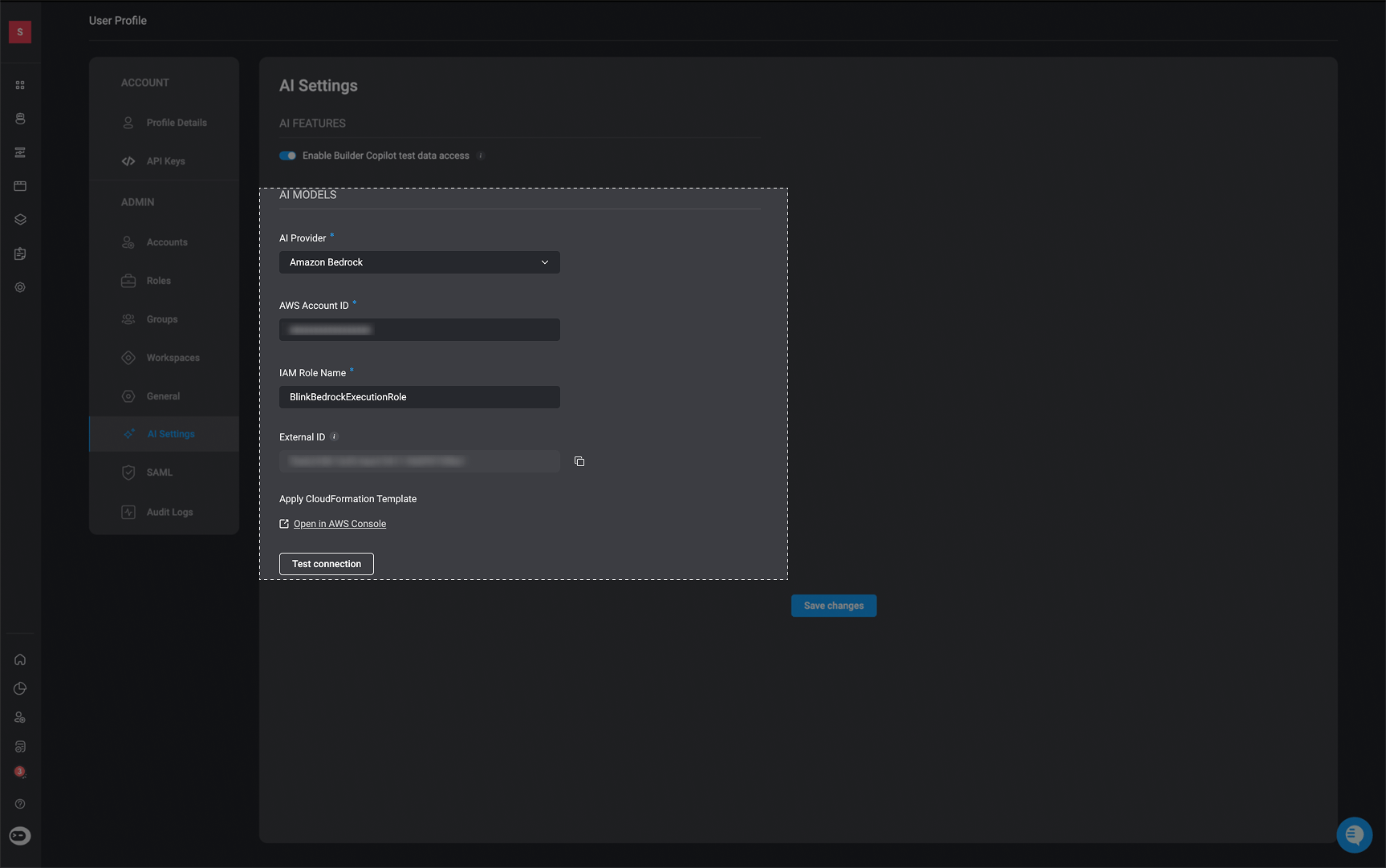
Navigate to **Account Settings → AI Settings → AI Models**.
In the **AI Provider** dropdown, select **Amazon Bedrock**.
Blink automatically generates a unique **External ID** for your account and displays it on screen.
**What is the External ID?**
It is a secret token that Blink embeds in every `AssumeRole` request. Your IAM trust policy must require it, which prevents any other AWS account from assuming your role even if they know your Role ARN. Do not share it.
Fill in:
* **AWS Account ID** — the 12-digit numeric ID of the AWS account where Blink should operate (e.g. `123456789012`).
* **IAM Role Name** — the name you want to give the IAM role that Blink will assume. The default suggestion is `BlinkBedrockExecutionRole`; you can use any name that fits your naming conventions.
Click **Open in AWS Console**. This opens the AWS CloudFormation quick-create page with all parameters pre-filled:
| Parameter | Value |
| ----------- | ------------------------------ |
| Stack name | `blink-bedrock-access` |
| External ID | your External ID from step 3 |
| Role Name | the name you entered in step 4 |
In the AWS Console, scroll to the bottom, acknowledge the IAM capability checkbox, and click **Create stack**. Wait for the stack status to reach `CREATE_COMPLETE` (usually under 2 minutes).
**What does the stack create?**
A single IAM role in your account. The role's trust policy allows Blink's AWS account to assume it — but only when the correct External ID is presented.
The role's permission policy grants the following actions, scoped to Anthropic foundation models and cross-region inference profiles only:
* `bedrock:InvokeModel`
* `bedrock:InvokeModelWithResponseStream`
* `bedrock:Converse`
* `bedrock:ConverseStream`
* `bedrock:CountTokens`
Return to the Blink AI Settings page and click **Test connection**. Blink will attempt to assume the role and invoke a lightweight Bedrock call using the values currently in the form - **no need to save first**.
A success confirmation means the role and permissions are correctly configured.
Click **Save changes** to activate the integration.
**Reverting to Blink's Default Provider**:
Switch the **AI Provider** dropdown back to **Blink** and save. The IAM role in your AWS account is not deleted automatically — you can clean it up by deleting the `blink-bedrock-access` CloudFormation stack.
***
### Required Bedrock Model Access
The customer must enable access to the following cross-region inference profiles in their AWS account before the integration will work. All are from the **Anthropic** provider in Bedrock.
**How to enable:** AWS Console → Amazon Bedrock → Model access → Manage model access → select each model below → Request model access.
**Note**: All models in the table must be enabled
| Model | Bedrock Model ID |
| ----------------- | ------------------------------------------------- |
| Claude Sonnet 4.6 | `global.anthropic.claude-sonnet-4-6` |
| Claude Haiku 4.5 | `global.anthropic.claude-haiku-4-5-20251001-v1:0` |
**How to Confirm a Model is Ready**:
Go to **AWS Console → Amazon Bedrock → Playgrounds → Chat**, select the model, and send a test message. A successful response confirms the model is accessible.
***
***
### Amazon Bedrock Prerequisites
1. An AWS account with permission to deploy CloudFormation stacks and create IAM roles.
### Limitations
**Important to Note**: [Knowledge sources](/docs/agent-builder/building-the-agent), in the Agent Builder, are not currently supported when using [Amazon Bedrock as the AI provider](/docs/blink-platform/account-management/ai-settings#configuration-amazon-bedrock-as-the-ai-provider). Knowledge functionality is available only when using [Blink as the AI provider](/docs/blink-platform/account-management/ai-settings#ai-models)
***
### Configuration Amazon Bedrock as the AI Provider
Navigate to **Account Settings → AI Settings → AI Models**.
In the **AI Provider** dropdown, select **Amazon Bedrock**.
Blink automatically generates a unique **External ID** for your account and displays it on screen.
**What is the External ID?**
It is a secret token that Blink embeds in every `AssumeRole` request. Your IAM trust policy must require it, which prevents any other AWS account from assuming your role even if they know your Role ARN. Do not share it.
Fill in:
* **AWS Account ID** — the 12-digit numeric ID of the AWS account where Blink should operate (e.g. `123456789012`).
* **IAM Role Name** — the name you want to give the IAM role that Blink will assume. The default suggestion is `BlinkBedrockExecutionRole`; you can use any name that fits your naming conventions.
Click **Open in AWS Console**. This opens the AWS CloudFormation quick-create page with all parameters pre-filled:
| Parameter | Value |
| ----------- | ------------------------------ |
| Stack name | `blink-bedrock-access` |
| External ID | your External ID from step 3 |
| Role Name | the name you entered in step 4 |
In the AWS Console, scroll to the bottom, acknowledge the IAM capability checkbox, and click **Create stack**. Wait for the stack status to reach `CREATE_COMPLETE` (usually under 2 minutes).
**What does the stack create?**
A single IAM role in your account. The role's trust policy allows Blink's AWS account to assume it — but only when the correct External ID is presented.
The role's permission policy grants the following actions, scoped to Anthropic foundation models and cross-region inference profiles only:
* `bedrock:InvokeModel`
* `bedrock:InvokeModelWithResponseStream`
* `bedrock:Converse`
* `bedrock:ConverseStream`
* `bedrock:CountTokens`
Return to the Blink AI Settings page and click **Test connection**. Blink will attempt to assume the role and invoke a lightweight Bedrock call using the values currently in the form - **no need to save first**.
A success confirmation means the role and permissions are correctly configured.
Click **Save changes** to activate the integration.
**Reverting to Blink's Default Provider**:
Switch the **AI Provider** dropdown back to **Blink** and save. The IAM role in your AWS account is not deleted automatically — you can clean it up by deleting the `blink-bedrock-access` CloudFormation stack.
***
### Required Bedrock Model Access
The customer must enable access to the following cross-region inference profiles in their AWS account before the integration will work. All are from the **Anthropic** provider in Bedrock.
**How to enable:** AWS Console → Amazon Bedrock → Model access → Manage model access → select each model below → Request model access.
**Note**: All models in the table must be enabled
| Model | Bedrock Model ID |
| ----------------- | ------------------------------------------------- |
| Claude Sonnet 4.6 | `global.anthropic.claude-sonnet-4-6` |
| Claude Haiku 4.5 | `global.anthropic.claude-haiku-4-5-20251001-v1:0` |
**How to Confirm a Model is Ready**:
Go to **AWS Console → Amazon Bedrock → Playgrounds → Chat**, select the model, and send a test message. A successful response confirms the model is accessible.
***