> ## Documentation Index
> Fetch the complete documentation index at: https://docs.blinkops.com/llms.txt
> Use this file to discover all available pages before exploring further.
# Send Message Via Teams Bot
> Send a message on Microsoft Teams via Blink Teams bot. Select the delivery method: send to user emails, a chat, or a channel.
**Note**
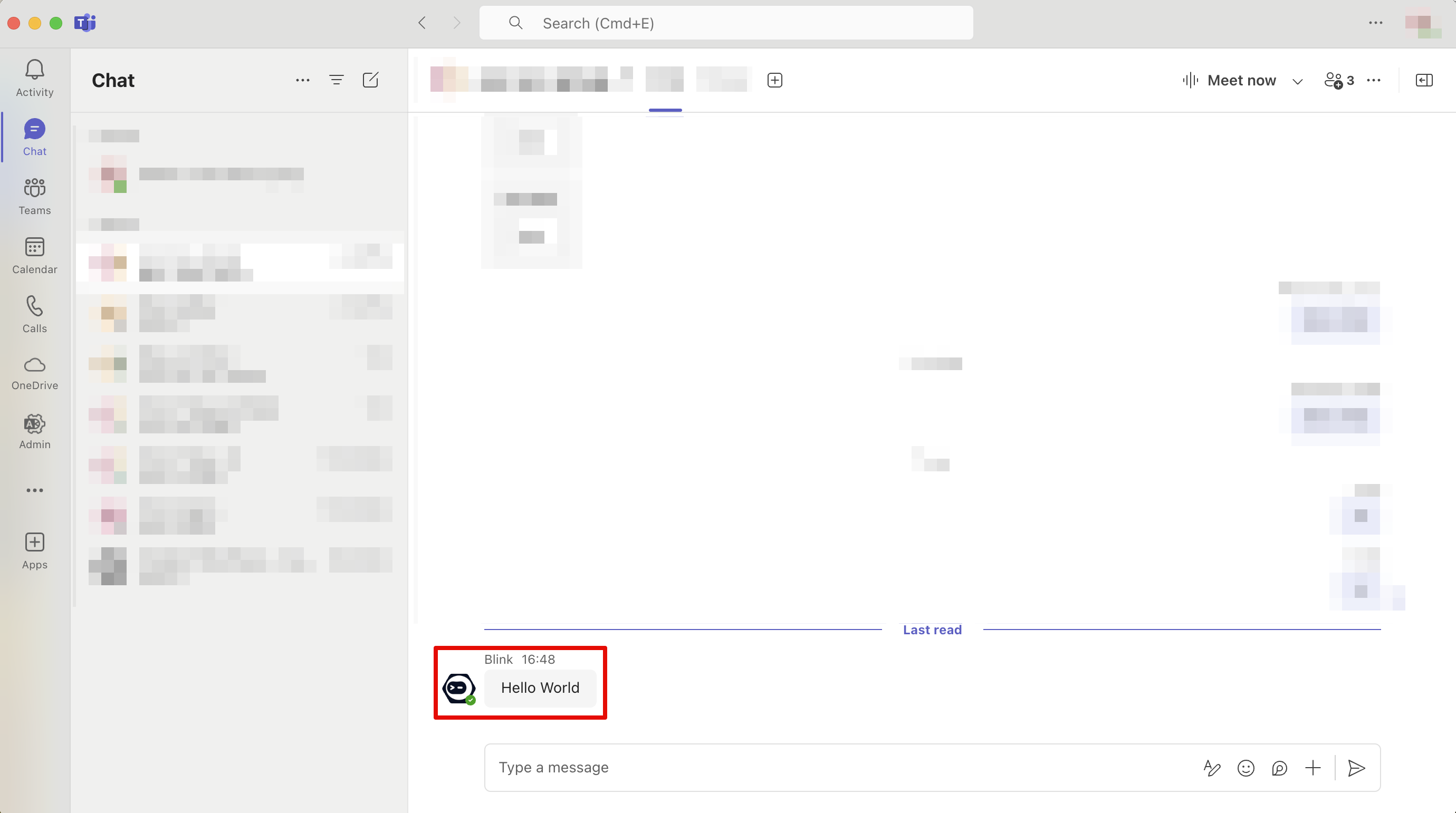
A message sent from the Blink Teams bot will be displayed as shown below:
 ## Parameters
| Parameter | Description | |
| - | - | - |
| Send To | Choose the message's destination. | |
| User Emails | List of users to send the message to in a group chat. | |
| Team ID | The ID of the team. Can be obtained by using the `List All Teams` action. | |
| Channel ID | The ID of the channel to send the message in. Can be obtained by using the `List Channels` action. | |
| Thread Message ID (optional) | The ID of the root message in the channel thread to reply to. Only available when **Send To** is set to **Channel**. | |
| Chat ID | The ID of the chat to send the message in. Can be obtained by using the List Chats action. `Note`: The dynamic dropdown is supported only for **OAuth** (delegated) connections. | |
| Message Type | Choose the message type. | |
| Message | The message to be sent. | |
| Card JSON | The message to be sent. | A JSON representation of the MS Teams card to send. **Note**: Your card cannot contain interactive components (inputs). If you need to include inputs, use the `Teams Interactivity` action instead. |
This documentation is built and hosted on [Mintlify](https://mintlify.com), a developer documentation platform.