> ## Documentation Index
> Fetch the complete documentation index at: https://docs.blinkops.com/llms.txt
> Use this file to discover all available pages before exploring further.
# Slack
> Slack is a messaging app for business that connects people to the information they need.
## Creating a Slack connection
Create the connection by using one of the following methods:
* [Bot for Slack](#using-bot-for-slack)
* [Slack User](#using-slack-user)
* [Connect using a new application](#connecting-using-a-new-application)
* [Link connection to a specific channels](#link-connection-to-a-specific-channel)
## Using Bot for Slack
The following scopes are used by the **Bot for Slack** connection:
* `channels:manage`
* `channels:read`
* `chat:write`
* `files:write`
* `groups:write`
* `im:read`
* `im:write`
* `mpim:write`
* `reactions:write`
* `team:read`
* `usergroups:write`
* `users.profile:read`
* `users:read`
* `users:read.email`
### Creating your connection
1. In the Blink platform, navigate to the **Connections** page > **Add connection**. A New Connection dialog box opens displaying icons of external service providers available.
2. Select the **Slack** icon. A dialog box with name of the connection and connection methods appears.
3. (Optional) Edit the name of the connection. At a later stage you cannot edit the name.
4. Click **Bot for Slack** to authenticate using OAuth.
5. Sign in using your credentials.
6. To configure access to specific channels for your Slack connection, click [here](#link-connection-to-a-specific-channel).
## Using Slack User
The following scopes are used by the **Slack User** connection:
* `channels:read`
* `channels:write`
* `chat:write`
* `files:write`
* `groups:write`
* `im:read`
* `im:write`
* `mpim:write`
* `reactions:write`
* `team:read`
* `usergroups:write`
* `users:read`
* `users:read.email`
* `users.profile:read`
### Creating your connection
1. In the Blink platform, navigate to the **Connections** page > **Add connection**. A New Connection dialog box opens displaying icons of external service providers available.
2. Select the **Slack** icon. A dialog box with name of the connection and connection methods appear.
3. (Optional) Edit the name of the connection. At a later stage you cannot edit the name.
4. Select **Slack User** as the method to create the connection.
5. Fill in the parameters:
6. (Optional) Click **Test Connection** to test it.
7. Click **Create connection**. The new connection appears on the **Connections** page.
## Connecting using a new application
**This kind of Slack connection should not be used with Ask a Question via Slack steps.**
To create the connection you need:
* A token
### Obtaining the credentials
1. Go to [Slack API: Applications](https://api.slack.com/apps).
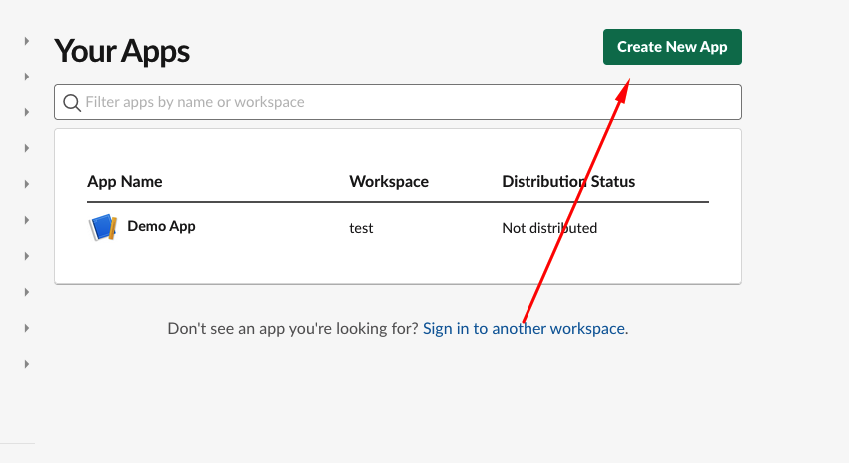
2. Click **Create New App**.
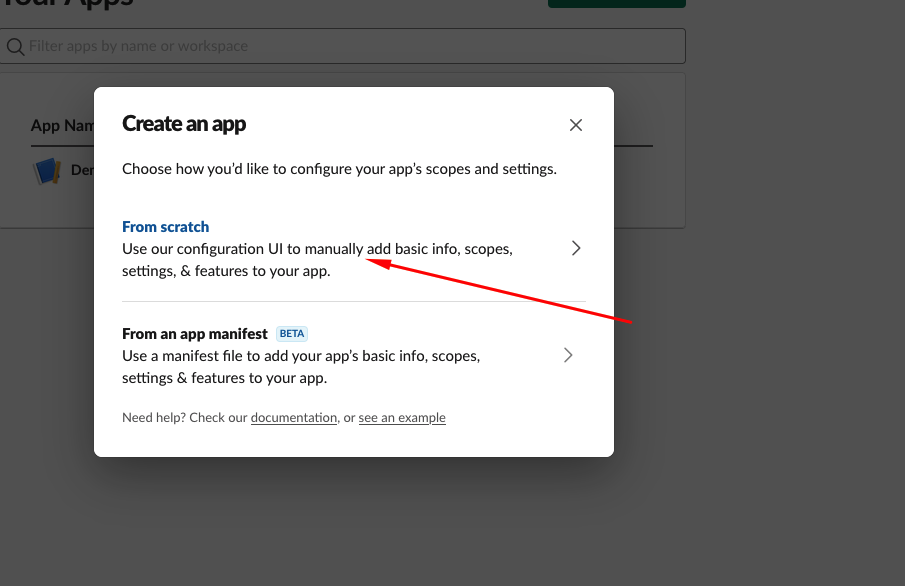
 3. Select **From scratch**.
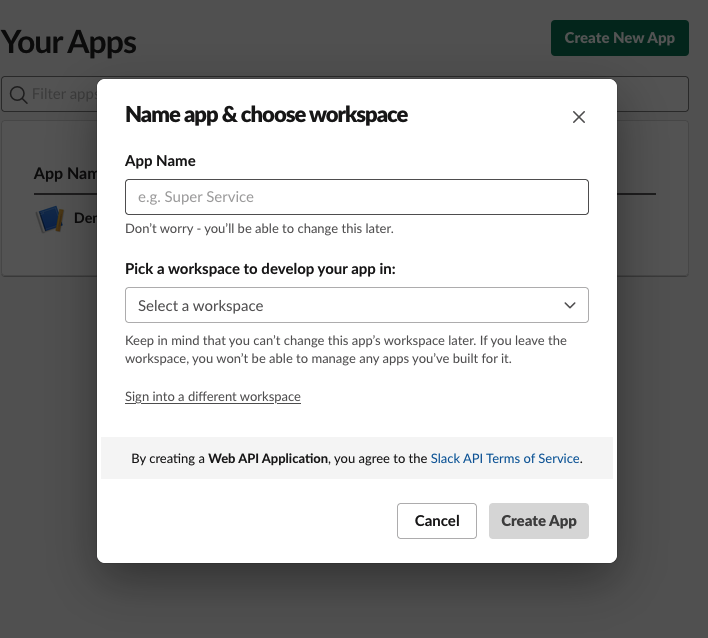
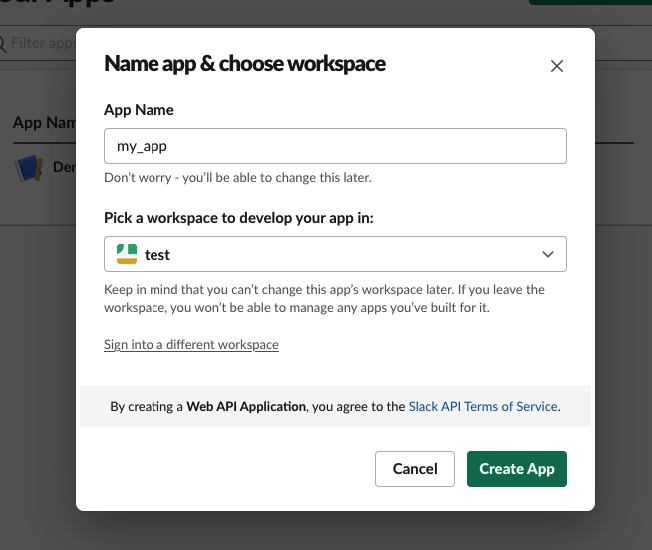
 4. Fill out your **App name** and **workspace** > **Create App**.
 5. Select **OAuth and permissions**.
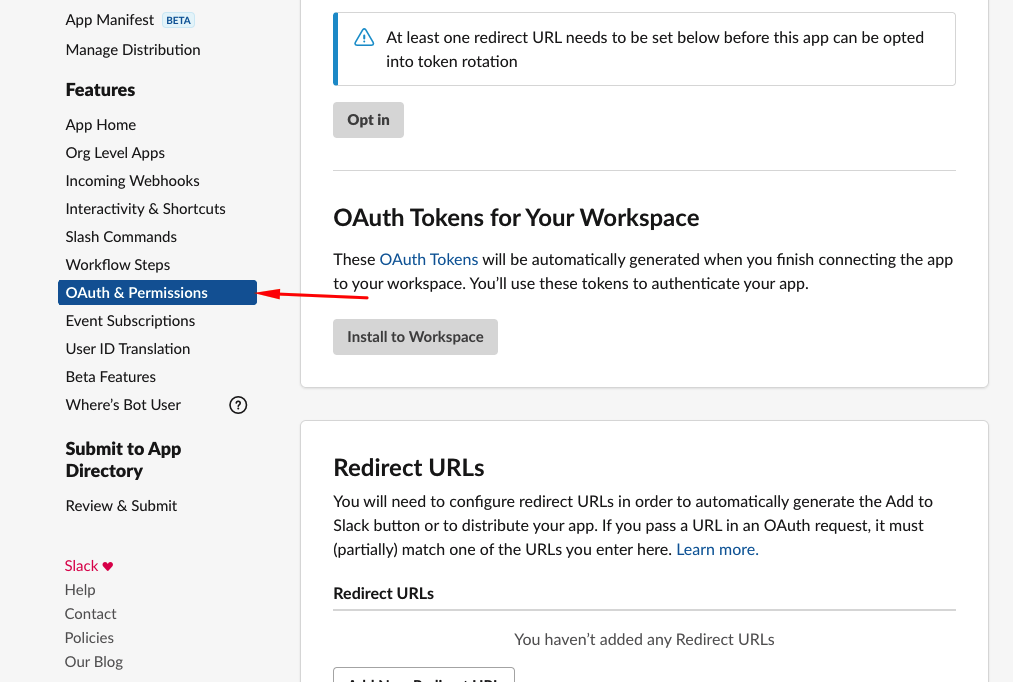 6. Navigate to **Scopes**.
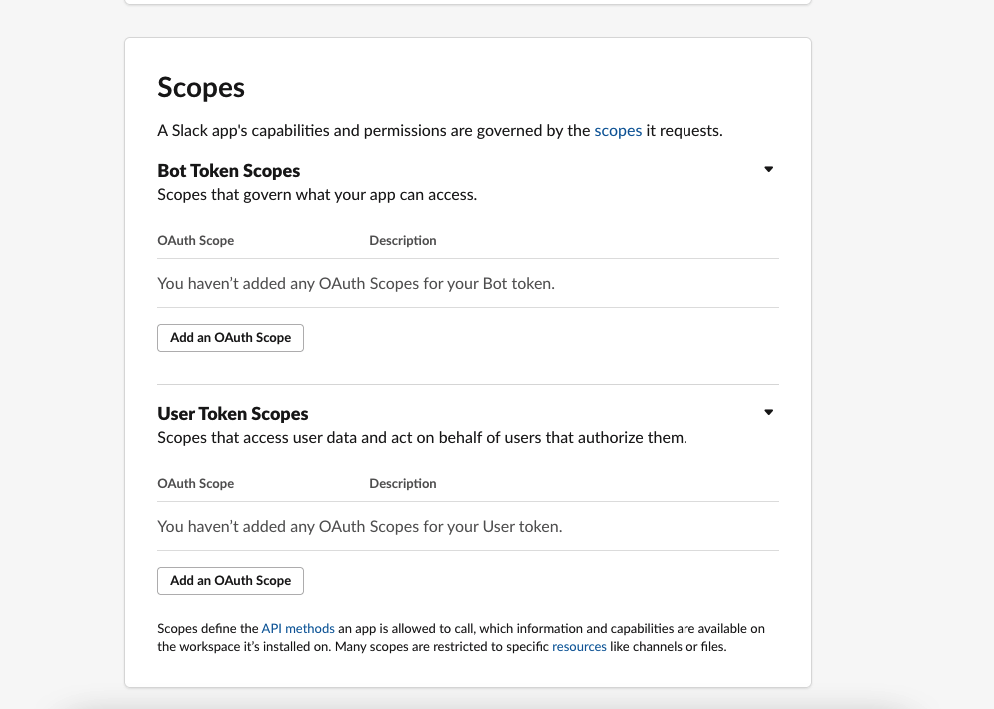 7. Add the following scopes for your application:
**Bot Token Scopes:**
```
- channels:manage- channels:read- chat:write- files:write- groups:read- groups:write- im:read- im:write- mpim:read- mpim:write- reactions:write- team:read- users:read- users:read.email
```
8. Click **Install App**.
7. Add the following scopes for your application:
**Bot Token Scopes:**
```
- channels:manage- channels:read- chat:write- files:write- groups:read- groups:write- im:read- im:write- mpim:read- mpim:write- reactions:write- team:read- users:read- users:read.email
```
8. Click **Install App**.
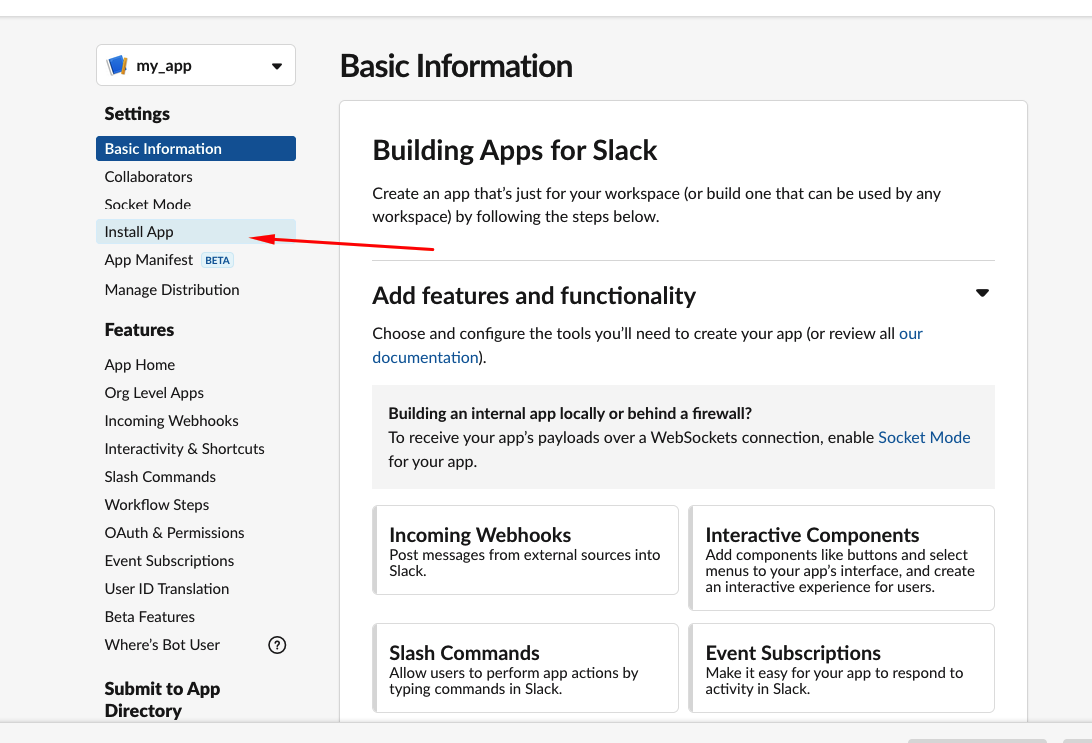 9. Click **Install to Workspace**.
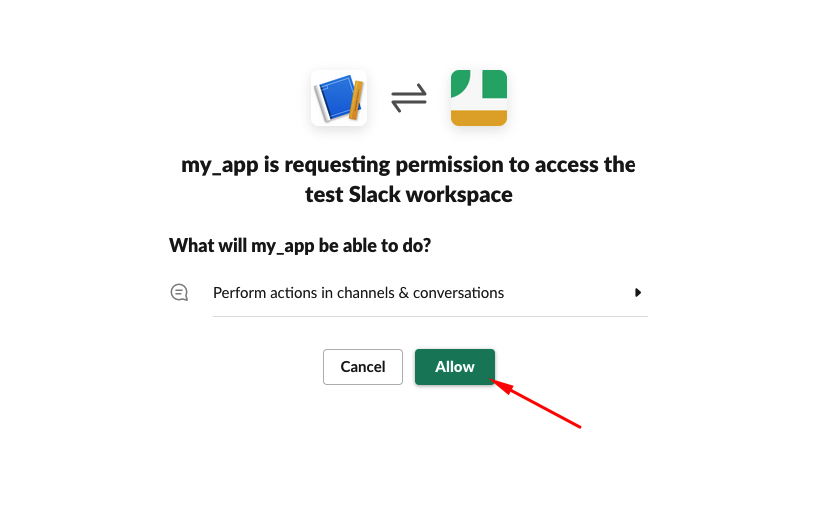
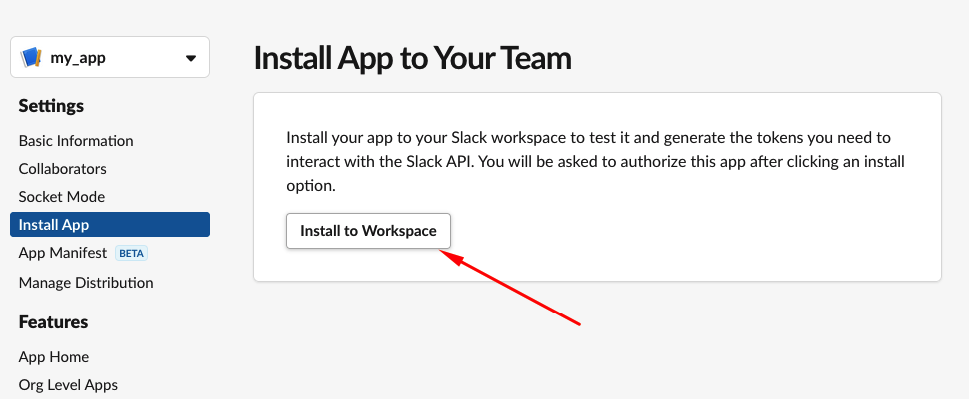 10. **my\_app is requesting permission to access the test Slack workspace** dialog window appears > **Allow**.
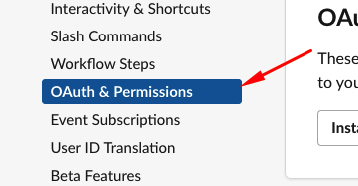
 11. Return to **OAuth & permissions**.
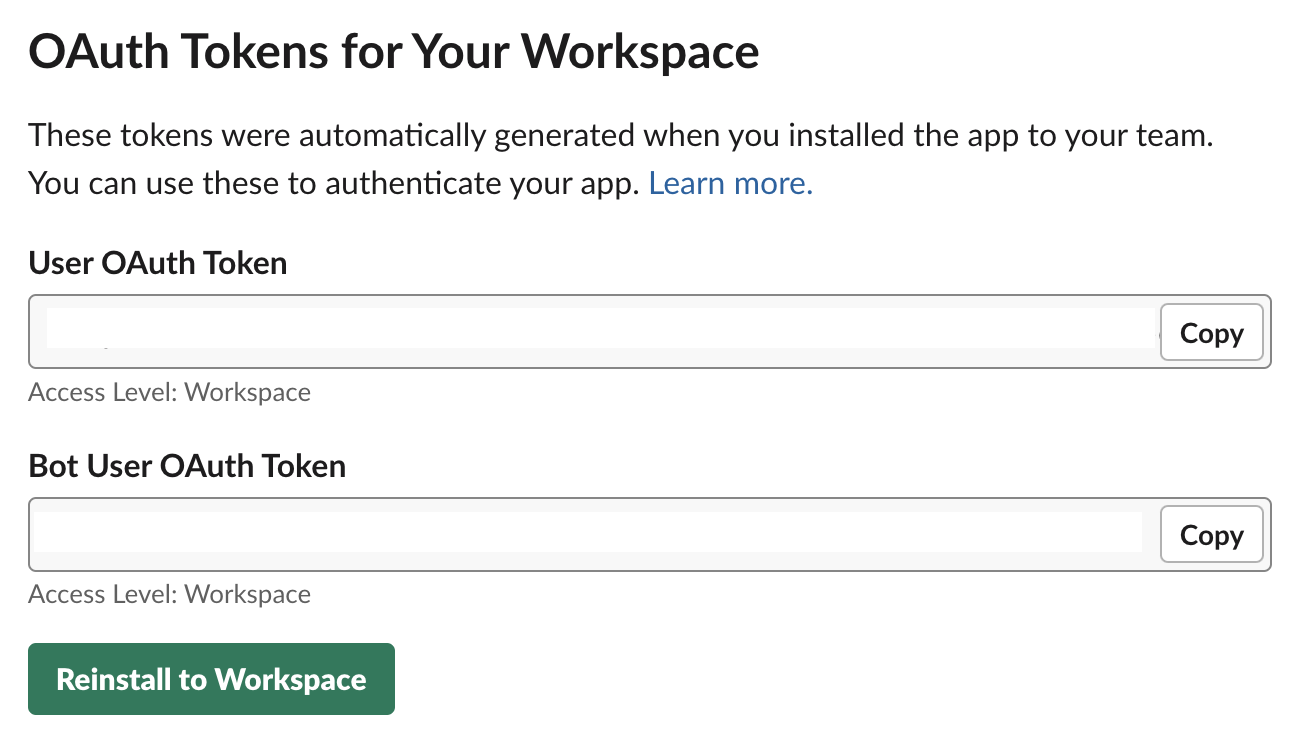
 12. Copy your token.
There are two types of tokens: A "User OAuth Token" & A "Bot User OAuth
Token". We recommend using the Bot User OAuth Token in most cases, but
there are a few exception, such as the "Set User Profile" action.
12. Copy your token.
There are two types of tokens: A "User OAuth Token" & A "Bot User OAuth
Token". We recommend using the Bot User OAuth Token in most cases, but
there are a few exception, such as the "Set User Profile" action.
 ### Creating your connection
1. In the Blink platform, navigate to the **Connections** page > **Add connection**. A New Connection dialog box opens displaying icons of external service providers available.
2. Select the **Slack** icon. A dialog box with name of the connection and connection methods appears.
3. (Optional) Edit the name of the connection. At a later stage you cannot edit the name.
4. Select **Token** as the method to create the connection.
5. Fill in the parameters:
* Token
6. (Optional) Click **Test Connection** to test it.
7. Click **Create connection**. The new connection appears on the **Connections** page.
## Link connection to a specific channel
To communicate with an existing Slack channel you have to invite your app to join from Slack.
To invite your app to the channel, follow one of the following options:
1. **Slack message** Go to Slack application, and in the desired channel send the following message:
```
/invite @ # For Blink OAuth, AppName will be Blink
```
2. **Slack UI**
1. Select a specific channel > click the channel name.
2. On the **Integrations** tab > **Add apps**.
3. Choose the app from the apps list (For Blink OAuth, app name will be Blink).
3. **Slack app scope** Add [chat:write.public](https://api.slack.com/scopes/chat:write.public) scope to your application.
### Creating your connection
1. In the Blink platform, navigate to the **Connections** page > **Add connection**. A New Connection dialog box opens displaying icons of external service providers available.
2. Select the **Slack** icon. A dialog box with name of the connection and connection methods appears.
3. (Optional) Edit the name of the connection. At a later stage you cannot edit the name.
4. Select **Token** as the method to create the connection.
5. Fill in the parameters:
* Token
6. (Optional) Click **Test Connection** to test it.
7. Click **Create connection**. The new connection appears on the **Connections** page.
## Link connection to a specific channel
To communicate with an existing Slack channel you have to invite your app to join from Slack.
To invite your app to the channel, follow one of the following options:
1. **Slack message** Go to Slack application, and in the desired channel send the following message:
```
/invite @ # For Blink OAuth, AppName will be Blink
```
2. **Slack UI**
1. Select a specific channel > click the channel name.
2. On the **Integrations** tab > **Add apps**.
3. Choose the app from the apps list (For Blink OAuth, app name will be Blink).
3. **Slack app scope** Add [chat:write.public](https://api.slack.com/scopes/chat:write.public) scope to your application.