> ## Documentation Index
> Fetch the complete documentation index at: https://docs.blinkops.com/llms.txt
> Use this file to discover all available pages before exploring further.

# Ask a Question via Slack

## Ask a Question via Slack

The *"Ask a Question via Slack"* action integrates the Blink Bot (part of the Blink app) into your workspace, allowing you to perform common Slack actions within your workflows and triggers. Questions from Blink to Slack are sent through this bot.

This action allows you to send a question to specific users or channels in Slack with configurable response options. It receives the selected answer(s) and lets you reference them in later steps of your workflow.

<Tip>The **Blink Bot** is named **Blink** by default and displays the Blink logo.</Tip>

***

## Creating a Workflow Using the *Ask a Question via Slack* Action

### Add Blink Slack Bot to Your Slack Account

<Steps>
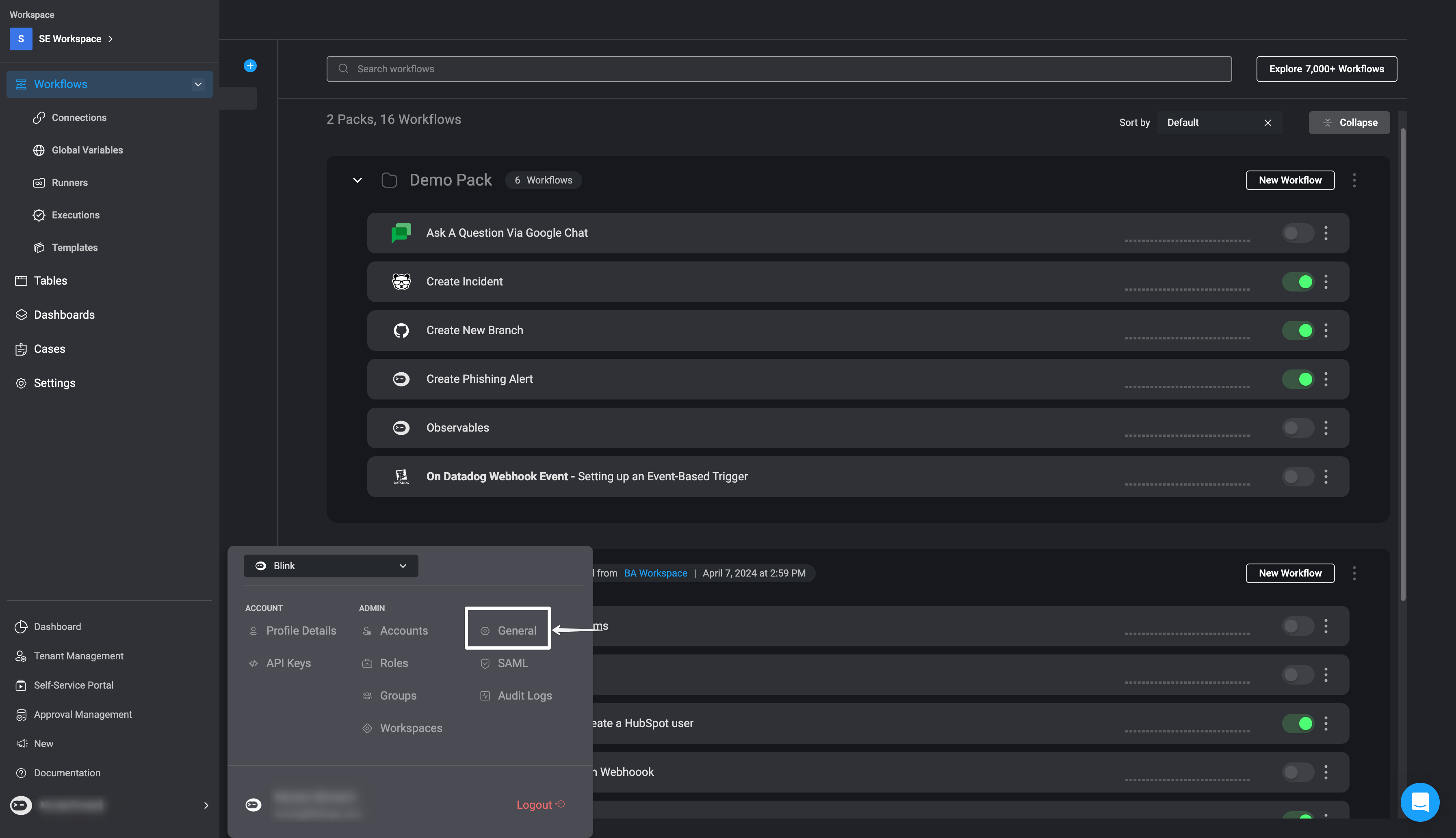
  <Step title="Open General Settings">
    Set up the [Blink Slack Bot](/docs/blink-platform/blink-portal/team-slackbot) by clicking your username in the bottom-left corner and navigating to **General** settings.

    <Frame>
      <img src="https://mintcdn.com/blinkops-2/LiDiL34PEmIGHJGK/img/Actions/ZoomConnectionSetup.png?fit=max&auto=format&n=LiDiL34PEmIGHJGK&q=85&s=a1edd6e41eb0cd32e29d7dbe89b2b956" width="3584" height="2064" data-path="img/Actions/ZoomConnectionSetup.png" />
    </Frame>
  </Step>

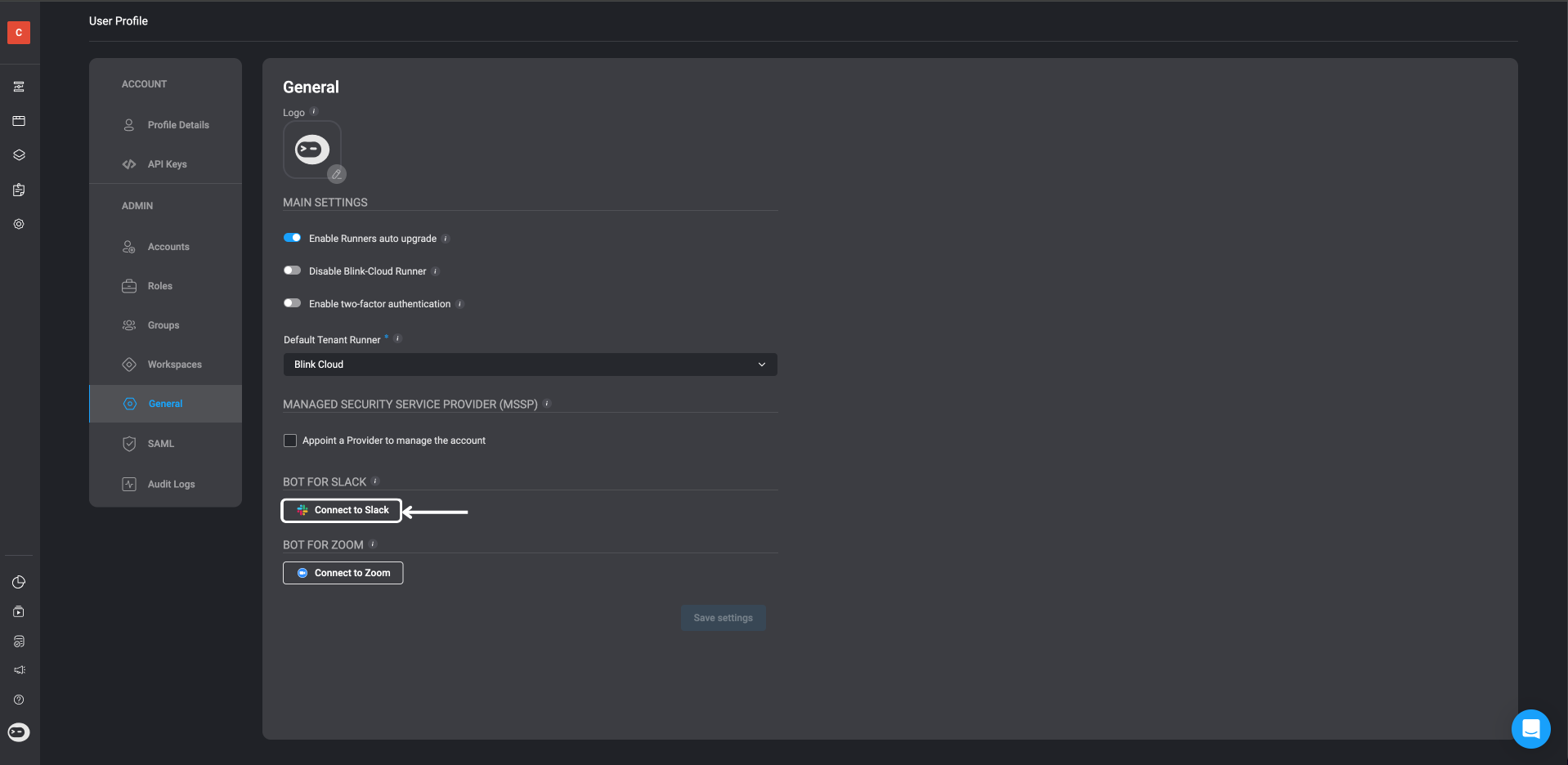
  <Step title="Connect Blink to Slack">
    In the General Settings, click the 'Connect to Slack' button.

    <Frame>
      <img src="https://mintcdn.com/blinkops-2/-eoT09amno25RB5l/img/Actions/GenralSettingsSlack.png?fit=max&auto=format&n=-eoT09amno25RB5l&q=85&s=125be4457593f63e113b32880b4c976c" width="1918" height="936" data-path="img/Actions/GenralSettingsSlack.png" />
    </Frame>
  </Step>

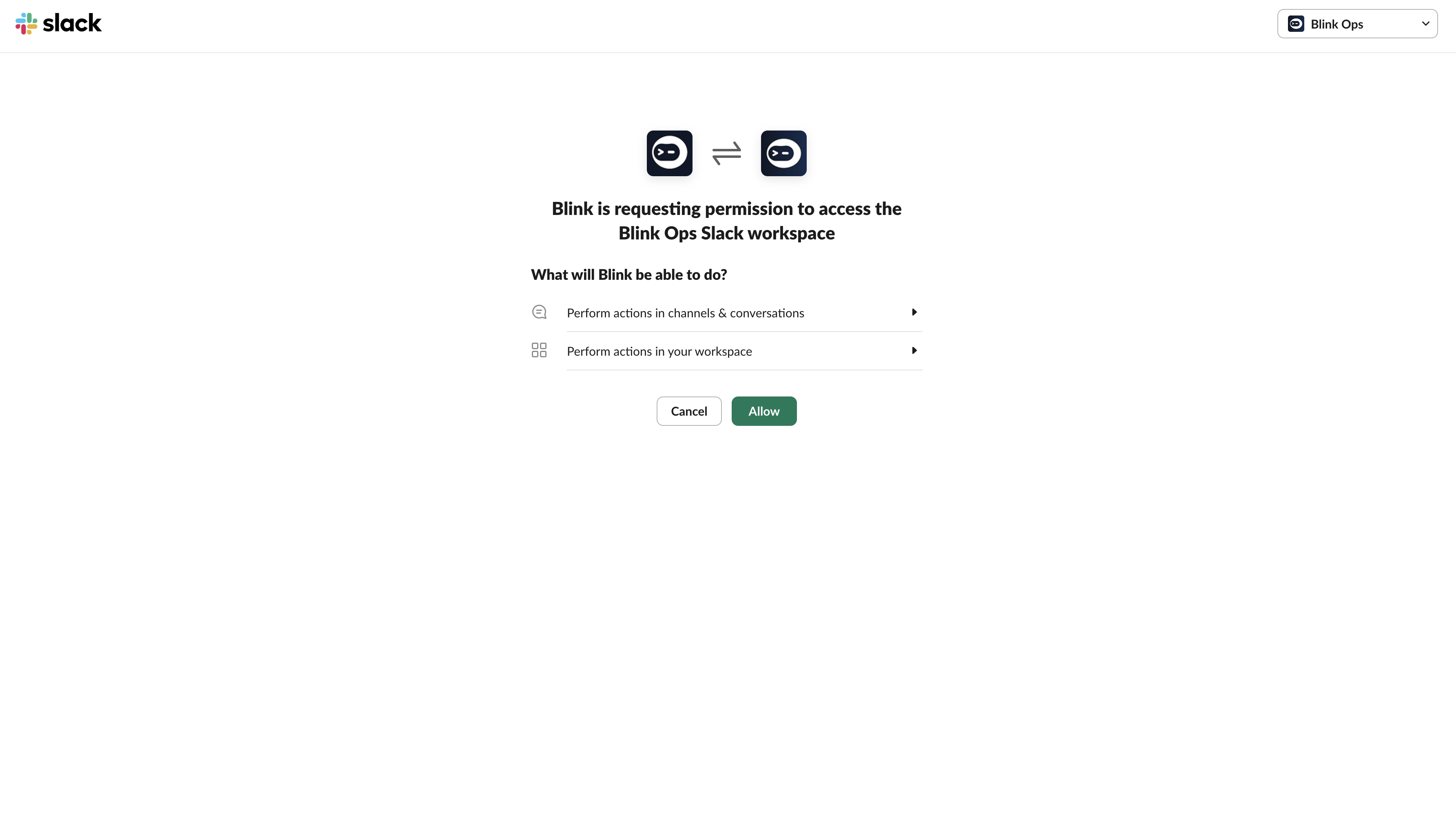
  <Step title="Grant Slack Permissions">
    A dialog window will open asking for permissions: **"Blink is requesting permission to access the Blink Ops Slack Workspace."**

    <Frame>
      <img src="https://mintcdn.com/blinkops-2/deay2AiePWJDKGEh/img/Actions/SlackAccessPermissions.png?fit=max&auto=format&n=deay2AiePWJDKGEh&q=85&s=a0ddaf29609018280a18756eb8ccfeb6" width="3570" height="2052" data-path="img/Actions/SlackAccessPermissions.png" />
    </Frame>
  </Step>

  <Step title="Confirm Slack Integration">
    Click 'Allow'. Once confirmed, your account will display as 'Connected to Slack'.
  </Step>
</Steps>

***

### Navigate to the Blink Platform

<Steps>
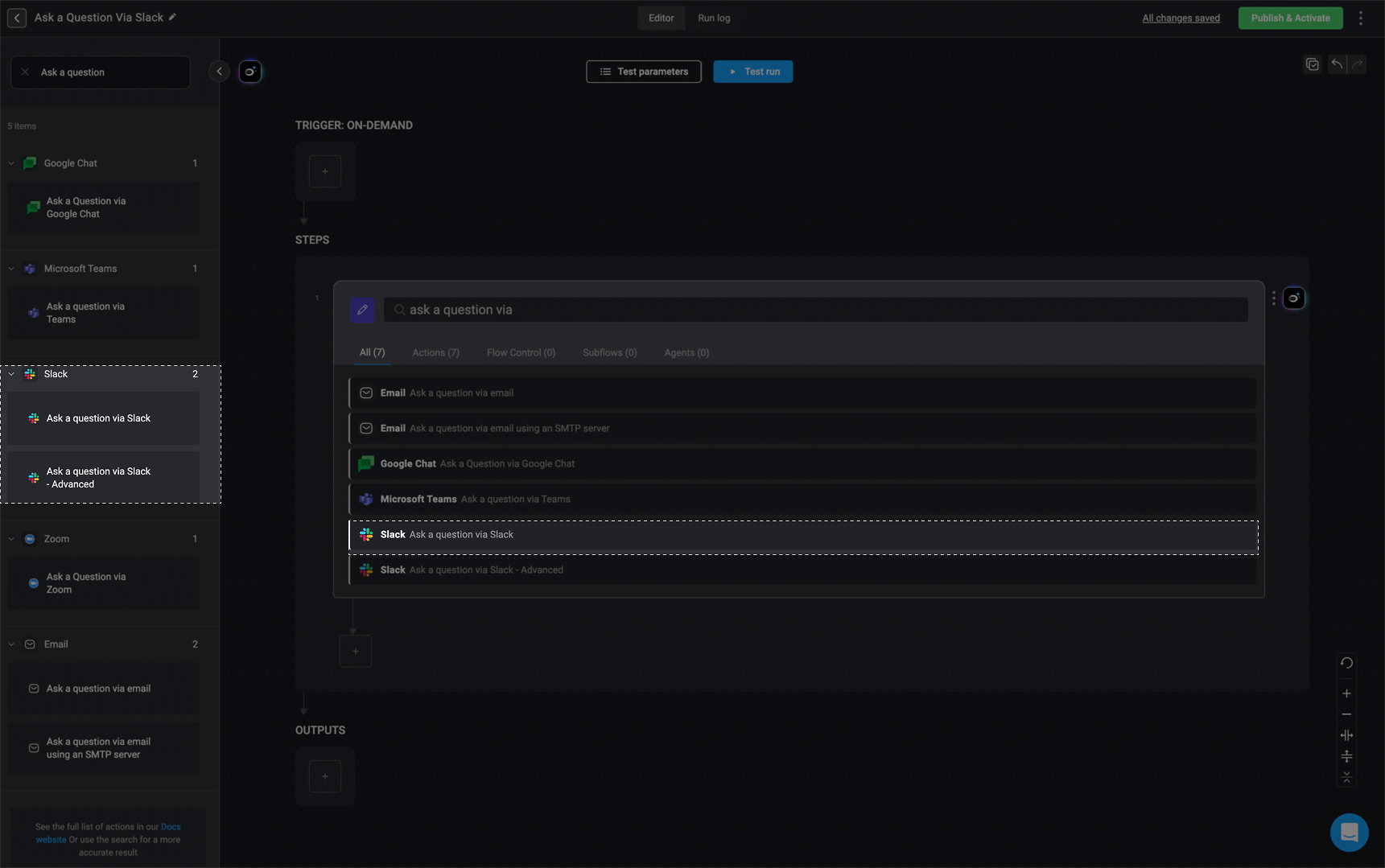
  <Step title="Add 'Ask a Question via Slack' Action">
    In the Workflow Editor, open the inline action panel and search for the *"Ask a Question via Slack"* action. Alternatively, drag the action into the step.

    <Frame>
      <img src="https://mintcdn.com/blinkops-2/3_6WnkGGmnkZFzEe/img/Actions/QuestionViaSlack.png?fit=max&auto=format&n=3_6WnkGGmnkZFzEe&q=85&s=f0b554af482e3075e456c0e6e46d3bd3" width="1721" height="1079" data-path="img/Actions/QuestionViaSlack.png" />
    </Frame>
  </Step>

  <Step title="Configure Action Parameters">
    Enter the following parameters in your step:

    <div className="integrations-block">
      | Parameter                                    | Description                                                            |
      | -------------------------------------------- | ---------------------------------------------------------------------- |
      | To                                           | The recipient's email address or the name of a Slack channel.          |
      | Question                                     | The question to be answered.                                           |
      | Answers                                      | Possible answers separated by commas.                                  |
      | Response message                             | Message the recipient will receive after responding.                   |
      | Thread timestamp (only if sent to a channel) | The channel’s timestamp.                                               |
      | Keep question after user response            | Retains the question and the response in the channel after submission. |
      | Include user info                            | Includes the user's info with their response.                          |
      | Add Answer in free text                      | Allows recipient to enter a free-text answer.                          |
      | Timeout in minutes (optional)                | The time limit for the recipient to respond.                           |
      | Default timeout response (optional)          | The fallback response if the user does not reply before the timeout.   |
    </div>
  </Step>

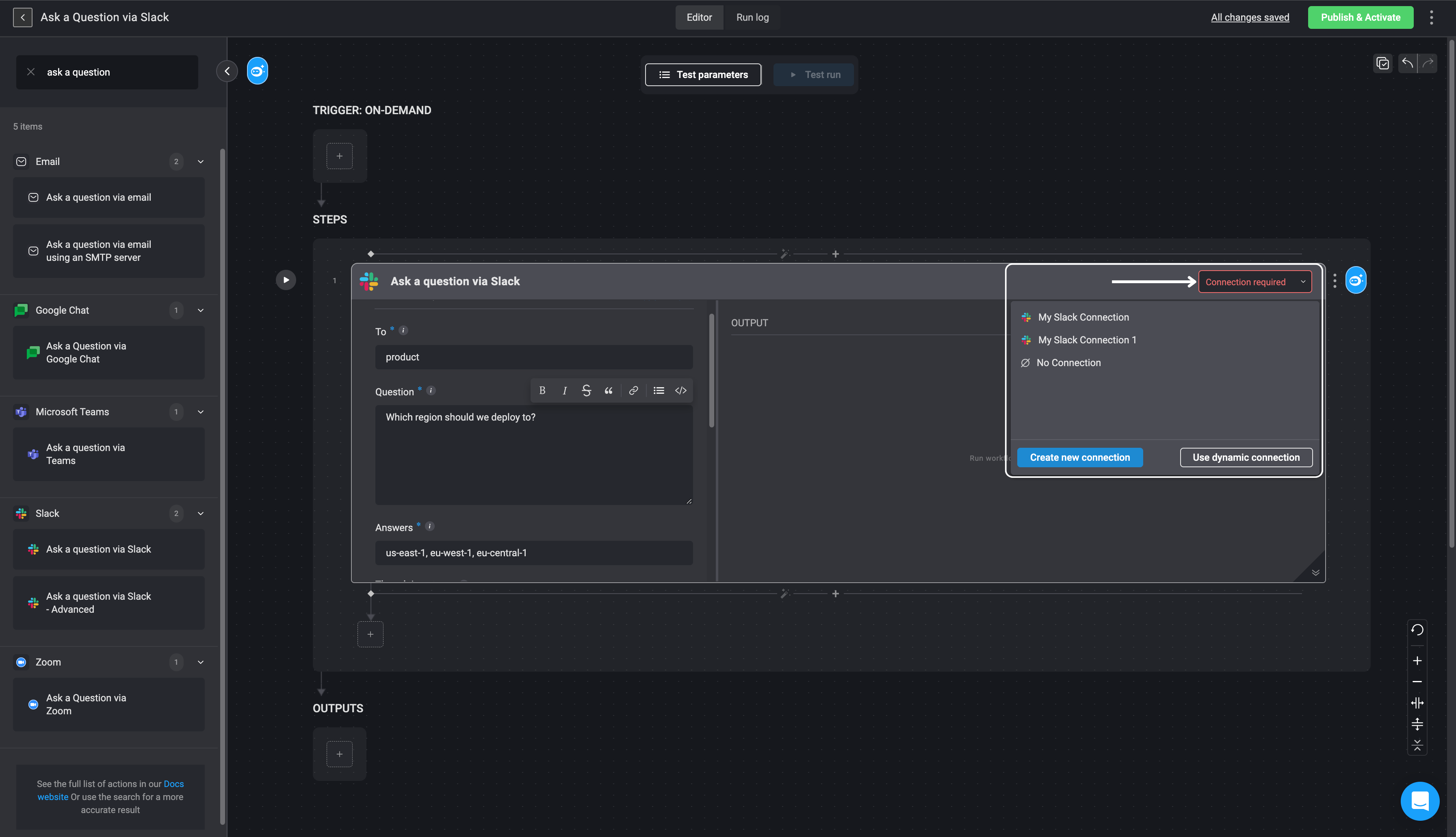
  <Step title="Create or Select Slack Connection">
    Click ***Connection required*** in the top-right corner of your Step.
    If a Slack connection already exists, select it from the list.
    Otherwise, click to create a new one by selecting **Slack connection** and follow the instructions in the [Slack connection guideline](/docs/integrations/slack/actions/ask-a-question-via-slack).
    Once complete, click **Create connection**.

    <Frame>
      <img src="https://mintcdn.com/blinkops-2/deay2AiePWJDKGEh/img/Actions/SlackQuestionConnection.png?fit=max&auto=format&n=deay2AiePWJDKGEh&q=85&s=4c3c96a47b4ba2f05b225f66052ac9d8" width="3584" height="2060" data-path="img/Actions/SlackQuestionConnection.png" />
    </Frame>
  </Step>

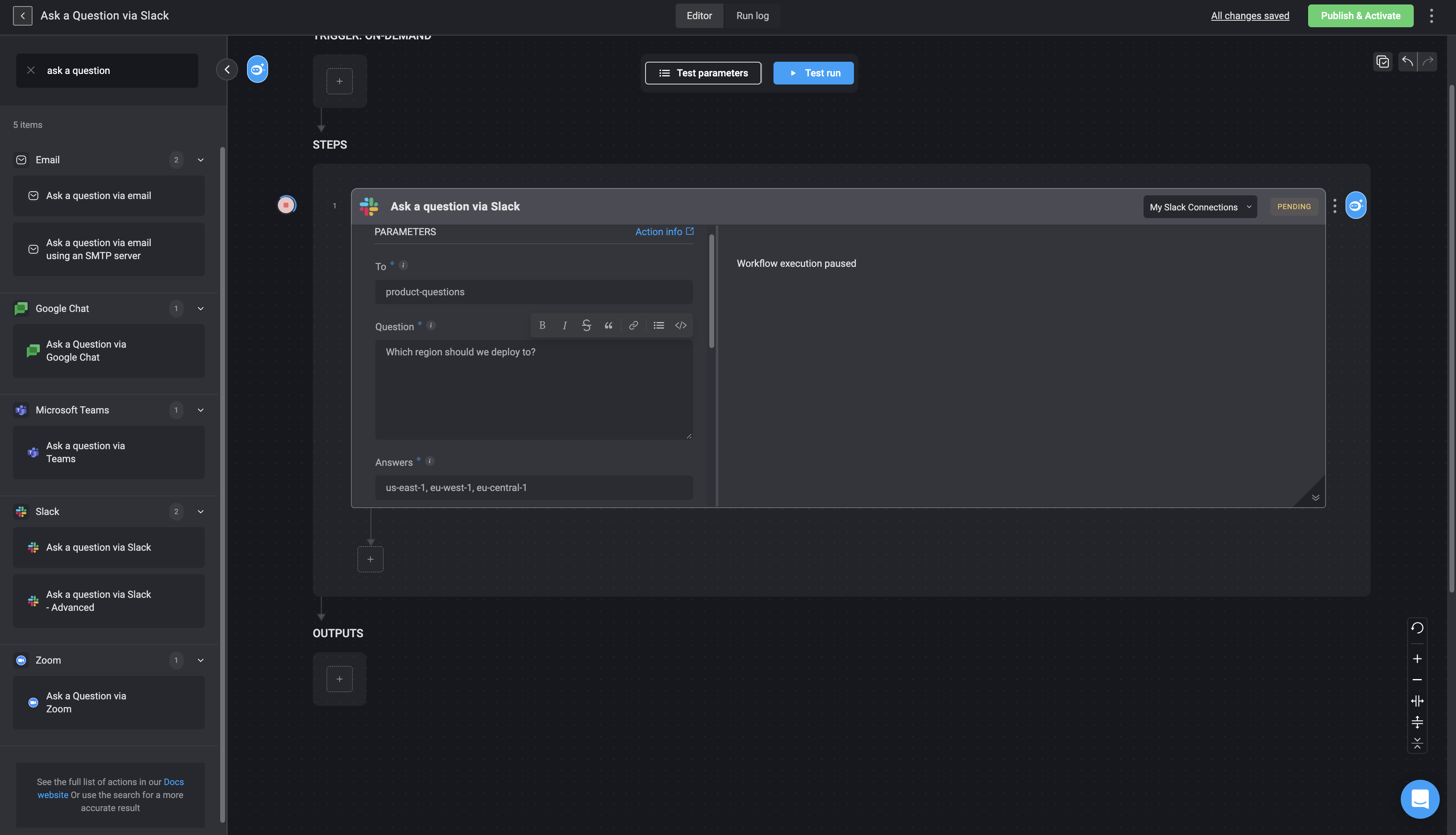
  <Step title="Run the Workflow to Send the Question">
    Proceed by running your Workflow to send the question to Slack.

    <Note>
      While the user is waiting for a response, the Step output will display *Workflow execution paused*. The recipient will receive a Slack notification, answer the question, and the Workflow will continue based on their response.
    </Note>

    <Frame>
      <img src="https://mintcdn.com/blinkops-2/LiDiL34PEmIGHJGK/img/Actions/questionslack.png?fit=max&auto=format&n=LiDiL34PEmIGHJGK&q=85&s=8a11152769c68bd1e72f3ad118c1f3de" width="3584" height="2056" data-path="img/Actions/questionslack.png" />
    </Frame>
  </Step>

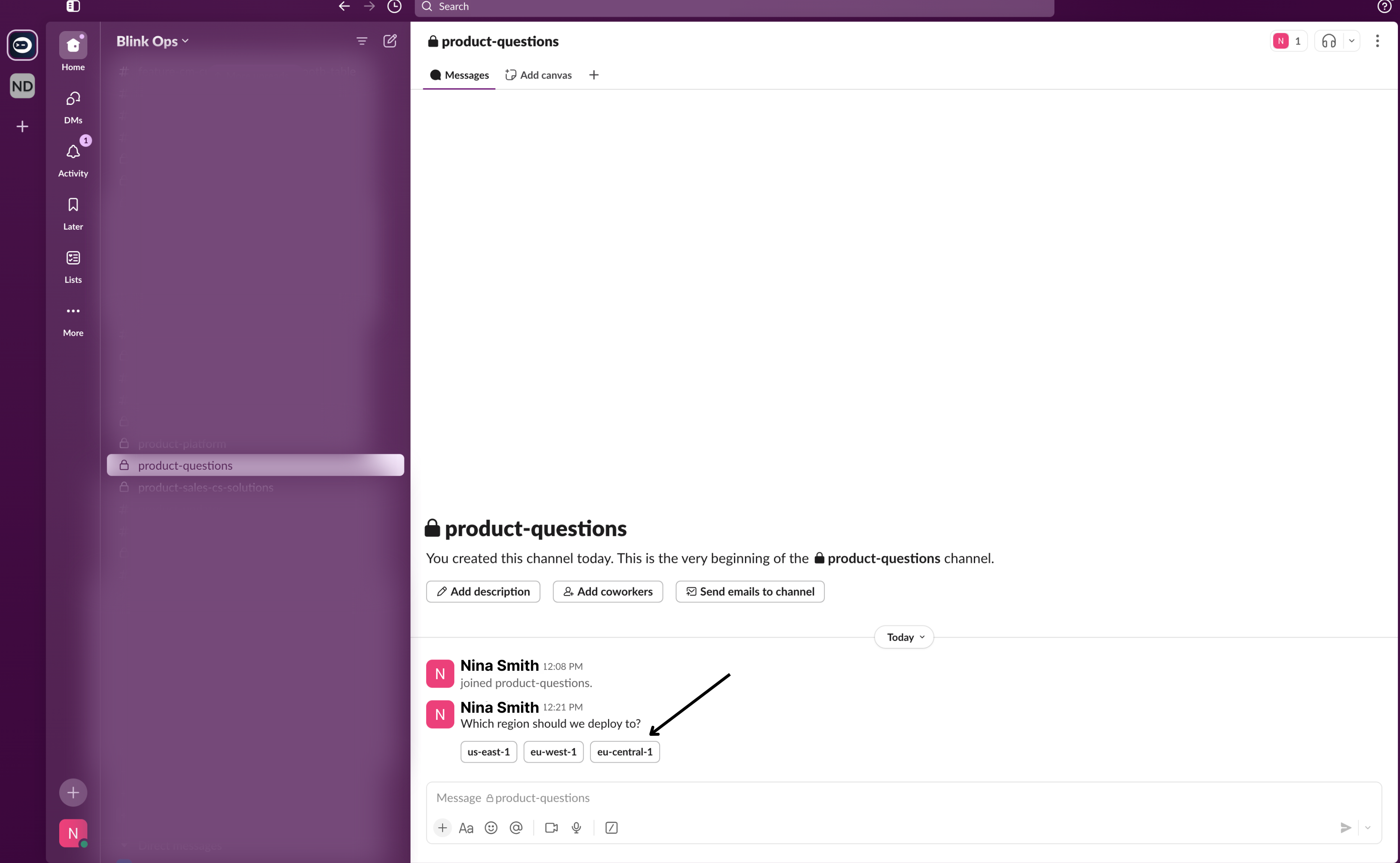
  <Step title="Question Appears in Slack">
    Your question will now be visible in the recipient’s Slack interface.

    <Frame>
      <img src="https://mintcdn.com/blinkops-2/LiDiL34PEmIGHJGK/img/Actions/questionslackview.png?fit=max&auto=format&n=LiDiL34PEmIGHJGK&q=85&s=60603767954cbbc3a239bd41f0190e25" width="3334" height="2056" data-path="img/Actions/questionslackview.png" />
    </Frame>
  </Step>

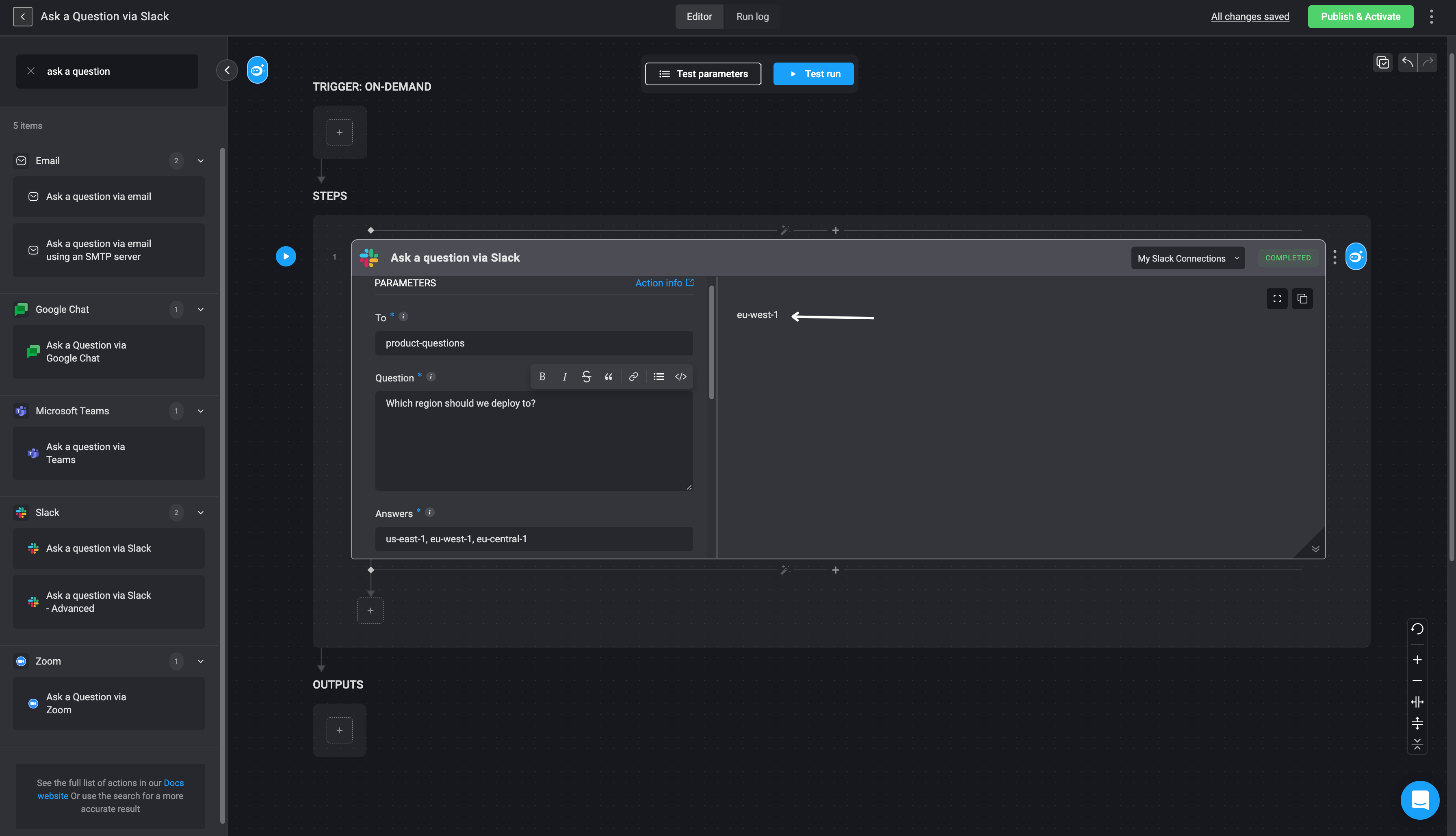
  <Step title="View the Slack Response in the Workflow">
    Navigate back to your Workflow to view the response received from Slack in the step output.

    <Note>If the recipient does not respond before the timeout expires, the Workflow will use the **default timeout response**.</Note>

    <Frame>
      <img src="https://mintcdn.com/blinkops-2/LiDiL34PEmIGHJGK/img/Actions/slackresponse.png?fit=max&auto=format&n=LiDiL34PEmIGHJGK&q=85&s=e503708b4783abfe36c10ebe58e1165f" width="3584" height="2058" data-path="img/Actions/slackresponse.png" />
    </Frame>
  </Step>
</Steps>

***

## Ask a Question via Slack — Advanced

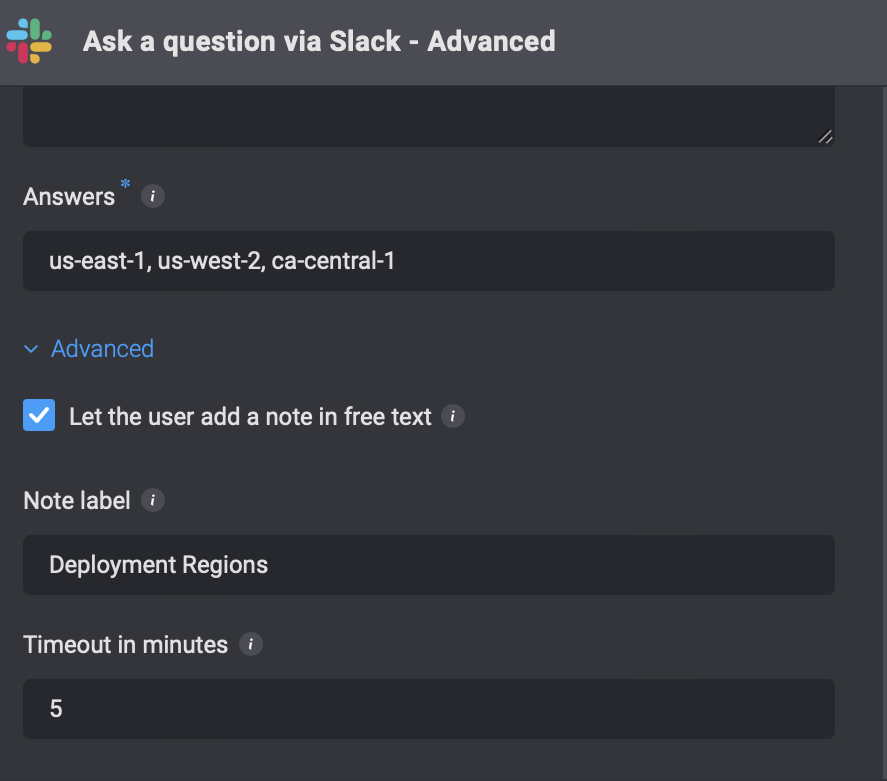
The advanced version of ***Ask a Question via Slack*** functions exactly like the standard version but includes additional fields for capturing structured responses.

<Frame>
  <img src="https://mintcdn.com/blinkops-2/deay2AiePWJDKGEh/img/Actions/Slack-Questions-Advanced.png?fit=max&auto=format&n=deay2AiePWJDKGEh&q=85&s=fe68e6423909e4abaf2bc876398b9824" width="887" height="781" data-path="img/Actions/Slack-Questions-Advanced.png" />
</Frame>

<Note>
  * The `answer` value will be found at:
    `{{steps.Sn.output.values.answer}}`

  * The optional `reason` field, if included and filled by the recipient, will be found at:
    `{{steps.Sn.output.values.reason}}`
</Note>

***