> ## Documentation Index
> Fetch the complete documentation index at: https://docs.blinkops.com/llms.txt
> Use this file to discover all available pages before exploring further.
# Run Container Actions
> Run Container Actions enables the user to run its own container with a provided command.
This action enables the user to run its own container with a provided command.
The user can pass environment variables to the container so they are mapped. Blink supports running a container which is hosted on a public registry.
This action is not supported on Blink Cloud Runner.
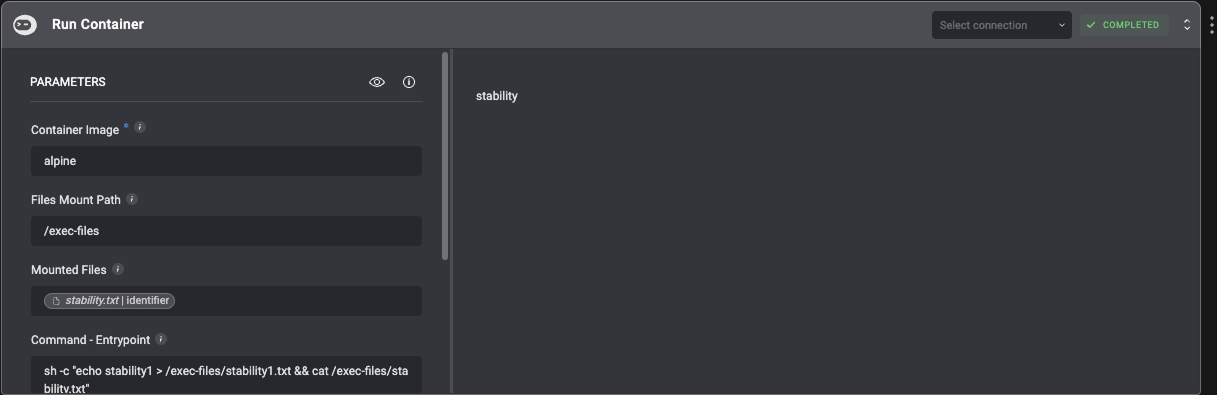
Proceed by filling in the following parameters:
| Parameter | Description |
| ------------------------- | -------------------------------------------------------------------------------------------------- |
| **Container Image** | The name of the container image |
| **Mount Path** | Path on the container to mount and write persistent execution files |
| **Mounted Files** | A comma-separated list of file identifiers to mount on the container |
| **Command - Entrypoint** | The command will be used for running the container entry point |
| **Environment Variables** | Key-value pairs that define environment variables to be passed to the query execution environment. |
 ### Kubernetes Runner
Running a container on Kubernetes Runner creates a job with a Pod Spec that contains the provided image, command, and environment variables. The job is executed before the step timeout is reached and returns the logs back to the user. When running a container image stored on a private registry, provide the Registry Credentials, and the runner will create Kubernetes secrets to use as `ImagePullSecrets` for the pod to be able to pull the image.
### Docker Runner
Running a container on Docker Runner deploys a container with the provided command and environment variables attached to it. The container stays alive until it finishes executing the command, or step timeout is reached. When running a container image stored on a private registry, provide the Registry Credentials, the runner will pull the image using credentials before running the container.
## Using images from private repositories
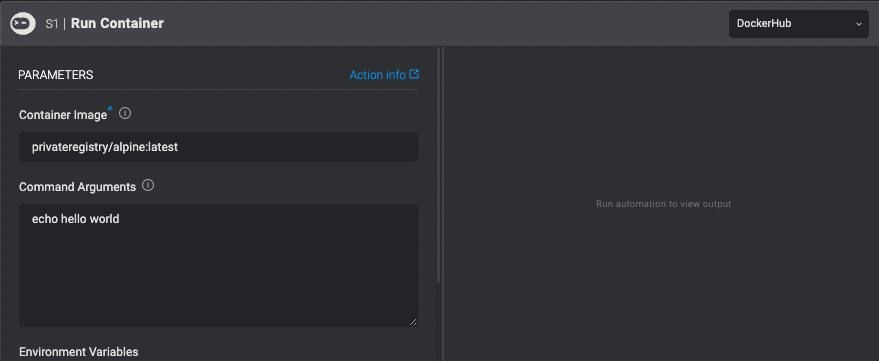
Use images from private repositories by defining a connection to an external repo.
1. Click **Select connection** > **Create New Connection**.
2. Define the requested parameters.
* **Name**: Connection name
* **Connection Type**: Registry Credentials
* **Registry URL**: The URL of the private repository
* **Username**: Your private repository username
* **Password**: Your private repository password
### Kubernetes Runner
Running a container on Kubernetes Runner creates a job with a Pod Spec that contains the provided image, command, and environment variables. The job is executed before the step timeout is reached and returns the logs back to the user. When running a container image stored on a private registry, provide the Registry Credentials, and the runner will create Kubernetes secrets to use as `ImagePullSecrets` for the pod to be able to pull the image.
### Docker Runner
Running a container on Docker Runner deploys a container with the provided command and environment variables attached to it. The container stays alive until it finishes executing the command, or step timeout is reached. When running a container image stored on a private registry, provide the Registry Credentials, the runner will pull the image using credentials before running the container.
## Using images from private repositories
Use images from private repositories by defining a connection to an external repo.
1. Click **Select connection** > **Create New Connection**.
2. Define the requested parameters.
* **Name**: Connection name
* **Connection Type**: Registry Credentials
* **Registry URL**: The URL of the private repository
* **Username**: Your private repository username
* **Password**: Your private repository password
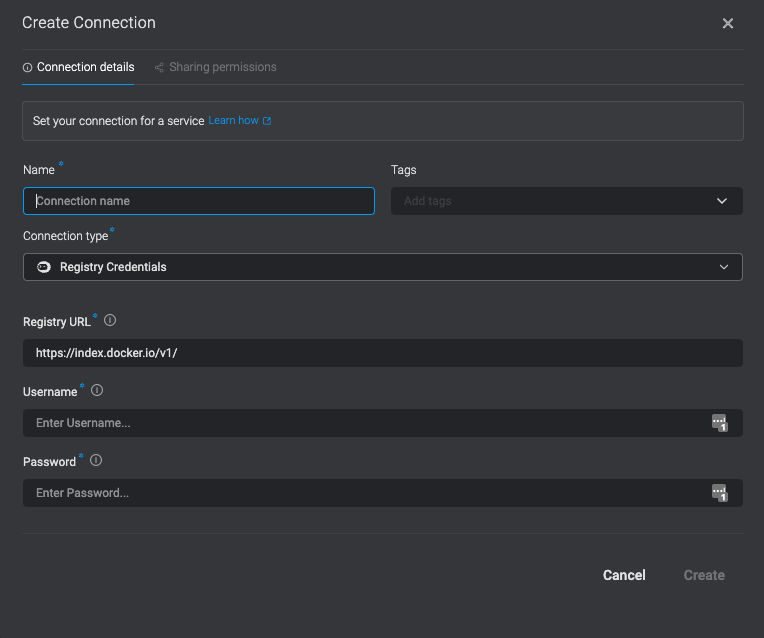 A connection is created using credentials, enabling the use of images from a private repository.
 ## Files Support
The optional *Files Mount Path* parameter sets the absolute path of a directory to which all persistent execution files are written before the container starts running (e.g. with the [Download File From A URL](/docs/workflows/building-workflows/actions/utility-actions/file-actions#download-file-from-a-url). Files can also be created/updated in this path, and all changes will be reflected in the persistent execution files (e.g, creating a new file will make that file available in subsequent steps and updating files created in previous steps will persist the updates).
To make sure that your container can indeed access the files as expected, make sure that your container is running with group id `0` (and preferably also with user id `9193`, which can be achieved by making sure that the last [user instruction](https://docs.docker.com/engine/reference/builder/#user) in your Dockerfile is `USER 9193:0`)
**INFO**
Unlike files created by other actions (e.g. with the [Download File From A URL](/docs/workflows/building-workflows/actions/utility-actions/file-actions#download-file-from-url), files created with *Run Container* actions are not available in the Variable Picker, but can still be referenced in the expression language exactly like other files using the
`get_file` function, and they have the same exact attributes (`path`, `size` and `identifier`), e.g. `{{get_file('file.txt').identifier}}`.
## Files Support
The optional *Files Mount Path* parameter sets the absolute path of a directory to which all persistent execution files are written before the container starts running (e.g. with the [Download File From A URL](/docs/workflows/building-workflows/actions/utility-actions/file-actions#download-file-from-a-url). Files can also be created/updated in this path, and all changes will be reflected in the persistent execution files (e.g, creating a new file will make that file available in subsequent steps and updating files created in previous steps will persist the updates).
To make sure that your container can indeed access the files as expected, make sure that your container is running with group id `0` (and preferably also with user id `9193`, which can be achieved by making sure that the last [user instruction](https://docs.docker.com/engine/reference/builder/#user) in your Dockerfile is `USER 9193:0`)
**INFO**
Unlike files created by other actions (e.g. with the [Download File From A URL](/docs/workflows/building-workflows/actions/utility-actions/file-actions#download-file-from-url), files created with *Run Container* actions are not available in the Variable Picker, but can still be referenced in the expression language exactly like other files using the
`get_file` function, and they have the same exact attributes (`path`, `size` and `identifier`), e.g. `{{get_file('file.txt').identifier}}`.