> ## Documentation Index
> Fetch the complete documentation index at: https://docs.blinkops.com/llms.txt
> Use this file to discover all available pages before exploring further.
# API Actions
> Use API actions to call integration endpoints and interact with external services in Blink workflows.
API Actions in Blink let you interact directly with external services and applications through their APIs — without needing to write code.
Each Action represents a specific operation you can perform on a supported service (for example, “Create Ticket in Jira” or “Search Alerts in CrowdStrike”).
Blink includes hundreds of prebuilt API Actions across 350+ integrations, giving you instant access to well-tested, reliable operations that reflect the native capabilities of each tool.
You can use these Actions as building blocks in your workflows to automate complex processes across multiple systems seamlessly.
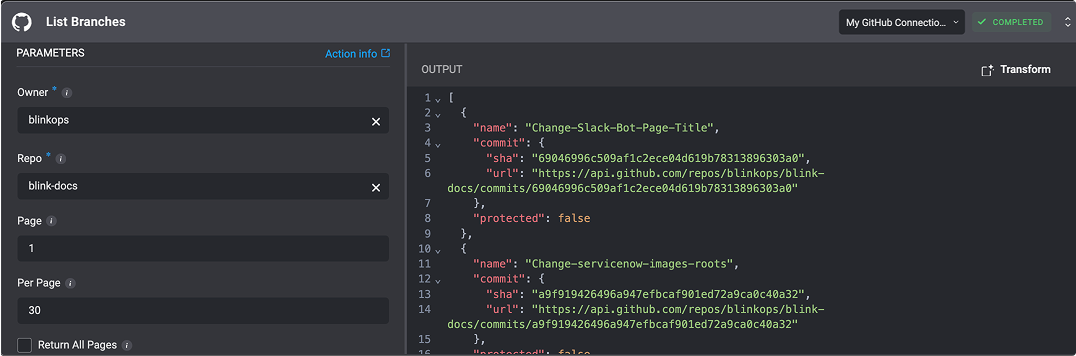 ## Running an Out-of-the-Box API Action:
Before using any API Action, you need to create a connection to the external service provider. Go to the [Connections](/docs/workflows/building-workflows/connections/connections) page and authenticate using **OAuth** or your **API credentials**.
In the Workflow Editor, open the **Action Panel** or search for the external service provider you want to use. Select the **Action** that matches the operation you want your workflow to perform.
Once you have added the action to your workflow, choose the **connection** you created earlier and fill in the **required input fields**.
***
## Step Settings: Include Full Response
**Note**: The "View Full Response" settings option is also applicable to [HTTP Actions](/docs/workflows/building-workflows/actions/basic-actions/http-actions/http-actions)
To view the full HTTP response from an HTTP request, click the icon next to the step, select **Settings**, and toggle the button to **Include full response**.
## Running an Out-of-the-Box API Action:
Before using any API Action, you need to create a connection to the external service provider. Go to the [Connections](/docs/workflows/building-workflows/connections/connections) page and authenticate using **OAuth** or your **API credentials**.
In the Workflow Editor, open the **Action Panel** or search for the external service provider you want to use. Select the **Action** that matches the operation you want your workflow to perform.
Once you have added the action to your workflow, choose the **connection** you created earlier and fill in the **required input fields**.
***
## Step Settings: Include Full Response
**Note**: The "View Full Response" settings option is also applicable to [HTTP Actions](/docs/workflows/building-workflows/actions/basic-actions/http-actions/http-actions)
To view the full HTTP response from an HTTP request, click the icon next to the step, select **Settings**, and toggle the button to **Include full response**.
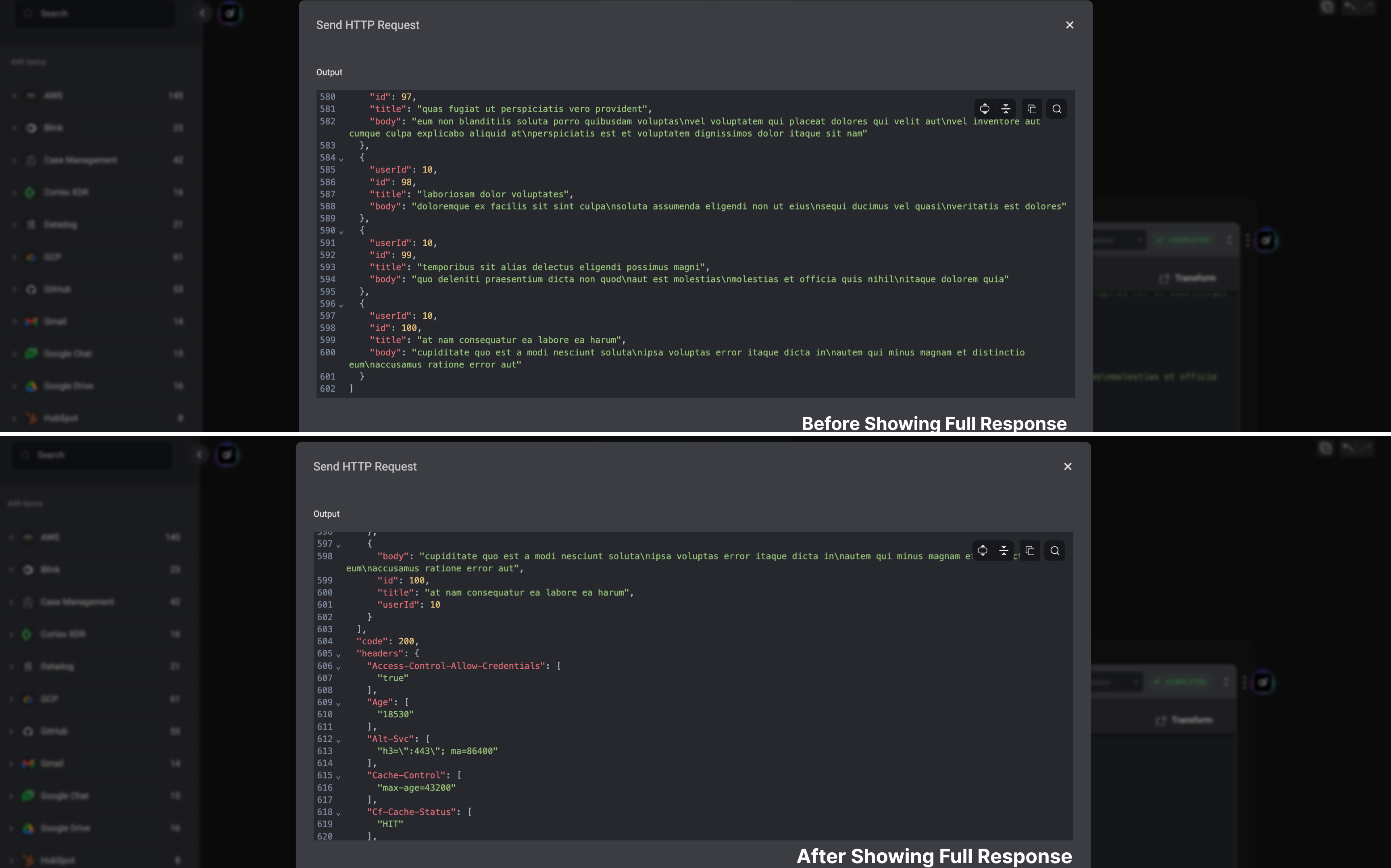
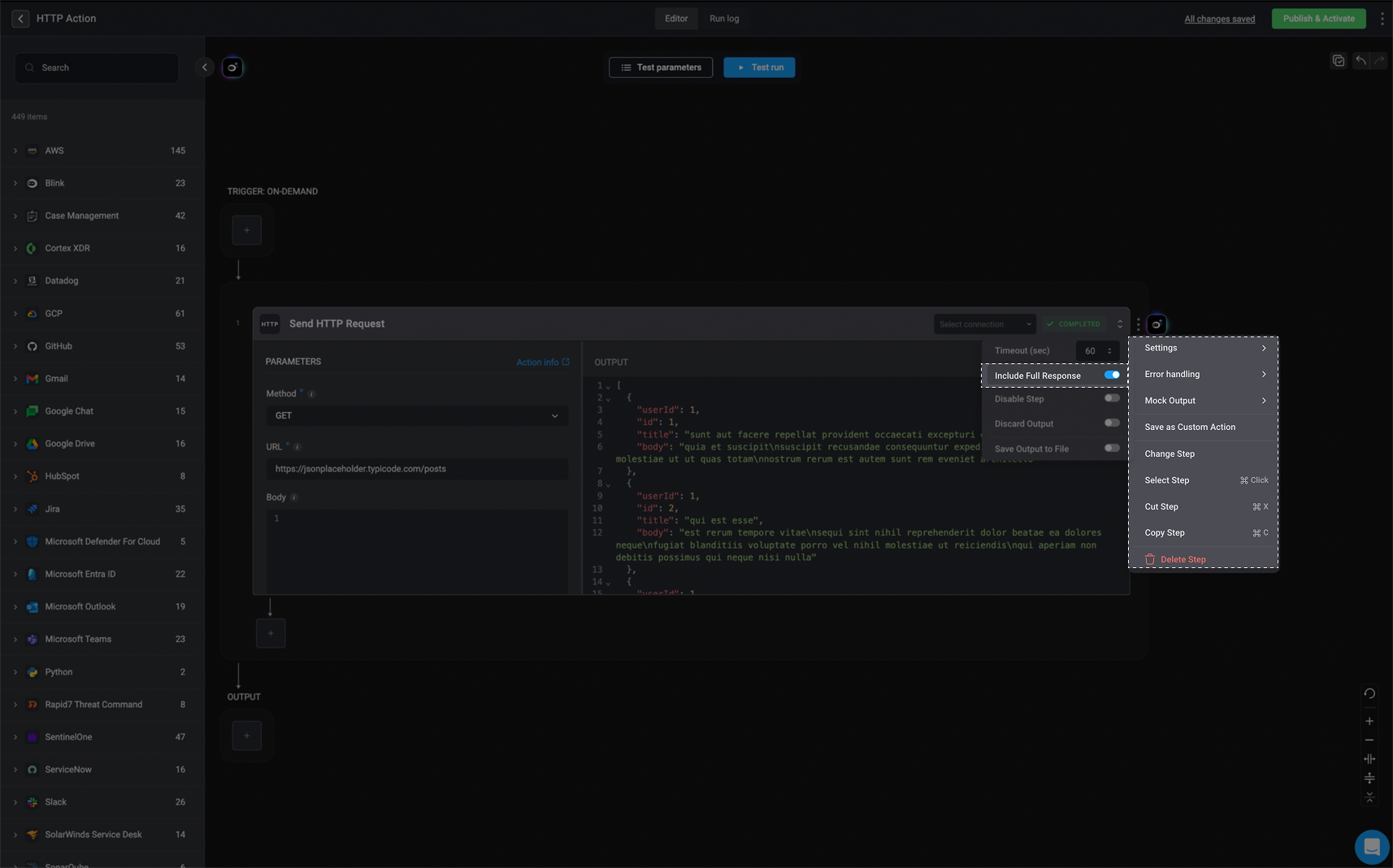 This option can be useful, for instance, when you need to access the values from the response headers in subsequent steps to support your use case.
 ***
***