> ## Documentation Index
> Fetch the complete documentation index at: https://docs.blinkops.com/llms.txt
> Use this file to discover all available pages before exploring further.
# Subflow Actions
> Use subflow actions to call other workflows as reusable building blocks within your Blink workflows.
The Subflow action lets you run another published and active [On-Demand Workflows](/docs/workflows/building-workflows/triggers/on-demand-triggers/on-demand-triggers) as a step within your current workflow, effectively treating it as a reusable sub-component. This reduces duplication, simplifies logic, and ensures consistency across your automated workflows.
**Note**: Subflows can only be [On-Demand Workflows](/docs/workflows/building-workflows/triggers/on-demand-triggers/on-demand-triggers) that are both published and active.
Subflows support a maximum nesting depth of **10** levels. If this limit is exceeded, the parent workflow will fail.
***
## Subflow Configuration
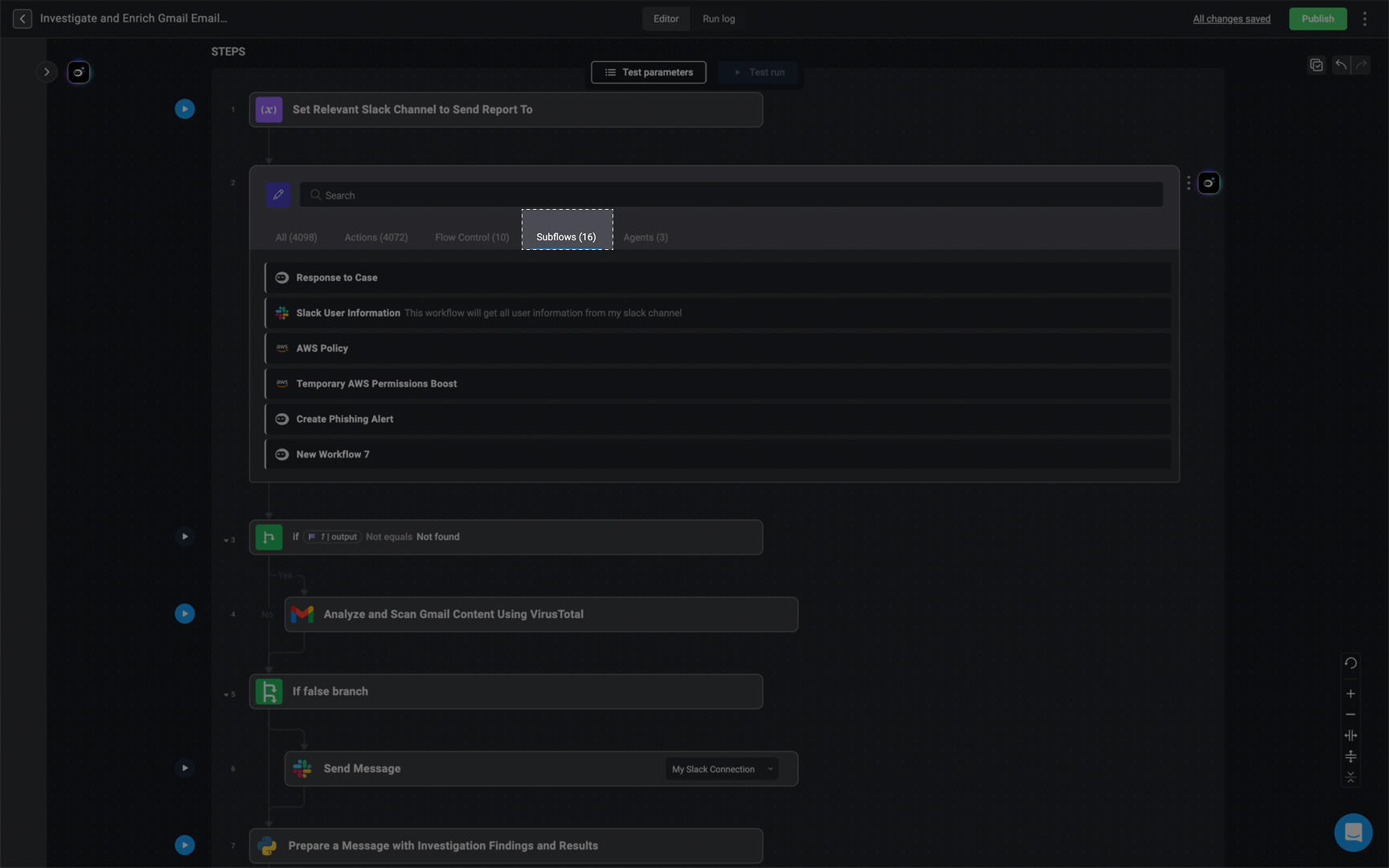
In the [Workflow Editor](/docs/workflows/building-workflows/workflow-editor), open the inline action panel to add an action and navigate to the Subflows tab. Select the [On-demand workflow](/docs/workflows/building-workflows/triggers/on-demand-triggers/on-demand-triggers) you want to add as a Subflow. This will let you run the chosen [On-demand workflow](/docs/workflows/building-workflows/triggers/on-demand-triggers/on-demand-triggers) as a step within your current workflow.
 ## Subflow Run Modes
Input parameters of workflows used as subflows cannot be modified or deleted. Doing so will break any parent Workflows that depend on them
Subflows can be executed in two distinct modes:
### Synchronous Mode
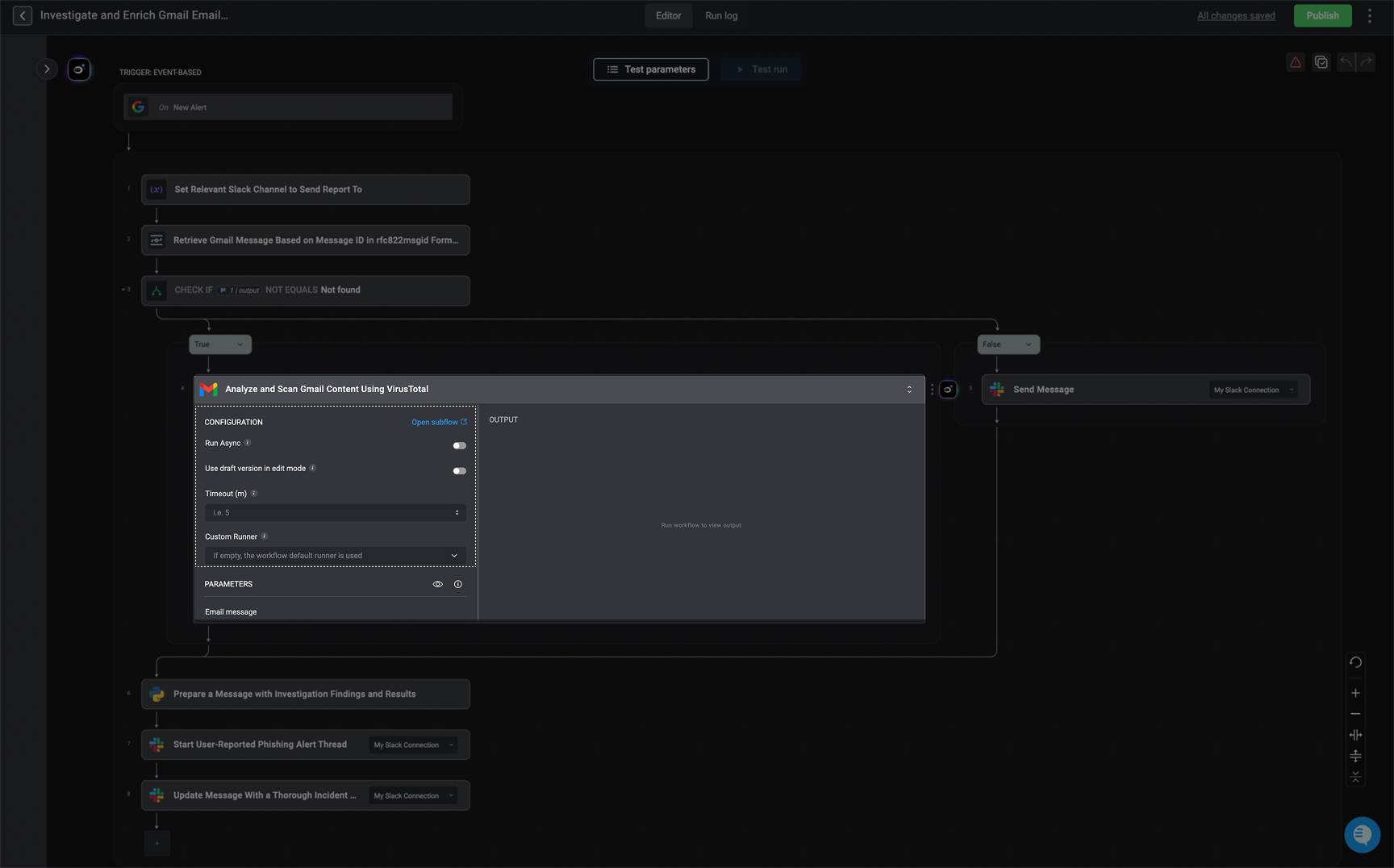
**Synchronous** mode means the parent Workflow will wait for the completion of the subflow before running other steps.
* **Run Mode**: `Synchronous mode` is the **default option**
* **Use draft version in edit mode**: Enabling this configuration allows you to use the latest saved draft version of the subflow, instead of the latest published version. This configuration applies to **edit mode only**. To select this option, click the toggle mode button.
* **Timeout(m)**: Enter the time (in minutes) after which the subflow will stop running if it hasn't completed.
* [Custom Runner](/docs/blink-platform/runners/runners) - Choose a custom runner to execute this subflow. This selection will override the default runner, allowing the subflow to run with the specified custom runner.
## Subflow Run Modes
Input parameters of workflows used as subflows cannot be modified or deleted. Doing so will break any parent Workflows that depend on them
Subflows can be executed in two distinct modes:
### Synchronous Mode
**Synchronous** mode means the parent Workflow will wait for the completion of the subflow before running other steps.
* **Run Mode**: `Synchronous mode` is the **default option**
* **Use draft version in edit mode**: Enabling this configuration allows you to use the latest saved draft version of the subflow, instead of the latest published version. This configuration applies to **edit mode only**. To select this option, click the toggle mode button.
* **Timeout(m)**: Enter the time (in minutes) after which the subflow will stop running if it hasn't completed.
* [Custom Runner](/docs/blink-platform/runners/runners) - Choose a custom runner to execute this subflow. This selection will override the default runner, allowing the subflow to run with the specified custom runner.
 ***
### Asynchronous Mode
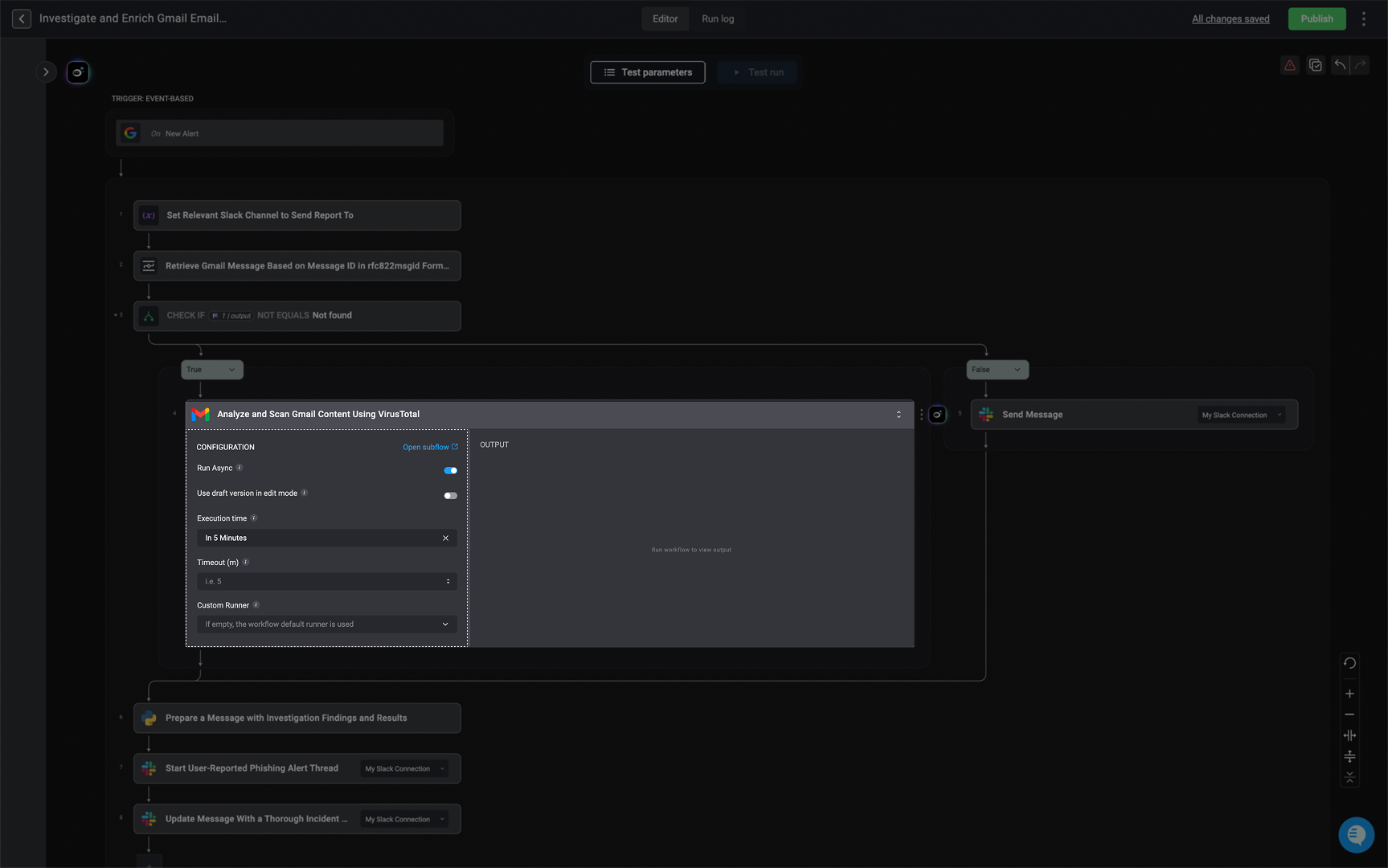
Asynchronous mode means that the parent Workflow will run the subflow and continue to the next step without waiting for the subflow to finish.
Running a subflow asynchronously improves efficiency, as the parent Workflow can continue without waiting for the subflow to finish.
* **Run Mode**: Toggle the button to enable `Asynchronous` mode
* **Use draft version in edit mode**: Enabling this configuration allows you to use the latest saved draft version of the subflow, instead of the latest published version. This configuration applies to **edit mode only**. To select this option, click the toggle mode button.
* **Execution Time**: The time (in minutes) at which the subflow will run. You can schedule it to start at a later time. Any delay shorter than 2 minutes will trigger the subflow immediately
* **Timeout(m)**: Enter the time (in minutes) after which the subflow will stop running if it hasn't completed.
* [Custom Runner](/docs/blink-platform/runners/runners) - Choose a custom runner to execute this subflow. This selection will override the default runner, allowing the subflow to run with the specified custom runner.
***
### Asynchronous Mode
Asynchronous mode means that the parent Workflow will run the subflow and continue to the next step without waiting for the subflow to finish.
Running a subflow asynchronously improves efficiency, as the parent Workflow can continue without waiting for the subflow to finish.
* **Run Mode**: Toggle the button to enable `Asynchronous` mode
* **Use draft version in edit mode**: Enabling this configuration allows you to use the latest saved draft version of the subflow, instead of the latest published version. This configuration applies to **edit mode only**. To select this option, click the toggle mode button.
* **Execution Time**: The time (in minutes) at which the subflow will run. You can schedule it to start at a later time. Any delay shorter than 2 minutes will trigger the subflow immediately
* **Timeout(m)**: Enter the time (in minutes) after which the subflow will stop running if it hasn't completed.
* [Custom Runner](/docs/blink-platform/runners/runners) - Choose a custom runner to execute this subflow. This selection will override the default runner, allowing the subflow to run with the specified custom runner.
 ***
## Viewing Subflow Details
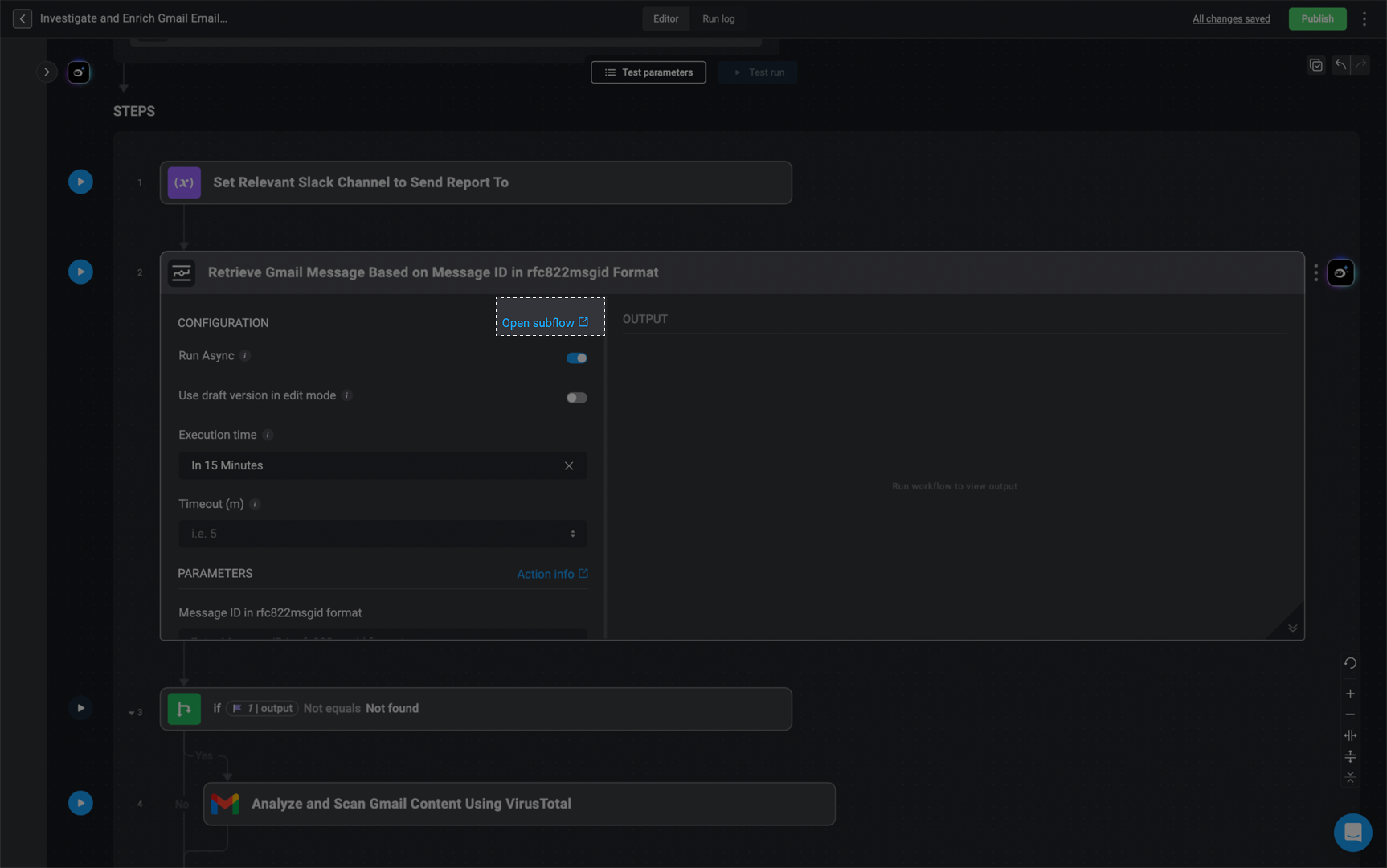
To view the details of a subflow, click the Open subflow link. This will take you to the subflow’s overview page.
***
## Viewing Subflow Details
To view the details of a subflow, click the Open subflow link. This will take you to the subflow’s overview page.
 ***
***