> ## Documentation Index
> Fetch the complete documentation index at: https://docs.blinkops.com/llms.txt
> Use this file to discover all available pages before exploring further.
# Creating a New Connection
> Step-by-step guide to creating a new connection to an external service in Blink.
Connections allow you to securely link your Blink workflows to external systems and services. You can create a new connection from two locations within the platform:
***
### Creating a Connection from the Connections Page
Ideal for managing and organizing all your workspace connections in one place.
Navigate to the **Connections** page in the Blink platform. You will see a table listing all existing connections in your workspace.
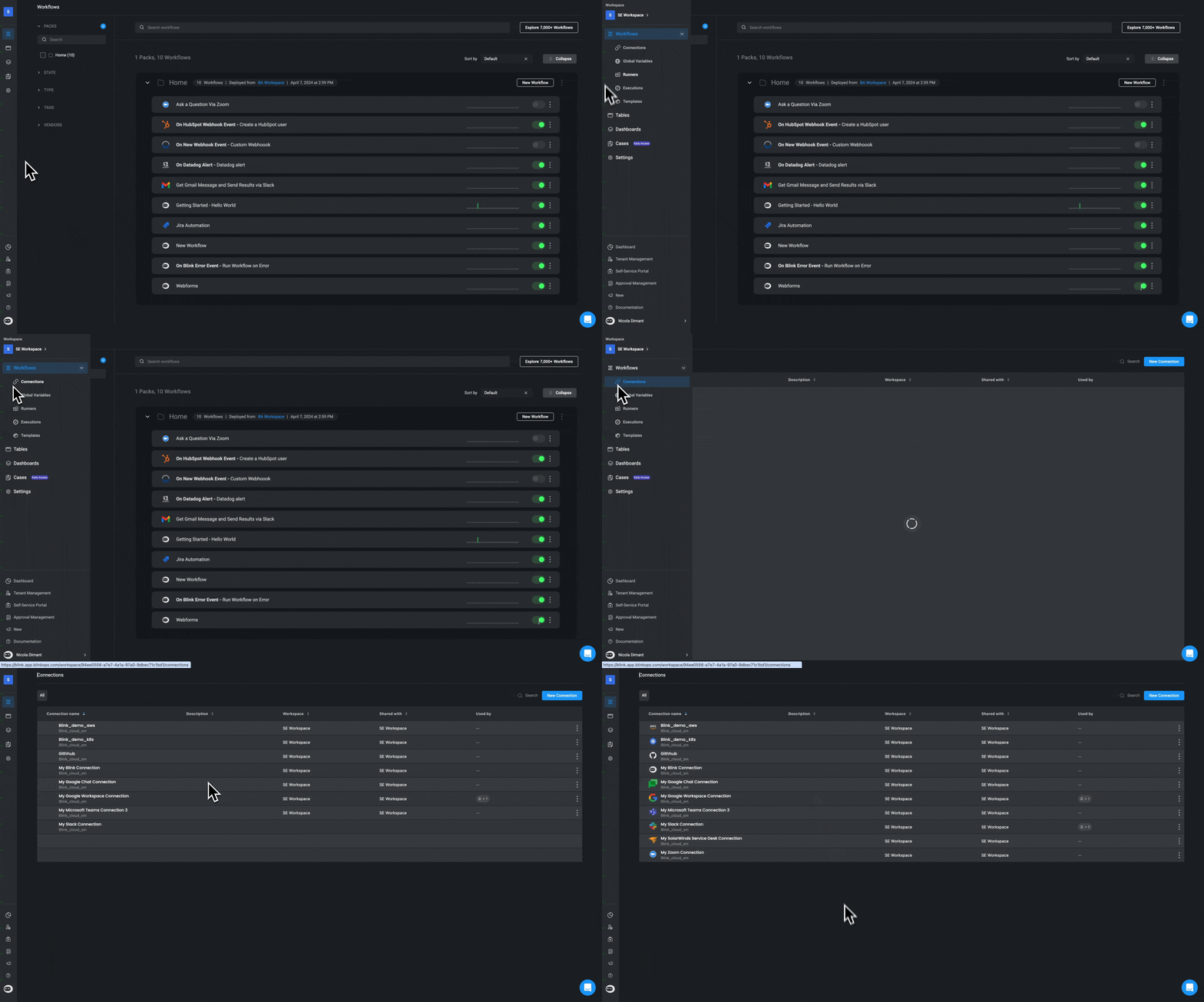 Click **Add connection** at the top of the page, then select a service provider from the list or search bar. Click on the provider’s icon to continue.
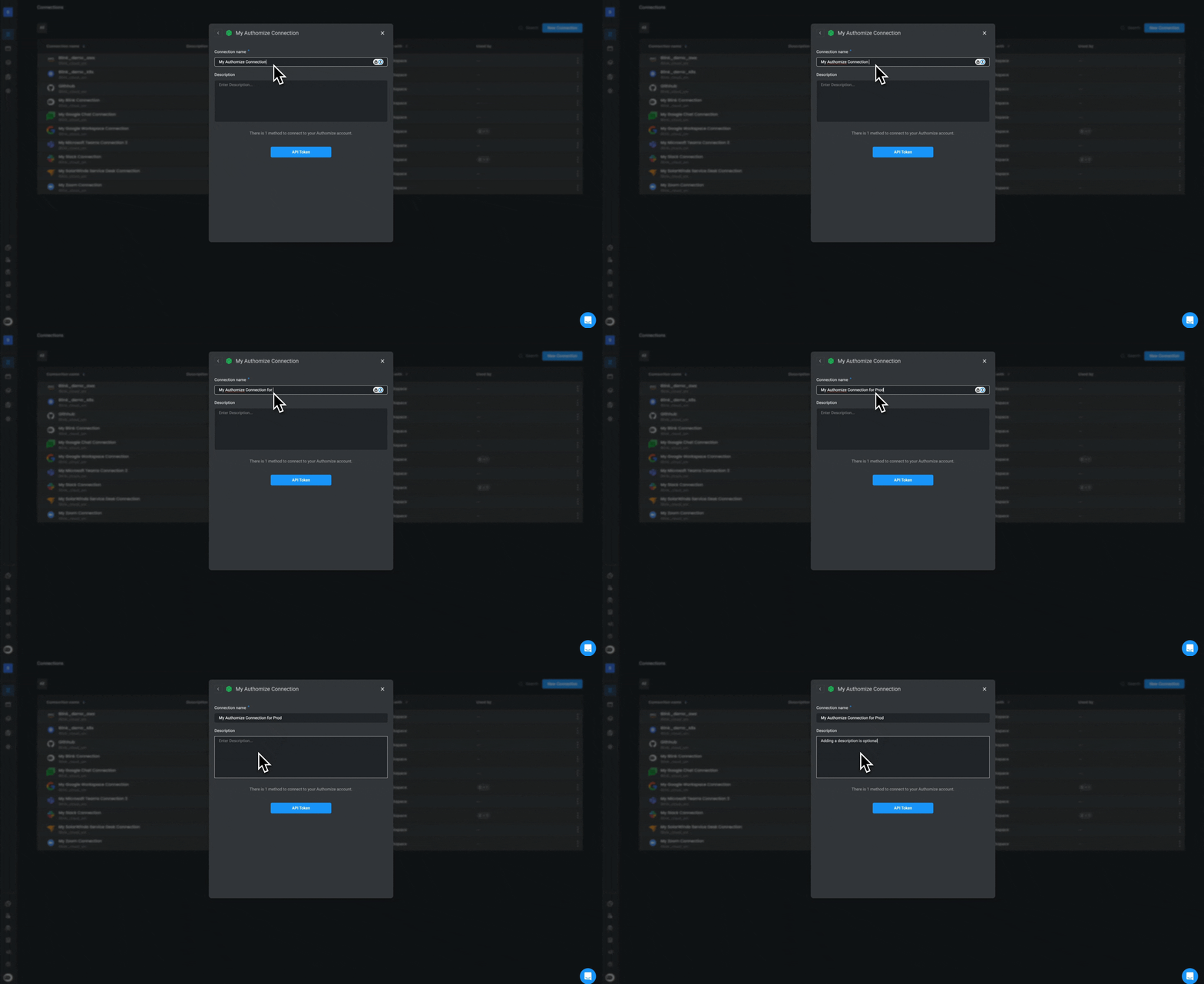
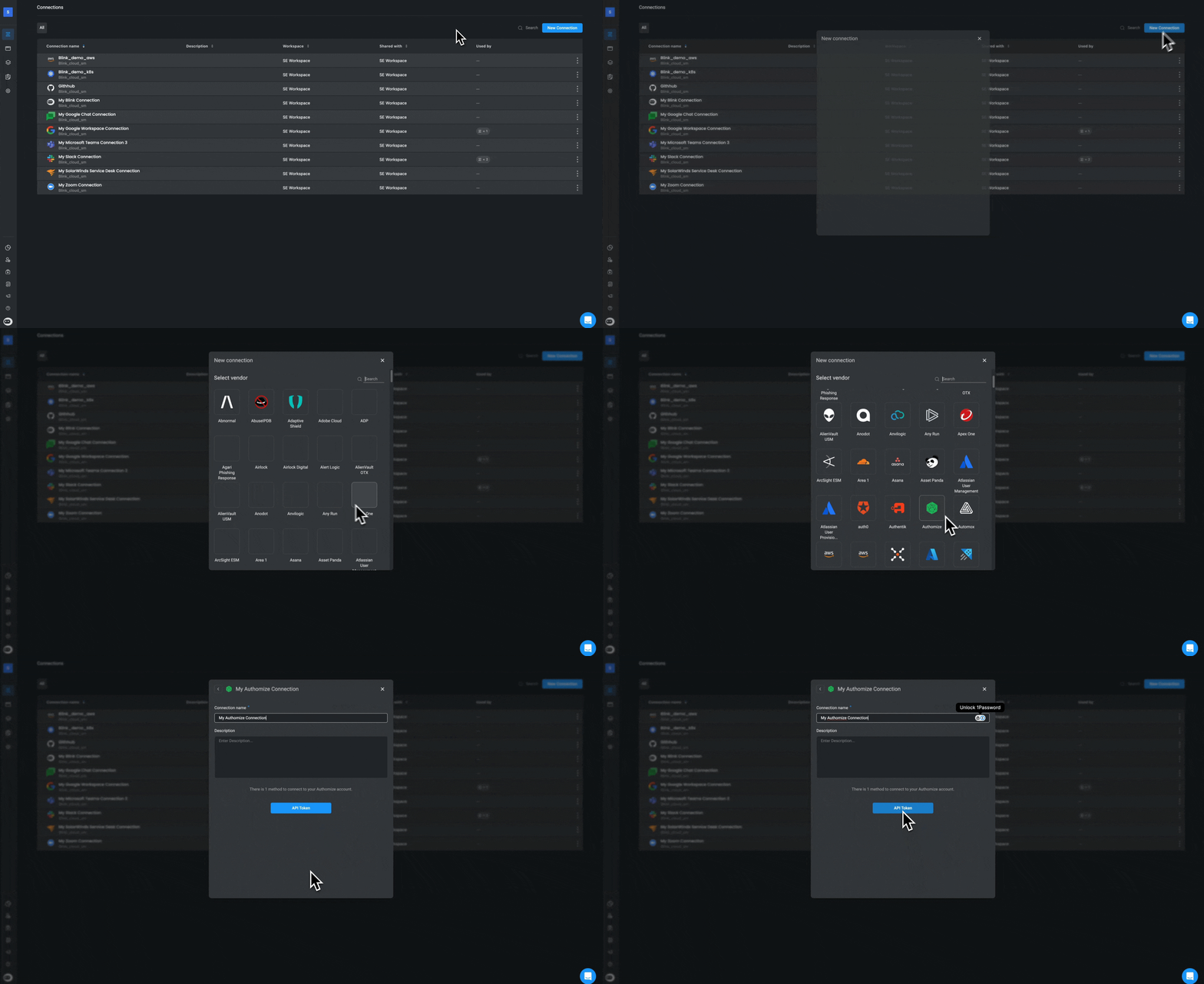 1. Edit the **Connection Name** (cannot be changed later).
2. Add a **Description** to help identify the connection's purpose.
1. Edit the **Connection Name** (cannot be changed later).
2. Add a **Description** to help identify the connection's purpose.
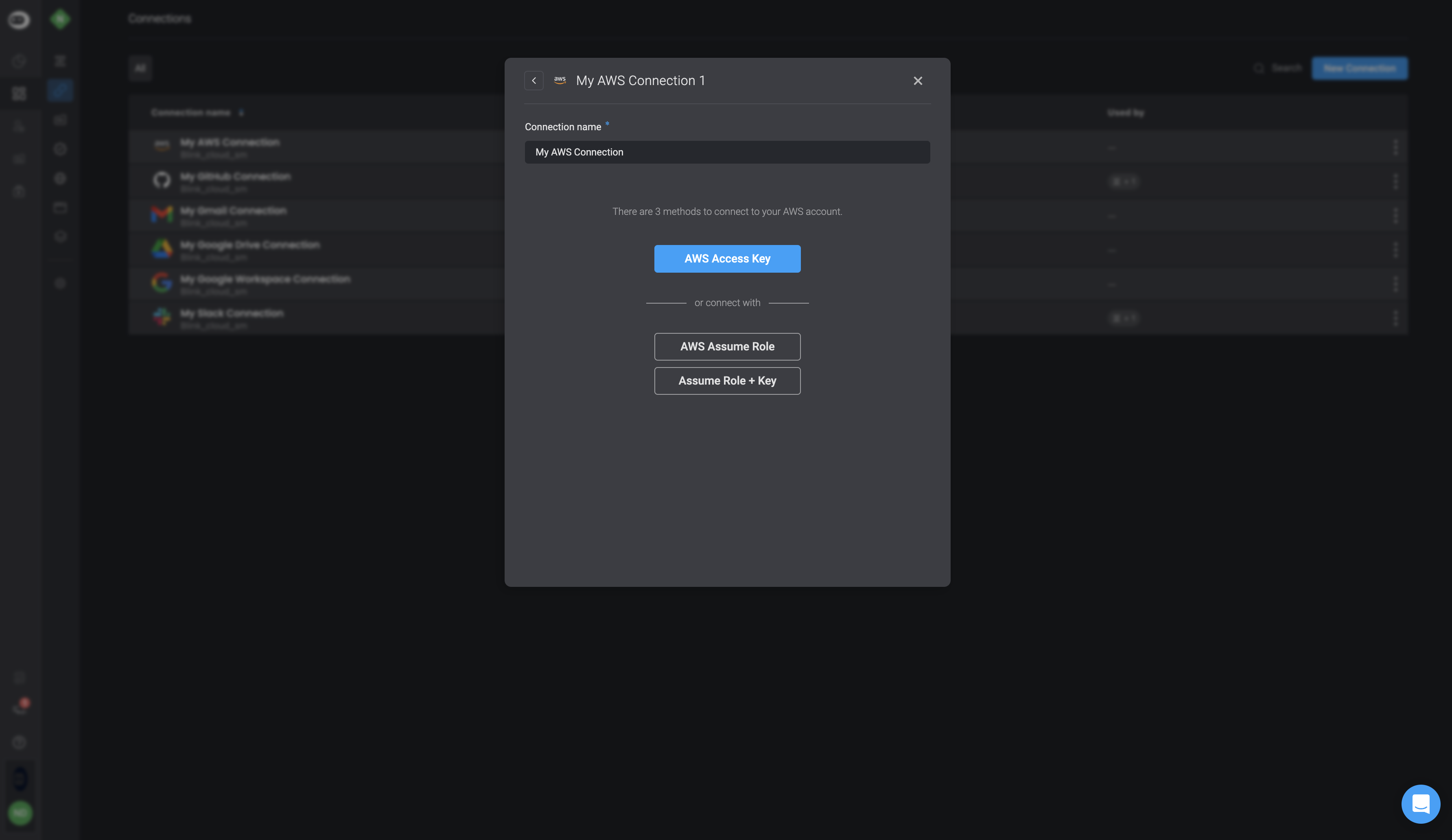
 Choose a connection method supported by the selected vendor. Some vendors may offer up to three different connection methods.
The recommended method appears in the blue button. You can change the method later by editing the connection.
Choose a connection method supported by the selected vendor. Some vendors may offer up to three different connection methods.
The recommended method appears in the blue button. You can change the method later by editing the connection.
 Fill in the required parameters for the connection:
* **Tags** (optional, used for categorization or filtering)
* **Connection Type** (required)\
Each connection type includes additional parameters specific to that method.
Click [**Test Connection**](#testing-a-connection-optional) to ensure the configuration is valid before creating the connection.
Click 'Create connection' to finalize the setup. The new connection will now appear on the 'Connections' page.
***
### Creating a Connection in the Workflow Editor
Ideal when you need to add or create a connection directly while building a workflow.
**Note**: If you have a personal account with the provider used in the step, you can create a connection using open authorization (OAuth) or [single sign-on (SSO)](/docs/getting-started/signing-in).
In the [Workflow Editor](/docs/workflows/building-workflows/workflow-editor), navigate to a step that requires a connection. Click **Select connection**, then choose an existing connection or create a new one.
To create a new connection, click '**+ Create New Connection**'. The **New Connection** dialog will appear, displaying the available methods for the selected service.
Select the desired connection method for this integration.
Fill in the required parameters for the connection:
* **Tags** (optional, used for categorization or filtering)
* **Connection Type** (required)\
Each connection type includes additional parameters specific to that method.
Click [**Test Connection**](#testing-a-connection-optional) to ensure the configuration is valid before creating the connection.
Click 'Create connection' to finalize the setup. The new connection will now appear on the 'Connections' page.
***
### Creating a Connection in the Workflow Editor
Ideal when you need to add or create a connection directly while building a workflow.
**Note**: If you have a personal account with the provider used in the step, you can create a connection using open authorization (OAuth) or [single sign-on (SSO)](/docs/getting-started/signing-in).
In the [Workflow Editor](/docs/workflows/building-workflows/workflow-editor), navigate to a step that requires a connection. Click **Select connection**, then choose an existing connection or create a new one.
To create a new connection, click '**+ Create New Connection**'. The **New Connection** dialog will appear, displaying the available methods for the selected service.
Select the desired connection method for this integration.
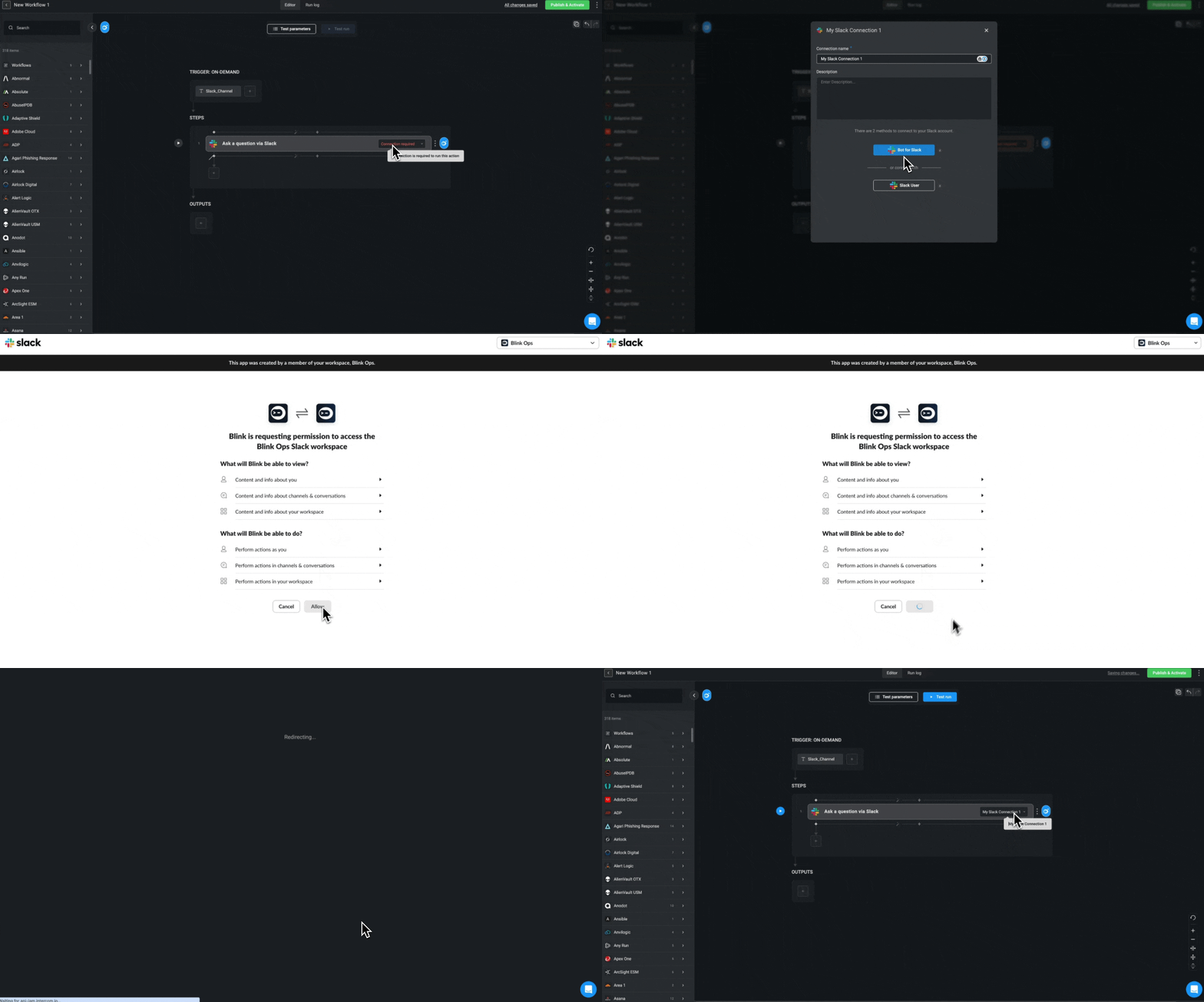 * Complete the required configuration fields:
* **Tags** (optional)
* **Connection Type** (mandatory)
The selected type may prompt you to enter additional, vendor-specific parameters.
Click [Test Connection](#testing-a-connection-optional) to ensure your setup is working correctly before saving.
Click 'Create connection'. The new connection will now be available and listed on the 'Connections' page.
***
## Testing a Connection
**Note**: Connections created with the `_OAuth_` method or with the `_Or sign in with_` method cannot be tested. A connection can only be tested when all mandatory parameters are filled in.
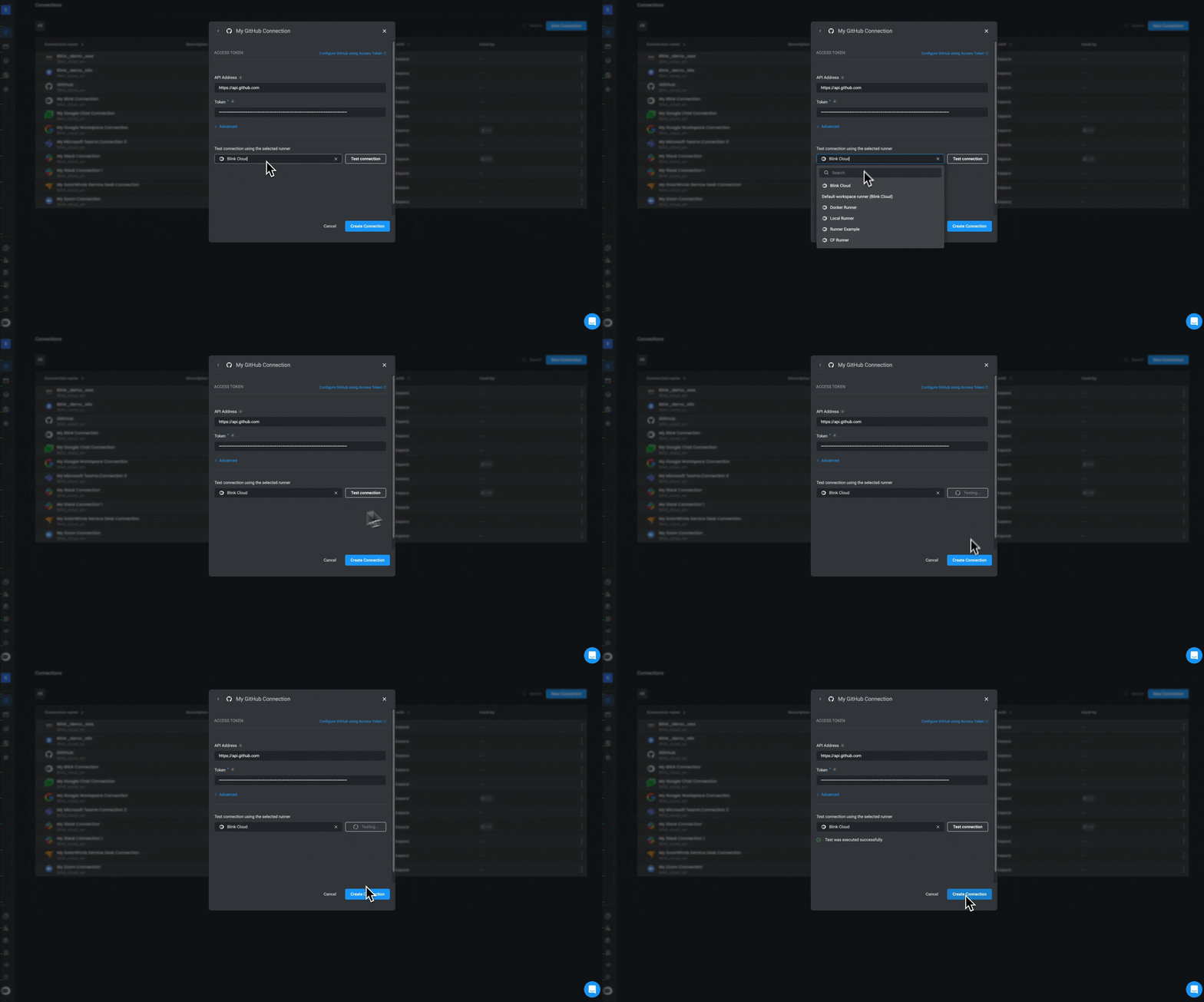
Click the dropdown menu to see available runners.
Select the runner with which to test the connection. The default runner is ***Blink Cloud***.
Click 'Test'. The result of the test will be displayed. Depending on the service provider, the information about the results differ.
Click 'Create connection'. The connection is created and appears in your connections screen.
* Complete the required configuration fields:
* **Tags** (optional)
* **Connection Type** (mandatory)
The selected type may prompt you to enter additional, vendor-specific parameters.
Click [Test Connection](#testing-a-connection-optional) to ensure your setup is working correctly before saving.
Click 'Create connection'. The new connection will now be available and listed on the 'Connections' page.
***
## Testing a Connection
**Note**: Connections created with the `_OAuth_` method or with the `_Or sign in with_` method cannot be tested. A connection can only be tested when all mandatory parameters are filled in.
Click the dropdown menu to see available runners.
Select the runner with which to test the connection. The default runner is ***Blink Cloud***.
Click 'Test'. The result of the test will be displayed. Depending on the service provider, the information about the results differ.
Click 'Create connection'. The connection is created and appears in your connections screen.
 ***
## Editing a Connection
You can update an existing connection at any time to change its configuration, authentication details, or tags.
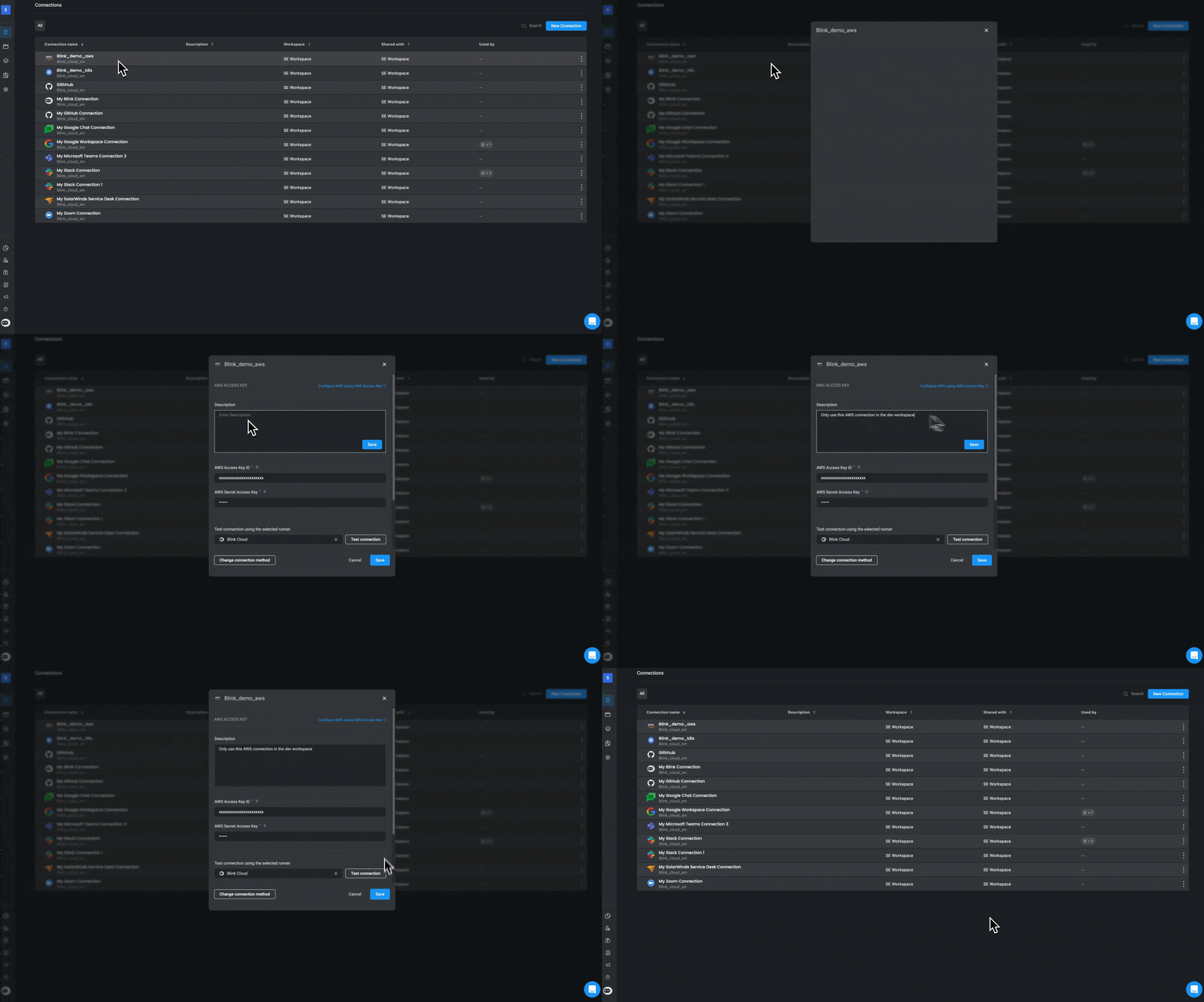
To edit a connection, go to the **Connections** page and choose one of the following methods:
1. Click directly on the connection you want to edit, make your changes, and then click **Save**.
***
## Editing a Connection
You can update an existing connection at any time to change its configuration, authentication details, or tags.
To edit a connection, go to the **Connections** page and choose one of the following methods:
1. Click directly on the connection you want to edit, make your changes, and then click **Save**.
 **OR**
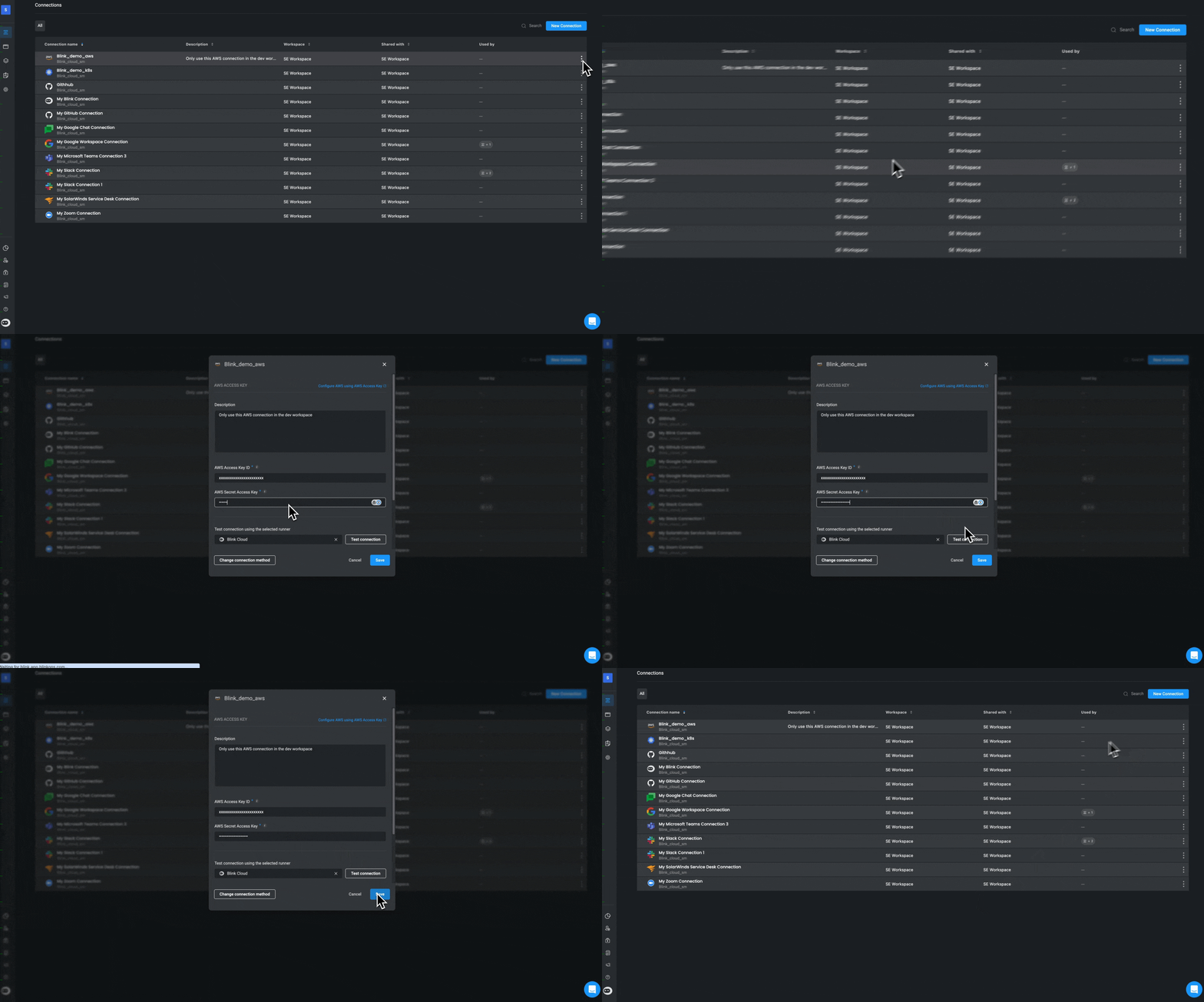
2. Click the icon next to the connection, select **Edit**, make your changes, and click **Save**.
**OR**
2. Click the icon next to the connection, select **Edit**, make your changes, and click **Save**.
 ***
***