> ## Documentation Index
> Fetch the complete documentation index at: https://docs.blinkops.com/llms.txt
> Use this file to discover all available pages before exploring further.
# About Steps
> Understand workflow steps in Blink, including how to add, configure, and connect steps in a workflow.
Steps are the core components that define the behavior and flow of a Workflow in Blink. Each Step represents a specific action or task, and multiple Steps are connected in sequence to achieve a complete automated workflow.
In the [Workflow Editor](/docs/workflows/building-workflows/workflow-editor), users build workflows by adding Steps that perform actions, apply logic, or control the flow. Each Step begins with selecting an Action and, when necessary, associating it with a Connection to an external service. Steps are added in a clear, logical order to ensure the Workflow runs smoothly from start to finish.
***
## Step Settings
Step settings allow you to customize the behavior and execution of each individual step in your workflow. These settings control how the step runs, how its output is handled, and how errors are managed. They provide flexibility for advanced use cases, such as handling failures gracefully, controlling execution time, reusing logic across workflows, and securely managing sensitive data.
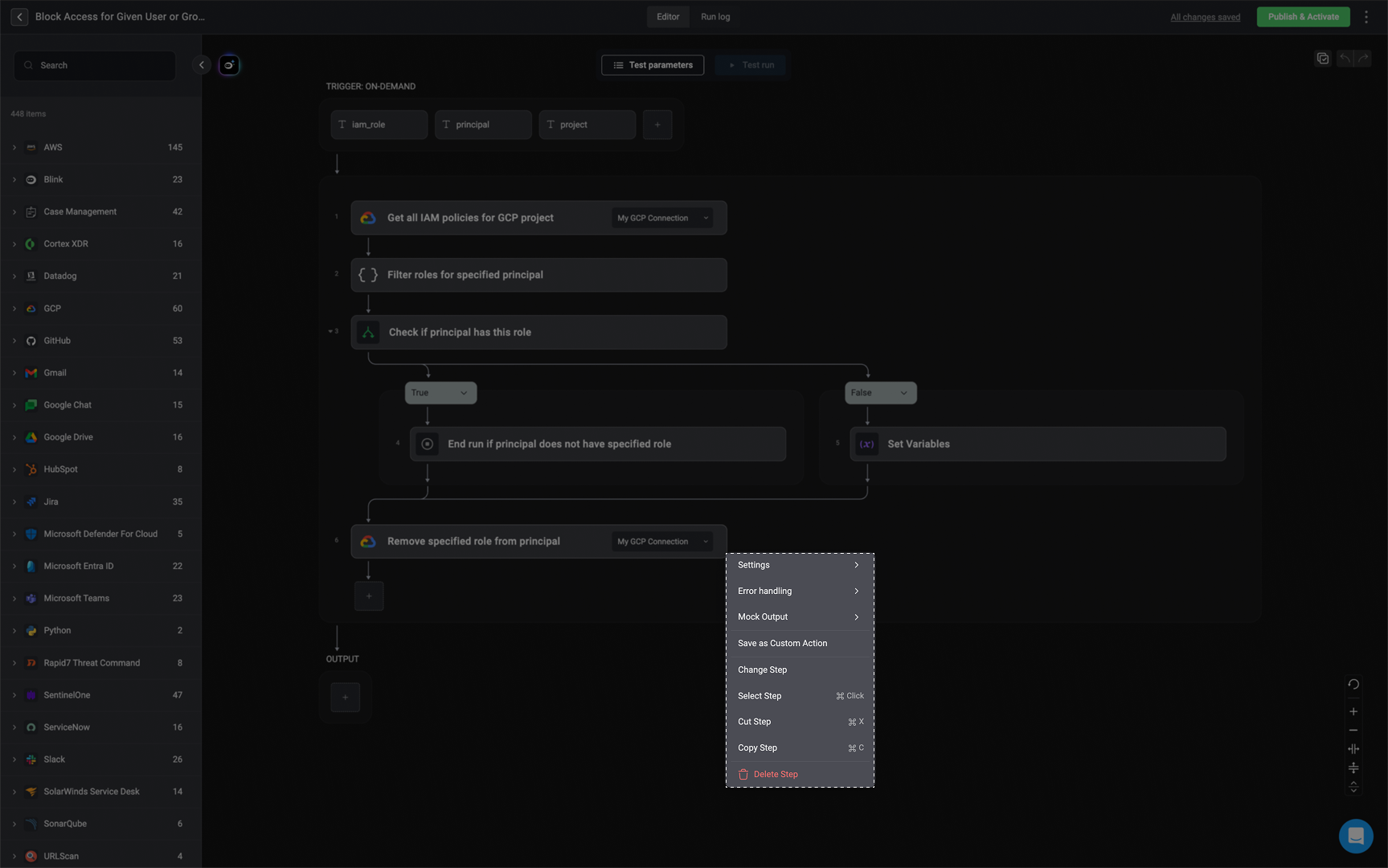 ***
Below is a detailed explanation of each step setting, outlining how you can customize execution behavior, error handling, output management, and reusability for individual workflow steps.
**TIP**: Access your step settings by clicking on the icon on the right-hand side of your step.
***
Below is a detailed explanation of each step setting, outlining how you can customize execution behavior, error handling, output management, and reusability for individual workflow steps.
**TIP**: Access your step settings by clicking on the icon on the right-hand side of your step.
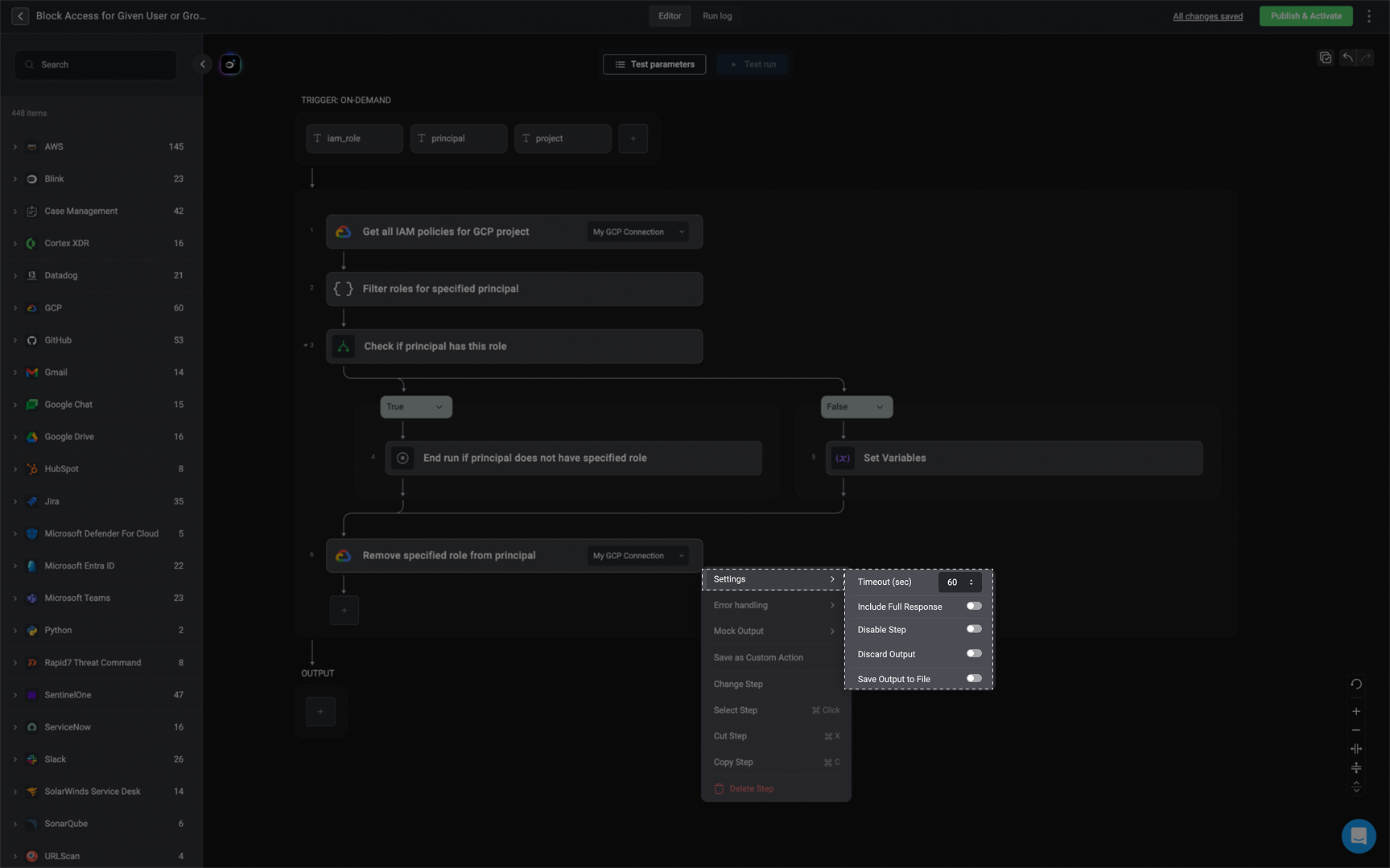 ***
### Timeout (sec)
Defines the maximum amount of time (in seconds) the step is allowed to run. If the step doesn't complete within the specified time, it will be forcefully stopped and marked as failed.
**Note**: Each step can run between `2` and `12` hours. If needed, a step can stay paused for up to `14` days. Internal steps (like, the [Print action](/docs/workflows/building-workflows/actions/utility-actions/miscellaneous-utilities#print), the [Flow control actions](/docs/workflows/building-workflows/actions/basic-actions/flow-control-actions) and certain [Utility actions](/docs/workflows/building-workflows/actions/utility-actions/array-utilities)) follow the main execution timeout, while external steps (like [HTTP actions](/docs/workflows/building-workflows/actions/basic-actions/authentication), [Python actions](/docs/workflows/building-workflows/actions/basic-actions/code-actions#run-python), or [Bash actions](/docs/workflows/building-workflows/actions/basic-actions/code-actions#run-bash-script)) default to `60` seconds but can be set anywhere from `1` second up to the overall execution timeout. For more information, visit the [workflow limitation documentation](/docs/workflows/system-limits#more-in-depth-explanation-of-timeout-limitations)
***
### Include Full Response
When enabled, the full raw response from the integration or action (including headers, metadata, and status codes) is included in the step output. This is useful if you need to access detailed response information beyond just the data payload.
***
### Disable Step
Skips this step during workflow execution. Use this setting when you want to temporarily remove a step from running without deleting or modifying it.
***
### Discard Output
If enabled, the step’s output will be permanently discarded after the workflow runs. This means the data will not be saved in the workflow’s run log, step output, or database. Ideal for steps that handle sensitive or temporary data that shouldn't be stored.
***
### Save output to file
Enables saving the step's output to a file that can be used in later steps. After enabling this option, you'll need to provide an [Output File Identifier](/docs/workflows/building-workflows/files#file-object) to reference the file in subsequent steps.
***
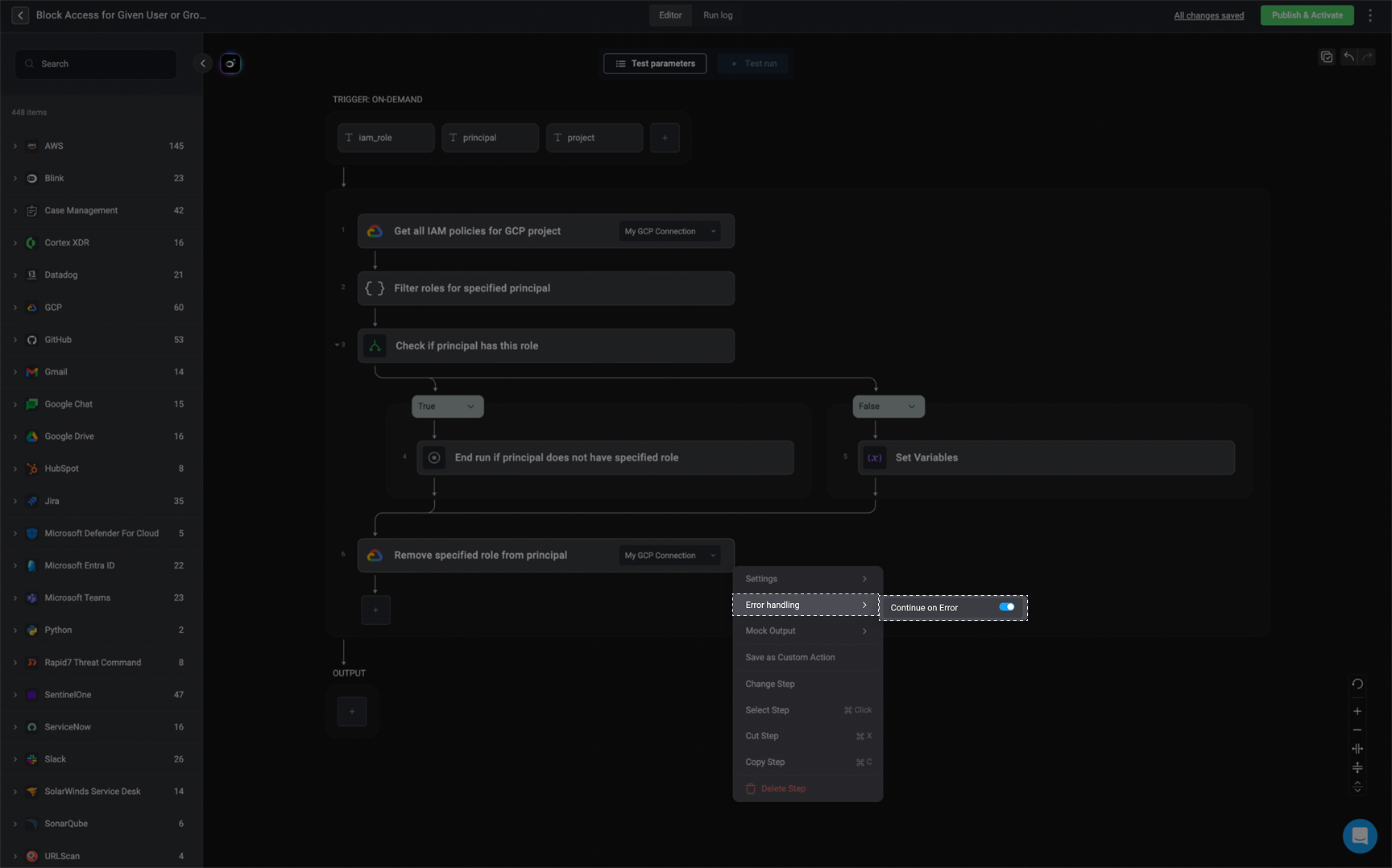
### Continue on Error
Allows the workflow to continue running even if this step fails. The step's failure will be logged, but it won't stop the execution of the remaining steps.
***
### Timeout (sec)
Defines the maximum amount of time (in seconds) the step is allowed to run. If the step doesn't complete within the specified time, it will be forcefully stopped and marked as failed.
**Note**: Each step can run between `2` and `12` hours. If needed, a step can stay paused for up to `14` days. Internal steps (like, the [Print action](/docs/workflows/building-workflows/actions/utility-actions/miscellaneous-utilities#print), the [Flow control actions](/docs/workflows/building-workflows/actions/basic-actions/flow-control-actions) and certain [Utility actions](/docs/workflows/building-workflows/actions/utility-actions/array-utilities)) follow the main execution timeout, while external steps (like [HTTP actions](/docs/workflows/building-workflows/actions/basic-actions/authentication), [Python actions](/docs/workflows/building-workflows/actions/basic-actions/code-actions#run-python), or [Bash actions](/docs/workflows/building-workflows/actions/basic-actions/code-actions#run-bash-script)) default to `60` seconds but can be set anywhere from `1` second up to the overall execution timeout. For more information, visit the [workflow limitation documentation](/docs/workflows/system-limits#more-in-depth-explanation-of-timeout-limitations)
***
### Include Full Response
When enabled, the full raw response from the integration or action (including headers, metadata, and status codes) is included in the step output. This is useful if you need to access detailed response information beyond just the data payload.
***
### Disable Step
Skips this step during workflow execution. Use this setting when you want to temporarily remove a step from running without deleting or modifying it.
***
### Discard Output
If enabled, the step’s output will be permanently discarded after the workflow runs. This means the data will not be saved in the workflow’s run log, step output, or database. Ideal for steps that handle sensitive or temporary data that shouldn't be stored.
***
### Save output to file
Enables saving the step's output to a file that can be used in later steps. After enabling this option, you'll need to provide an [Output File Identifier](/docs/workflows/building-workflows/files#file-object) to reference the file in subsequent steps.
***
### Continue on Error
Allows the workflow to continue running even if this step fails. The step's failure will be logged, but it won't stop the execution of the remaining steps.
 ***
### Retry
**Note:** The **Retry** option is only available to [HTTP actions](/docs/workflows/building-workflows/actions/basic-actions/http-actions/http-actions).
Occasional failures in the target system can lead to the failure of certain actions, causing the entire Workflow process to fail. However, this issue can be effectively addressed by implementing the configurable retry mechanism on individual steps, ensuring a smoother operation even when errors occur.
#### Interaction Between Step-Level Timeout and Retry Mechanism
The step-level timeout and the retry mechanism operate independently, and it is important to understand how they behave in the workflow engine:
* Step Timeout is enforced by the engine itself. It measures the time from when a step first begins execution, and it doesn't reset or adjust based on retries. Once the timeout is reached, the engine considers the step as failed — regardless of how many retry attempts have occurred.
* Retry, on the other hand, is typically implemented within the plugin (e.g., an HTTP plugin). This means:
* The plugin manages its own retry logic — including how many times it retries, how long it waits between attempts, etc.
* The engine is not aware of these internal retries; from the engine’s perspective, the plugin is still “executing.”
Therefore it is important to note that the step timeout is not reset by retries. It counts from the initial start time of the step. Once the timeout is exceeded, even if a retry is in progress, the engine will terminate the step due to timeout.
#### Configuring the Retry Mechanism
***
### Retry
**Note:** The **Retry** option is only available to [HTTP actions](/docs/workflows/building-workflows/actions/basic-actions/http-actions/http-actions).
Occasional failures in the target system can lead to the failure of certain actions, causing the entire Workflow process to fail. However, this issue can be effectively addressed by implementing the configurable retry mechanism on individual steps, ensuring a smoother operation even when errors occur.
#### Interaction Between Step-Level Timeout and Retry Mechanism
The step-level timeout and the retry mechanism operate independently, and it is important to understand how they behave in the workflow engine:
* Step Timeout is enforced by the engine itself. It measures the time from when a step first begins execution, and it doesn't reset or adjust based on retries. Once the timeout is reached, the engine considers the step as failed — regardless of how many retry attempts have occurred.
* Retry, on the other hand, is typically implemented within the plugin (e.g., an HTTP plugin). This means:
* The plugin manages its own retry logic — including how many times it retries, how long it waits between attempts, etc.
* The engine is not aware of these internal retries; from the engine’s perspective, the plugin is still “executing.”
Therefore it is important to note that the step timeout is not reset by retries. It counts from the initial start time of the step. Once the timeout is exceeded, even if a retry is in progress, the engine will terminate the step due to timeout.
#### Configuring the Retry Mechanism
On the right-hand side of your selected step, click the icon.
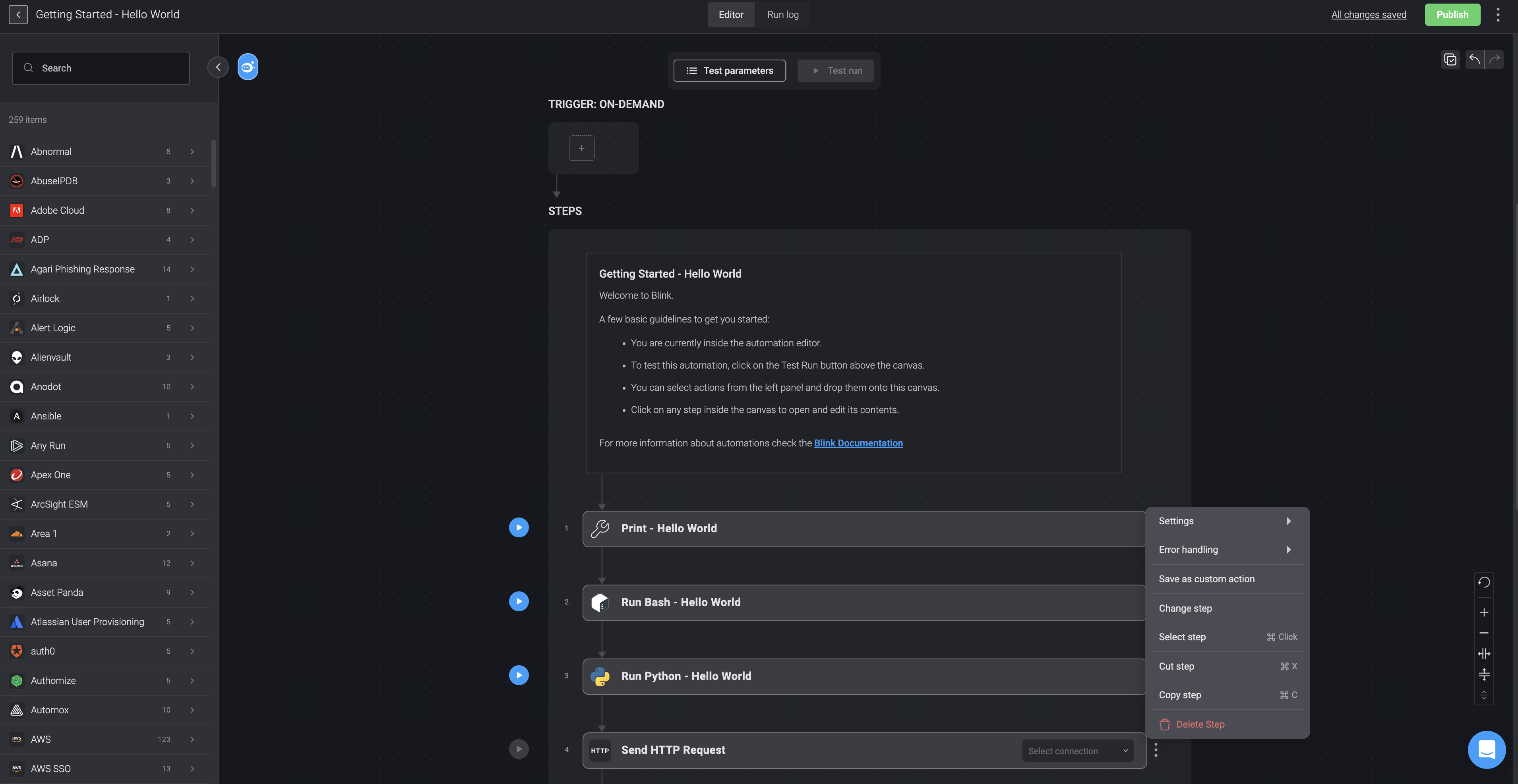 Choose the 'Error Handling' option, then toggle the 'Retry' button.
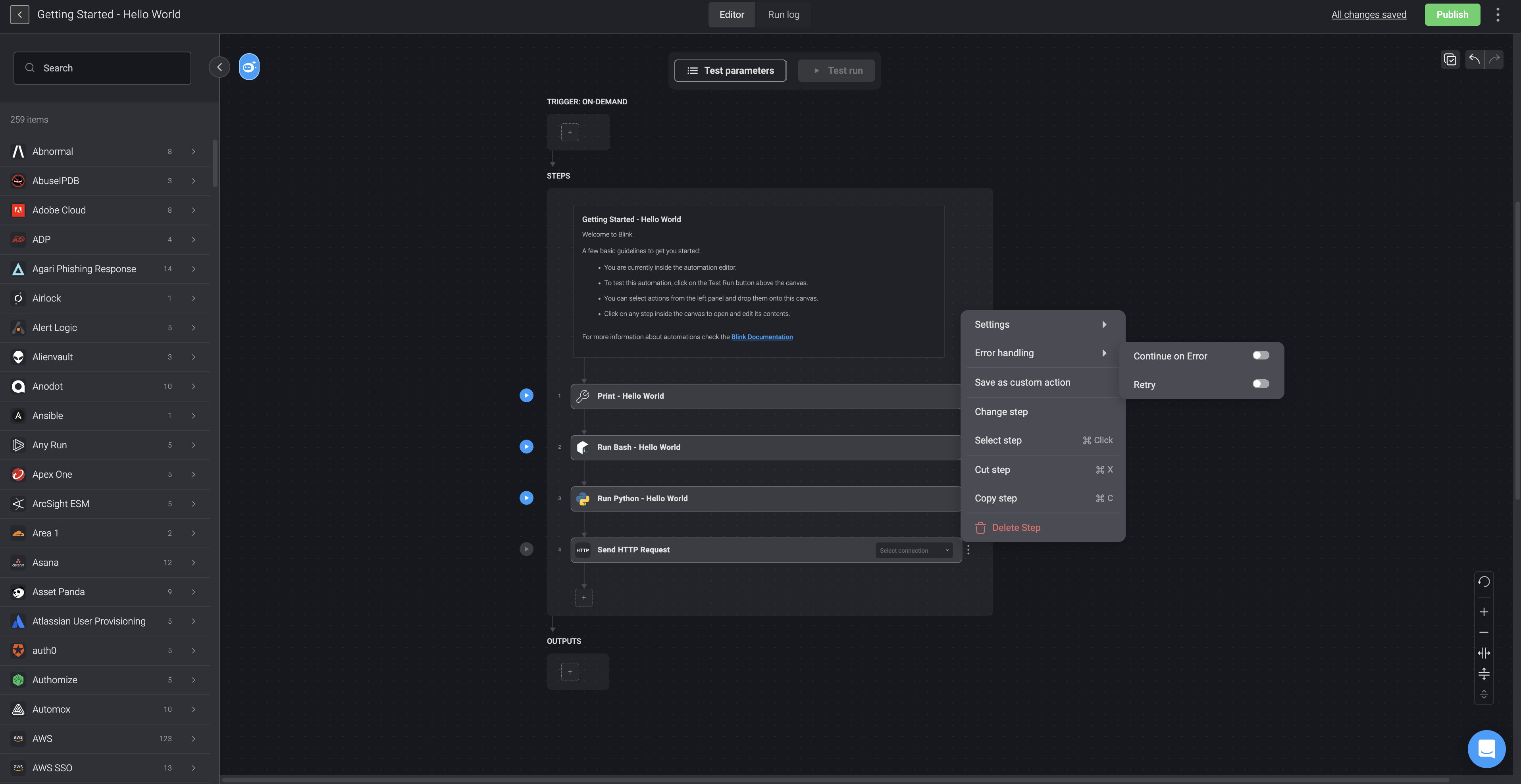 Proceed by filling in the following parameters:
| Parameter | Description |
| -------------------------------------------------- | ------------------------------------------------------------------------------------------------------------------------------------------------------------------------------ |
| Number of retries | The number of retries. The **minimum** number of retries is **1** and the **maximum** number of retries is **5**. The **default** is set as **1**. |
| **Interval- Exponential** | The duration between each retry attempt. The **Exponential Interval** uses default logic where the **exponential backoff** starts at 200ms and multiplies by 2 each iteration. |
| **Interval-Constant**: Time between retries(in ms) | The duration in **seconds** between each retry attempt which is entered manually. The maximum duration is `60` seconds. |
| Retry on Status | The **error codes** that will trigger retries. |
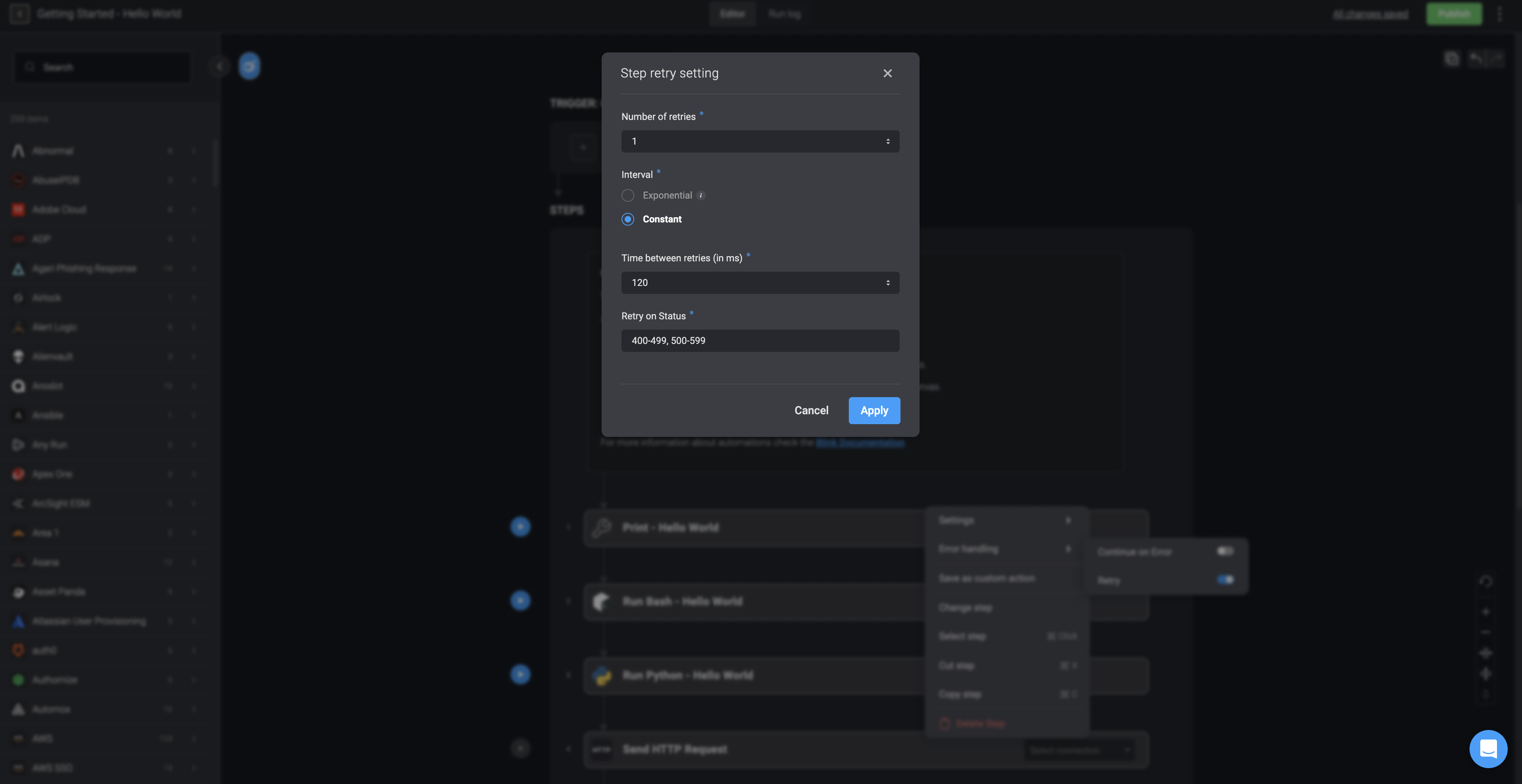 Once configured, click the Apply button to save your retry settings.
### Overview
The Mock Output feature allows users to simulate the response of a workflow action without executing it against live data. This is especially helpful during development and testing, as it allows you to safely validate workflow logic and downstream behavior without relying on live systems or external APIs. It also speeds up iteration and makes debugging easier.
The mock output feature is intended for use only during step testing or test runs.
Once configured, click the Apply button to save your retry settings.
### Overview
The Mock Output feature allows users to simulate the response of a workflow action without executing it against live data. This is especially helpful during development and testing, as it allows you to safely validate workflow logic and downstream behavior without relying on live systems or external APIs. It also speeds up iteration and makes debugging easier.
The mock output feature is intended for use only during step testing or test runs.
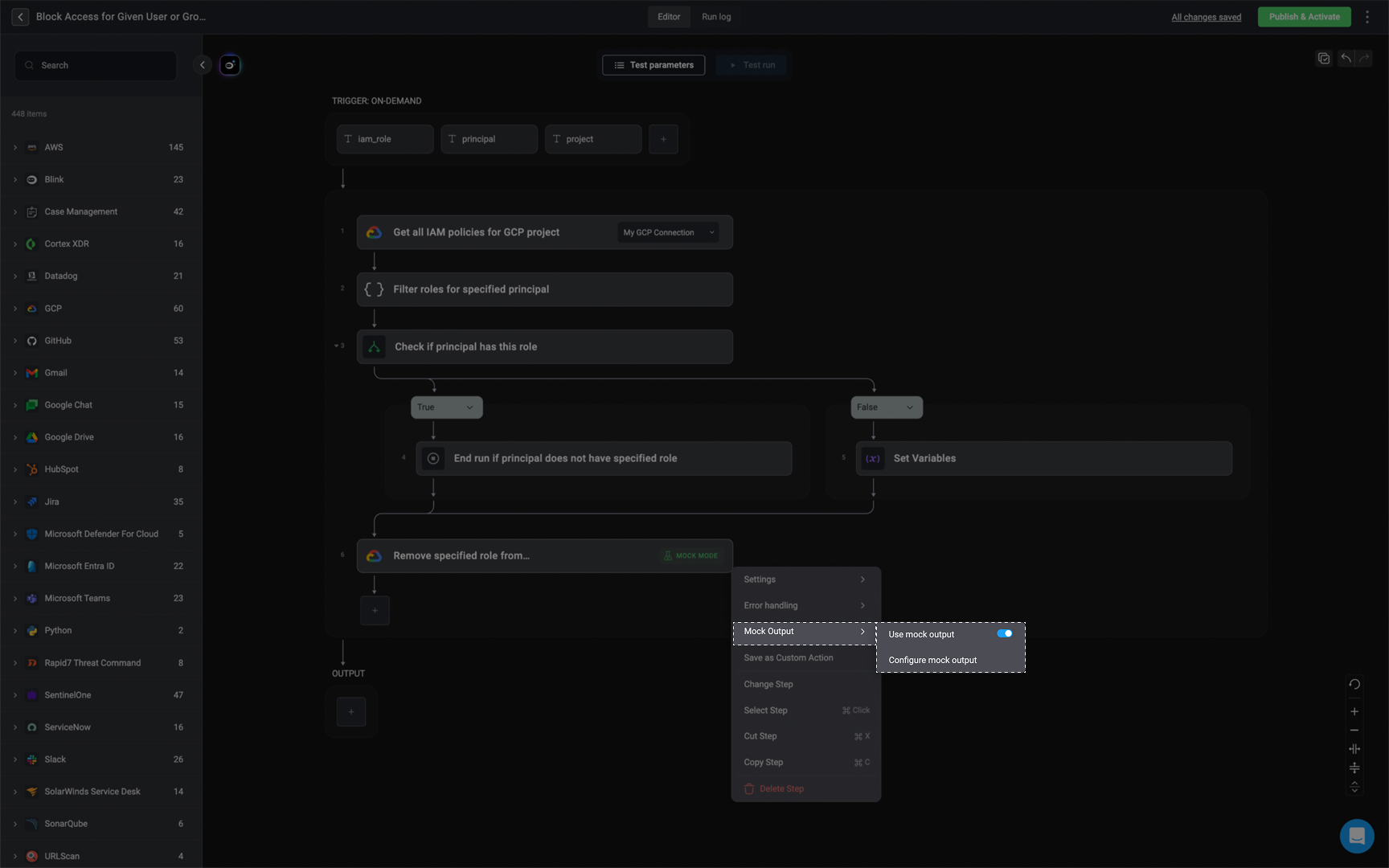 ### Configure the Mock Output
To set up a mock output for a workflow step, click the **Configure Mock Output** option. This will open a configuration popup where you can define the simulated response for the step's output.
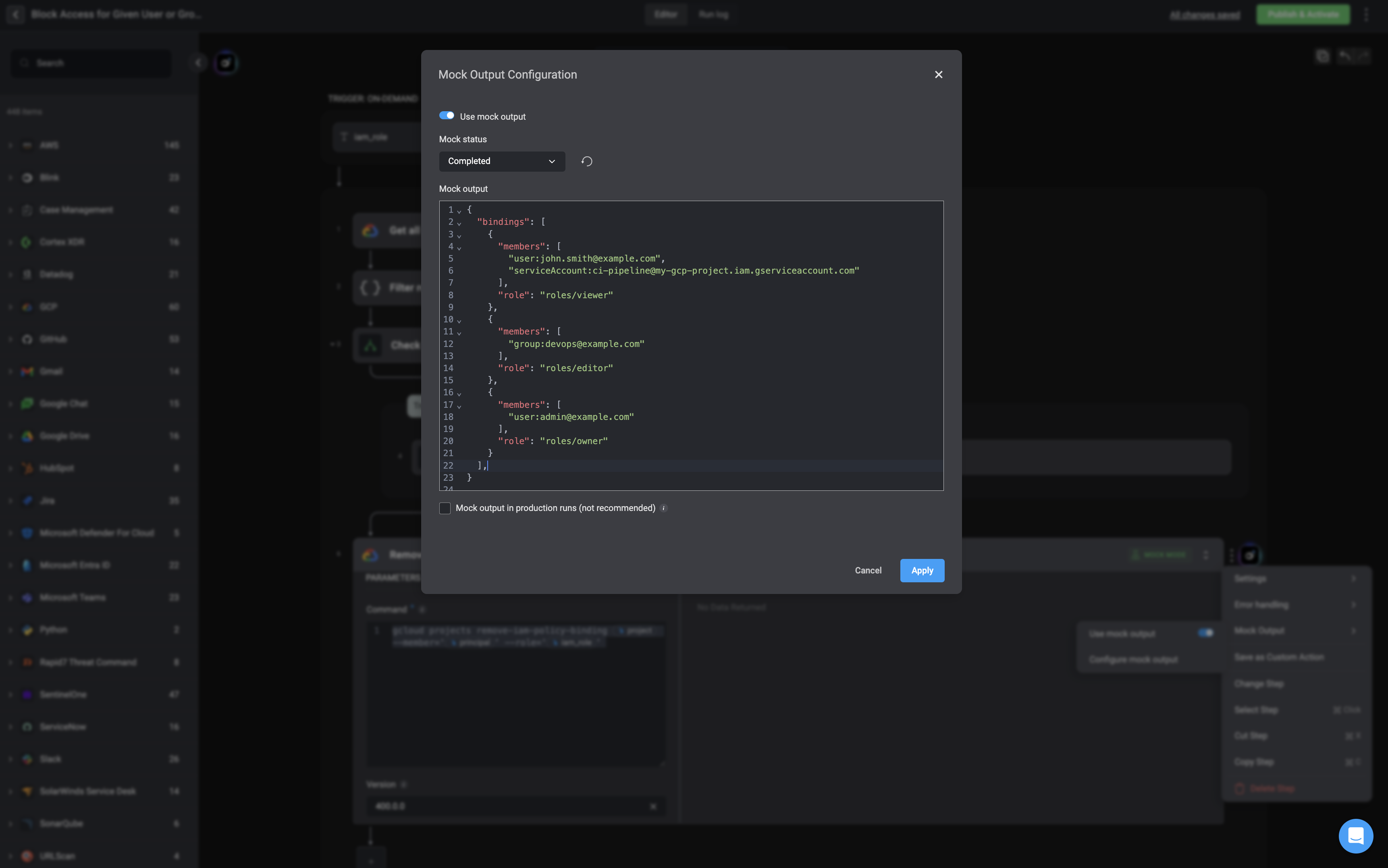
Within the mock output configuration popup, you can:
* **Enter your mock output** in the provided text field. This should match the expected format of the step's real response
Users can configure mock outputs by selecting a predefined example (if available), pasting a previous run output, or manually entering a custom response
* **Set the mock status** to reflect how the step should behave during testing:
`Failed`, `Completed`, or `Timed Out`.
* **Enable or disable the mock output** using the toggle switch. When enabled, the workflow will use this mock response instead of executing the actual action.
* **Reset the mock output** at any time by clicking the button.
* **Mock output in production runs(not recommended)** - If enabled, this step will always use the configured mock output, even in production runs. This may cause workflows to process fake data. Recommended only for testing.
### Configure the Mock Output
To set up a mock output for a workflow step, click the **Configure Mock Output** option. This will open a configuration popup where you can define the simulated response for the step's output.
Within the mock output configuration popup, you can:
* **Enter your mock output** in the provided text field. This should match the expected format of the step's real response
Users can configure mock outputs by selecting a predefined example (if available), pasting a previous run output, or manually entering a custom response
* **Set the mock status** to reflect how the step should behave during testing:
`Failed`, `Completed`, or `Timed Out`.
* **Enable or disable the mock output** using the toggle switch. When enabled, the workflow will use this mock response instead of executing the actual action.
* **Reset the mock output** at any time by clicking the button.
* **Mock output in production runs(not recommended)** - If enabled, this step will always use the configured mock output, even in production runs. This may cause workflows to process fake data. Recommended only for testing.
 ***
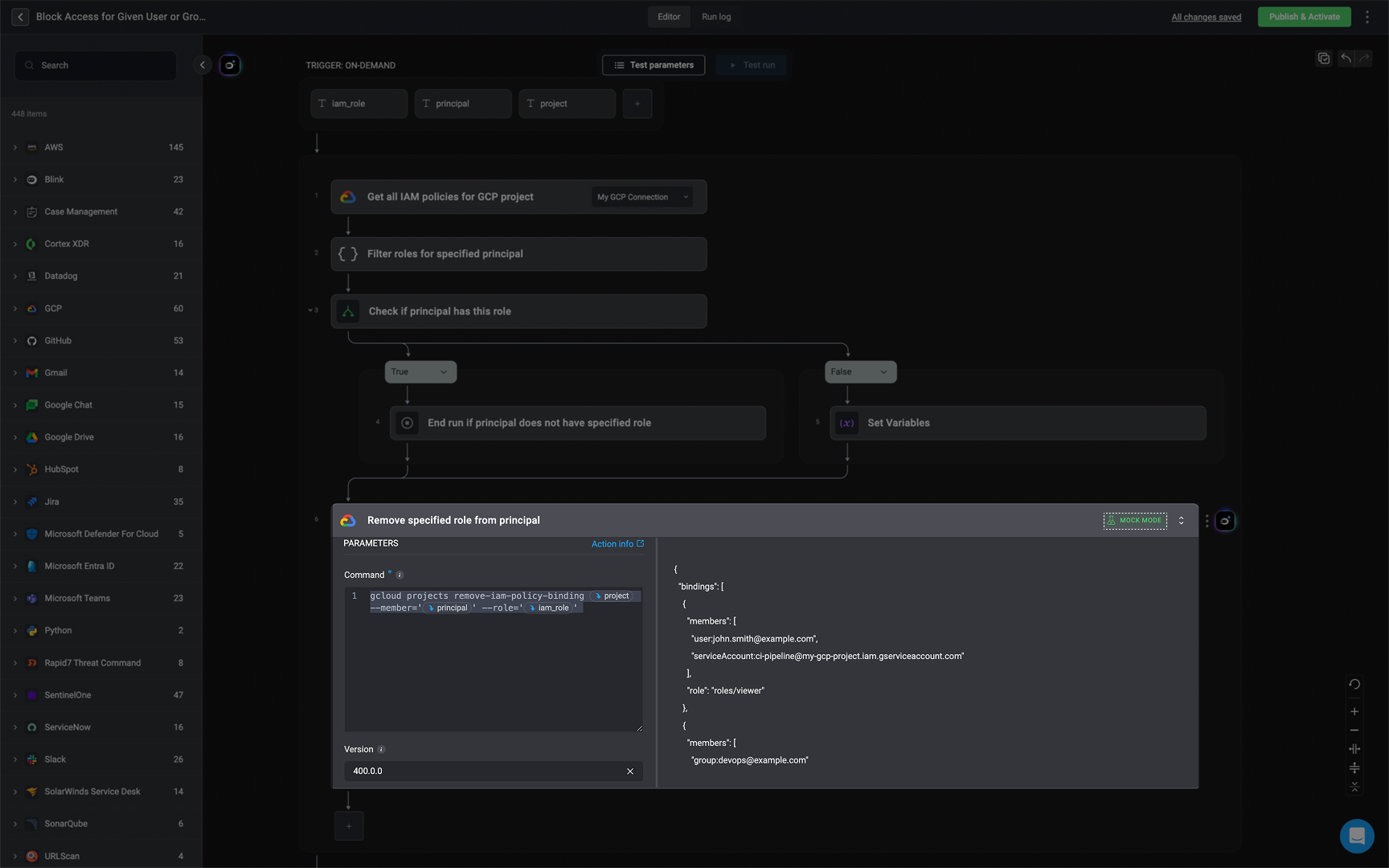
Mock output configurations are saved with the workflow and can be enabled or disabled at any time by toggling the 'enable mock data' option in the step's settings.
A clear visual indicator will appear on the step to show that it is running in mock mode.
***
Mock output configurations are saved with the workflow and can be enabled or disabled at any time by toggling the 'enable mock data' option in the step's settings.
A clear visual indicator will appear on the step to show that it is running in mock mode.
 ***
### Run Logs with Mock Data
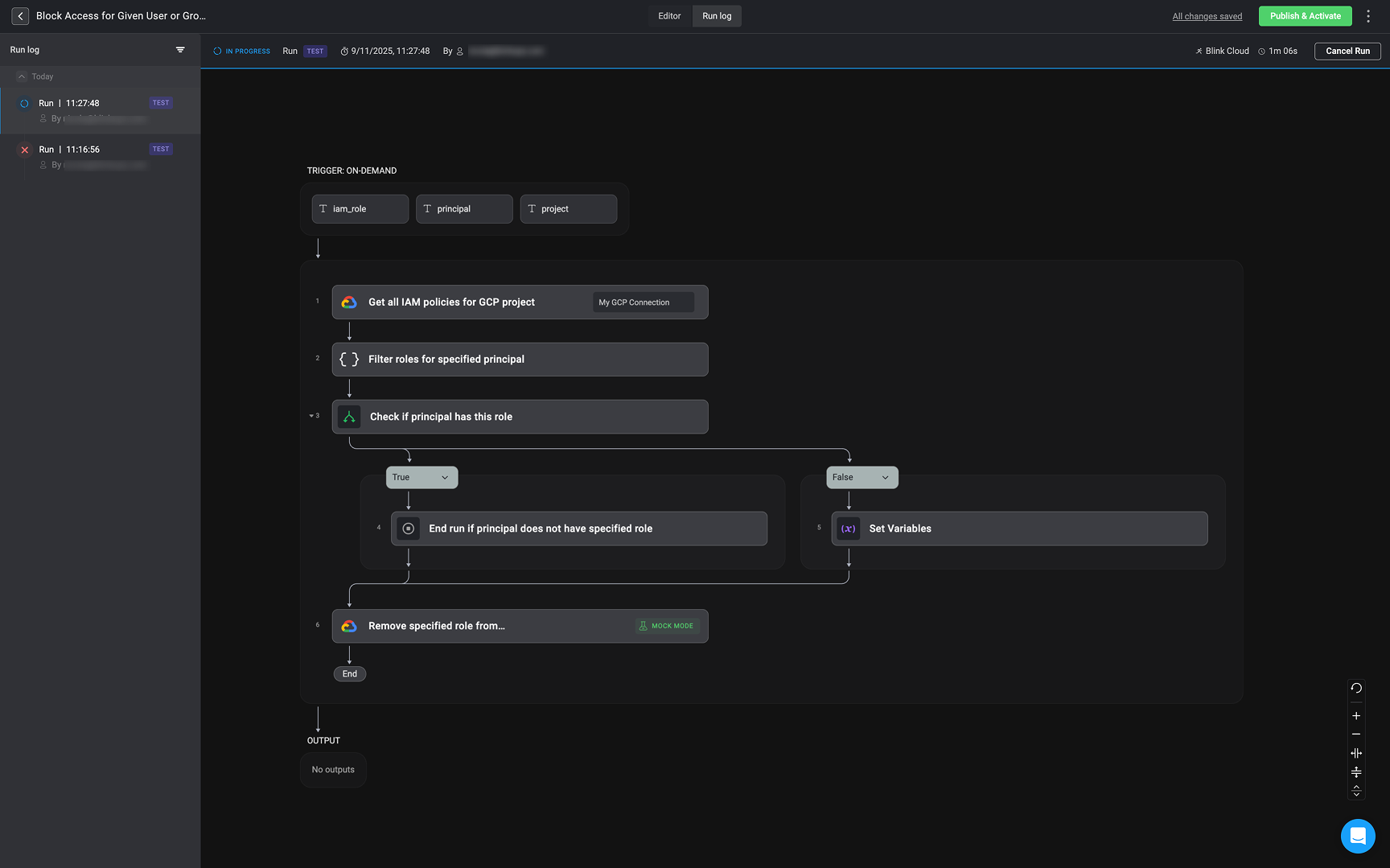
Users will be able to view historical step executions in the 'Run Log' tabs and reuse those outputs as mock data, further enhancing development speed and flexibility.
***
### Run Logs with Mock Data
Users will be able to view historical step executions in the 'Run Log' tabs and reuse those outputs as mock data, further enhancing development speed and flexibility.
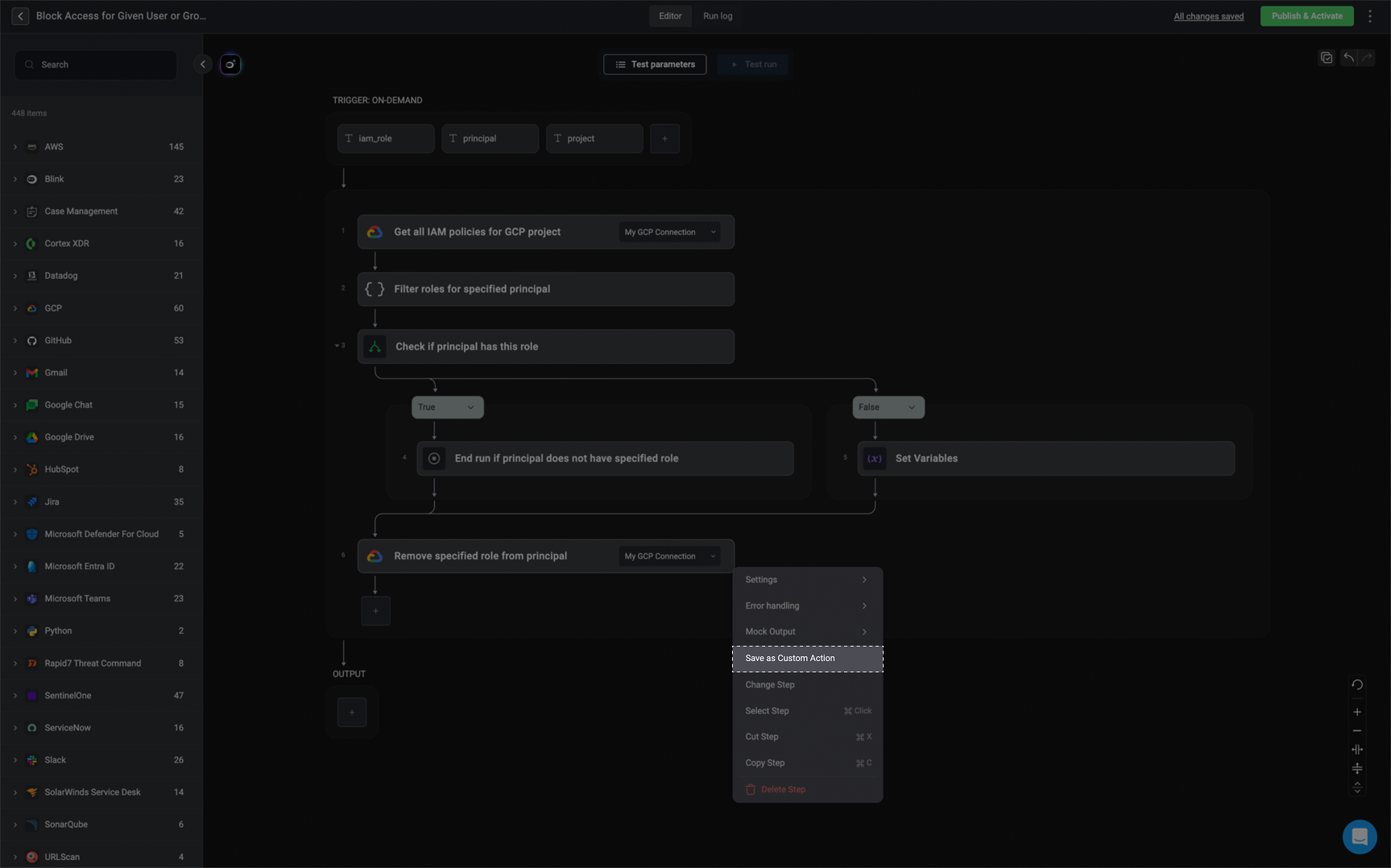
 Allows you to save this step as a [custom action](/docs/workflows/building-workflows/actions/custom-actions), making it reusable across other workflows. Once saved, it can be added to new workflows just like any built-in action.
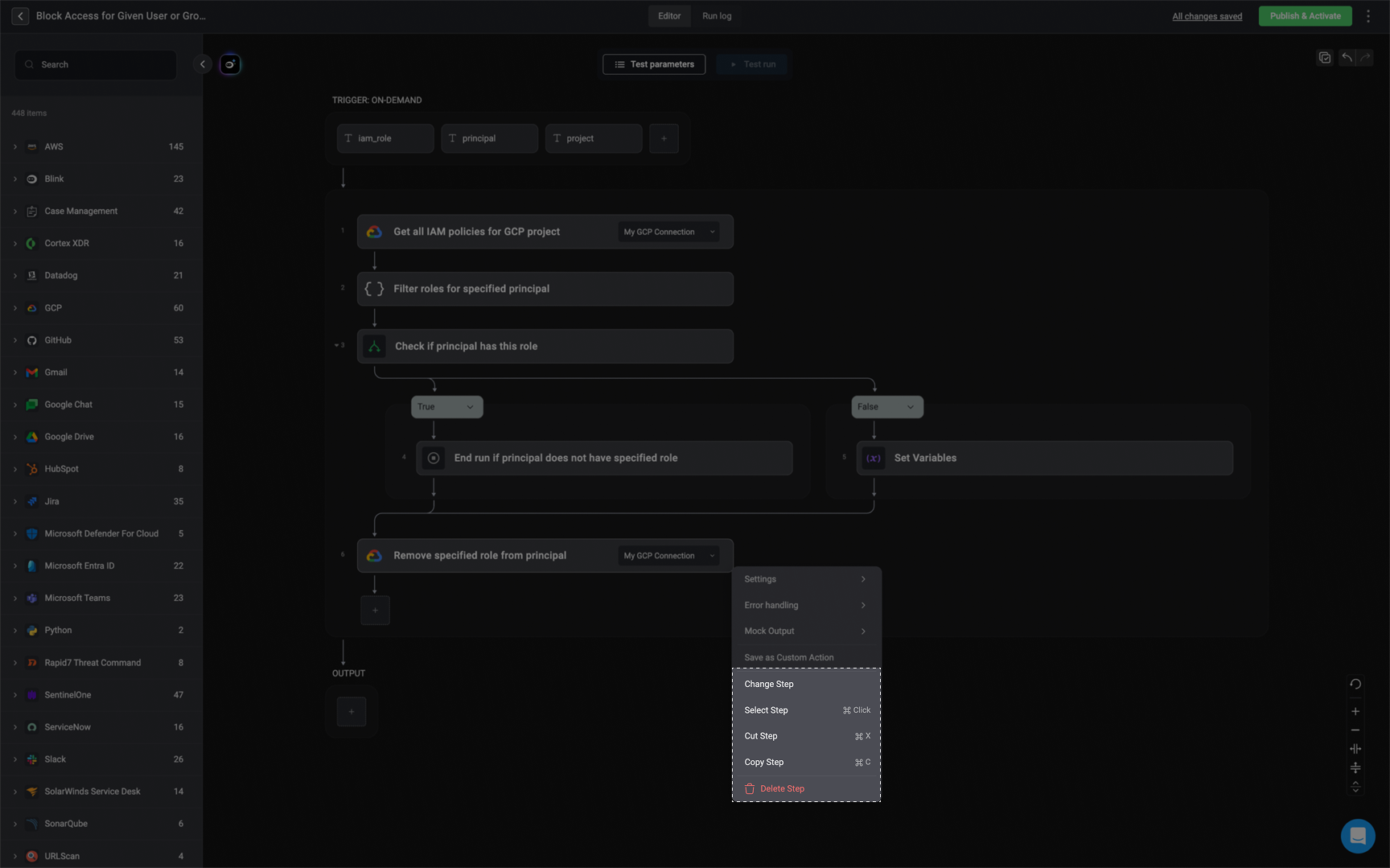
 * **Change Step**- Select a different action for this step.
* **Select Step**- Selects one or [multiple steps](/docs/workflows/building-workflows/steps#enabling-the-multi-selection-step-mode).
* **Cut Step**- Cuts the selected step from the workflow.
* **Copy Step**- Copies the selected step.
* **Delete Step**- Deletes the selected step.
* **Change Step**- Select a different action for this step.
* **Select Step**- Selects one or [multiple steps](/docs/workflows/building-workflows/steps#enabling-the-multi-selection-step-mode).
* **Cut Step**- Cuts the selected step from the workflow.
* **Copy Step**- Copies the selected step.
* **Delete Step**- Deletes the selected step.
 ***
## Multiselect Step and Bulk Actions
The 'Multiselect Step and Bulk Actions' feature allows you to select multiple steps at once in the Workflow editor and perform bulk actions on the selected steps such as **delete, copy and cut** as well as dragging the selected steps to a new position.
The 'Delete Bulk' action allows you to select multiple steps and delete them from the Workflow editor.
***
## Multiselect Step and Bulk Actions
The 'Multiselect Step and Bulk Actions' feature allows you to select multiple steps at once in the Workflow editor and perform bulk actions on the selected steps such as **delete, copy and cut** as well as dragging the selected steps to a new position.
The 'Delete Bulk' action allows you to select multiple steps and delete them from the Workflow editor.
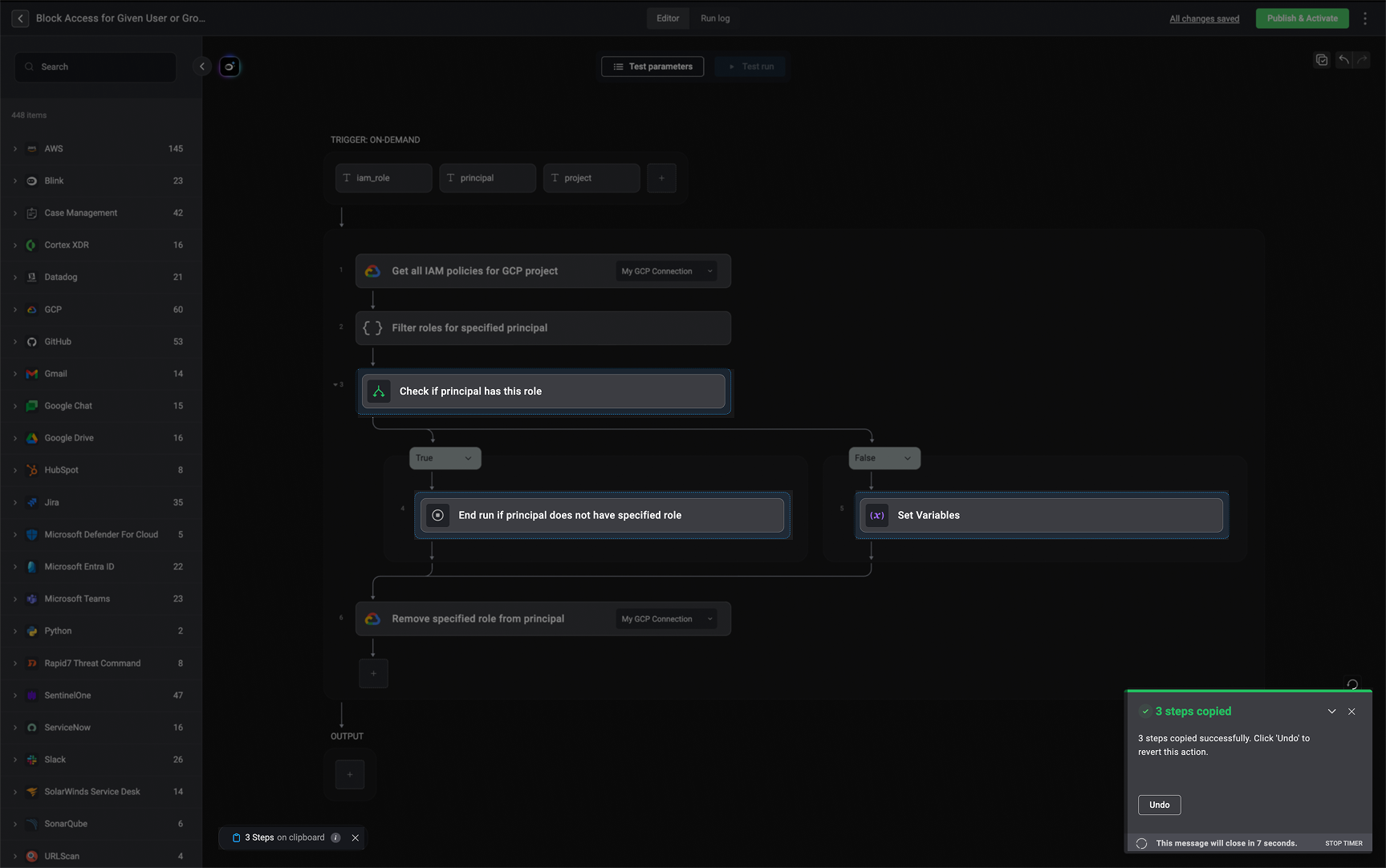
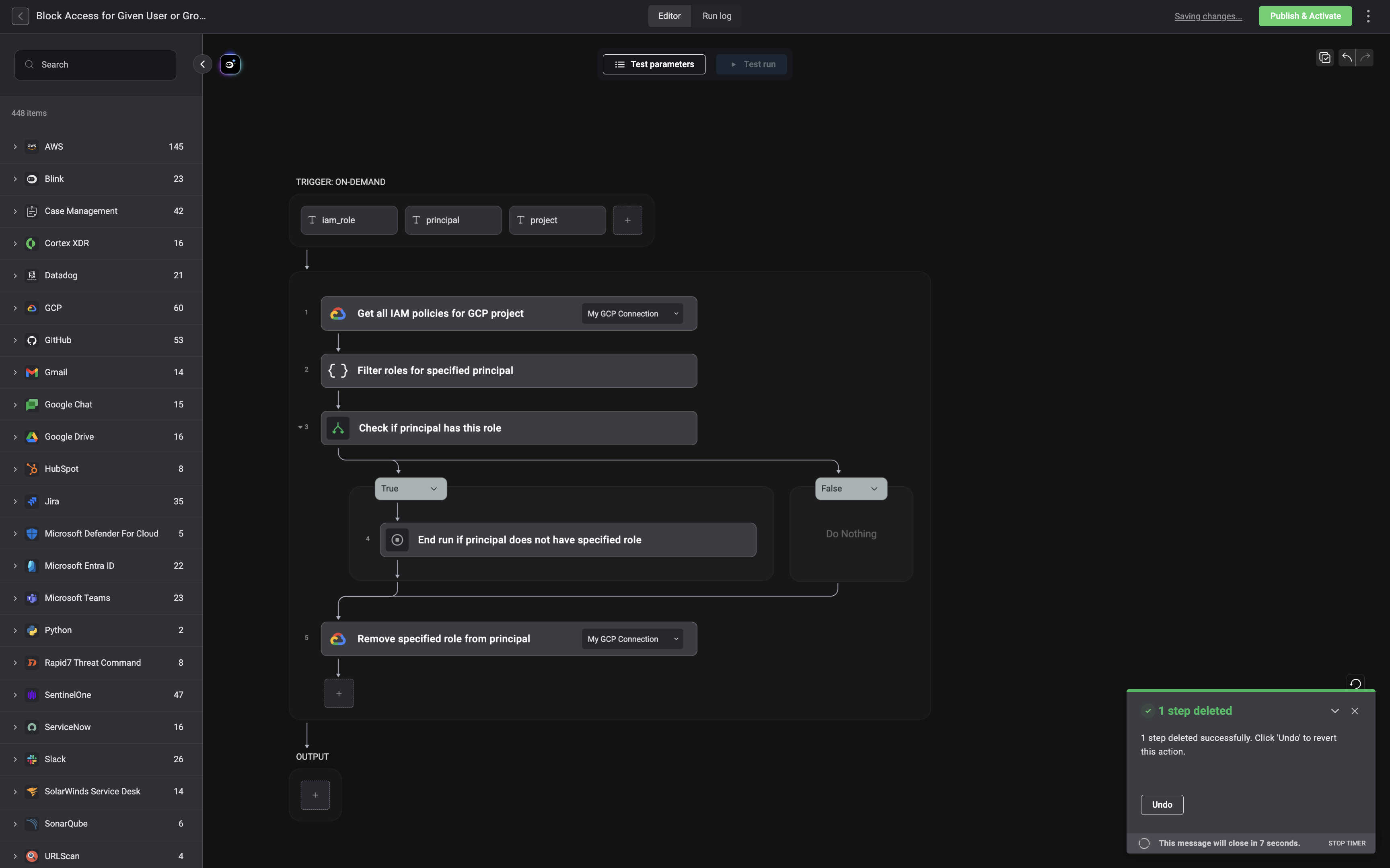 The 'Copy bulk' action enables you to copy selected steps for pasting in either the same or a different Workflow editor.
**Note**
* Upon selecting the 'Copy bulk' action, the copied steps will be outlined with dots, a visual cue that will stay until you perform one of the actions outlined in the leaving the multi-selection mode.
* You can also paste the copied step(s) into a different **Browser tab**.
* Copying and pasting a step in a different web browser is only compatible with `Chrome`. Other web browsers are not currently supported.
* By default, if you try to copy a step containing a "Send HTTP request" action with an invalid link, you will encounter an error and won't be able to copy the step successfully.
The 'Copy bulk' action enables you to copy selected steps for pasting in either the same or a different Workflow editor.
**Note**
* Upon selecting the 'Copy bulk' action, the copied steps will be outlined with dots, a visual cue that will stay until you perform one of the actions outlined in the leaving the multi-selection mode.
* You can also paste the copied step(s) into a different **Browser tab**.
* Copying and pasting a step in a different web browser is only compatible with `Chrome`. Other web browsers are not currently supported.
* By default, if you try to copy a step containing a "Send HTTP request" action with an invalid link, you will encounter an error and won't be able to copy the step successfully.
 The first time you copy a step in the editor, a popup will appear in the top-left corner asking for permission to let the Blink application "listen" to the clipboard.
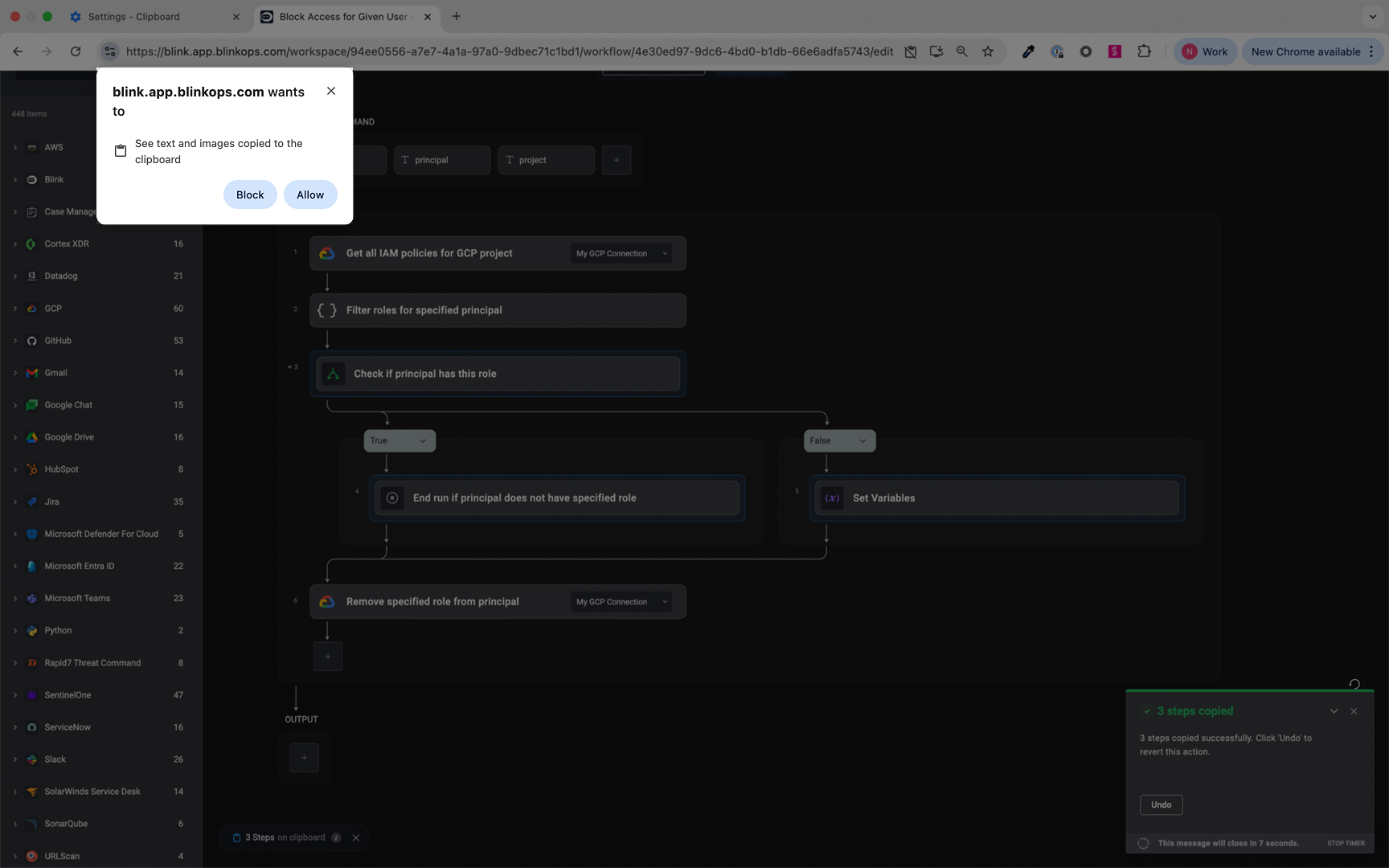 * By clicking "Allow," you enable the functionality to copy and paste steps in a different Browser tab.
* By clicking "Block", you disable the functionality that allows you to copy and paste steps in different Browser tabs.
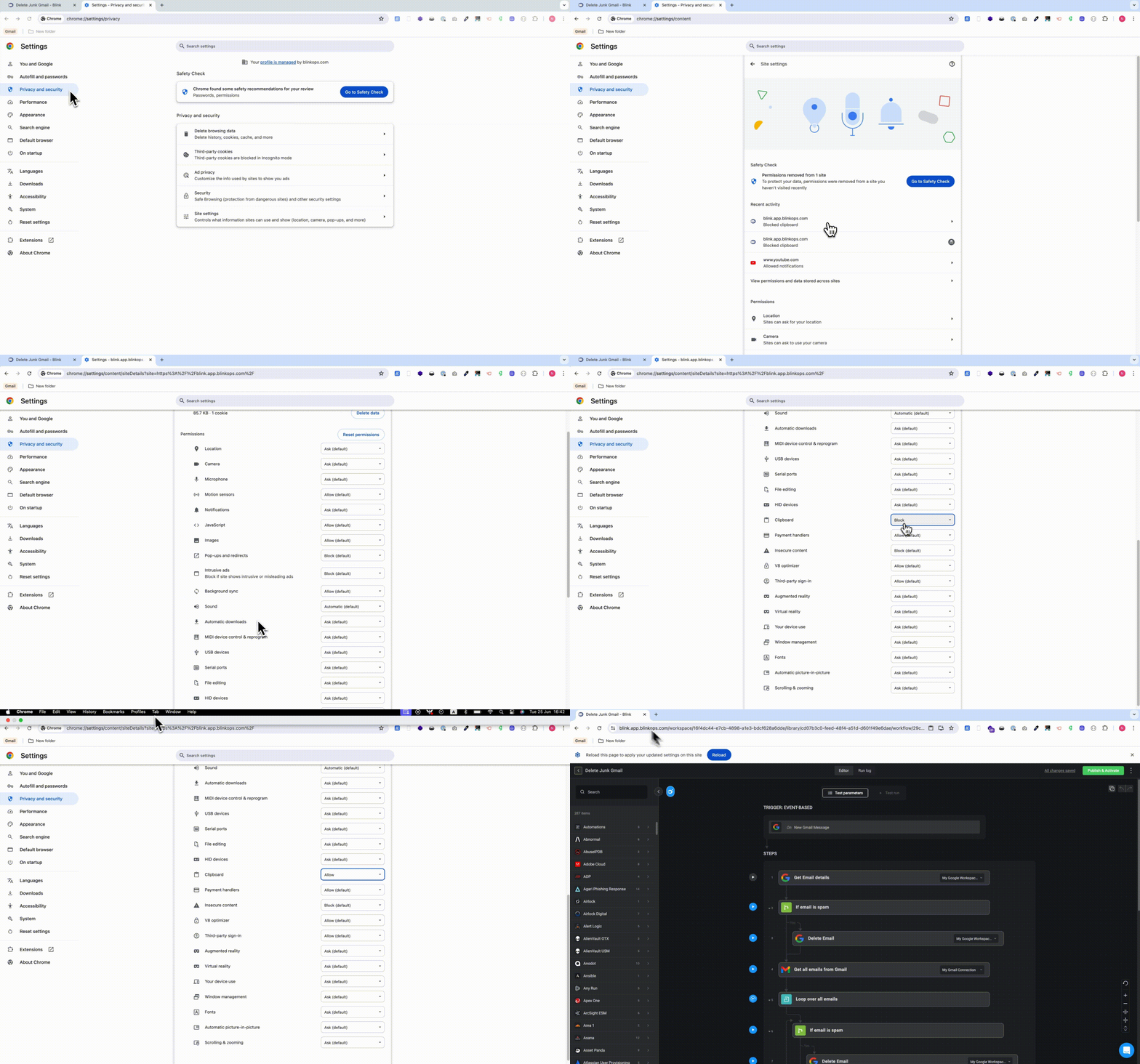
1. Go to Chrome settings.
2. Select "Settings and privacy".
3. Then "Site Settings".
4. Under "Recent Activity", click "Clipboard Blocked".
5. Scroll down to the clipboard icon and choose "Allow".
6. Close your chrome settings and navigate back to your Browser tab where you copied the step(s).
7. Click the reload button to apply the changes.
* By clicking "Allow," you enable the functionality to copy and paste steps in a different Browser tab.
* By clicking "Block", you disable the functionality that allows you to copy and paste steps in different Browser tabs.
1. Go to Chrome settings.
2. Select "Settings and privacy".
3. Then "Site Settings".
4. Under "Recent Activity", click "Clipboard Blocked".
5. Scroll down to the clipboard icon and choose "Allow".
6. Close your chrome settings and navigate back to your Browser tab where you copied the step(s).
7. Click the reload button to apply the changes.
 The "*Cut Bulk*" action removes the selected steps from the Workflow editor, copies them to the clipboard, and enables you to paste them elsewhere on the same canvas or in a different workflow.
 ### Enabling the Multi-selection Step Mode
* Selecting the checkbox icon on the top right corner of the canvas.
* **Command/control + clicking a step**
* Right-click and select the **Select step** from the step contextual menu.
### Enabling the Multi-selection Step Mode
* Selecting the checkbox icon on the top right corner of the canvas.
* **Command/control + clicking a step**
* Right-click and select the **Select step** from the step contextual menu.
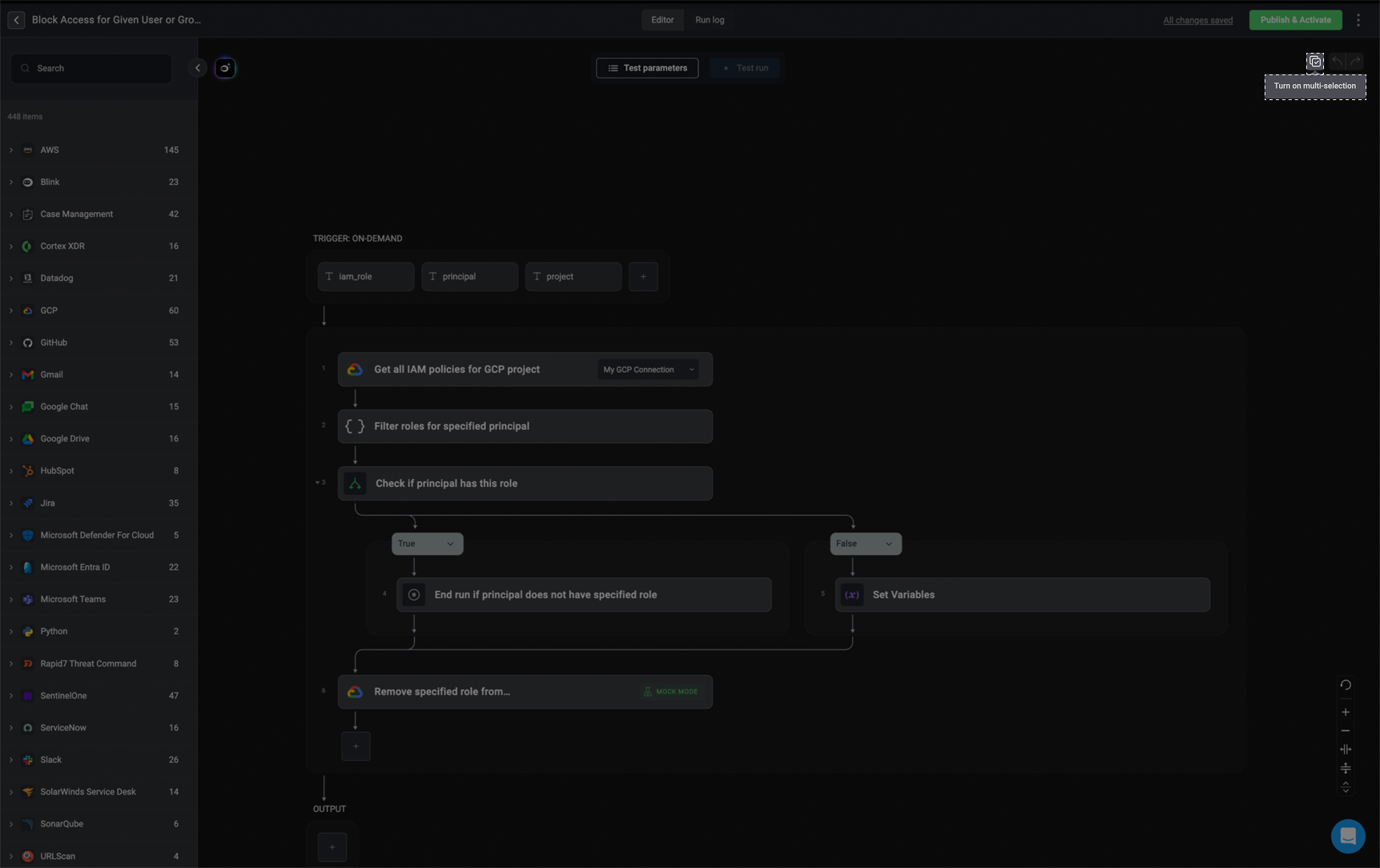 Checkboxes will appear next to the Workflow's steps replacing the run step buttons.
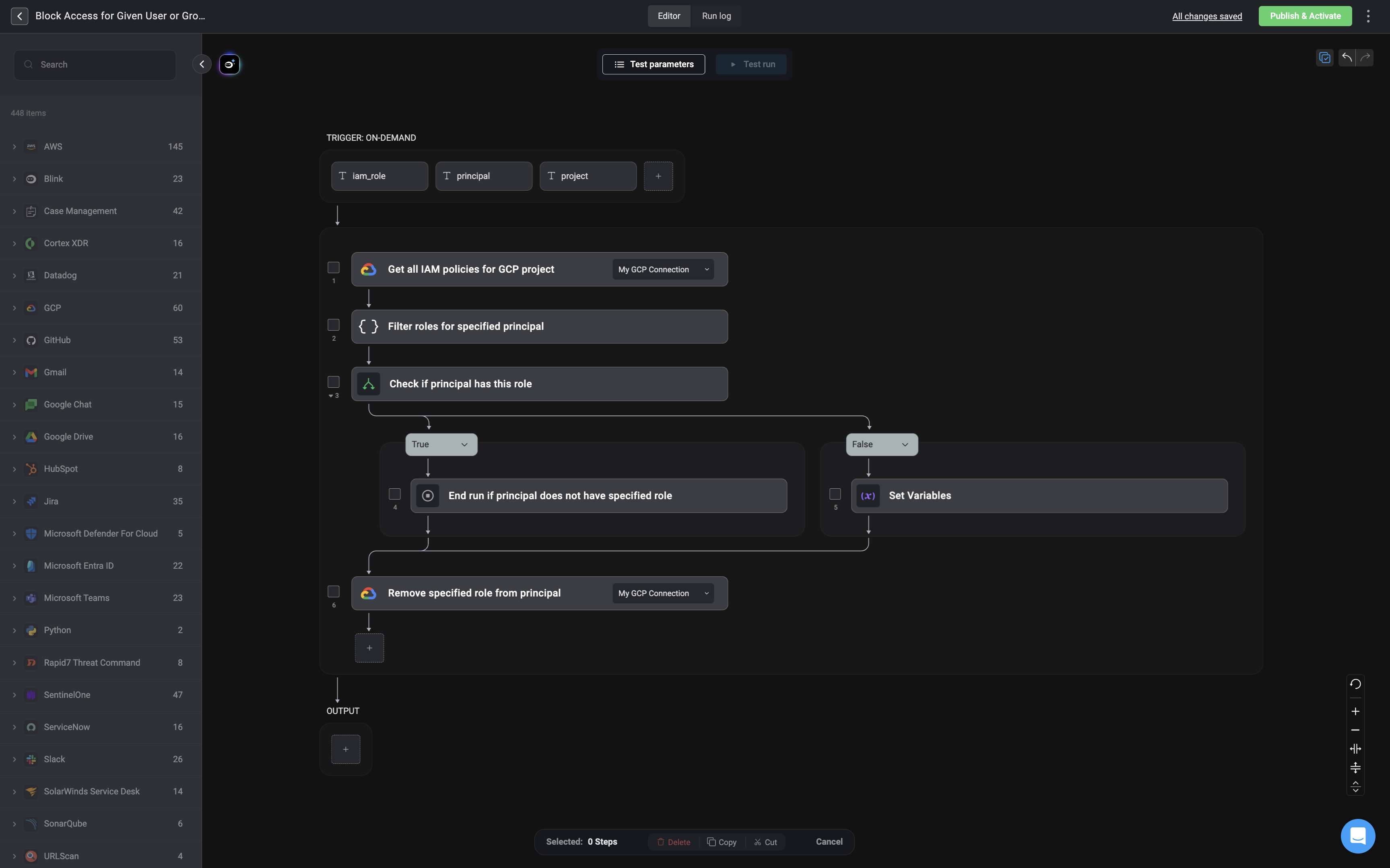 Select the steps by checking the box. The selected steps will be **highlighted in blue** for a clear **selected** indication. You can also use **Shift and click** on the mouse to select **consecutive steps**.
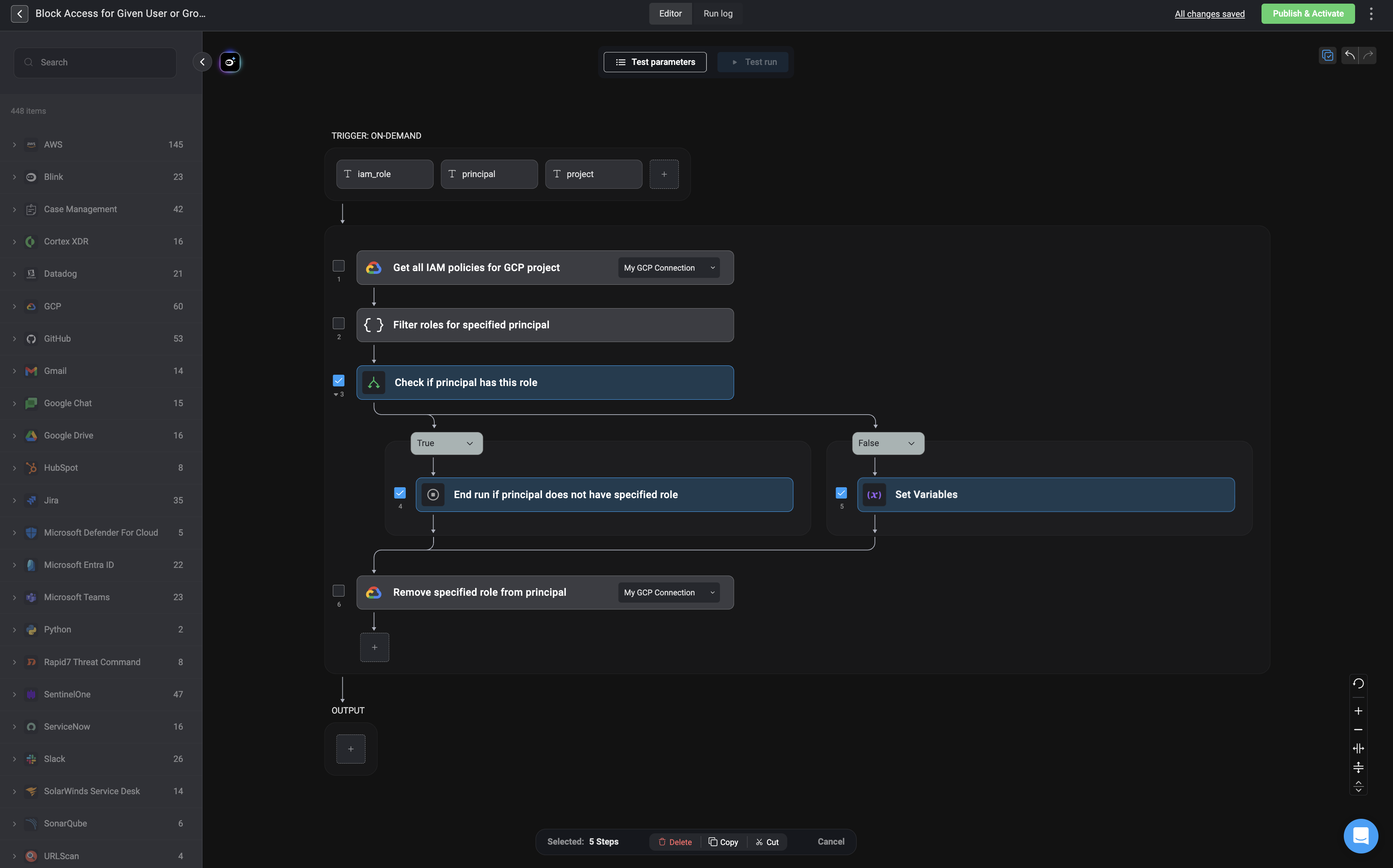 During the selection mode, a floating toolbar will appear towards the bottom of the screen, displaying the **delete**, **copy**, and **cut bulk actions**, **the number of selected steps** and a **cancel button** which will revert to the normal mode.
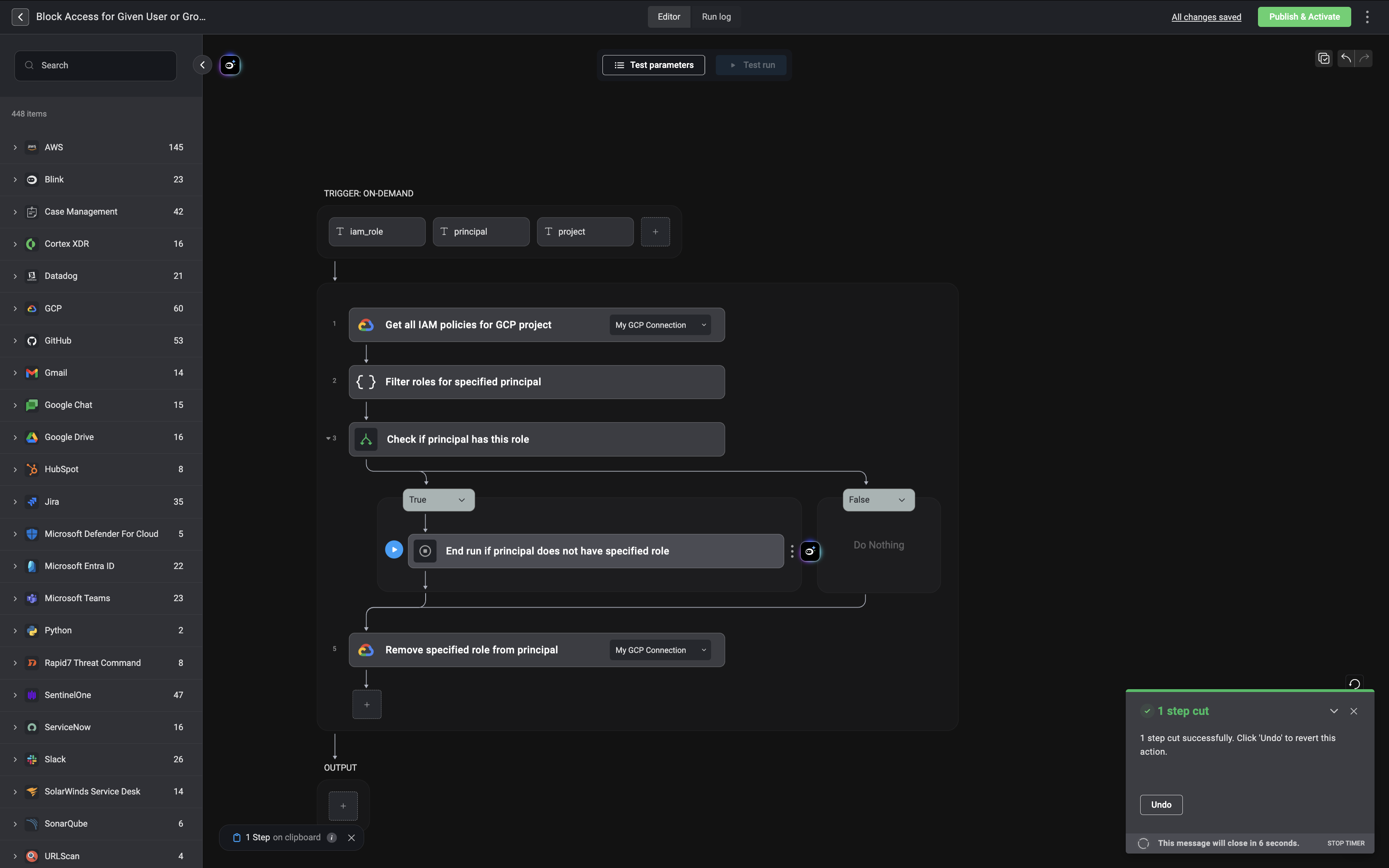
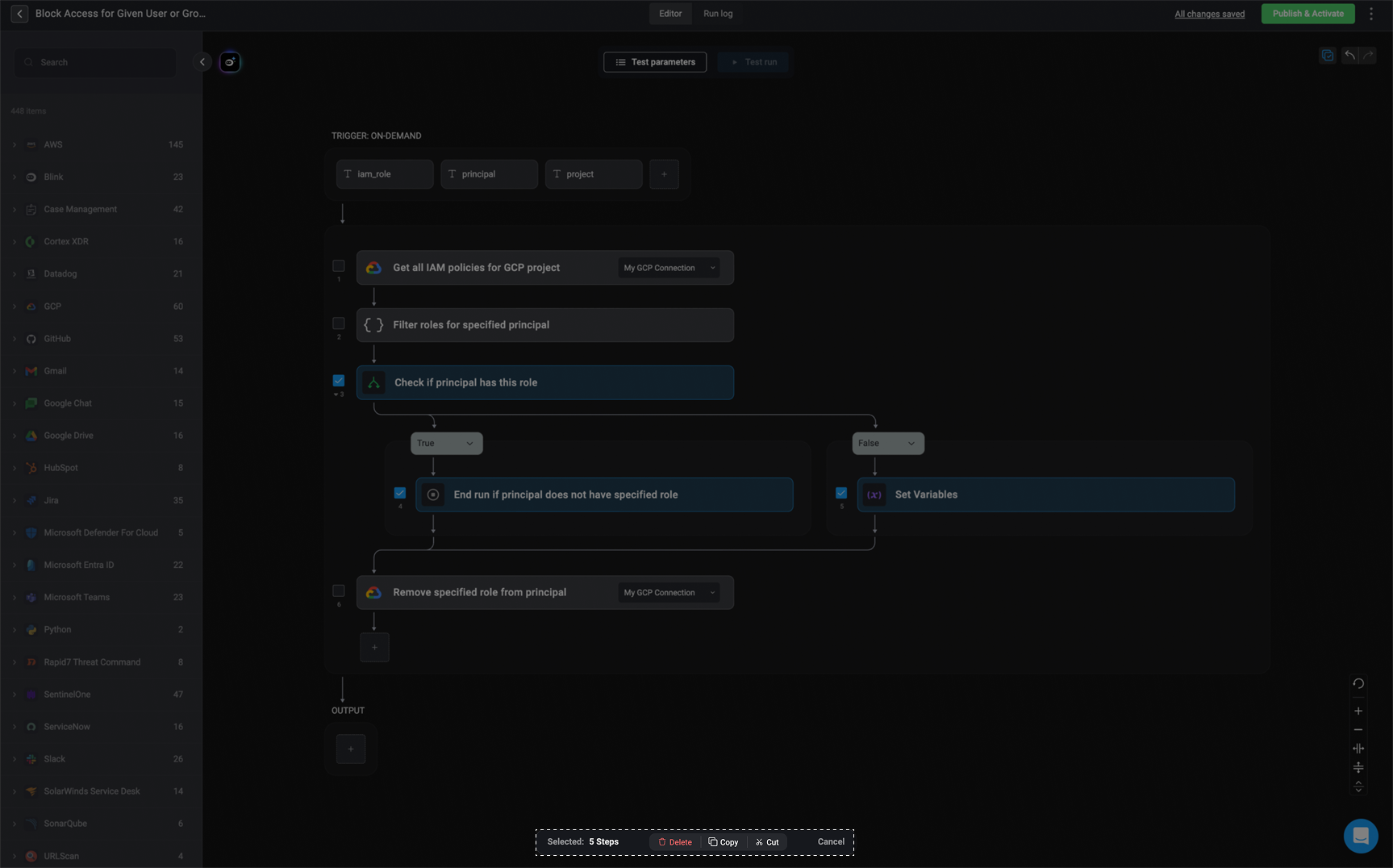 Upon choosing a bulk action for your selected steps, a notification pop-up will appear in the bottom-right corner. It will confirm the successful completion of the chosen bulk action and provide you with the option to revert it by selecting the "undo" button.
***
### Leaving the Multi-selection Step Mode
**Note:** Engaging in unrelated actions within the editor may close the **multi-select mode**.
In order to exit the **Multi-selection Step Mode** and return to the original mode you can perform the following actions:
1. Clicking on the **cancel** button on the floating selection element.
**OR**
2. Clicking on the **multi-select icon** in the top-right corner.
***
### Mouse and Keyboard Shortcuts
1. Right-clicking on a step will open the step contextual menu.
2.
Upon choosing a bulk action for your selected steps, a notification pop-up will appear in the bottom-right corner. It will confirm the successful completion of the chosen bulk action and provide you with the option to revert it by selecting the "undo" button.
***
### Leaving the Multi-selection Step Mode
**Note:** Engaging in unrelated actions within the editor may close the **multi-select mode**.
In order to exit the **Multi-selection Step Mode** and return to the original mode you can perform the following actions:
1. Clicking on the **cancel** button on the floating selection element.
**OR**
2. Clicking on the **multi-select icon** in the top-right corner.
***
### Mouse and Keyboard Shortcuts
1. Right-clicking on a step will open the step contextual menu.
2. Holding down the **Command key ( - for Mac users)** or the **Control key (Ctrl- for Windows users)** and clicking on specific steps, will transition the canvas to selection mode and mark the steps as selected.
3. Pressing **Command/Control + C** will copy steps.
* + C (Mac) / Ctrl + C (Windows)
4. Pressing **Command/Control + X** will cut steps.
* + X (Mac) / Ctrl + X (Windows)
5. Pressing **Command/Control + V** will paste steps from the clipboard to the bottom of the canvas.
* + V (Mac) / Ctrl + V (Windows)
6. Pressing **Shift+click** will select all in-between steps from the last selected checkbox.
# Related Articles