> ## Documentation Index
> Fetch the complete documentation index at: https://docs.blinkops.com/llms.txt
> Use this file to discover all available pages before exploring further.
# Workflow YAML
> Understand the workflow YAML structure, including steps, actions, inputs, and connections in Blink.
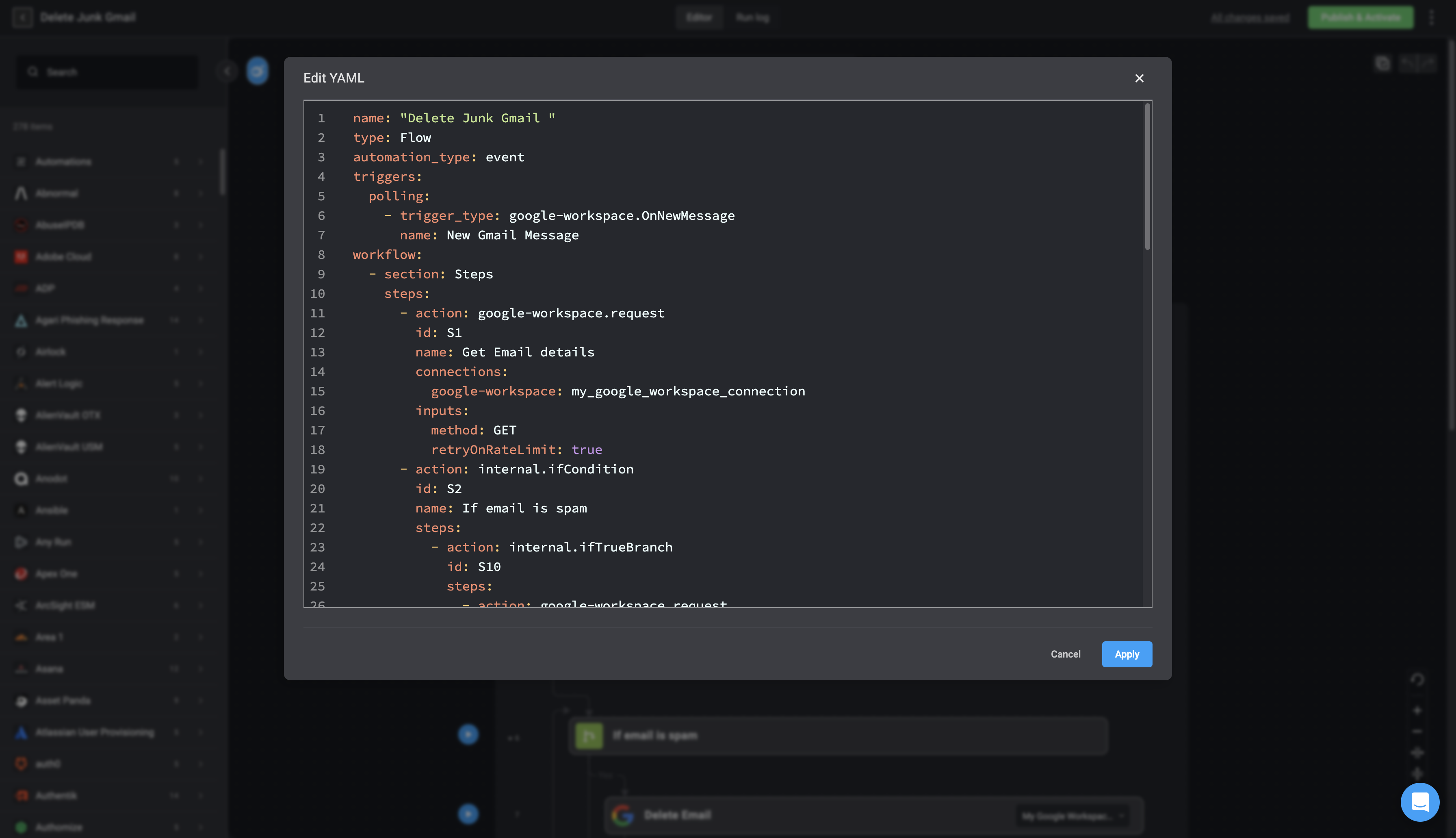
Any Workflow has a `YAML` format representation which looks like this:
 ## Viewing your Workflow in YAML format
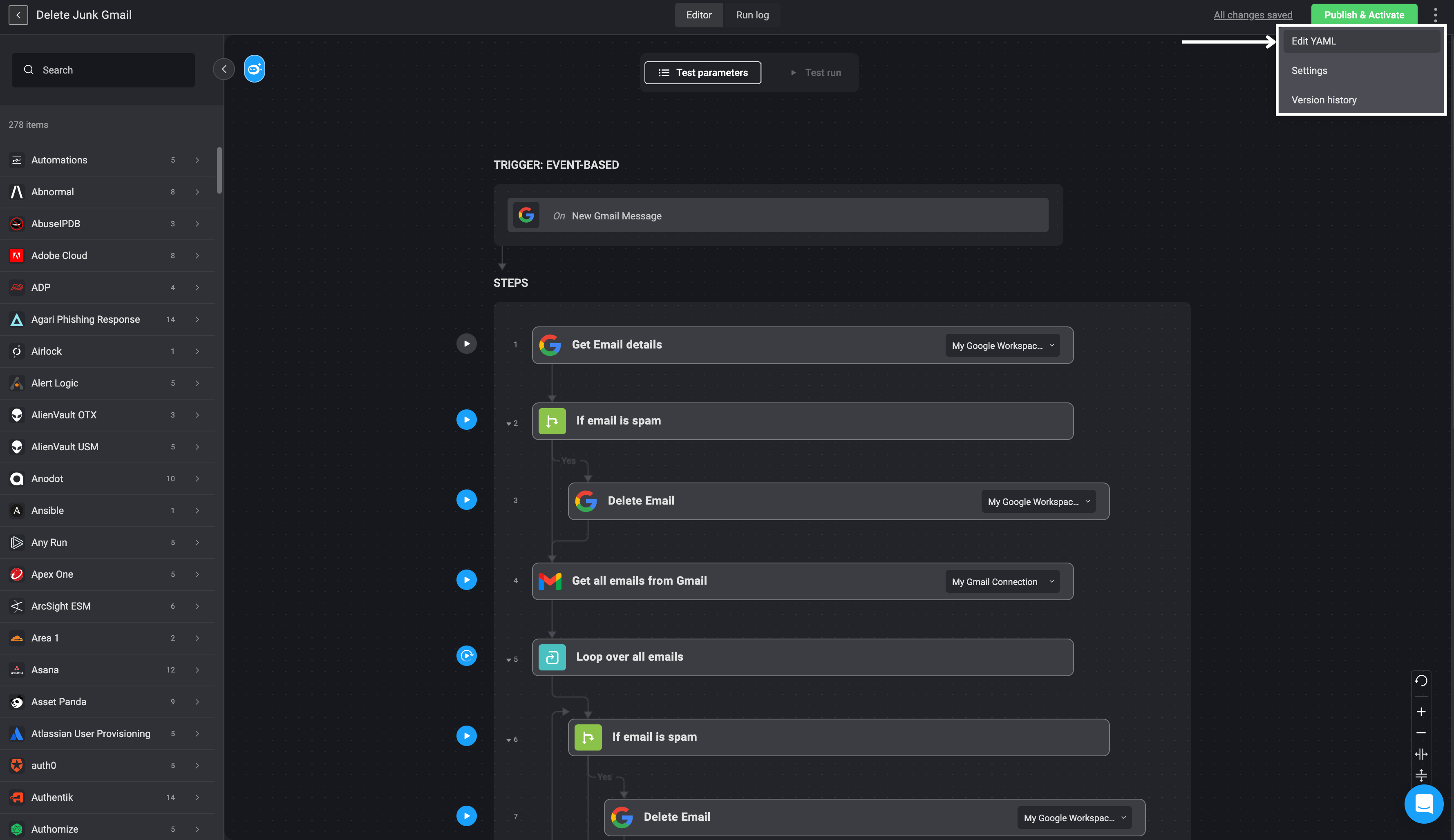
1. In the **Workflow Editor**, in the top-right corner, click the icon and then select the *Edit YAML* option. Your Workflow is presented in YAML format.
## Viewing your Workflow in YAML format
1. In the **Workflow Editor**, in the top-right corner, click the icon and then select the *Edit YAML* option. Your Workflow is presented in YAML format.
 ## Workflow YAML Grammar
The Workflow YAML is used to describe the Workflow and is defined as `YAML`. These attributes are present in the Workflow `YAML` file:
* `name` - Name of the Workflow.
* `type` - Can be either a Flow or Subflow Workflow.
* `Workflow_type` - The Workflow type represents how the Workflow will be used: `on_demand`, `event` or `scheduled`
* `active` - True while the Workflow is running, false otherwise.
* `desc` - Description of the Workflow.
* `connections`- The Workflow's connection, in the following format: `connection-type:connection-name`.
* `workflow`- The workflow representation. Workflow is built by `sections ` that contains a `name ` and `steps`
* `steps` - There are two types of steps: Action and Text. Each type contains different attributes: `Action`
* `action` - The full name of the action.
* `id` - ID of the step.
* `name` - Name of the step.
* `desc`- Description of the step.
* `inputs`- The Action's inputs, in the following format:`input-field-name:value`
Action inputs might be encapsulated, for example:
```yaml theme={"dark"}
input-field-name:
sub-input-field: value
sub-input-field-2: value2
```
* `connections` - The connection of the step, in the following format: `connection-type: connection-name`.
* `steps` - Flow Control actions such as `internal.for` iterates over all the `steps` and executes them.
* `transitions` - Flow control actions such as `internal.if` contains the `transitions` field built as following:
```yaml theme={"dark"}
transitions:
- on: true
steps: ...
- on: false
steps: ...
```
One of the `steps` branches will execute depending on the evaluated condition, which is provided on the `if` action.
**Text**
* `text` - Free text. (this is unrelated to the steps attribute.)
* `counting_steps` - The number of steps in the Workflow.
## YAML Format Examples
### Example of Input and Output Parameters
```yaml theme={"dark"}
name: output parameters
type: Flow
automation_type: on_demand
inputs:
name:
default: Ofir
display_name: Name
name: name
placeholder: Enter your name
required: true
type: text
outputs:
Welcome Message: "{{ steps.S1.output }}"
workflow:
- section: Formatting
steps:
- action: core.bash
id: S1
name: Format welcome message
inputs:
code: echo "Welcome, {{inputs.name}}!"
counting_steps: 0
```
### Example of an `if` Condition with Input Parameters
```yaml theme={"dark"}
name: if condition game
type: Flow
automation_type: on_demand
inputs:
number:
default: 111
display_name: Number
name: number
placeholder: Enter your best guess
required: true
type: number
workflow:
- section: Game with If Conditions
steps:
- action: core.bash
id: S1
name: "#Action #1"
inputs:
code: 'echo "Welcome, You provided the number: {{inputs.number}}"'
- action: internal.if
id: S2
name: Is it the winning number
inputs:
condition:
sentence:
- lvalue: "{{inputs.number}}"
op: Equals
rvalue: 7
transitions:
- on: true
steps:
- action: core.bash
id: S3
name: Winning Number
inputs:
code: echo "You Won, Our number is 7"
- on: false
steps:
- action: internal.if
id: S4
name: Below or Above
inputs:
condition:
sentence:
- lvalue: "{{inputs.number}}"
op: Greater than
rvalue: 7
transitions:
- on: true
steps:
- action: core.bash
id: S5
name: Above
inputs:
code: echo "You number is above our number!"
- on: false
steps:
- action: core.bash
id: S6
name: Below
inputs:
code: echo "Your number is below our number!"
- section: Finish
steps:
- action: core.bash
id: S7
name: Thanks for playing
inputs:
code: echo "Thanks for playing!"
counting_steps: 0
```
### Example of a Connection
```yaml theme={"dark"}
name: connections
type: Flow
automation_type: on_demand
workflow:
- section: Ask question using Slack connection
steps:
- id: S1
name: Ask a question via Slack
action: system.AskQuestionViaSlack
connections:
slack: slack_connection
inputs:
To: test@test.com
Question: Hey how are you?
Answers: Fine how are you?, Sick :( and you?
counting_steps: 0
```
### Example of a Scheduled Workflow
```yaml theme={"dark"}
name: scheduled workflow
type: Flow
automation_type: scheduled
runner: blink_cloud
triggers:
scheduled:
- id: UUID
active: true
trigger_type: schedule
cron: 0 * * * *
workflow:
- section: Every Hour Send A Report
steps:
- id: S1
name: Getting the number of EC2 instances
action: core.aws
inputs:
Command: aws ec2 describe-instances --query
'Reservations[*].Instances[*].[InstanceId]' --output text | wc -l
connections:
kubernetes: kubernetes
- id: S2
name: Send Report
action: core.email
inputs:
To: test@report.com
Subject: Number of pods in the cluster
Content:
According to {{ Now() }} we have {{steps.S1.output}} running ec2
instances
counting_steps: 0
```
### Example of Event-Based Workflow
```yaml theme={"dark"}
name: event based
type: Flow
automation_type: event
runner: blink_cloud
triggers:
webhooks:
- id: UUID
active: true
token: WEBHOOK_TOKEN
name: my webhook
trigger_type: custom_webhook
condition:
sentence:
- lvalue: "{{event.status}}"
op: Equals
rvalue: Approved
workflow:
- section: Event Handling
steps:
- id: S1
name: Print out the event with its content
action: core.bash
inputs:
code: echo {{event}}
counting_steps: 0
```
## Download YAML Format of a Workflow
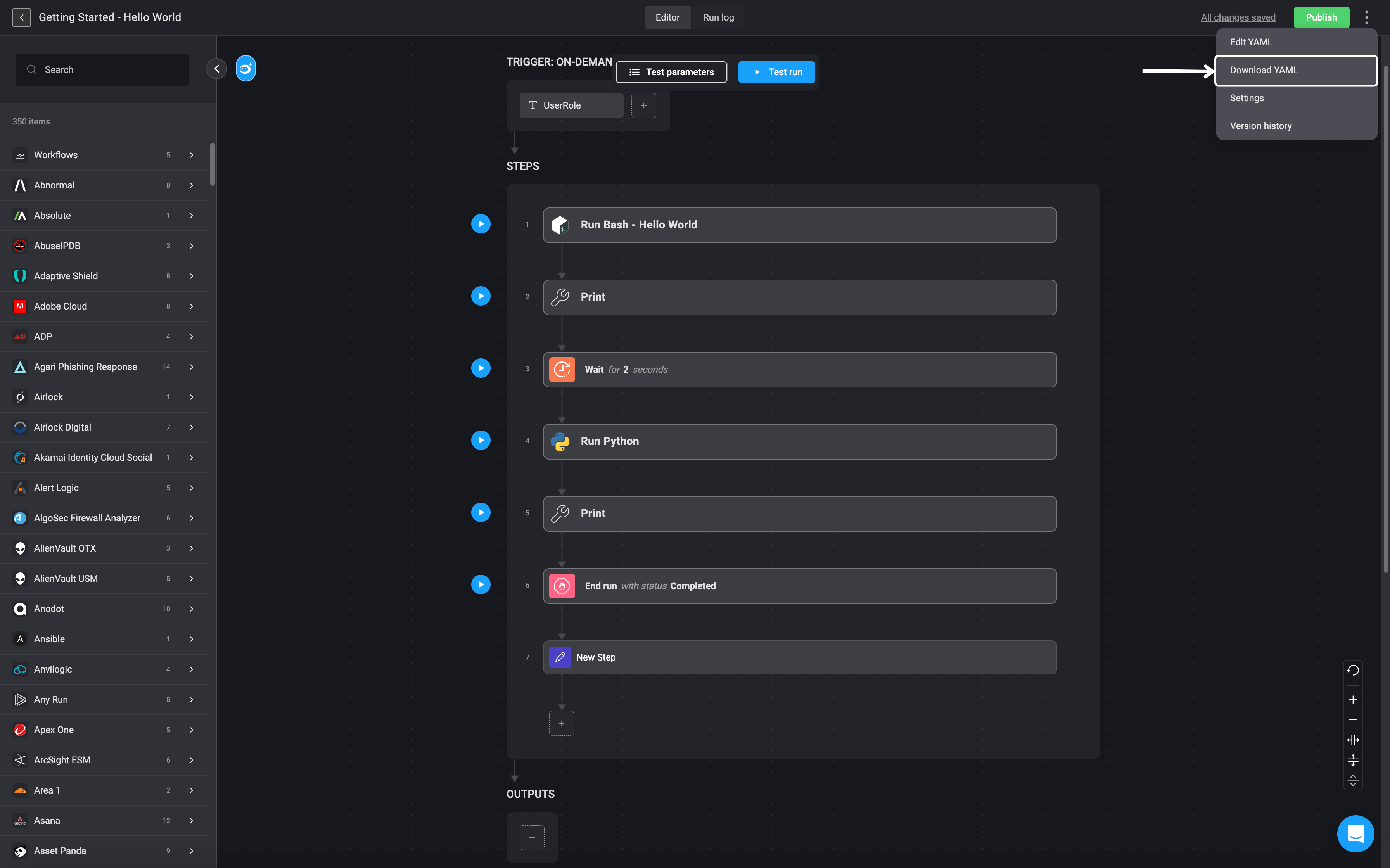
1. In the **Workflow Editor**, in the top-right corner, click the icon and then select the *Download YAML* option.
2. It will automatically download a file containing the *YAML* format of your workflow.
## Workflow YAML Grammar
The Workflow YAML is used to describe the Workflow and is defined as `YAML`. These attributes are present in the Workflow `YAML` file:
* `name` - Name of the Workflow.
* `type` - Can be either a Flow or Subflow Workflow.
* `Workflow_type` - The Workflow type represents how the Workflow will be used: `on_demand`, `event` or `scheduled`
* `active` - True while the Workflow is running, false otherwise.
* `desc` - Description of the Workflow.
* `connections`- The Workflow's connection, in the following format: `connection-type:connection-name`.
* `workflow`- The workflow representation. Workflow is built by `sections ` that contains a `name ` and `steps`
* `steps` - There are two types of steps: Action and Text. Each type contains different attributes: `Action`
* `action` - The full name of the action.
* `id` - ID of the step.
* `name` - Name of the step.
* `desc`- Description of the step.
* `inputs`- The Action's inputs, in the following format:`input-field-name:value`
Action inputs might be encapsulated, for example:
```yaml theme={"dark"}
input-field-name:
sub-input-field: value
sub-input-field-2: value2
```
* `connections` - The connection of the step, in the following format: `connection-type: connection-name`.
* `steps` - Flow Control actions such as `internal.for` iterates over all the `steps` and executes them.
* `transitions` - Flow control actions such as `internal.if` contains the `transitions` field built as following:
```yaml theme={"dark"}
transitions:
- on: true
steps: ...
- on: false
steps: ...
```
One of the `steps` branches will execute depending on the evaluated condition, which is provided on the `if` action.
**Text**
* `text` - Free text. (this is unrelated to the steps attribute.)
* `counting_steps` - The number of steps in the Workflow.
## YAML Format Examples
### Example of Input and Output Parameters
```yaml theme={"dark"}
name: output parameters
type: Flow
automation_type: on_demand
inputs:
name:
default: Ofir
display_name: Name
name: name
placeholder: Enter your name
required: true
type: text
outputs:
Welcome Message: "{{ steps.S1.output }}"
workflow:
- section: Formatting
steps:
- action: core.bash
id: S1
name: Format welcome message
inputs:
code: echo "Welcome, {{inputs.name}}!"
counting_steps: 0
```
### Example of an `if` Condition with Input Parameters
```yaml theme={"dark"}
name: if condition game
type: Flow
automation_type: on_demand
inputs:
number:
default: 111
display_name: Number
name: number
placeholder: Enter your best guess
required: true
type: number
workflow:
- section: Game with If Conditions
steps:
- action: core.bash
id: S1
name: "#Action #1"
inputs:
code: 'echo "Welcome, You provided the number: {{inputs.number}}"'
- action: internal.if
id: S2
name: Is it the winning number
inputs:
condition:
sentence:
- lvalue: "{{inputs.number}}"
op: Equals
rvalue: 7
transitions:
- on: true
steps:
- action: core.bash
id: S3
name: Winning Number
inputs:
code: echo "You Won, Our number is 7"
- on: false
steps:
- action: internal.if
id: S4
name: Below or Above
inputs:
condition:
sentence:
- lvalue: "{{inputs.number}}"
op: Greater than
rvalue: 7
transitions:
- on: true
steps:
- action: core.bash
id: S5
name: Above
inputs:
code: echo "You number is above our number!"
- on: false
steps:
- action: core.bash
id: S6
name: Below
inputs:
code: echo "Your number is below our number!"
- section: Finish
steps:
- action: core.bash
id: S7
name: Thanks for playing
inputs:
code: echo "Thanks for playing!"
counting_steps: 0
```
### Example of a Connection
```yaml theme={"dark"}
name: connections
type: Flow
automation_type: on_demand
workflow:
- section: Ask question using Slack connection
steps:
- id: S1
name: Ask a question via Slack
action: system.AskQuestionViaSlack
connections:
slack: slack_connection
inputs:
To: test@test.com
Question: Hey how are you?
Answers: Fine how are you?, Sick :( and you?
counting_steps: 0
```
### Example of a Scheduled Workflow
```yaml theme={"dark"}
name: scheduled workflow
type: Flow
automation_type: scheduled
runner: blink_cloud
triggers:
scheduled:
- id: UUID
active: true
trigger_type: schedule
cron: 0 * * * *
workflow:
- section: Every Hour Send A Report
steps:
- id: S1
name: Getting the number of EC2 instances
action: core.aws
inputs:
Command: aws ec2 describe-instances --query
'Reservations[*].Instances[*].[InstanceId]' --output text | wc -l
connections:
kubernetes: kubernetes
- id: S2
name: Send Report
action: core.email
inputs:
To: test@report.com
Subject: Number of pods in the cluster
Content:
According to {{ Now() }} we have {{steps.S1.output}} running ec2
instances
counting_steps: 0
```
### Example of Event-Based Workflow
```yaml theme={"dark"}
name: event based
type: Flow
automation_type: event
runner: blink_cloud
triggers:
webhooks:
- id: UUID
active: true
token: WEBHOOK_TOKEN
name: my webhook
trigger_type: custom_webhook
condition:
sentence:
- lvalue: "{{event.status}}"
op: Equals
rvalue: Approved
workflow:
- section: Event Handling
steps:
- id: S1
name: Print out the event with its content
action: core.bash
inputs:
code: echo {{event}}
counting_steps: 0
```
## Download YAML Format of a Workflow
1. In the **Workflow Editor**, in the top-right corner, click the icon and then select the *Download YAML* option.
2. It will automatically download a file containing the *YAML* format of your workflow.