> ## Documentation Index
> Fetch the complete documentation index at: https://docs.blinkops.com/llms.txt
> Use this file to discover all available pages before exploring further.
# Workflow Run Logs
> Use workflow run logs to debug execution issues and inspect step-level inputs and outputs in Blink.
The **Run Log** displays executions from the last `30` days.
The "Run Log" provides a detailed record of every execution of a selected workflow. It allows you to review past runs, verify whether each step was successful, and troubleshoot errors when they occur. By capturing both test runs and active runs, the run log ensures full visibility into workflow performance over time. This makes it an essential tool for monitoring reliability, validating changes, and maintaining a clear audit trail of automation activity.
## Run Log Panel
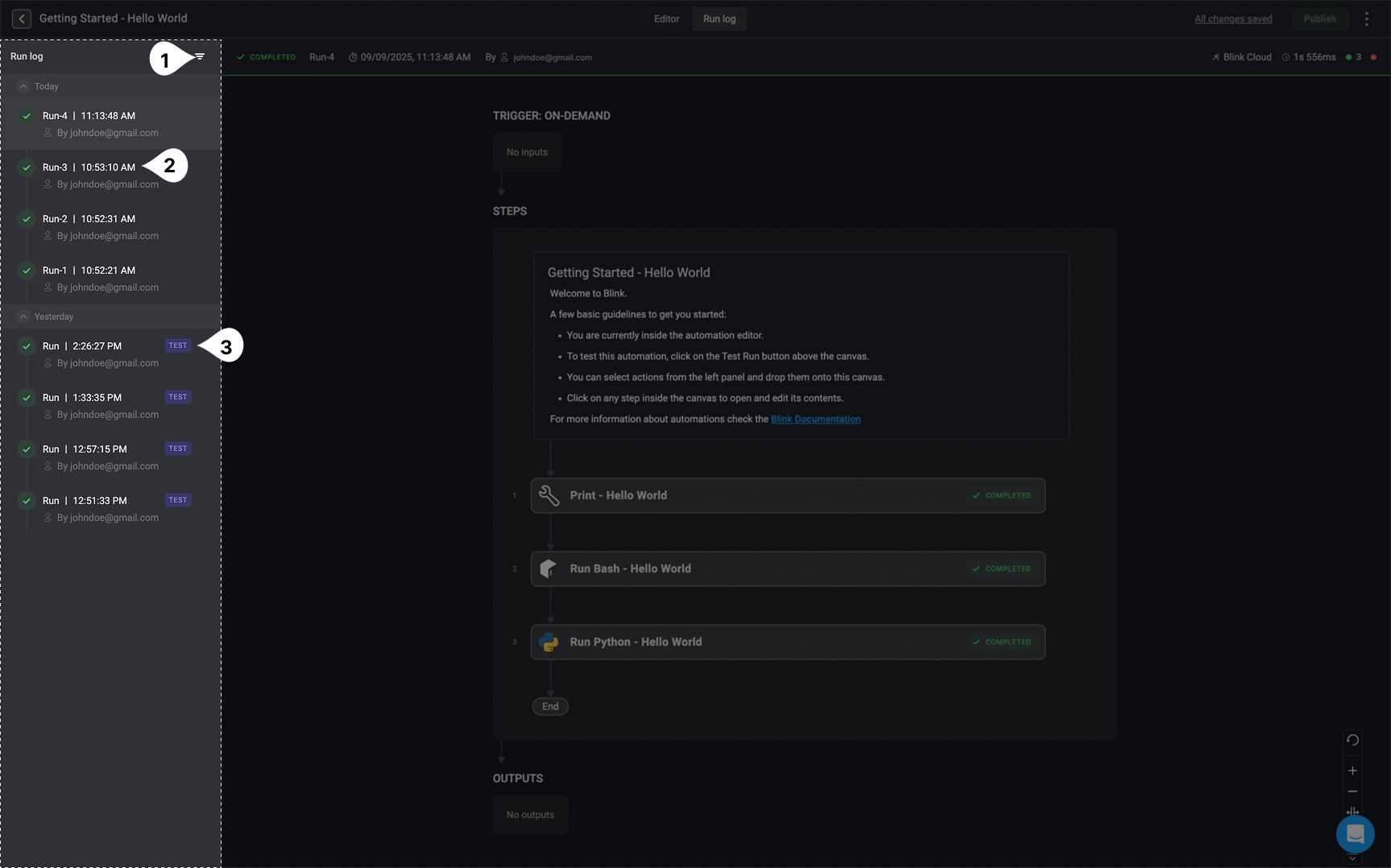
| | Title | Description |
| ----- | ------------------------------------------------------------------- | ------------------------------------------------------------------------------------------------------------------------------------------------ |
| **1** |
[Filter](#filtering-run-logs) -
| Allows you to display or hide the **test run logs** in the run log panel. |
| **2** | **Active Run Log** | Represents a run log entry of the selected workflow's execution history. Displays the run number, timestamp, and the user who initiated the run. |
| **3** | **Test Run Log** | Identifies the selected workflow's executions that were triggered in **Test Mode**. These are marked with a "TEST" label for quick visibility. |
 ***
## Filtering Run Logs
***
## Filtering Run Logs
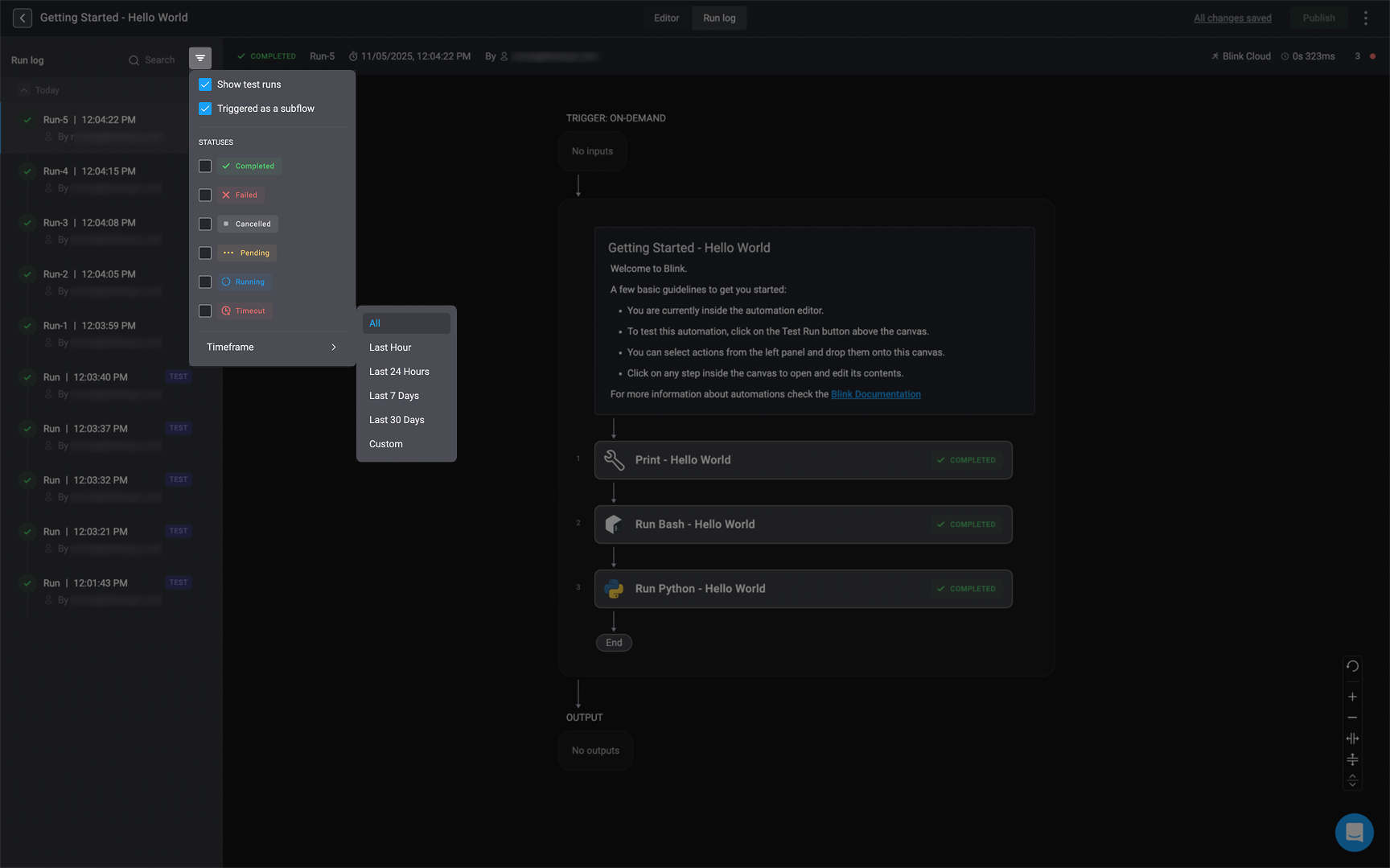
In the run log panel on the left, click the icon to filter run logs. You can filter logs based on the following categories:
* **Show test runs** – Displays all workflows executed as test runs.
* **Triggered as a subflow** – Shows workflows that were triggered as part of another workflow.
* **Completed** – Lists workflows that finished successfully without errors.
* **Failed** – Shows workflows that encountered errors and did not complete.
* **Cancelled** – Displays workflows that were manually or automatically cancelled during execution.
* **Pending** – Lists workflows that are waiting to start execution.
* **Running** – Shows workflows that are currently in progress.
* **Timeout** – Displays workflows where one or more steps exceeded their allowed execution time.
* **Timeframe** – Filters workflows based on a selected time range:
* **All** – Shows all workflow runs (default).
* **Last Hour** – Shows workflows executed within the past hour.
* **Last 24 Hours** – Shows workflows executed within the past day.
* **Last 7 Days** – Shows workflows executed within the past week.
* **Last 30 Days** – Shows workflows executed within the past 30 days.
* **Custom** – Allows you to define your own timeframe for workflow filtering.
 ***
## Additional Information about the Execution
***
## Additional Information about the Execution
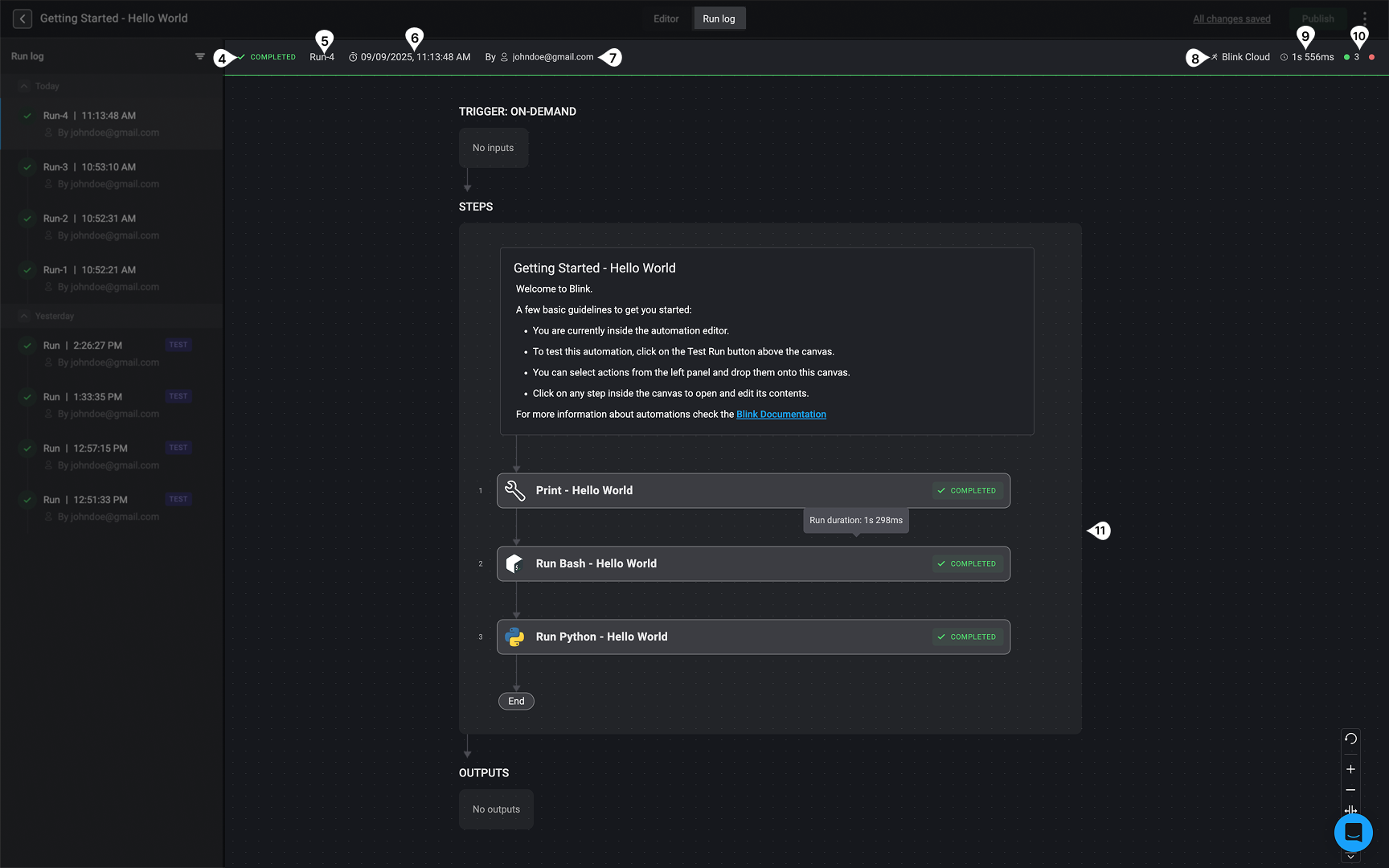
| | Title | Description |
| ------ | -------------------------------------------------- | ------------------------------------------------------------------------------------------------------------------------------ |
| **4** | **Execution Status** | Indicates the status of selected run log. To see all statuses, navigate to this [section](#viewing-automated-workflow-outputs) |
| **5** | **Run Number** | The unique run identifier in the workflow’s execution history (e.g., *Run 4*). |
| **6** | **Execution Timestamp** | Displays the exact date and time when the workflow was executed. |
| **7** | **Executed By** | The user who initiated the workflow run, shown with their email address or the trigger that initiated the workflow run. |
| **8** | **[Runner](/docs/blink-platform/runners/runners)** | Identifies the runner (e.g., **Blink Cloud**) used to execute the workflow. |
| **9** | **Execution Duration** | Shows the total runtime taken to complete the workflow (e.g., *15s 556ms*). |
| **10** | **Summary of the Workflow's Execution Status** | Displays the total number of time the workflow executed successfully vs. failed. |
| **11** | **The Selected Workflow** | The selected workflow, including step name, type, run duration, and execution status. |
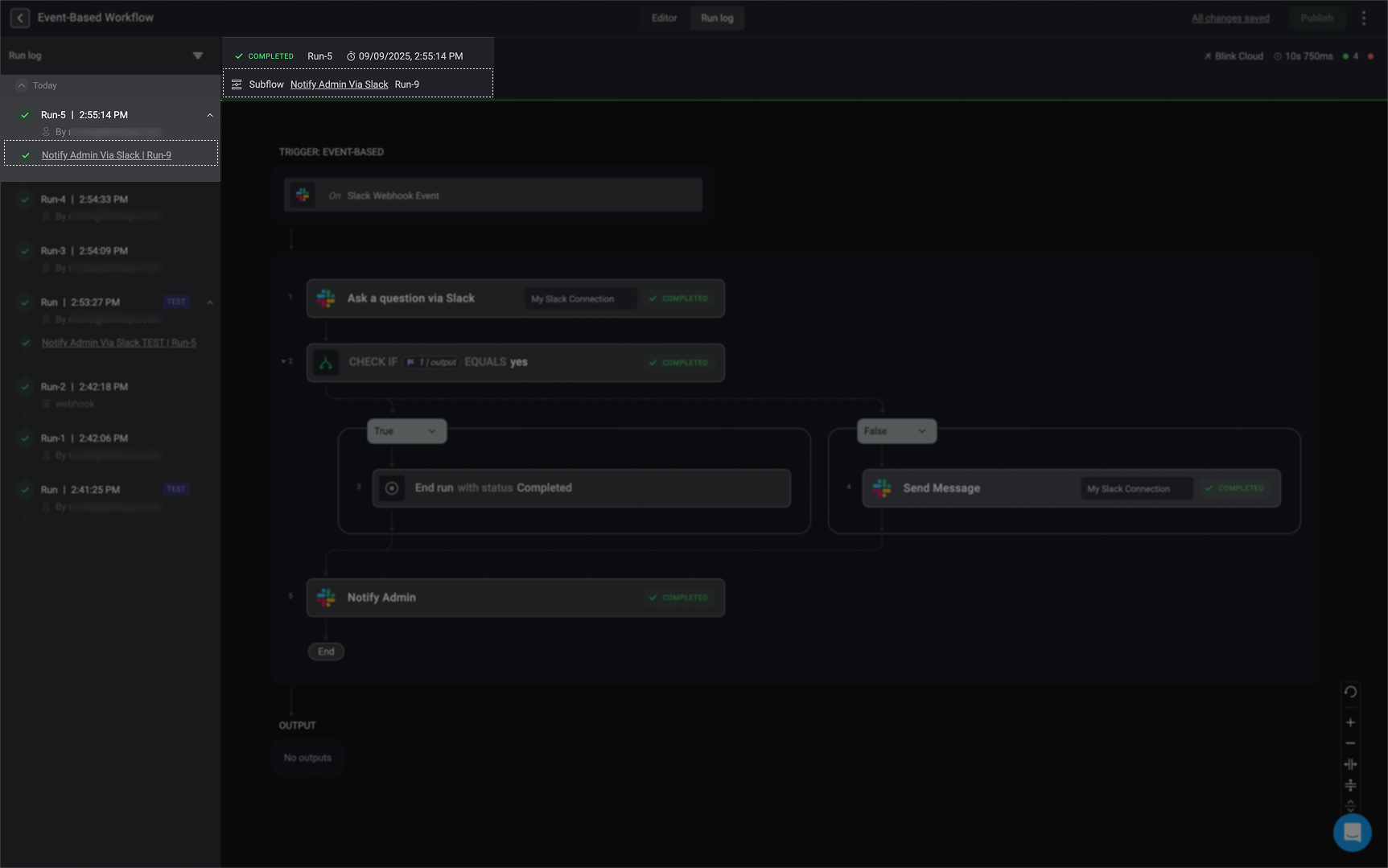
When a workflow contains a [subflow](/docs/workflows/building-workflows/actions/basic-actions/subflow-actions), it will display information about the [subflow](/docs/workflows/building-workflows/actions/basic-actions/subflow-actions) alongside the parent workflow’s details.
 ***
## Viewing Automated Workflow Outputs
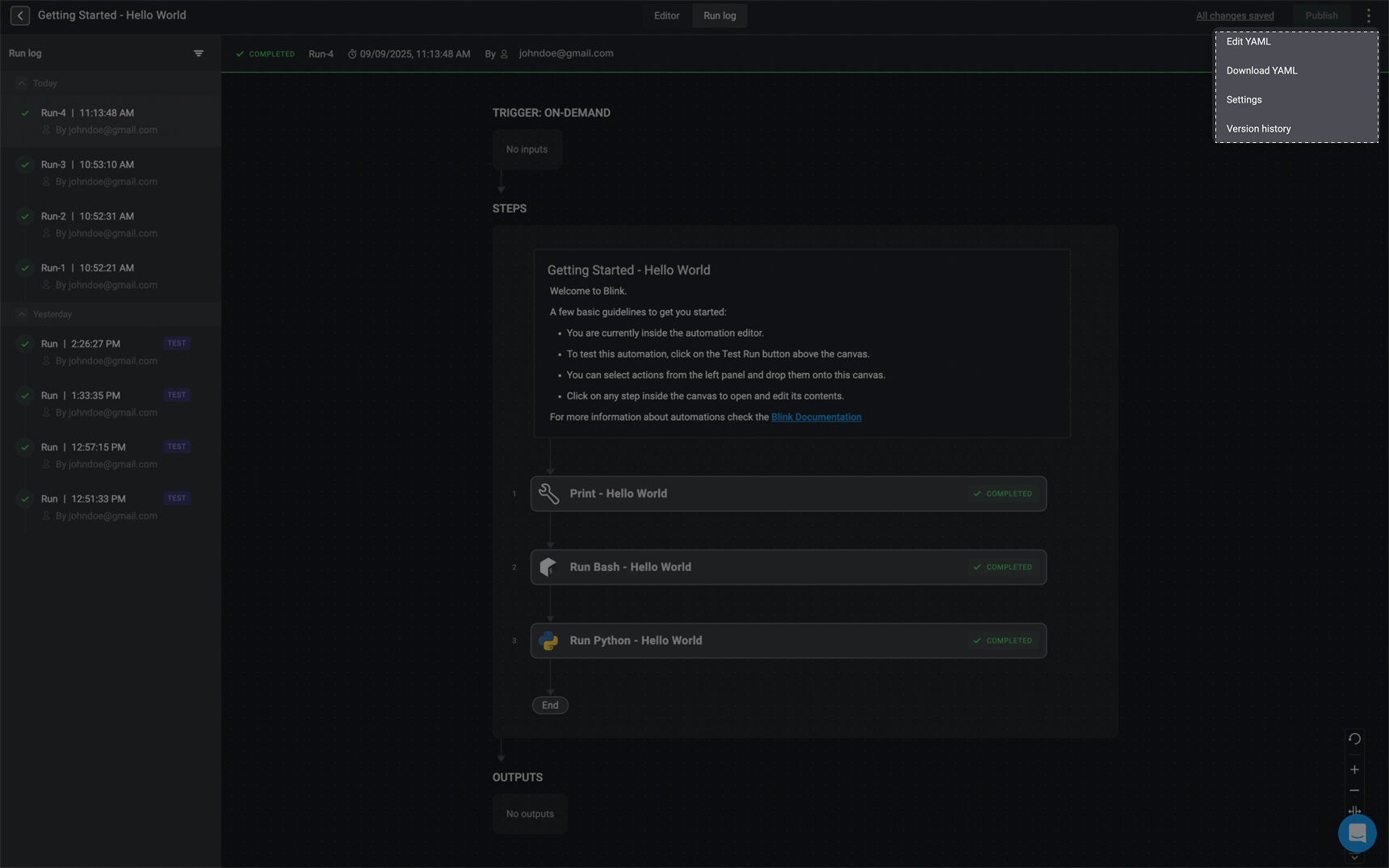
View past executions in the *Execution History* tab. The left-hand side of the screen lists a history of executions and their status. The status can be one of the following:
***
## Viewing Automated Workflow Outputs
View past executions in the *Execution History* tab. The left-hand side of the screen lists a history of executions and their status. The status can be one of the following:
| Status | Icon | Description |
| ----------- | -------------------------------------------------------------------------------------------------------------------------------------------------------------------------------------------------------------------------------------------------------------------------------------------------------------------------------------------------------------------------------------------------------------------------------------------------------------------------------------------------------------------------------------------------------------------------------------------------------------------------------------------------------------------------------------------------------------------------------------------------------------------------------------------------------------------------------------------------------------------------------------------------------------------------------------------------------------------------------------------------------------------------------------------------------------------------------------------------------------------------------------------------------------------------------------------------------------------------------------------------------------------------------------------------------------------------------------------------------------------------------------------------------------------------------------------------------------------------------- | ----------------------------------------------------------------------- |
| Completed |

| The workflow executed successfully without any errors. |
| Stopped |

| The workflow has been stopped by the creator. |
| In progress |

| The workflow is in the process of running. |
| Pending |

| A step in the workflow is waiting for approval or an external response. |
| Failed |

| The workflow failed to execute successfully. |
| Timed out |

| A step in the workflow has timed out. |
 ***
## Re-run Previous Inputs of a Workflow's Execution
The "Rerun with published version" feature enables you to execute the current published version of a selected Workflow using the input parameter's values from a previous execution.
Please note, the "Rerun with published version" feature is only applicable for [Event-Based Workflows](/docs/workflows/building-workflows/triggers/event-based-triggers/event-based-triggers) and [On-Demand Workflows](/docs/workflows/building-workflows/triggers/on-demand-triggers/on-demand-triggers).
In the Workflow Editor, navigate to the *"Run Log*" tab to access the selected workflow's run logs.
***
## Re-run Previous Inputs of a Workflow's Execution
The "Rerun with published version" feature enables you to execute the current published version of a selected Workflow using the input parameter's values from a previous execution.
Please note, the "Rerun with published version" feature is only applicable for [Event-Based Workflows](/docs/workflows/building-workflows/triggers/event-based-triggers/event-based-triggers) and [On-Demand Workflows](/docs/workflows/building-workflows/triggers/on-demand-triggers/on-demand-triggers).
In the Workflow Editor, navigate to the *"Run Log*" tab to access the selected workflow's run logs.
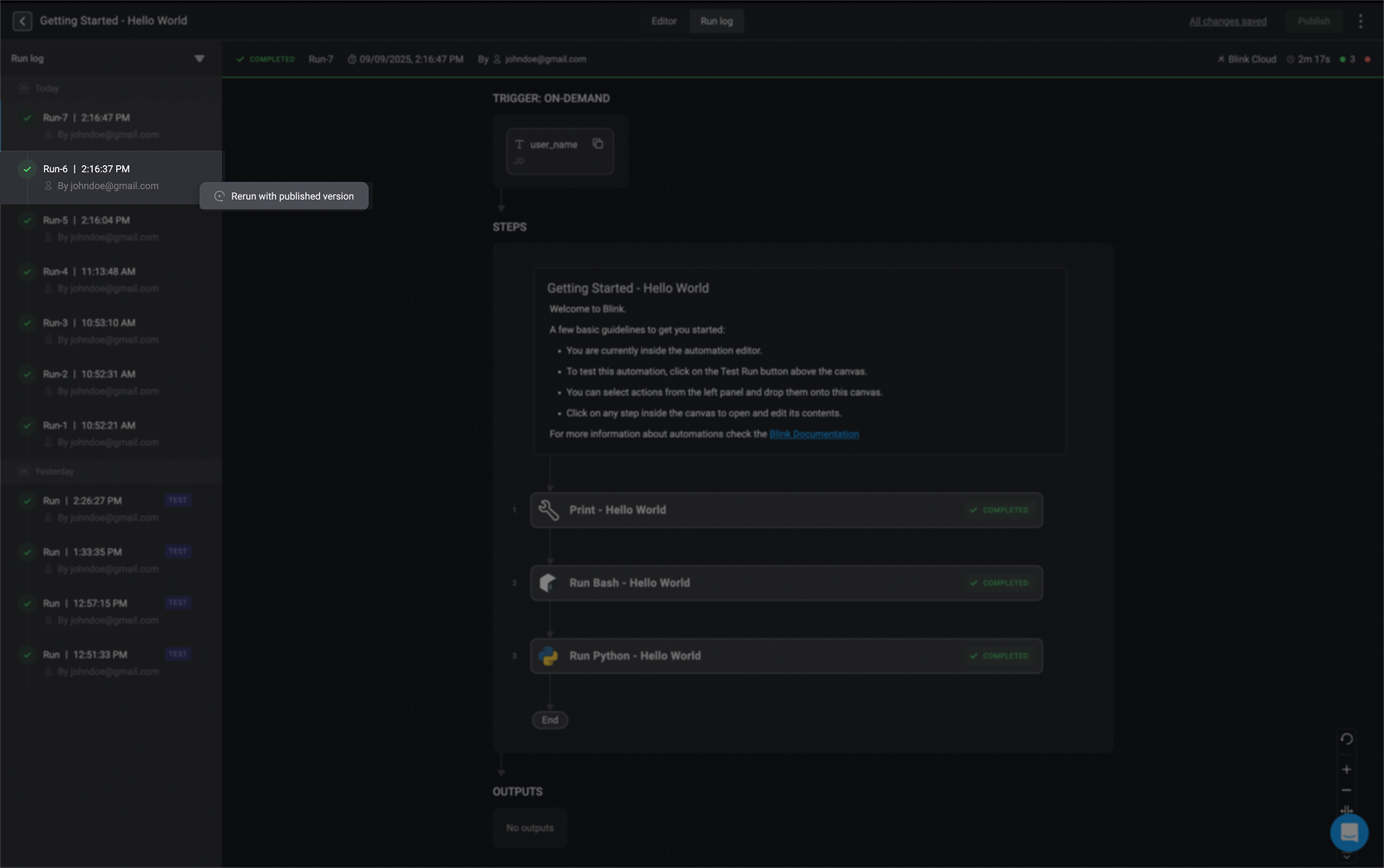
In the left-hand sidebar, select the icon of the execution you want to re-run with its input parameter values. Then click the "Rerun with published version" button.
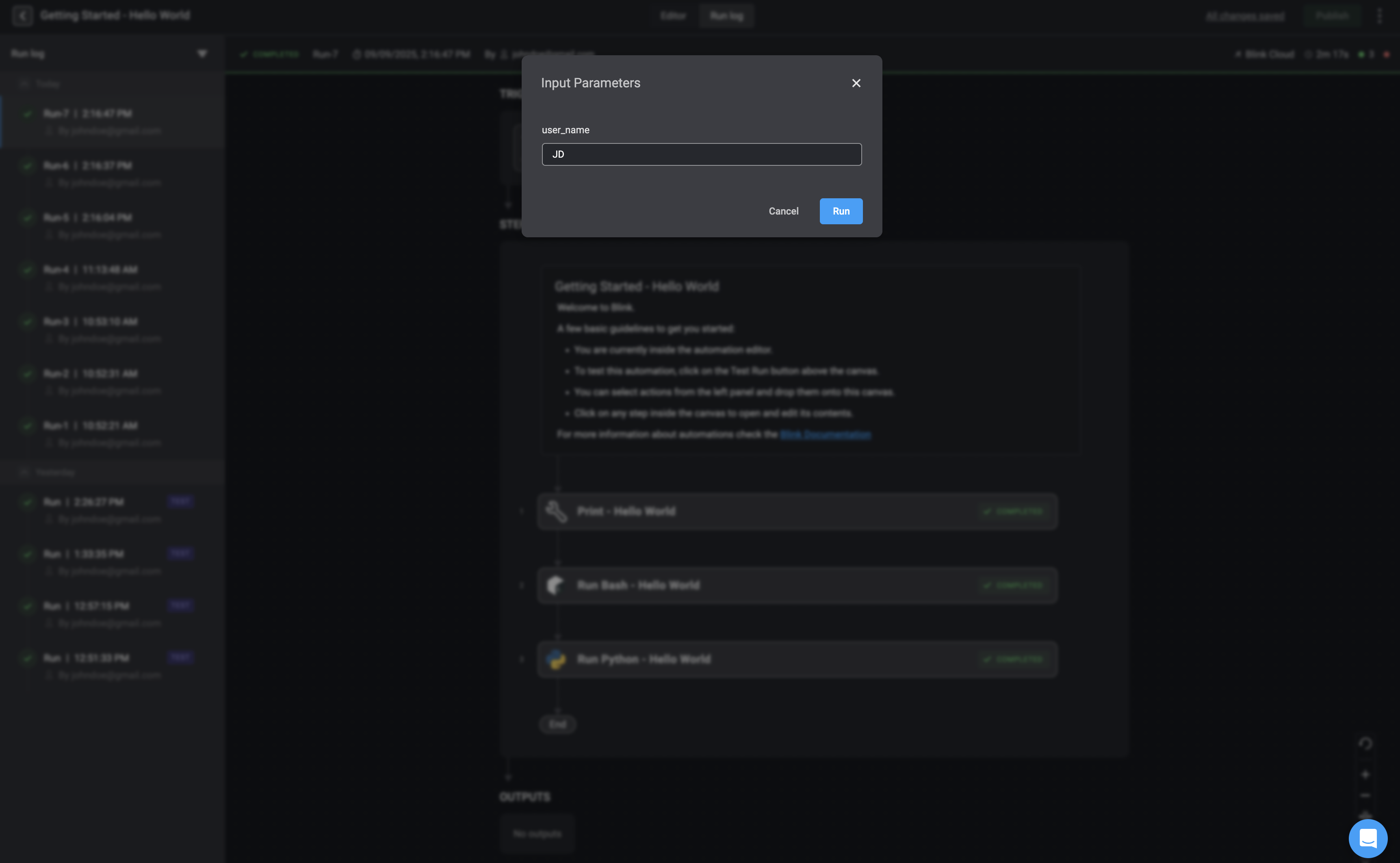
 A pop-up window will appear, showing all the input values from the selected run. If the published version has any new input parameters, they will also be displayed and you will need to fill them in.
 ***
## Viewing the Event Payload of Event-Based Automated Workflow
See the *payload* that triggered a certain event.
**Please note** that this is relevant for [event-based workflows](/docs/workflows/building-workflows/triggers/event-based-triggers/event-based-triggers) triggered by [webhooks](/docs/workflows/building-workflows/triggers/event-based-triggers/webhooks), polling and pre-defined events.
In the Workflow Editor, navigate to the *"Run Log*" tab to access the selected workflow's run logs.
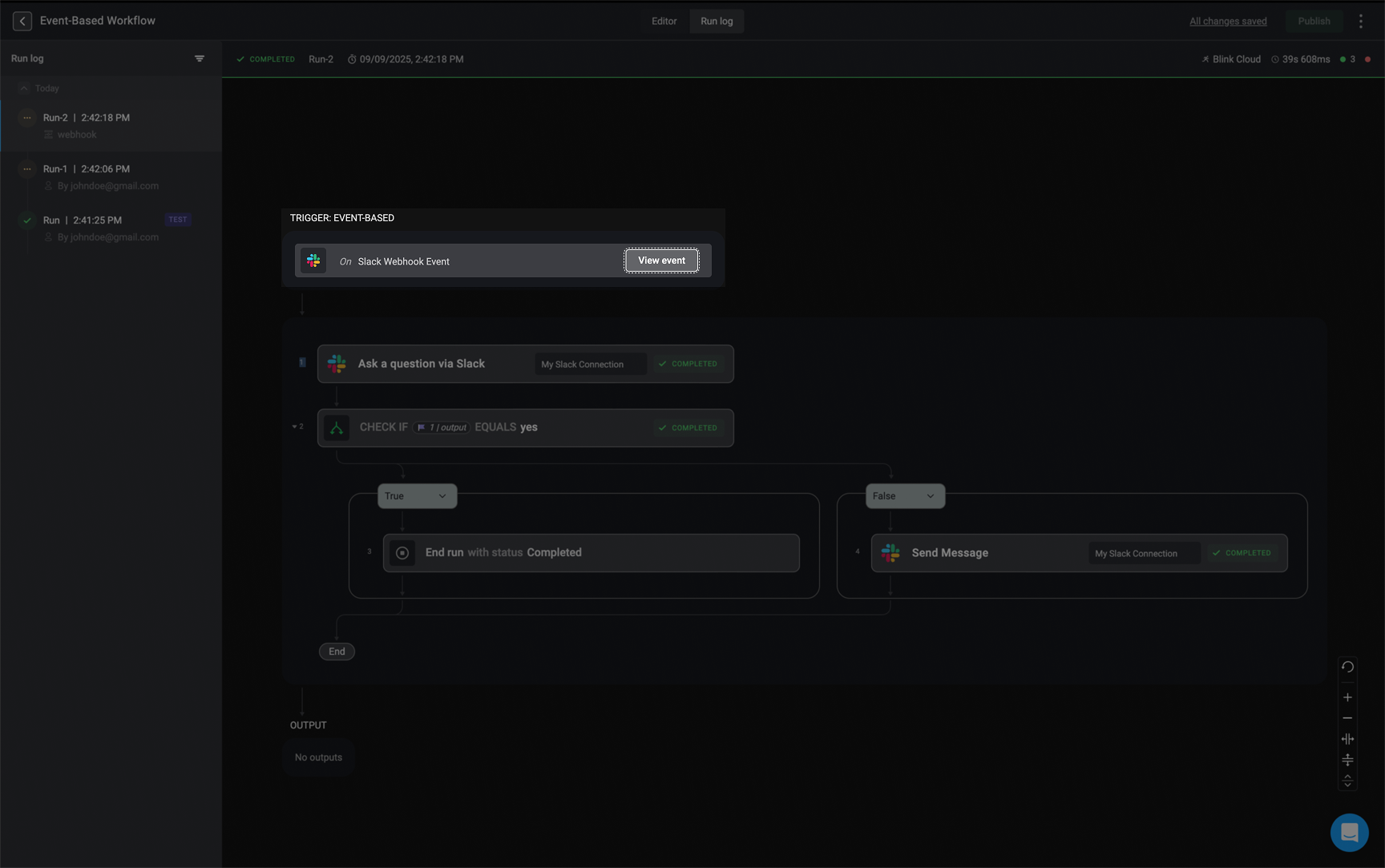
To view the event payload of an event-based workflow, click **View Event** next to the **Trigger**. An **Event** dialog box will open, allowing you to review or copy the event for use in creating another workflow.
***
## Viewing the Event Payload of Event-Based Automated Workflow
See the *payload* that triggered a certain event.
**Please note** that this is relevant for [event-based workflows](/docs/workflows/building-workflows/triggers/event-based-triggers/event-based-triggers) triggered by [webhooks](/docs/workflows/building-workflows/triggers/event-based-triggers/webhooks), polling and pre-defined events.
In the Workflow Editor, navigate to the *"Run Log*" tab to access the selected workflow's run logs.
To view the event payload of an event-based workflow, click **View Event** next to the **Trigger**. An **Event** dialog box will open, allowing you to review or copy the event for use in creating another workflow.
 ### Interactive Tutorial Guide:
You can also refer to the following tutorial guides for a more in-depth understanding of how to use the Workflow Editor and Workflow Run Logs
### Interactive Tutorial Guide:
You can also refer to the following tutorial guides for a more in-depth understanding of how to use the Workflow Editor and Workflow Run Logs