> ## Documentation Index
> Fetch the complete documentation index at: https://docs.blinkops.com/llms.txt
> Use this file to discover all available pages before exploring further.
# Publish Approval as the Builder
> Submit workflows for publish approval as a builder in Blink's workflow governance process.
When publishing a workflow, you have the ability to control how it is shared and used within your workspace. To ensure proper governance and oversight, you can require approval from the workspace owner before the workflow is published or made available to others. This helps maintain security, consistency, and alignment with organizational policies while still enabling collaboration and automation at scale.
**Note**: When you publish a new workflow, or update an existing one, without having the `workflow:publish` permission, the action will require approval from a workspace approver. Approvers are users who have the `workflow:approve` permission within the workspace.
***
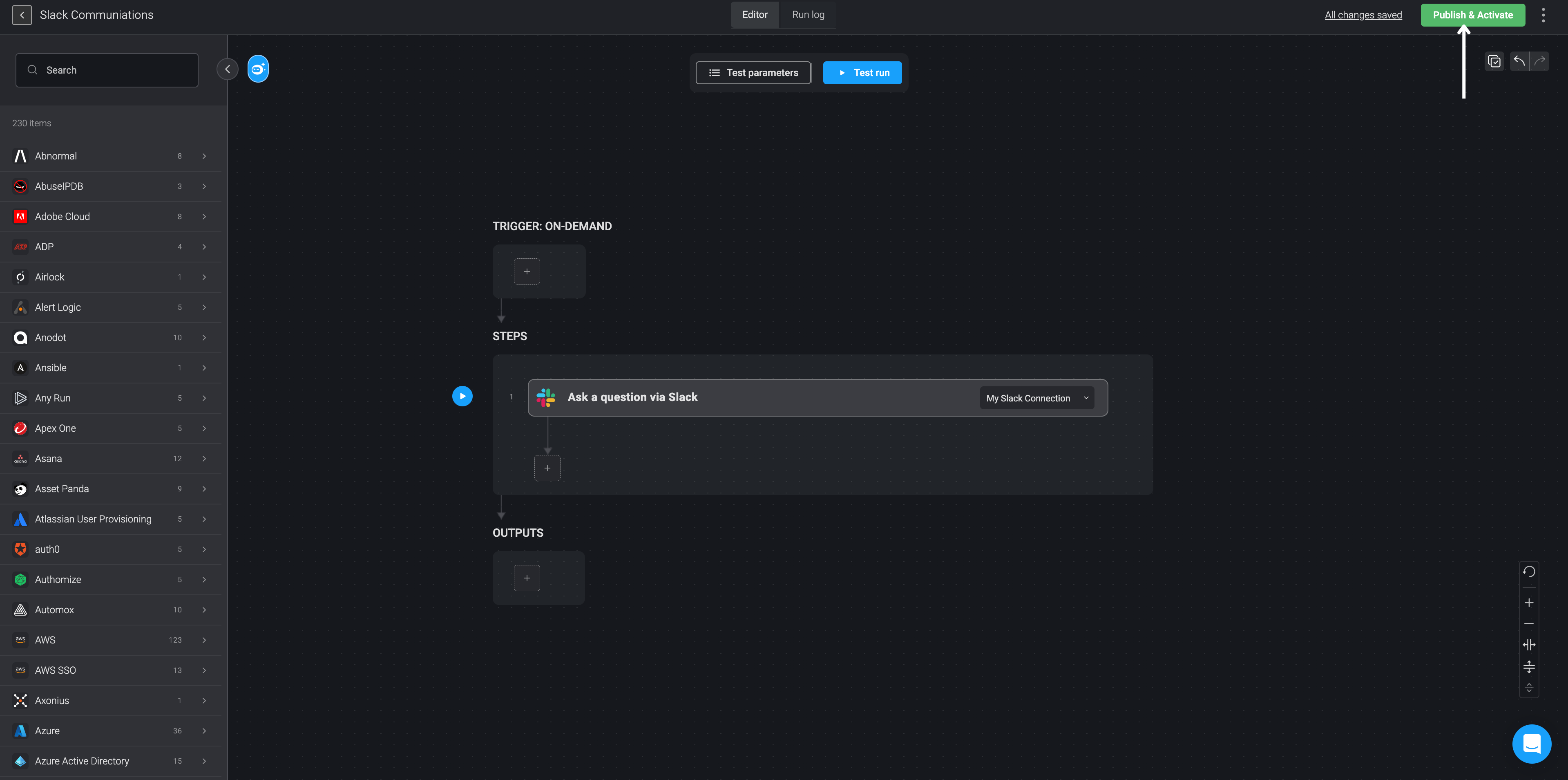
After creating or updating the workflow, click the Publish button in the top-right corner of the editor.
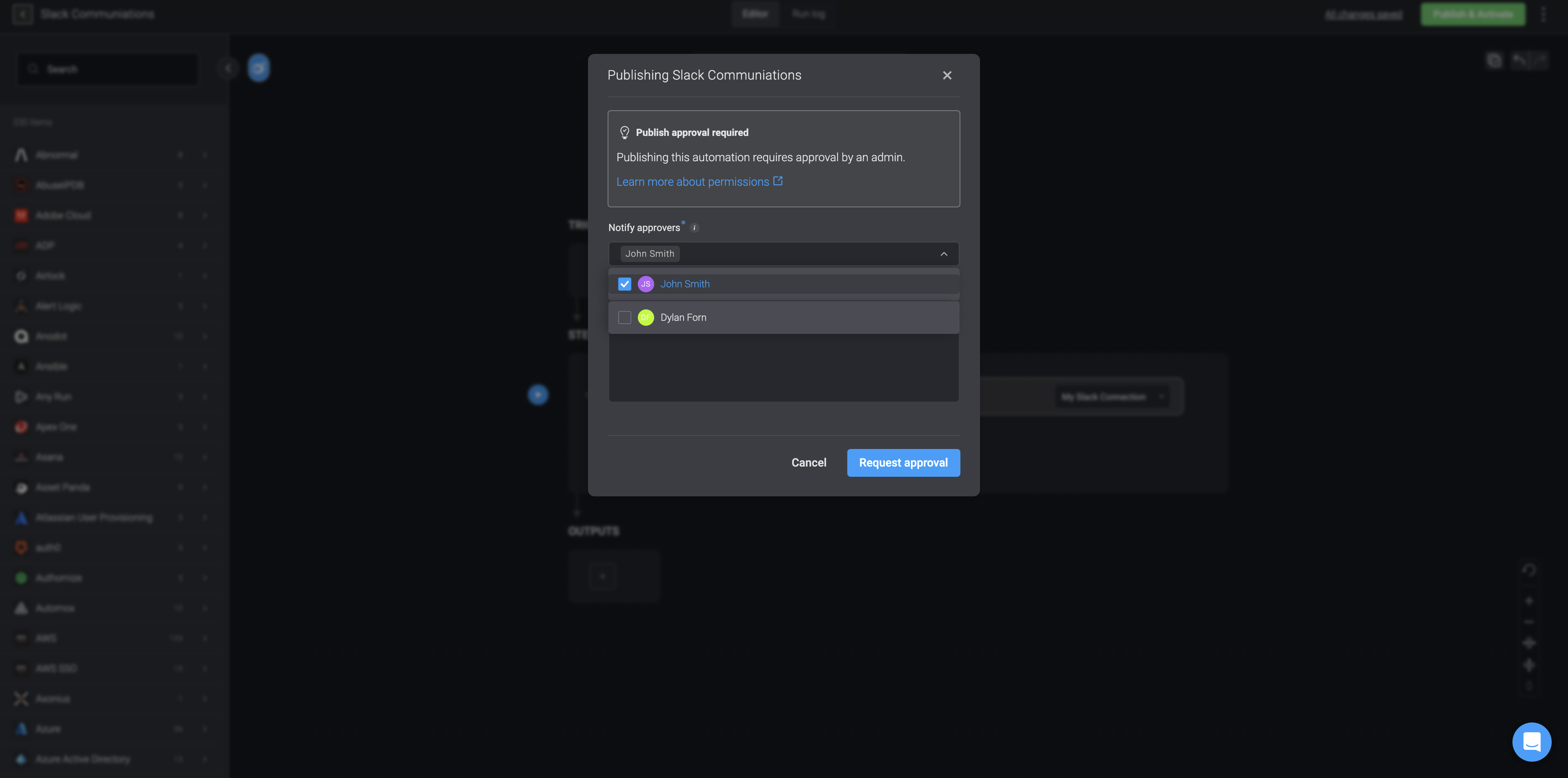
 The Publish Approval dialog will appear.
Select one or more approvers from the dropdown list.
**Note:** The available names are determined by whether any [approval settings](/docs/blink-platform/account-management/general#approvals) have been enabled. These settings are configured by the [tenant admin](/docs/blink-platform/account-management/roles#1-admin).
The Publish Approval dialog will appear.
Select one or more approvers from the dropdown list.
**Note:** The available names are determined by whether any [approval settings](/docs/blink-platform/account-management/general#approvals) have been enabled. These settings are configured by the [tenant admin](/docs/blink-platform/account-management/roles#1-admin).
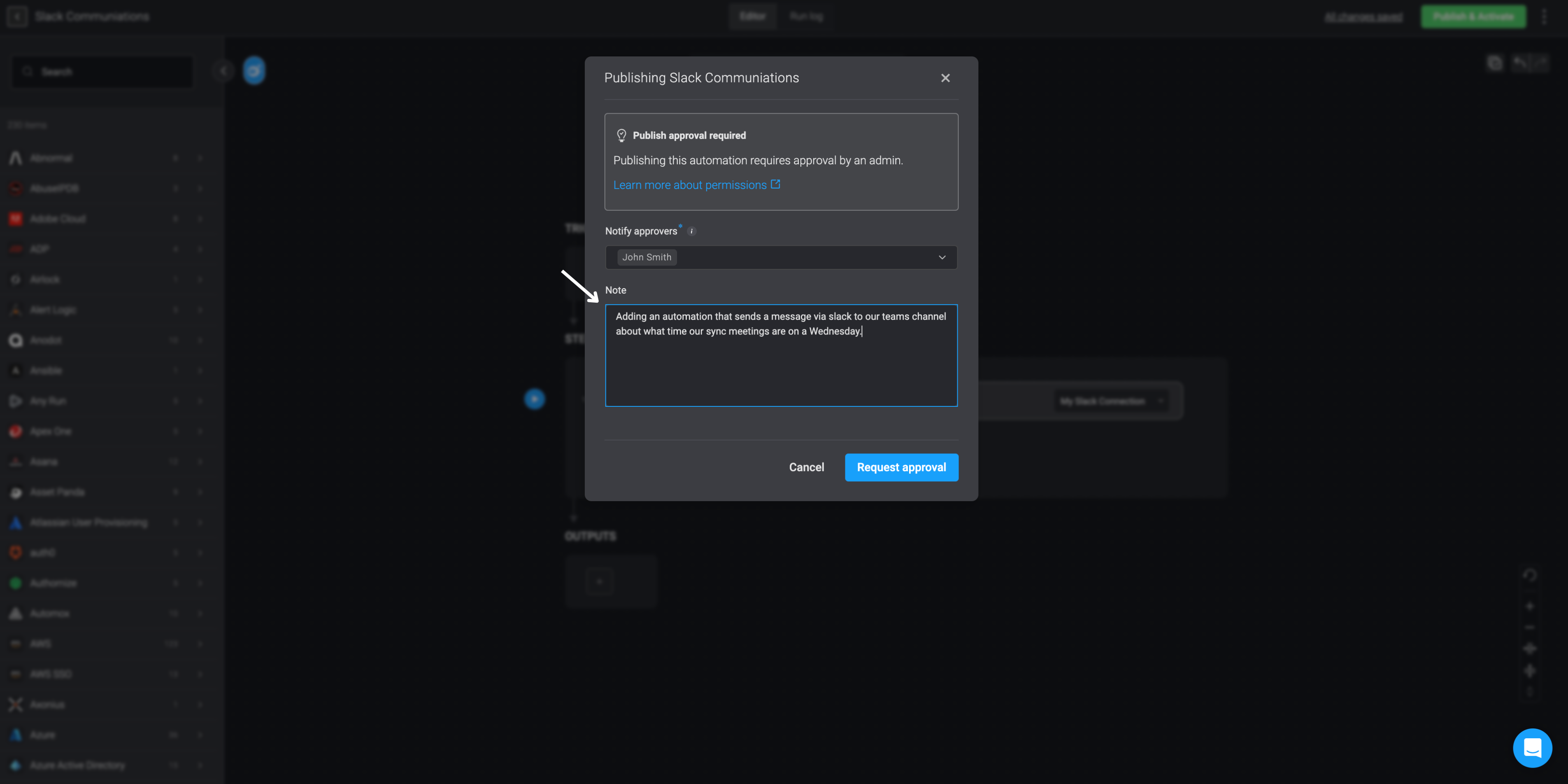
 Add a note to explain your request or describe the changes made to the workflow. This note will be visible to the approver.
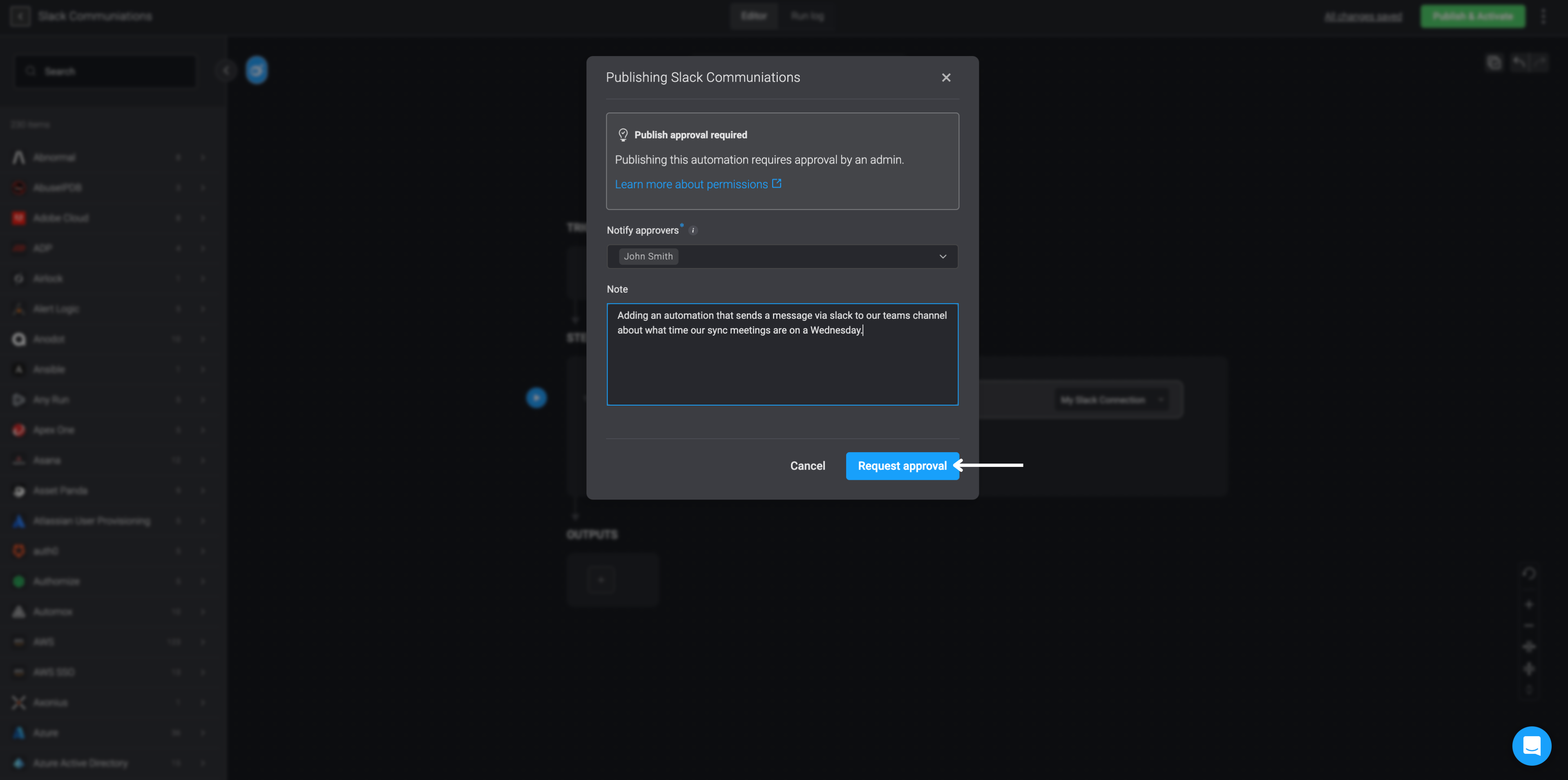
 Confirm your request by clicking the 'Request Approval' button.
 You will see a confirmation message indicating that your approval request was successfully submitted. The request is now pending review by the workspace approver.
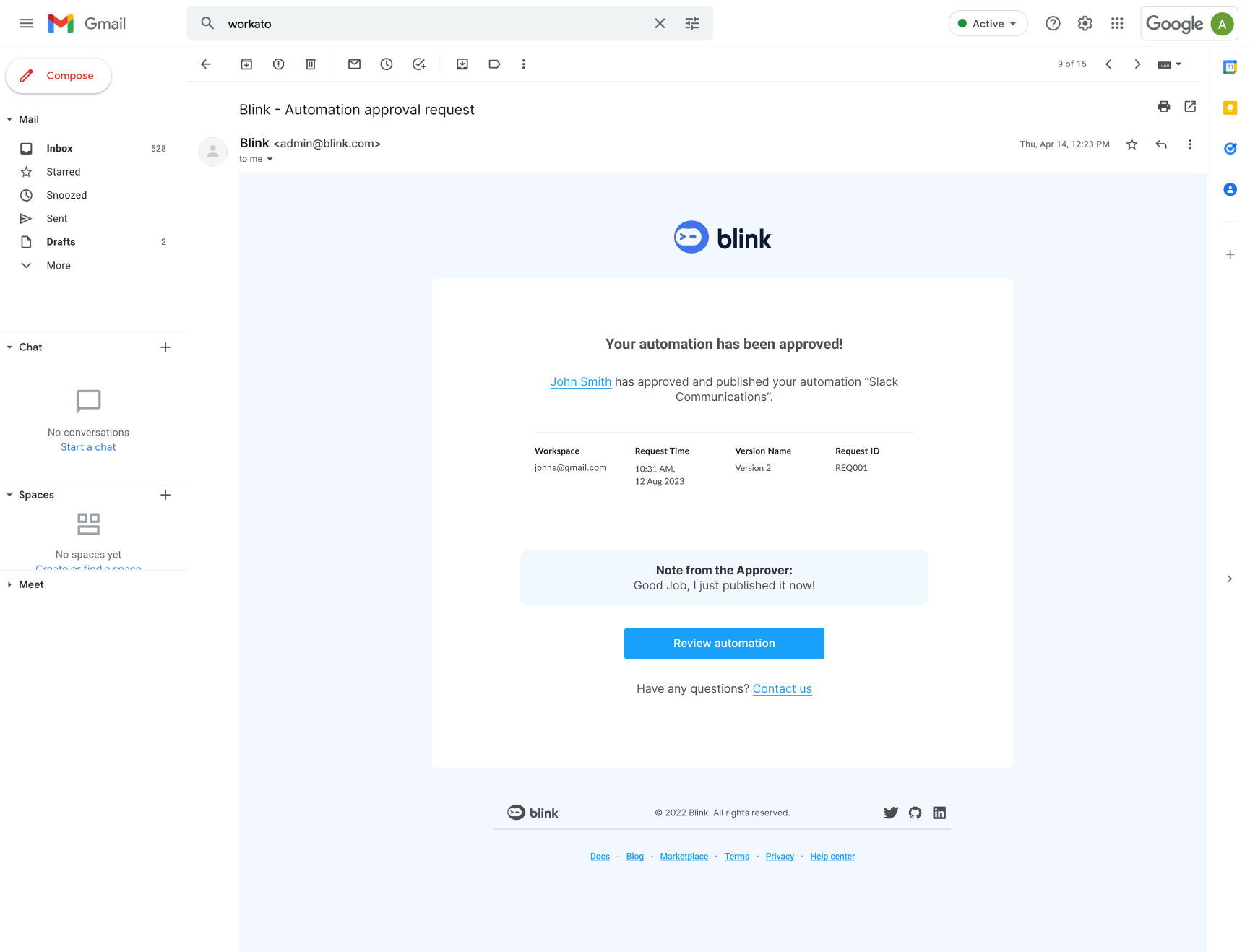
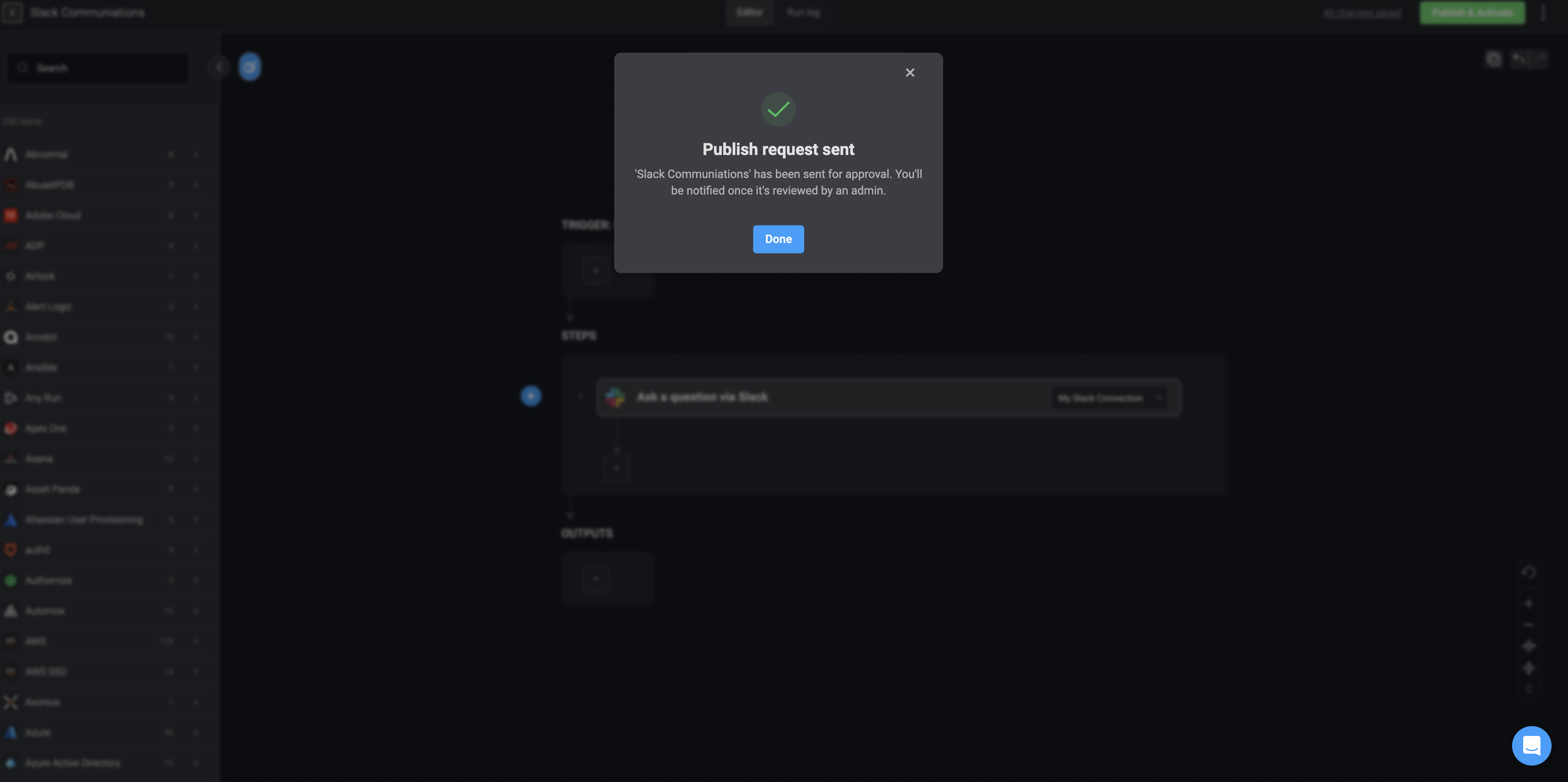 Once the approver makes a decision, you will receive an email notification. The notification includes:
* **The target workspace**
* **The request submission time**
* **The workflow version**
* **The request ID**
* **Any notes or comments added by the approver**
Once the approver makes a decision, you will receive an email notification. The notification includes:
* **The target workspace**
* **The request submission time**
* **The workflow version**
* **The request ID**
* **Any notes or comments added by the approver**
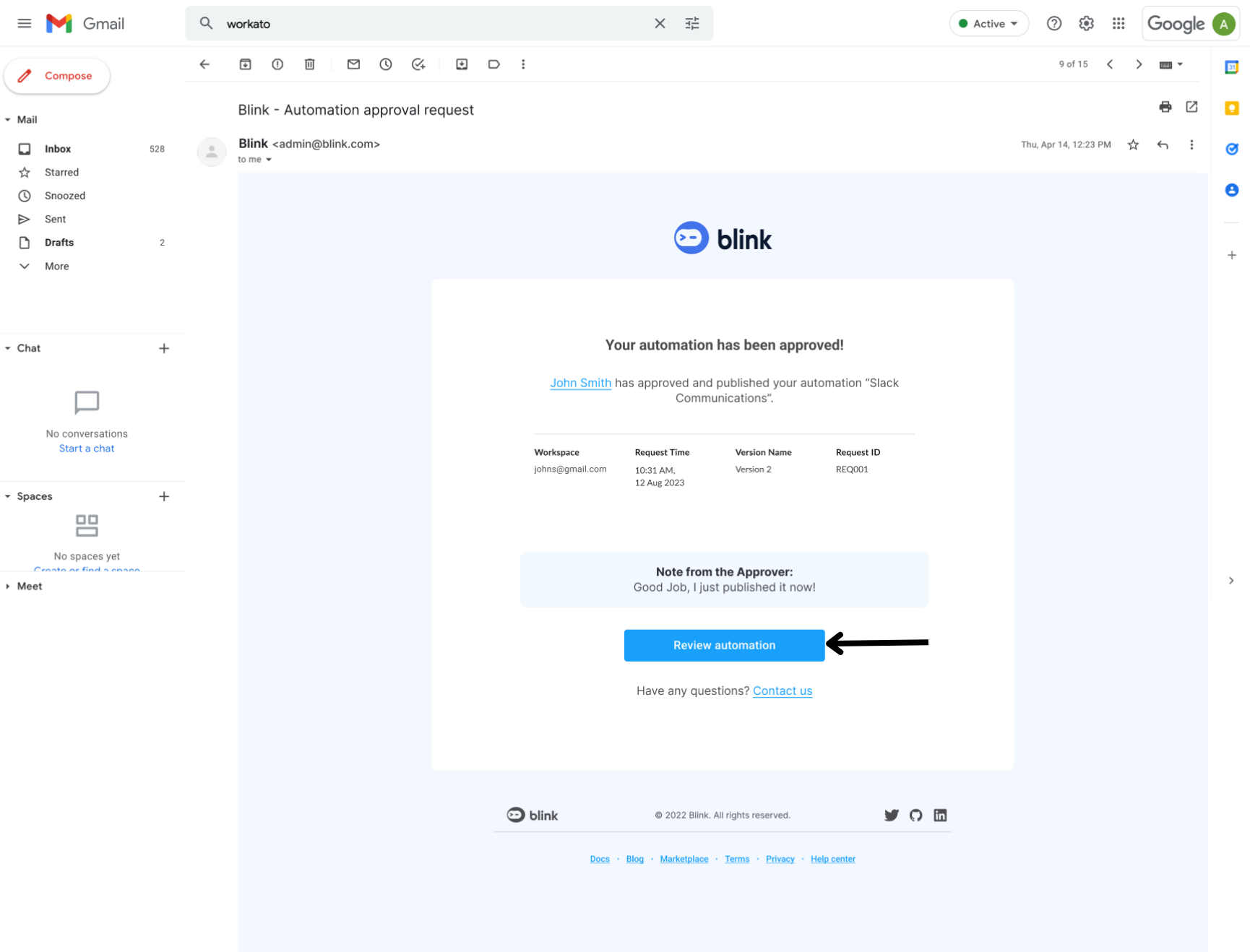
 For more details, click 'Review Workflow' in the email notification.
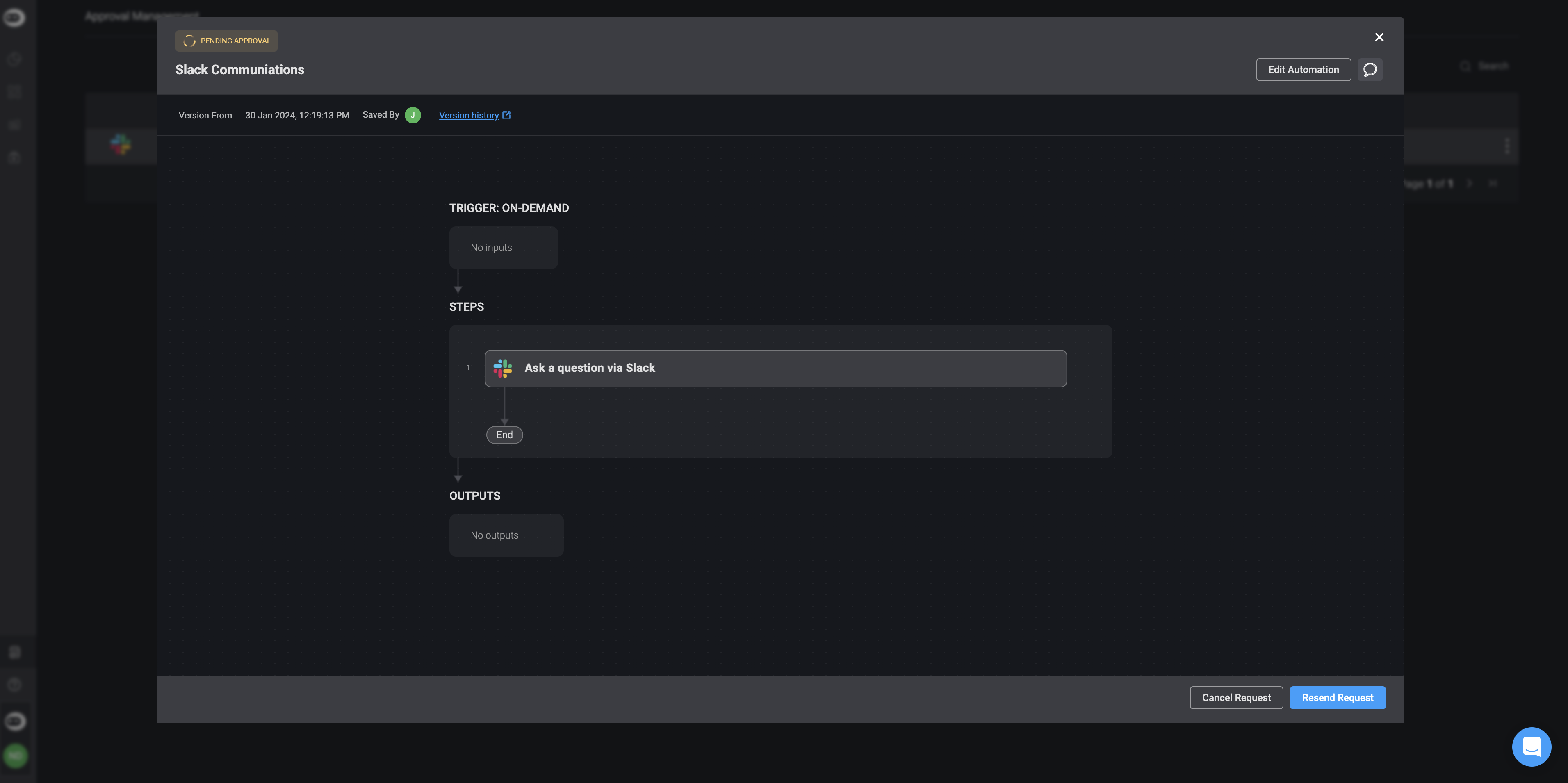
 A popup will open showing the workflow and its approval status. From this view, you can:
* **See the approval status in the top-left corner**
* **Review the workflow name and version history**
* **Edit the workflow (if permitted) using the option in the top-right corner**
* **View and add comments related to the approval request**
* **If the builder adds comments, the approver will be notified by email.**
A popup will open showing the workflow and its approval status. From this view, you can:
* **See the approval status in the top-left corner**
* **Review the workflow name and version history**
* **Edit the workflow (if permitted) using the option in the top-right corner**
* **View and add comments related to the approval request**
* **If the builder adds comments, the approver will be notified by email.**
 **Note**: Please note that if the workspace owner approves the request, the builder will be allowed to publish this version of the workflow, as long as it stays unchanged or no newer version has been published.
***
## Approval Management as a Workspace Builder
In the sidebar, you can access the *Approval Management* page, where a table contains details about the workflow(s) you have submitted for approval requests.
By default, the "Approval Management" page is pre-filtered to show only requests that are still relevant for action:
* Pending (waiting for approval)
* Approved
* Denied
You can also request a 'Publish Approval' request from the 'Approval Management' Table by clicking the icon and selecting a request action.
**Note**: Please note that if the workspace owner approves the request, the builder will be allowed to publish this version of the workflow, as long as it stays unchanged or no newer version has been published.
***
## Approval Management as a Workspace Builder
In the sidebar, you can access the *Approval Management* page, where a table contains details about the workflow(s) you have submitted for approval requests.
By default, the "Approval Management" page is pre-filtered to show only requests that are still relevant for action:
* Pending (waiting for approval)
* Approved
* Denied
You can also request a 'Publish Approval' request from the 'Approval Management' Table by clicking the icon and selecting a request action.
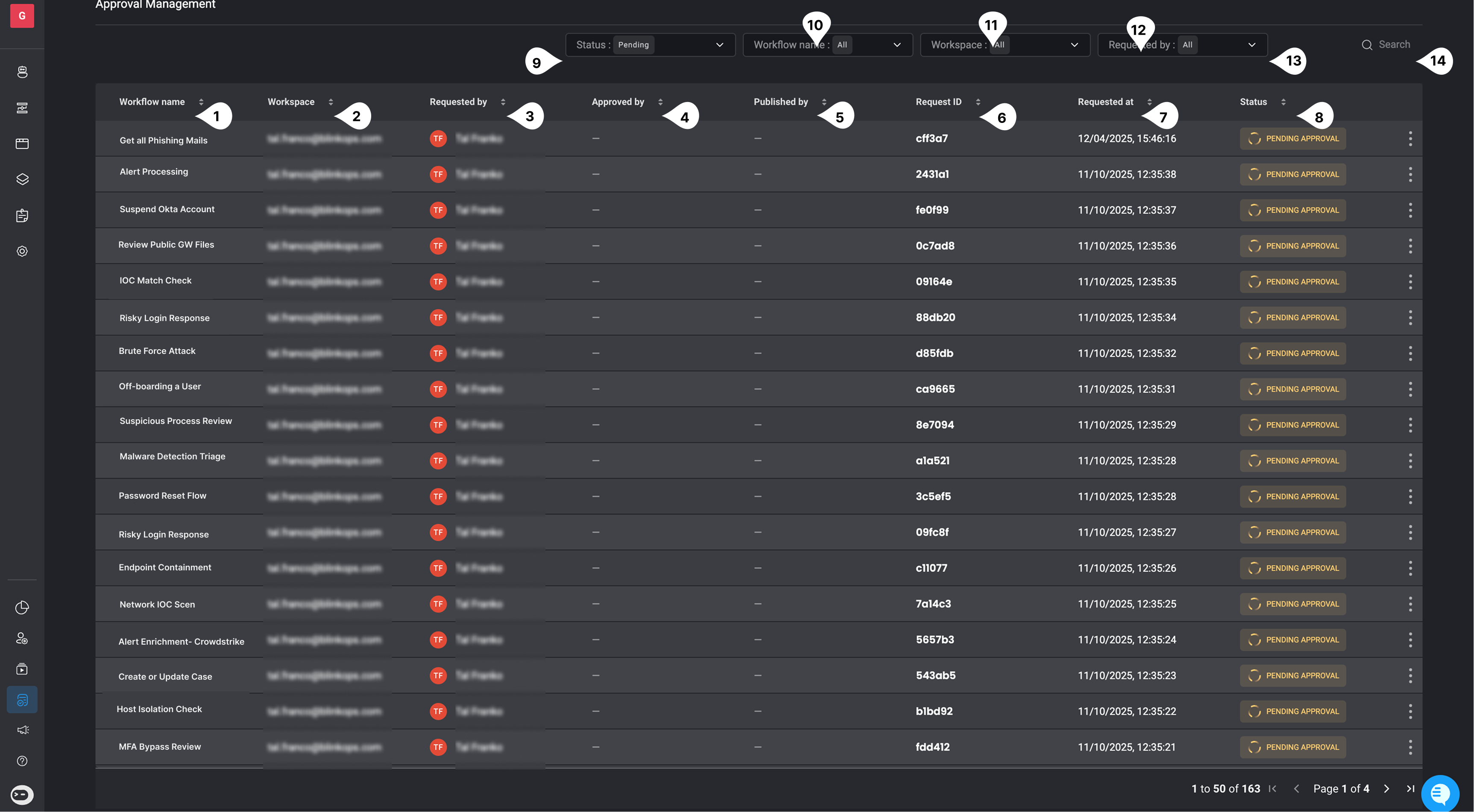 | | Field | Description |
| ------ | ------------------------ | ---------------------------------------------------------------------------------------------------------------------------------------------------- |
| **1** | **Workflow Name** | The name of the workflow for which a publish approval request was submitted. |
| **2** | **Workspace Name** | The workspace where the workflow resides and where the publish request was initiated. |
| **3** | **Requested By** | The user who submitted the request to publish the workflow. |
| **4** | **Approved By** | The user who approved the workflow for publishing. |
| **5** | **Published By** | The user who published the workflow after approval. |
| **6** | **Request ID** | A unique identifier assigned to the workflow publish request, used for tracking and auditing. |
| **7** | **Requested At** | The date and time when the publish approval request was created. |
| **8** | **Status** | The current state of the publish request. Possible values include **Pending Approval**, **Approved**, **Published**, and **Version Denied**. |
| **9** | **Status Filter** | A dropdown used to filter workflow approval requests by status: **Pending**, **Approved**, **Denied**, **Cancelled**, **Published**, or **Timeout**. |
| **10** | **Workflow Name Filter** | A dropdown used to filter approval requests by workflow name. |
| **11** | **Workspace Filter** | A dropdown used to filter approval requests by workspace. |
| **12** | **Requested By Filter** | A dropdown used to filter approval requests by the user who submitted them. |
| **13** | **Search Bar** | A free-text search used to quickly locate approval requests by workflow name, request ID, or requester. |
***
| | Field | Description |
| ------ | ------------------------ | ---------------------------------------------------------------------------------------------------------------------------------------------------- |
| **1** | **Workflow Name** | The name of the workflow for which a publish approval request was submitted. |
| **2** | **Workspace Name** | The workspace where the workflow resides and where the publish request was initiated. |
| **3** | **Requested By** | The user who submitted the request to publish the workflow. |
| **4** | **Approved By** | The user who approved the workflow for publishing. |
| **5** | **Published By** | The user who published the workflow after approval. |
| **6** | **Request ID** | A unique identifier assigned to the workflow publish request, used for tracking and auditing. |
| **7** | **Requested At** | The date and time when the publish approval request was created. |
| **8** | **Status** | The current state of the publish request. Possible values include **Pending Approval**, **Approved**, **Published**, and **Version Denied**. |
| **9** | **Status Filter** | A dropdown used to filter workflow approval requests by status: **Pending**, **Approved**, **Denied**, **Cancelled**, **Published**, or **Timeout**. |
| **10** | **Workflow Name Filter** | A dropdown used to filter approval requests by workflow name. |
| **11** | **Workspace Filter** | A dropdown used to filter approval requests by workspace. |
| **12** | **Requested By Filter** | A dropdown used to filter approval requests by the user who submitted them. |
| **13** | **Search Bar** | A free-text search used to quickly locate approval requests by workflow name, request ID, or requester. |
***