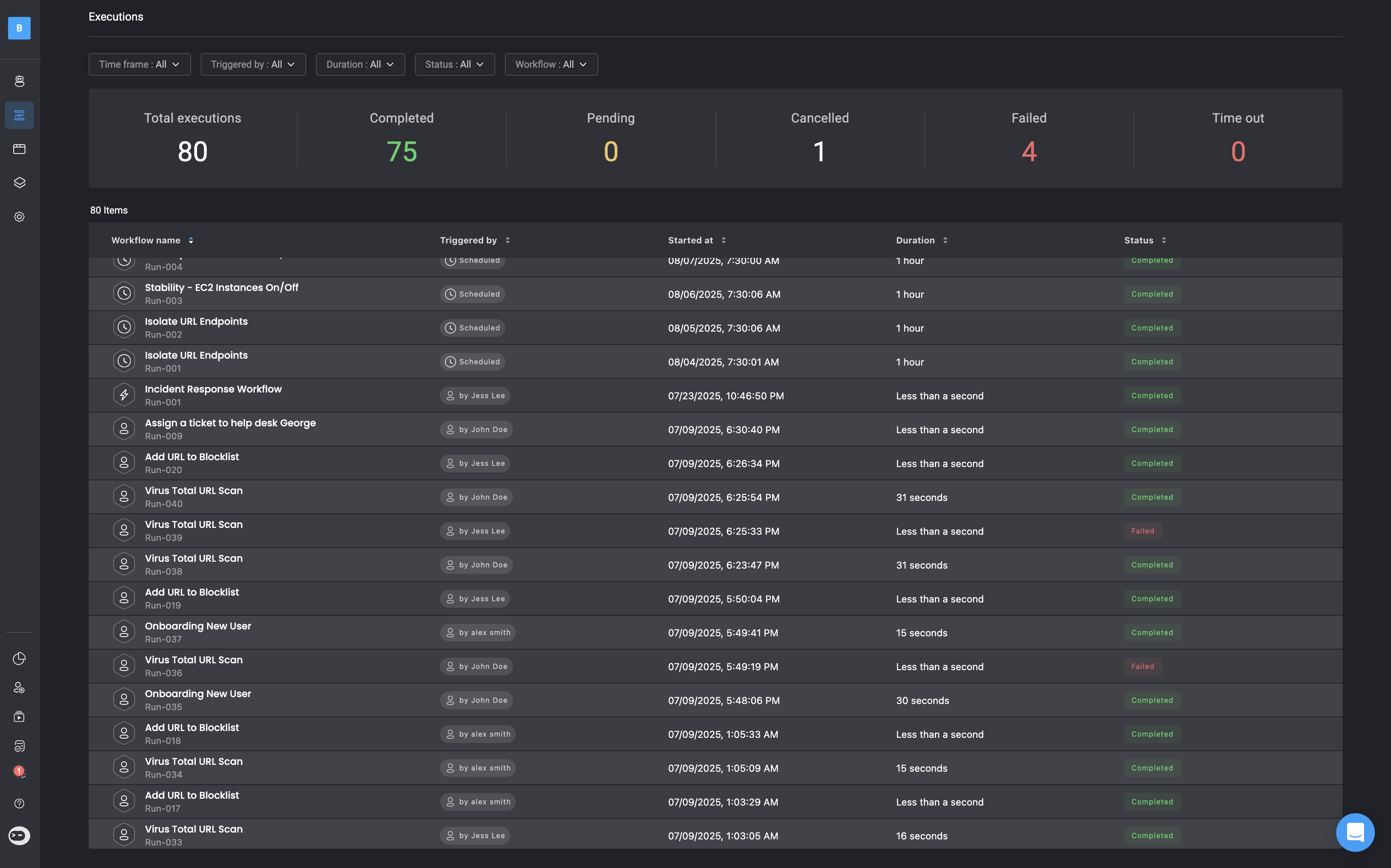
 The page lists a history of workflow executions and their status. The status can be one of the following:
| Status | Icon | Description |
| ----------- | ------------------------------------------------------------------------------------------------------------------------------------------------------------------------------------------------------------------------------------------------------------------------------------------------------------------------------------------------------------------------------------------------------------------------------------------------------------------------------------------------------------------------------------------------------------------------------------------------------------------------------------------------------------------------------------------------------------------------------------------------------------------------------------------------------------------------------------------------------------------------------------------------------------------------------------------------------------------------------------------------------------------------------------------------------------------------------------------------------------------------------------------------------------------------------------------------------------------------------------------------------------------------------------------------------------------------------------------------------------------------------------------------------------------------------------------------------------------------ | -------------------------------------------------------------------------------------------------------------------------------------------------------------------------------------------------- |
| Completed |
The page lists a history of workflow executions and their status. The status can be one of the following:
| Status | Icon | Description |
| ----------- | ------------------------------------------------------------------------------------------------------------------------------------------------------------------------------------------------------------------------------------------------------------------------------------------------------------------------------------------------------------------------------------------------------------------------------------------------------------------------------------------------------------------------------------------------------------------------------------------------------------------------------------------------------------------------------------------------------------------------------------------------------------------------------------------------------------------------------------------------------------------------------------------------------------------------------------------------------------------------------------------------------------------------------------------------------------------------------------------------------------------------------------------------------------------------------------------------------------------------------------------------------------------------------------------------------------------------------------------------------------------------------------------------------------------------------------------------------------------------ | -------------------------------------------------------------------------------------------------------------------------------------------------------------------------------------------------- |
| Completed |  | The workflow finished running successfully without errors. |
| Stopped |
| The workflow finished running successfully without errors. |
| Stopped |  | The workflow has been stopped by the creator or by its parent workflow. |
| In progress |
| The workflow has been stopped by the creator or by its parent workflow. |
| In progress |  | The workflow is currently running and processing its steps. |
| Pending |
| The workflow is currently running and processing its steps. |
| Pending |  | The workflow is waiting—either for a step that requires human approval or for the [Wait](/docs/workflows/building-workflows/actions/basic-actions/flow-control-actions-new#wait) action to finish. |
| Failed |
| The workflow is waiting—either for a step that requires human approval or for the [Wait](/docs/workflows/building-workflows/actions/basic-actions/flow-control-actions-new#wait) action to finish. |
| Failed |  | The workflow failed to execute successfully. |
| Timed out |
| The workflow failed to execute successfully. |
| Timed out |  | The workflow exceeded the maximum allowed run time and automatically timed out |
***
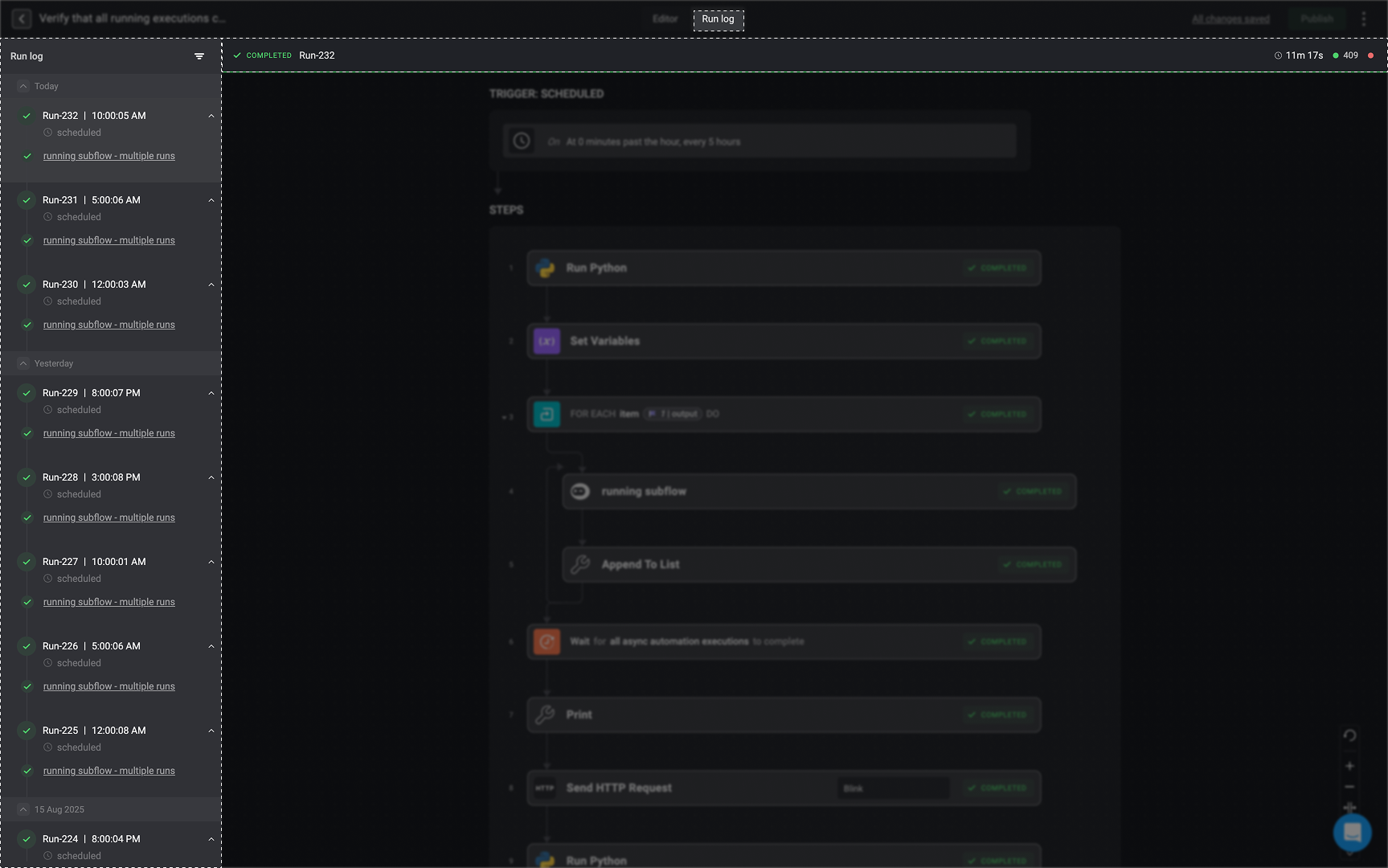
### Run Log Execution History
| The workflow exceeded the maximum allowed run time and automatically timed out |
***
### Run Log Execution History
You can choose whether to display test runs in the Runs logs section. To adjust this, click the
 ***
### Activity Graph
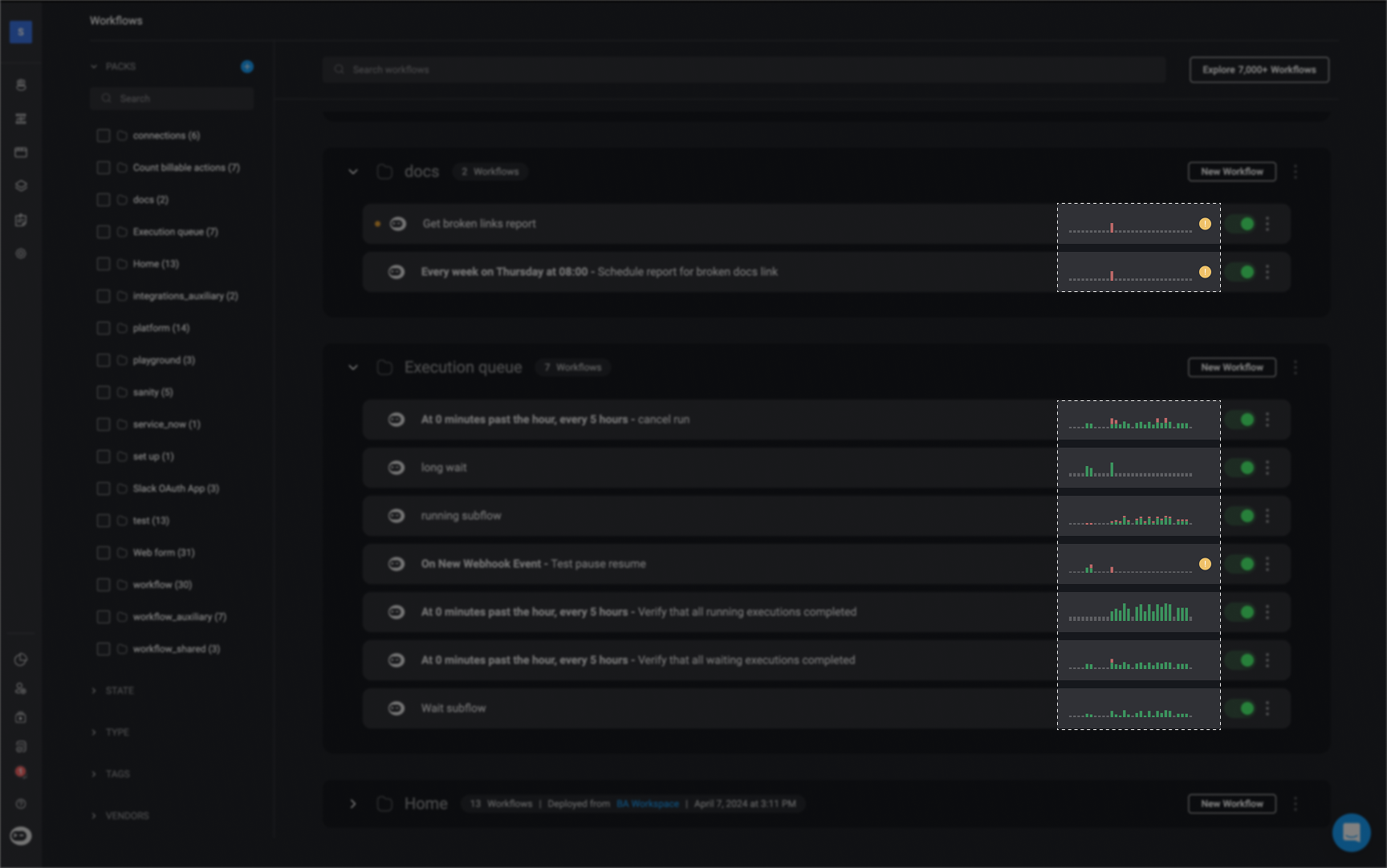
The activity graph is available for each active workflow and displays the workflow’s activity trends over the past `30 days`.
* Hover over the graph to see the total number of runs, along with the date of the last successful or failed execution.
* Click on the activity graph to open the **Executions** page for a detailed view.
***
### Activity Graph
The activity graph is available for each active workflow and displays the workflow’s activity trends over the past `30 days`.
* Hover over the graph to see the total number of runs, along with the date of the last successful or failed execution.
* Click on the activity graph to open the **Executions** page for a detailed view.
 ***
## Monitoring Workflow Failure
### Error Indicator on the Activity Graph
***
## Monitoring Workflow Failure
### Error Indicator on the Activity Graph
If the last run shown on the activity graph failed, the
 ***
### Monitoring Workflows Failure via Email
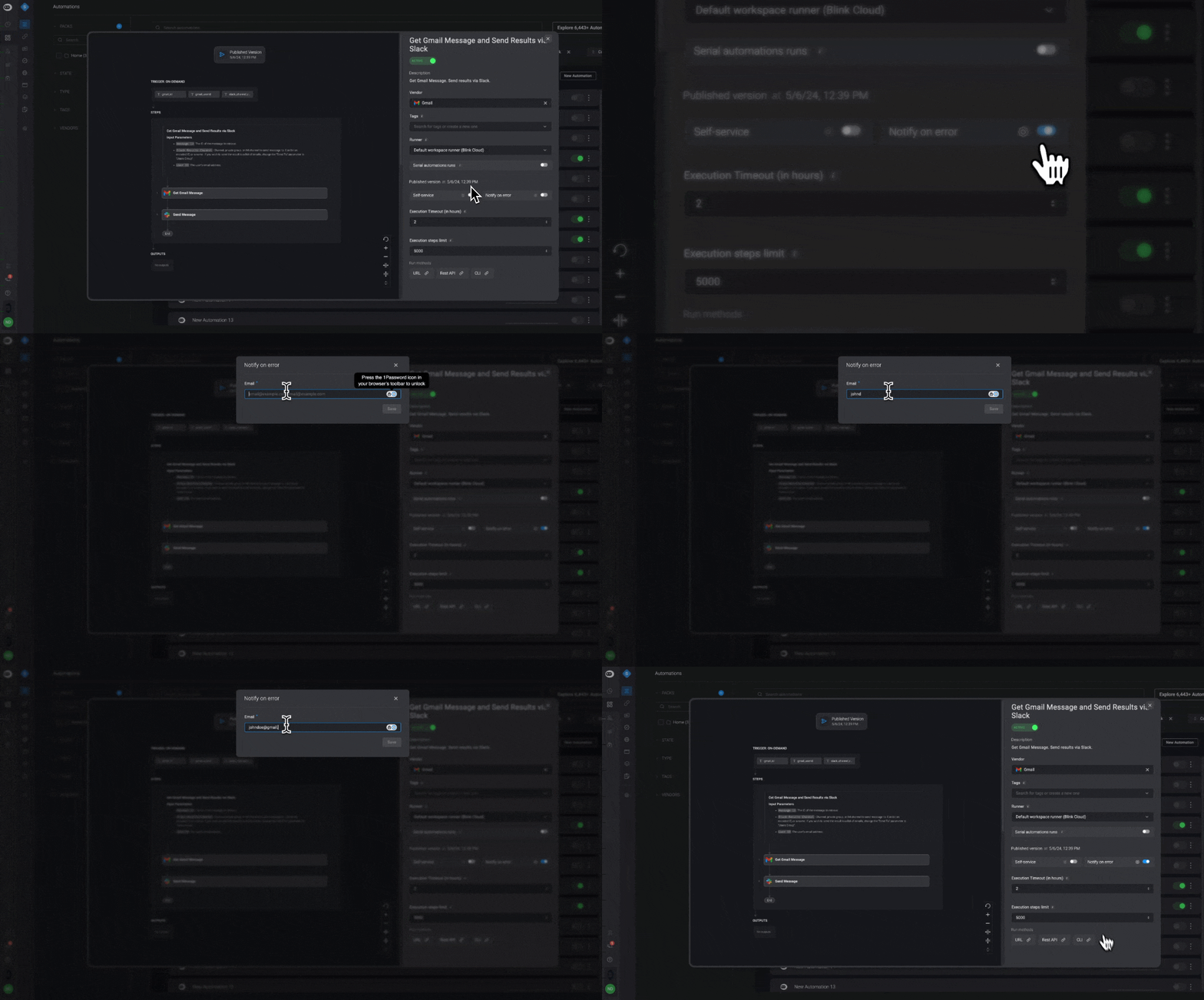
You can set up email notifications to alert you whenever a workflow fails. This ensures you are immediately aware of issues, such as failures in managing system, critical resources or production workflows, so you can respond quickly and minimize impact.
### Configuring Error Notifications
***
### Monitoring Workflows Failure via Email
You can set up email notifications to alert you whenever a workflow fails. This ensures you are immediately aware of issues, such as failures in managing system, critical resources or production workflows, so you can respond quickly and minimize impact.
### Configuring Error Notifications