> ## Documentation Index
> Fetch the complete documentation index at: https://docs.blinkops.com/llms.txt
> Use this file to discover all available pages before exploring further.
# Move or Copy Workflows Between Workspaces
> Move or copy individual workflows between packs and workspaces in Blink.
You can move or copy a workflow to a different [pack](/docs/workflows/workflow-packs/workflow-packs), either within the **same workspace** or across **different workspaces**, making it easy to organize and manage your workflows.
***
### Move or Copy a Workflow in the Same Workspace
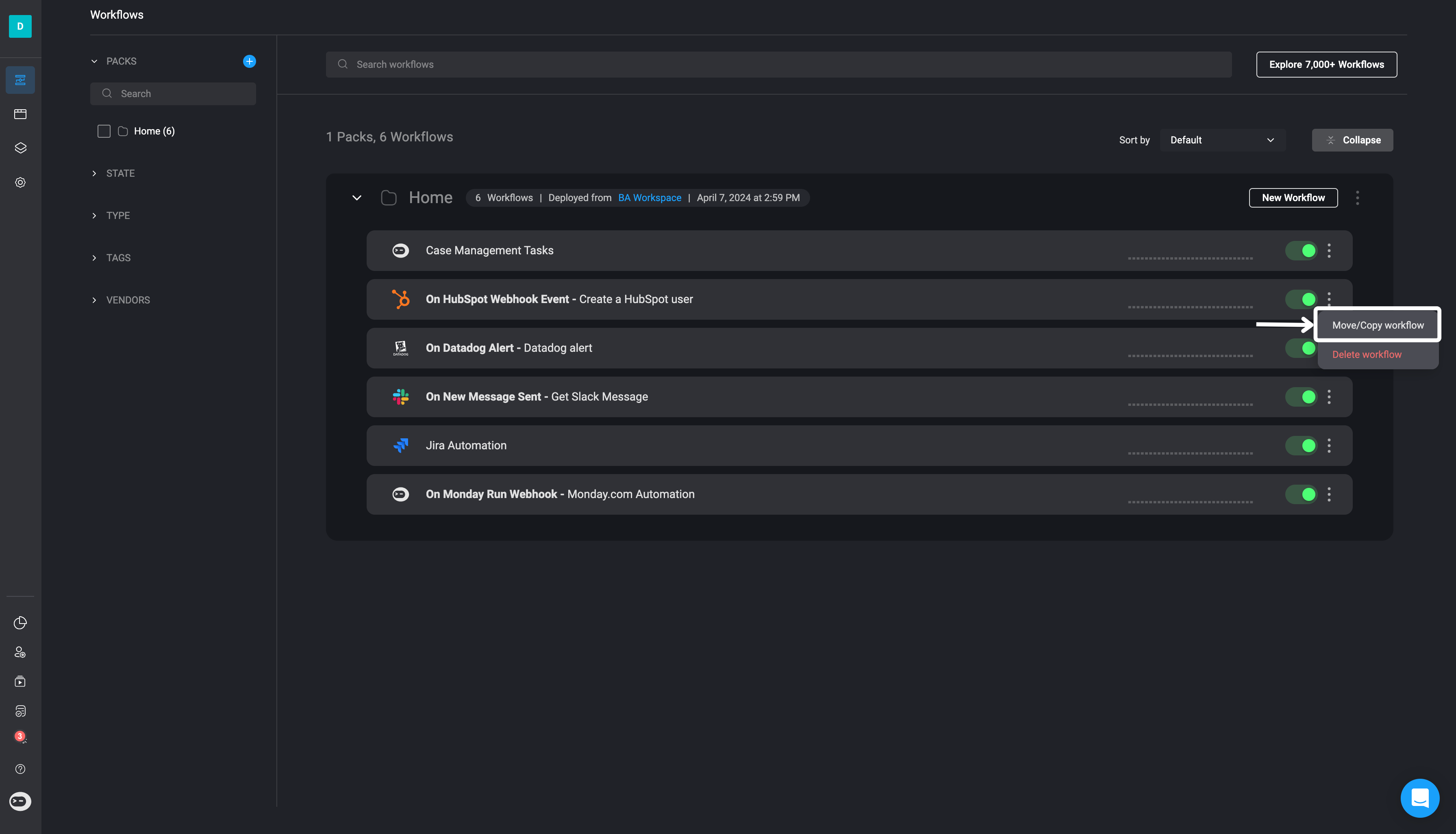
Click the icon in the top-right corner of the workflow you want to move or copy, then select the **Move/Copy** option.
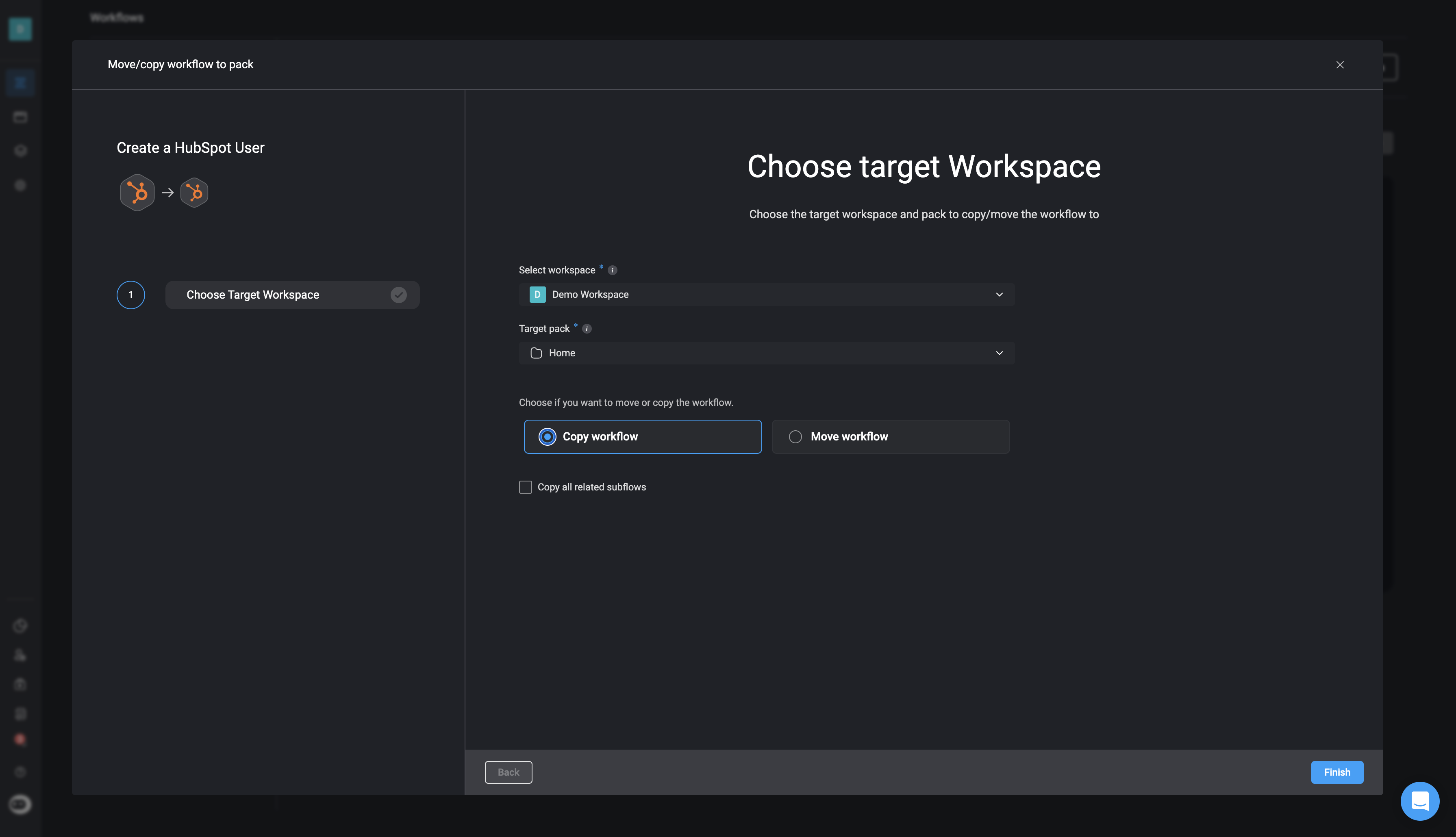
 In the **Move/Copy** wizard, select your current workspace as the target. Then choose the destination pack and indicate whether you want to **Copy** or **Move** the workflow.
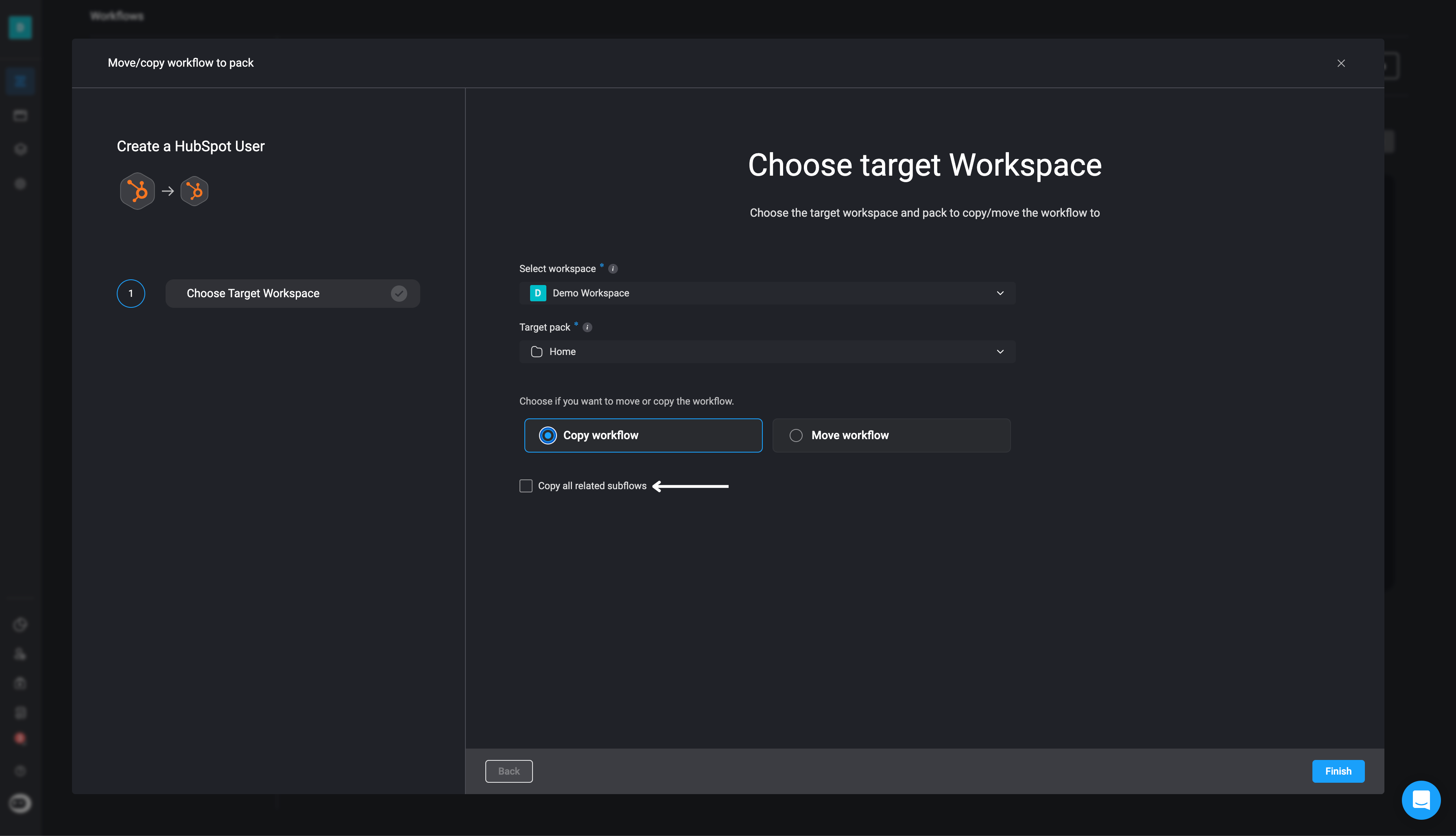
 If the workflow contains subflows, check the box to include them in the move or copy. Unchecking it will exclude subflows from the target pack.
 ***
### Move or Copy a Workflow to a Different Workspace
When copying or moving a workflow to a **different workspace**, there are a few additional configuration steps you will need to complete.
Click the icon in the top-right corner of the workflow and select the **Move/Copy** option.
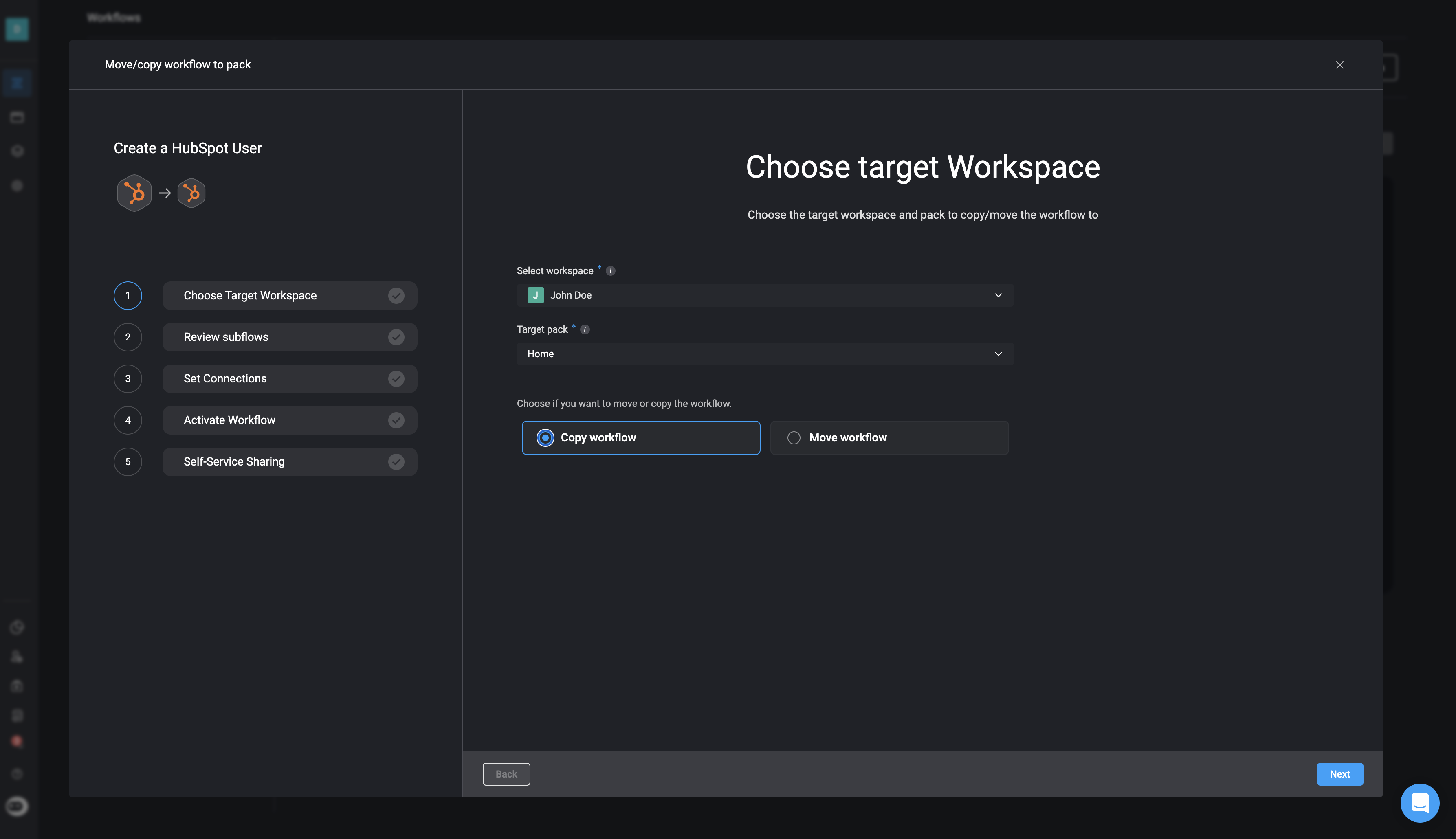
In the wizard, choose a **different workspace** as the target. Then select the target pack and choose whether to **Move** or **Copy** the workflow.
***
### Move or Copy a Workflow to a Different Workspace
When copying or moving a workflow to a **different workspace**, there are a few additional configuration steps you will need to complete.
Click the icon in the top-right corner of the workflow and select the **Move/Copy** option.
In the wizard, choose a **different workspace** as the target. Then select the target pack and choose whether to **Move** or **Copy** the workflow.
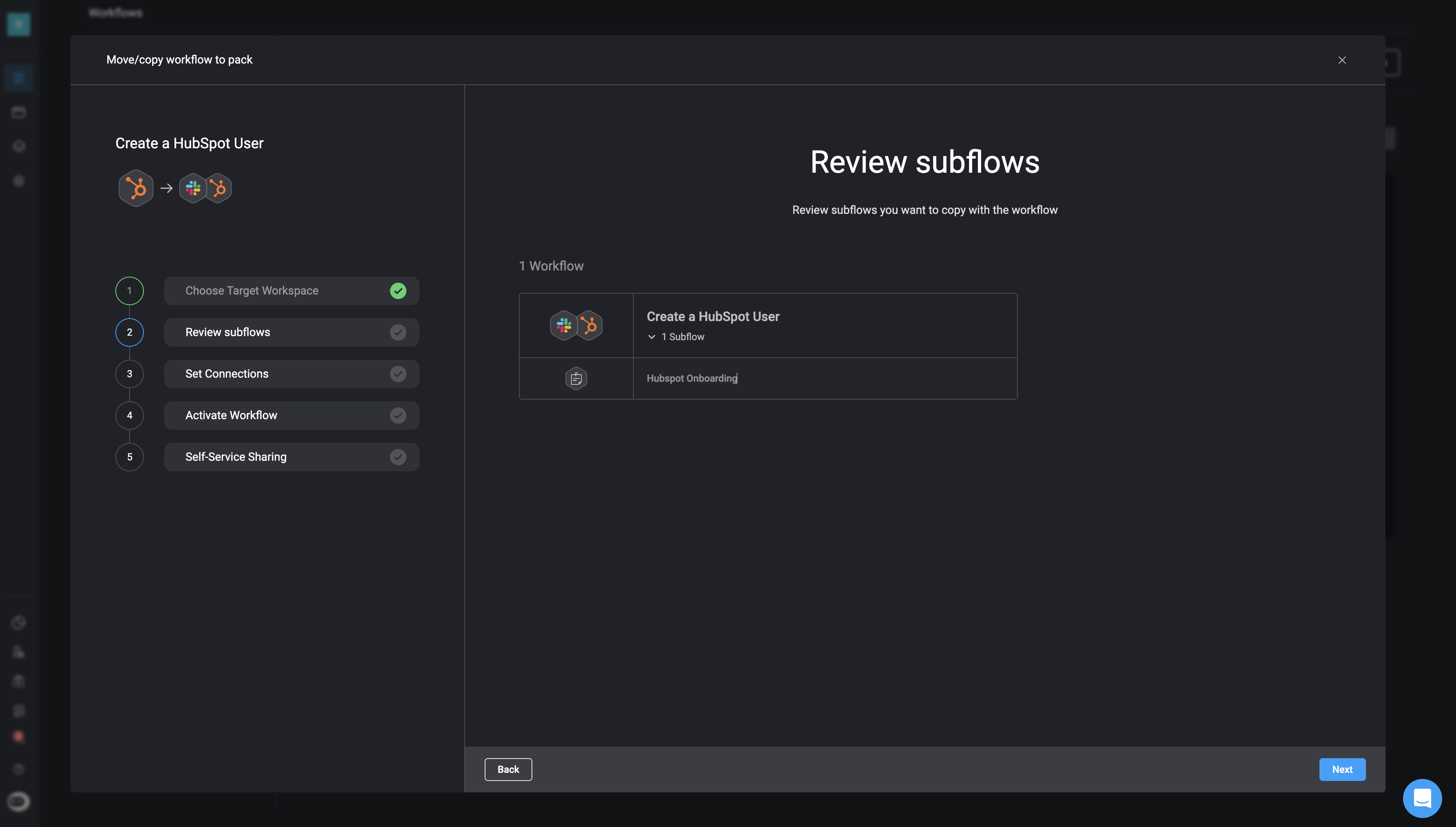
 If your workflow includes **Subflow(s)**, they will automatically be copied or moved along with the parent workflow.
* If a workflow or subflow with the same name exists in the target workspace, you’ll be prompted to rename it or use the existing one.
* All subflows will be placed into the **same pack** as the parent workflow, regardless of their original location.
Subflows from other packs in the origin workspace will be relocated to the same pack as their parent in the target workspace.
If your workflow includes **Subflow(s)**, they will automatically be copied or moved along with the parent workflow.
* If a workflow or subflow with the same name exists in the target workspace, you’ll be prompted to rename it or use the existing one.
* All subflows will be placed into the **same pack** as the parent workflow, regardless of their original location.
Subflows from other packs in the origin workspace will be relocated to the same pack as their parent in the target workspace.
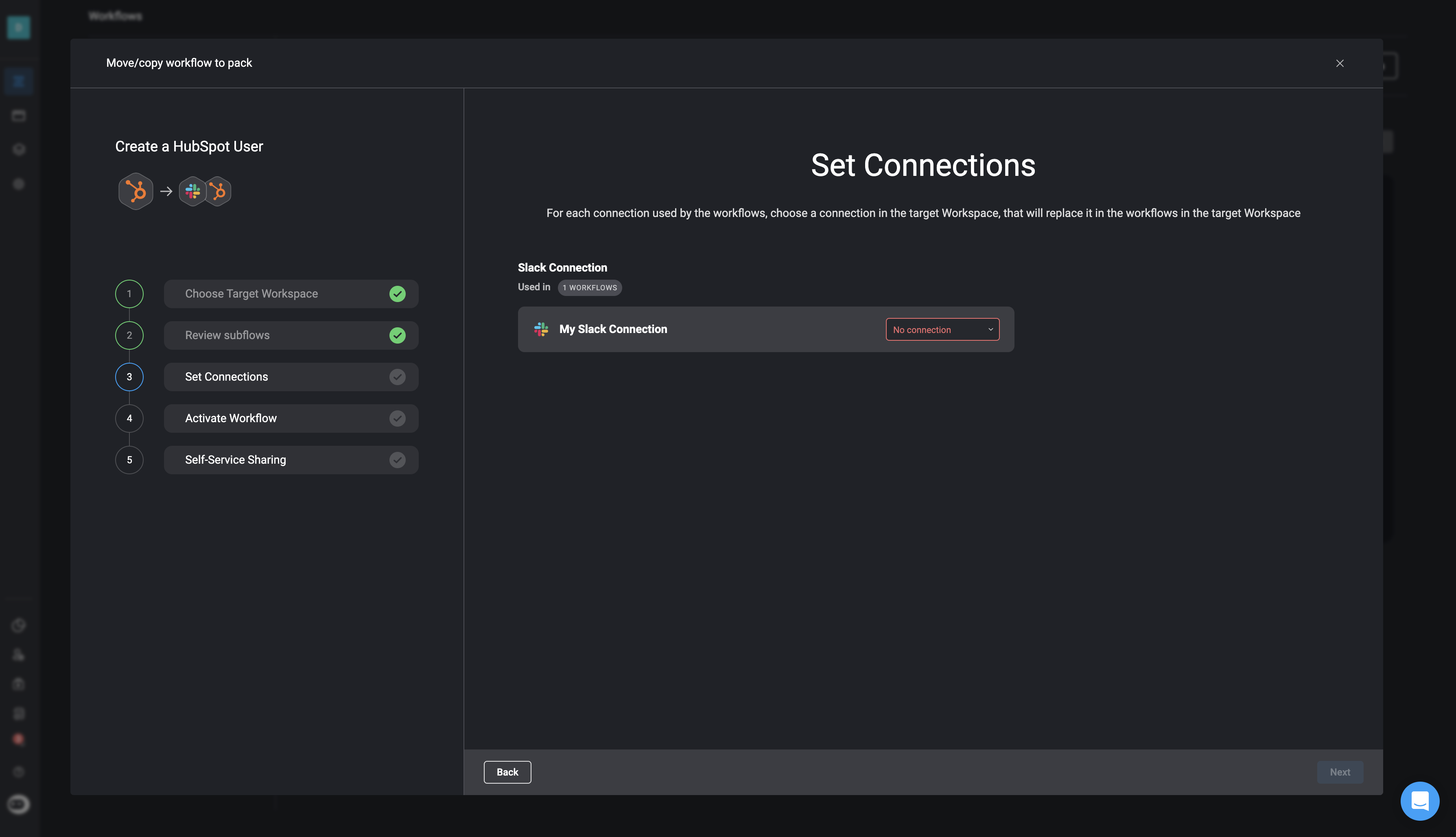
 For each connection used by the workflow, select a corresponding [connection](/docs/workflows/building-workflows/connections/creating-connection) in the target workspace.
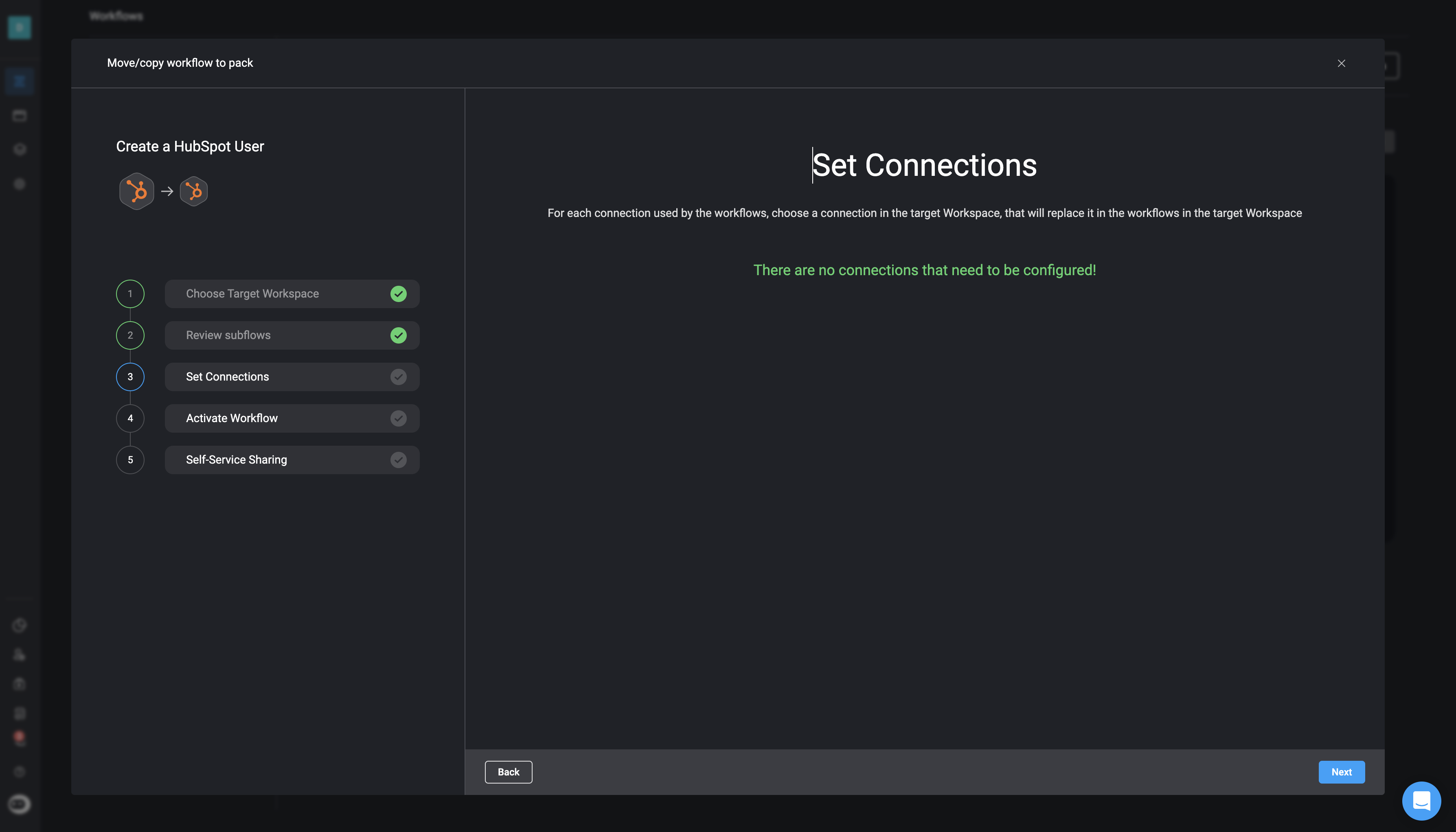
 If no connections need to be configured, you may skip this step:
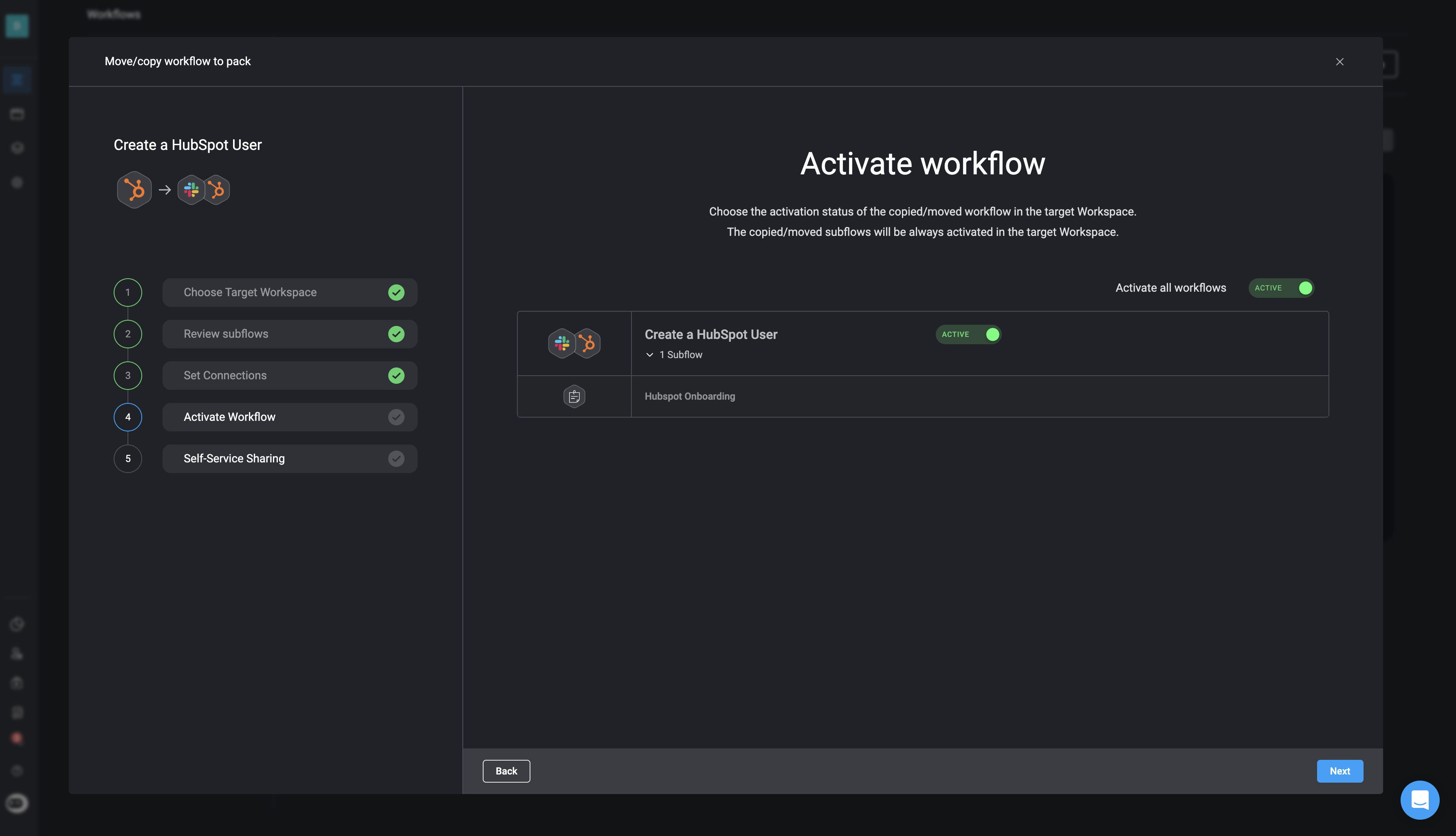
 Choose the activation status of the copied or moved workflow:
* Use the toggle to **Activate all workflows**, or
* Activate individual workflows one by one.
> Subflows will always be **activated** in the target workspace.
Choose the activation status of the copied or moved workflow:
* Use the toggle to **Activate all workflows**, or
* Activate individual workflows one by one.
> Subflows will always be **activated** in the target workspace.
 Decide whether to share the workflow to the [Blink Portal](/docs/blink-platform/blink-portal/blink-portal#expose-workflows-to-the-blink-portal) using the toggle.
You can only share a workflow via the self-service portal if it is marked as **Active** in the previous step.
Decide whether to share the workflow to the [Blink Portal](/docs/blink-platform/blink-portal/blink-portal#expose-workflows-to-the-blink-portal) using the toggle.
You can only share a workflow via the self-service portal if it is marked as **Active** in the previous step.
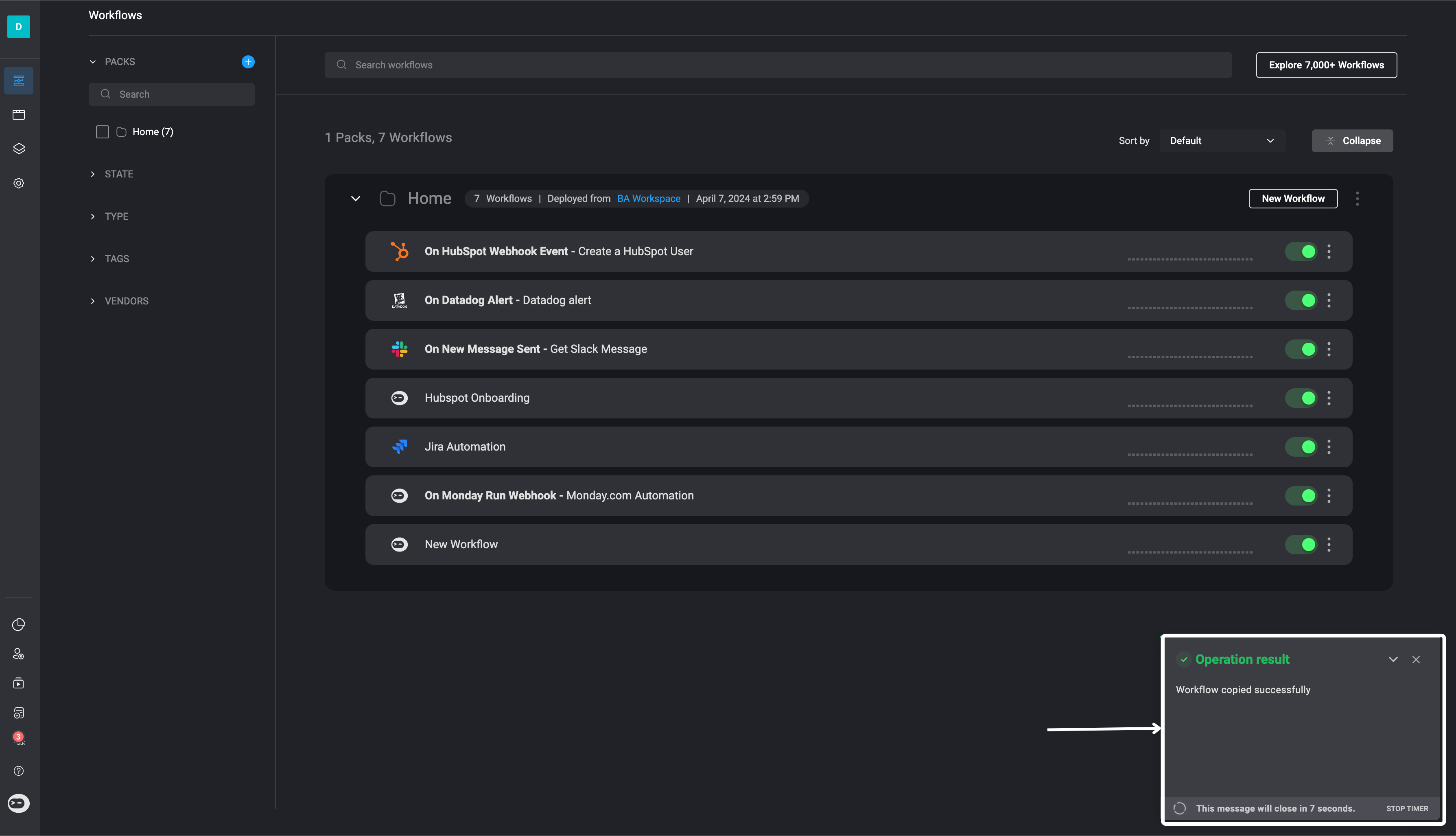
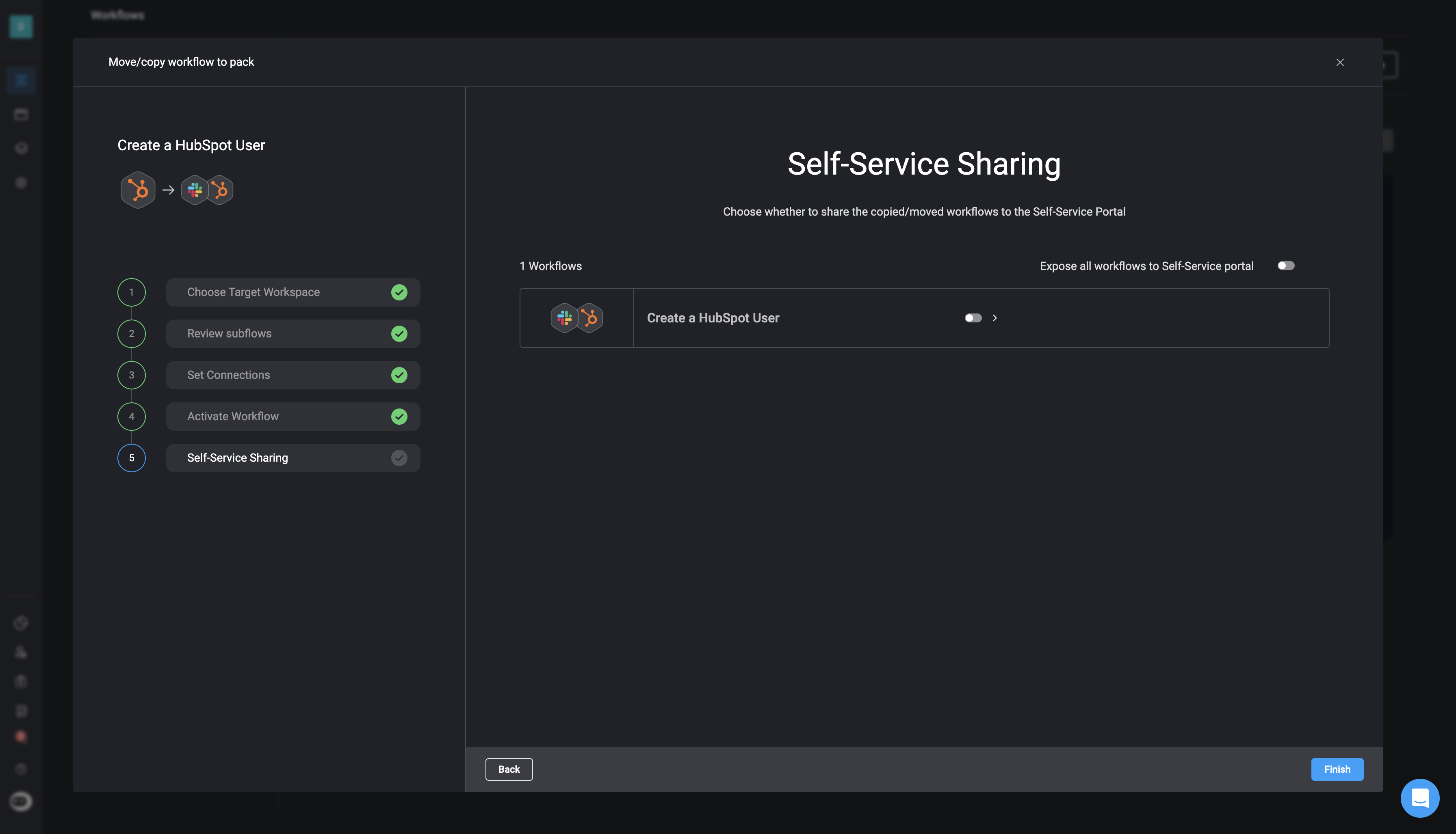 Click the **Finish** button to complete the process. A confirmation popup will appear in the bottom-right corner indicating that the workflow has been successfully copied or moved.