> ## Documentation Index
> Fetch the complete documentation index at: https://docs.blinkops.com/llms.txt
> Use this file to discover all available pages before exploring further.
# About Workflows
> Learn about workflows, their components, and how they automate tasks across multiple systems through a centralized platform.
Workflows can be copied or moved to different workspaces, facilitating collaborative automation and task management. Learn more about copying or moving workflows between workspaces [here](/docs/workflows/workflow-packs/pack-options/Move-or-Copy-Workflows-Between-Workspaces).
A workflow is a sequence of automated steps containing actions that are triggered by events, schedules, or manual input. Workflows, the backbone of automation in Blink, enable you to complete a specific task or process without manual intervention. They enable users to automate tasks across multiple systems, platforms and tools through a centralized platform.
Blink workflows can handle various levels of complexity:
* Simple, single-step processes such as for data validation
* Complex, multi-system operations involving multiple services and cross-platform automations that bridge different technologies
* Conditional steps that adapt based on inputs or results
A compliance officer at **Stark Industries** needs an automated workflow to **review user access permissions** across critical systems.
The process begins (is triggered automatically) weekly (a **scheduled trigger**), initiating an audit of **user roles and permissions** in AWS IAM and Active Directory. The workflow then evaluates access levels against company policies, **flagging any unauthorized or excessive permissions** for review.
If violations are detected, the workflow **notifies security and compliance teams**, instructing them how to proceed with remediation.
# Workflow Architecture
The following image illustrates the workflow hierarchy in Blink:
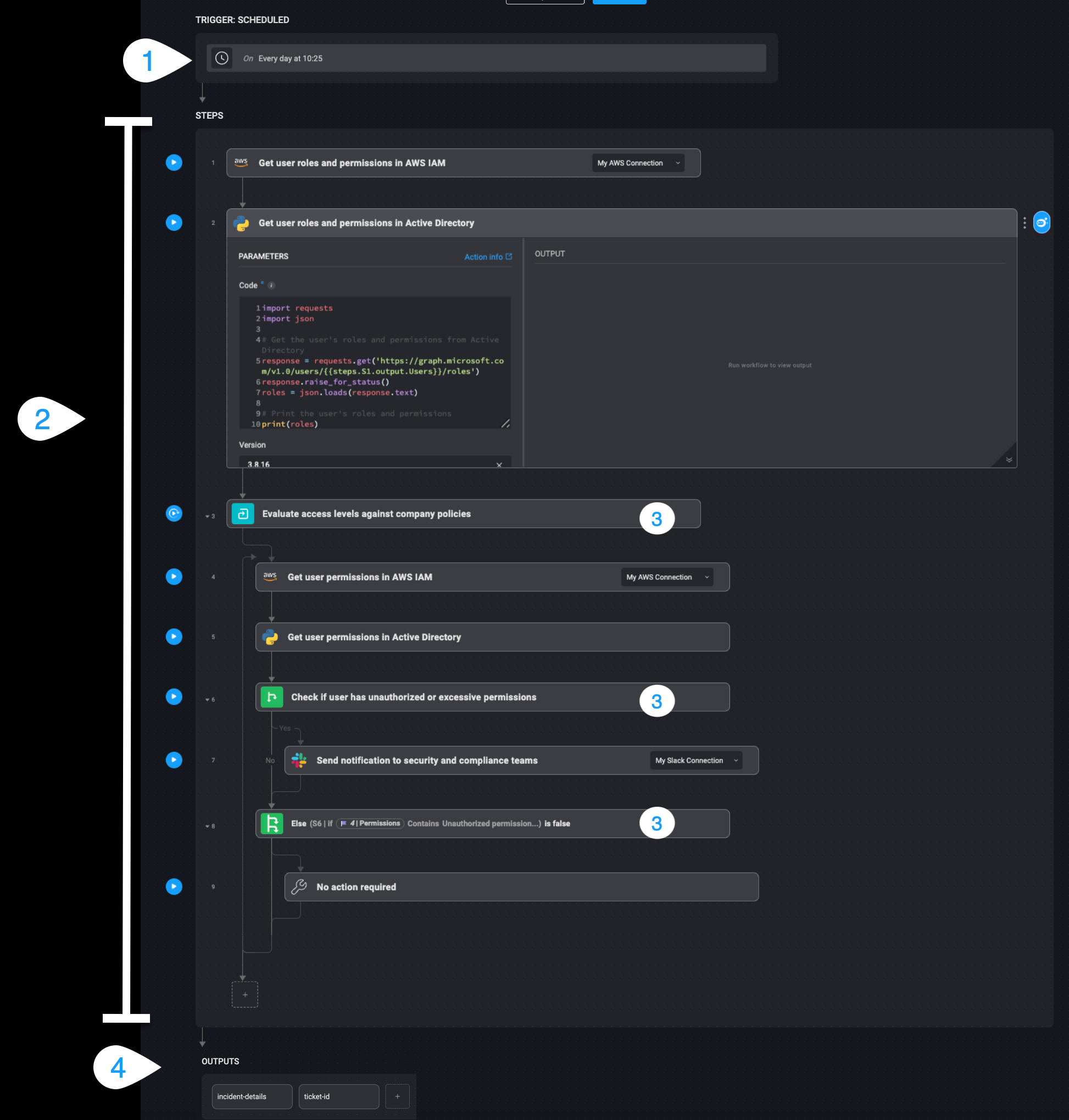 These components are as described in the following table:
| | Component | Description |
| - | --------------------------------------------------------------------------------------------------------------------------- | ---------------------------------------------------------------------------------------------------------------------------------------------------------------------------------------------------------------------------------------------------------------------------------------------------------------------------------------------------------------------------------------------------------------------- |
| 1 | **[Triggers](/docs/workflows/building-workflows/triggers/triggers)** | Events and their conditions that initiate a workflow. Blink workflows can be initiated through three primary types of triggers: [on-demand](/docs/workflows/building-workflows/triggers/on-demand-triggers/on-demand-triggers), [event-based](/docs/workflows/building-workflows/triggers/event-based-triggers/event-based-triggers), and [scheduled](/docs/workflows/building-workflows/triggers/scheduled-triggers). |
| 2 | **[Steps](/docs/workflows/building-workflows/steps)** and **[Actions](/docs/workflows/building-workflows/actions/actions)** | Steps are individual units within a workflow, each designed to perform a specific task. Actions are the functional components within each step, executing tasks based on configured parameters. |
| 3 | **[Flow controls](/docs/workflows/building-workflows/actions/basic-actions/flow-control-actions)** | Flow controls define how a workflow proceeds from one step to another based on conditions, loops, or branching logic. These include `if` conditions, `switch` statements, and loops that determine execution paths dynamically based on input values, action results, or external data. |
| 4 | **[Outputs](/docs/workflows/building-workflows/steps)** | The final results or data produced by a workflow or any of its steps. Outputs can be used as inputs in subsequent workflows, stored for reporting, or sent as notifications to relevant stakeholders. Outputs can also be shared with users who triggered the workflow on-demand, or saved as part of a file for future use. |
You can utilize the [Builder Copilot](/docs/builder-copilot/builder-copilot) to build new workflows and update existing ones efficiently, leveraging AI-powered automation to streamline workflow design.
This [Blink workflow template](/docs/workflows/templates/templates) automates the response to Splunk alerts by **creating a ServiceNow ticket** and **notifying the security team in Slack**, ensuring swift incident management.
The flow appears as in the following screenshot:
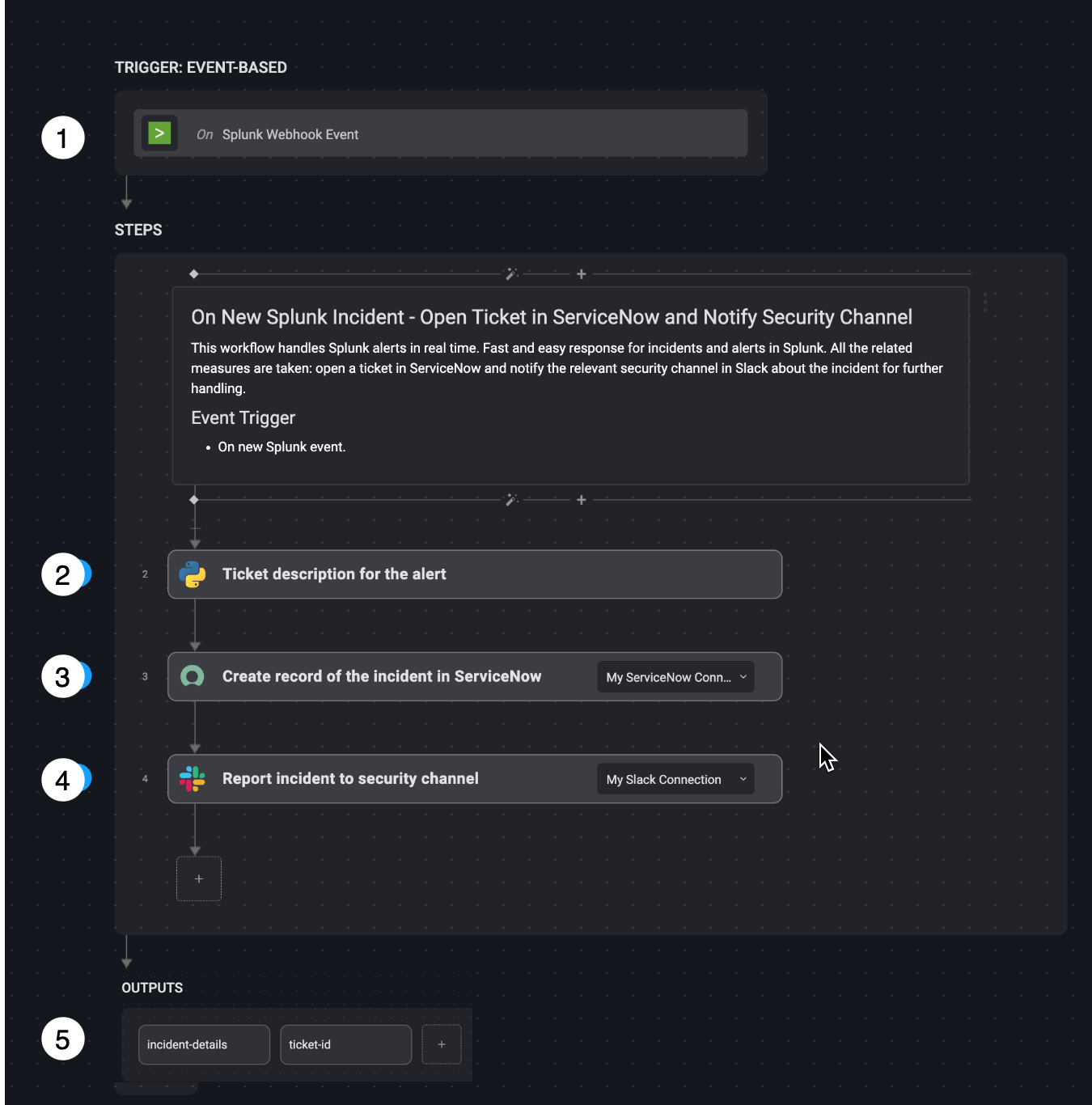 A security alert **detected by a new Splunk event** triggers the workflow, initiating the automation process.
The workflow compiles key details from the Splunk alert to generate a structured **incident description**.
* **Action:** Extracts alert owner, event type, results link, serial number, and event message if they exist.
* **Outcome:** A detailed incident report is created.
The workflow automatically **creates a new incident ticket** in ServiceNow with the alert details.
* **Action:** Generates a high-priority ServiceNow ticket with a short description, the severity, impact and assignee.
* **Outcome:** The incident is logged in ServiceNow, and the ticket number is generated for tracking.
The workflow **sends an alert to the security team** in Slack, including the incident details and ServiceNow ticket number.
* **Action:** Posts a Slack message with the ticket number for the ServiceNow ticket.
* **Outcome:** The workflow ends successfully.
* `incident_details`
* `ticket_id`
## Related Articles
Configure triggers to start workflows based on events.
Define and organize actions within a workflow.
Add logic to control workflow execution paths.
Build a new workflow from scratch in Blink.
A security alert **detected by a new Splunk event** triggers the workflow, initiating the automation process.
The workflow compiles key details from the Splunk alert to generate a structured **incident description**.
* **Action:** Extracts alert owner, event type, results link, serial number, and event message if they exist.
* **Outcome:** A detailed incident report is created.
The workflow automatically **creates a new incident ticket** in ServiceNow with the alert details.
* **Action:** Generates a high-priority ServiceNow ticket with a short description, the severity, impact and assignee.
* **Outcome:** The incident is logged in ServiceNow, and the ticket number is generated for tracking.
The workflow **sends an alert to the security team** in Slack, including the incident details and ServiceNow ticket number.
* **Action:** Posts a Slack message with the ticket number for the ServiceNow ticket.
* **Outcome:** The workflow ends successfully.
* `incident_details`
* `ticket_id`
## Related Articles
Configure triggers to start workflows based on events.
Define and organize actions within a workflow.
Add logic to control workflow execution paths.
Build a new workflow from scratch in Blink.