

Creating a CrowdStrike connection
To create the connection you need:- A client ID
- A client secret
- An API address
Obtaining the credentials
-
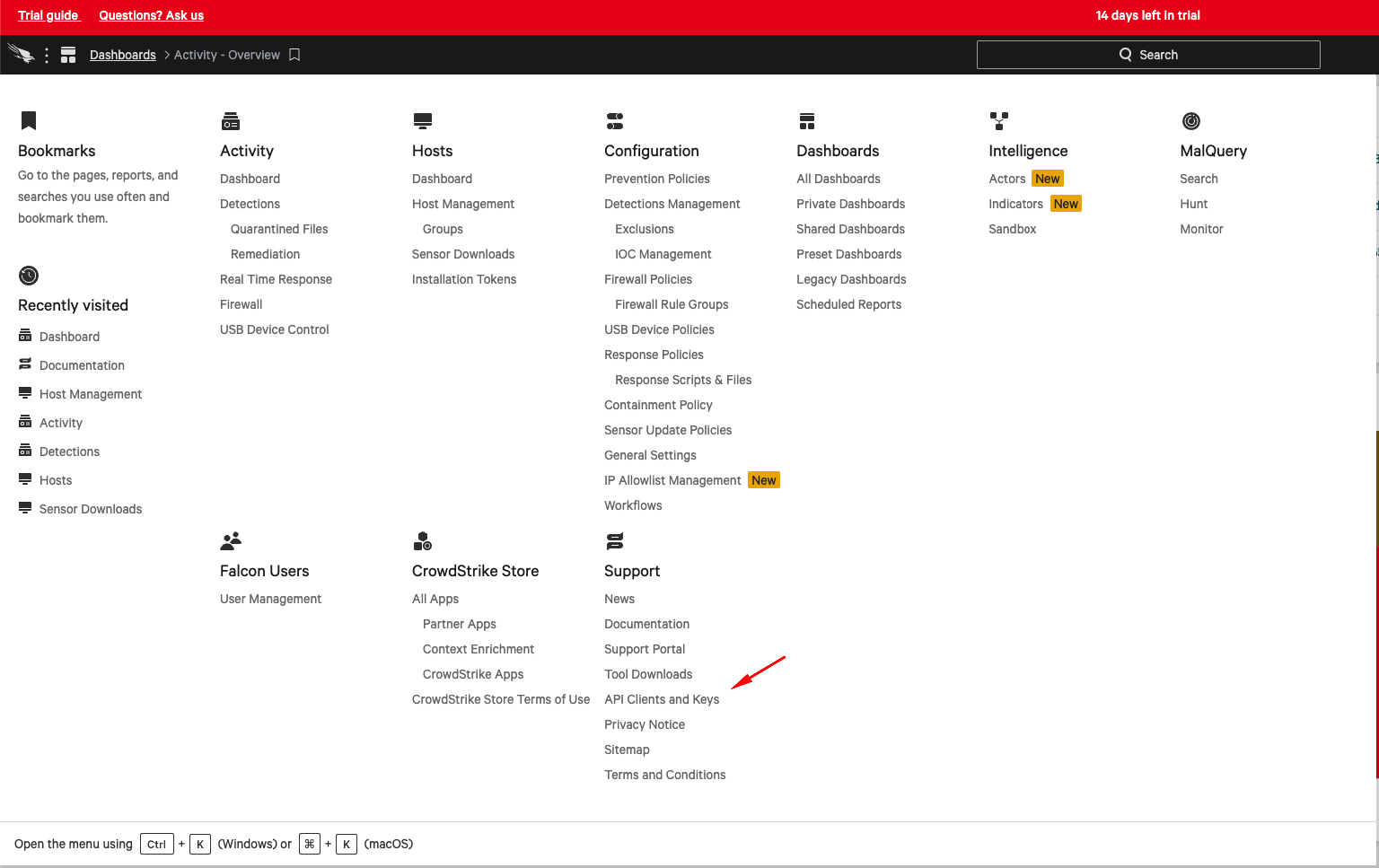
In your Falcon console, go to Support > API Clients and Keys.
-
Click Add new API client.

-
Name your new API client, optionally give it a description, and select its scopes and click Add.
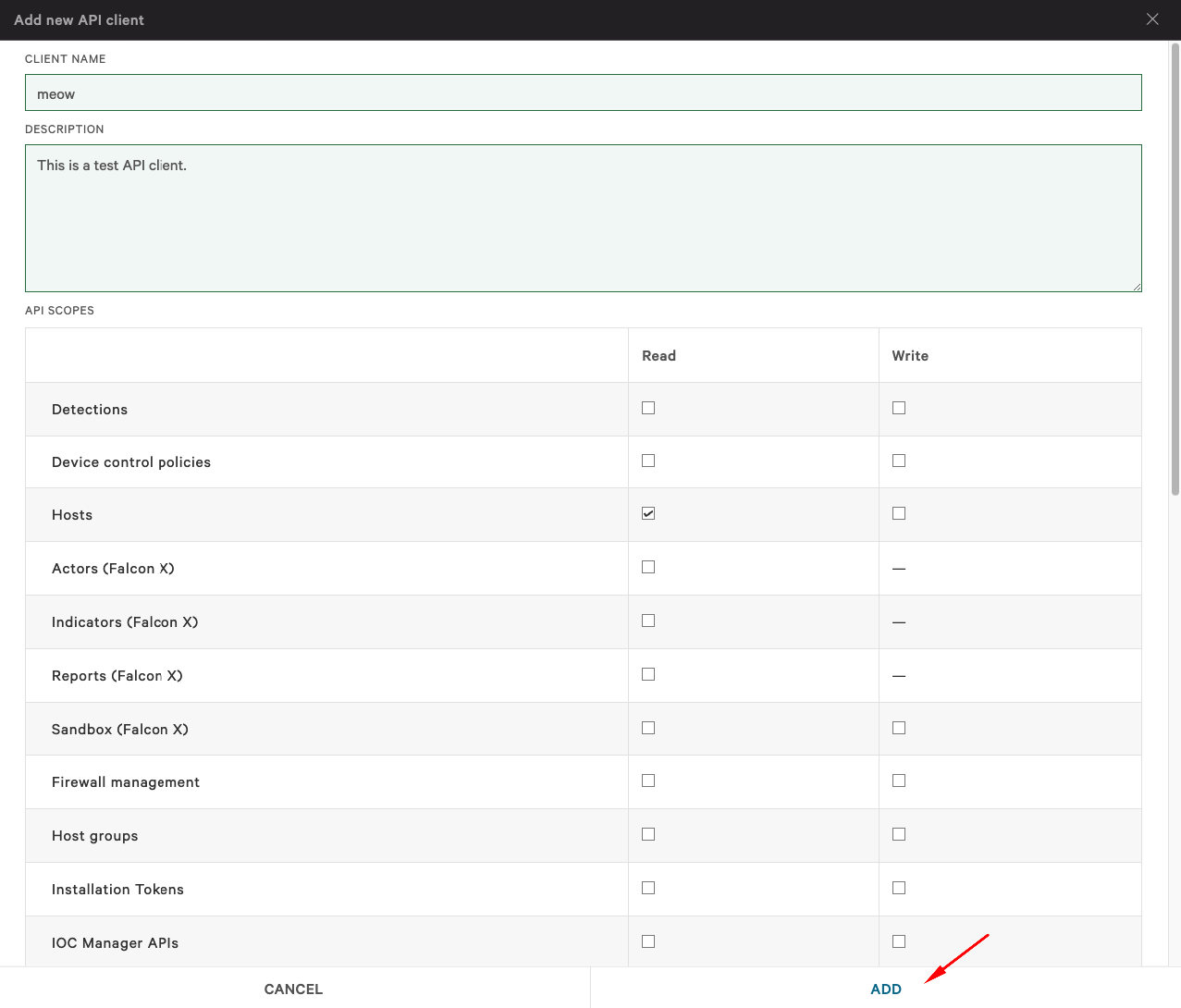
- Copy and save your Client ID, Client Secret and base URL.
Creating your connection
- In the Blink platform, navigate to the Connections page > Add connection. A New Connection dialog box opens displaying icons of external service providers available.
- Select the CrowdStrike icon. A dialog box with name of the connection and connection methods appear.
- (Optional) Edit the name of the connection. At a later stage you cannot edit the name.
- Select Client Secret as the method to create the connection.
-
Fill in the parameters:
- The client ID
- The client secret
- The API address
- (Optional) Click Test Connection to test it.
- Click Create connection. The new connection appears on the Connections page.