Clicking on the “Overview” button on a workflow in a Pack will open theDocumentation Index
Fetch the complete documentation index at: https://docs.blinkops.com/llms.txt
Use this file to discover all available pages before exploring further.
Workflow Overview page. This page displays general information and settings of the Automated workflow and allows you to edit these settings to meet your needs. On the left-hand side is a preview of the current published version of the selected automated workflow.
Note: Published workflow versions may be different from the automated workflow version in the workflow editor.
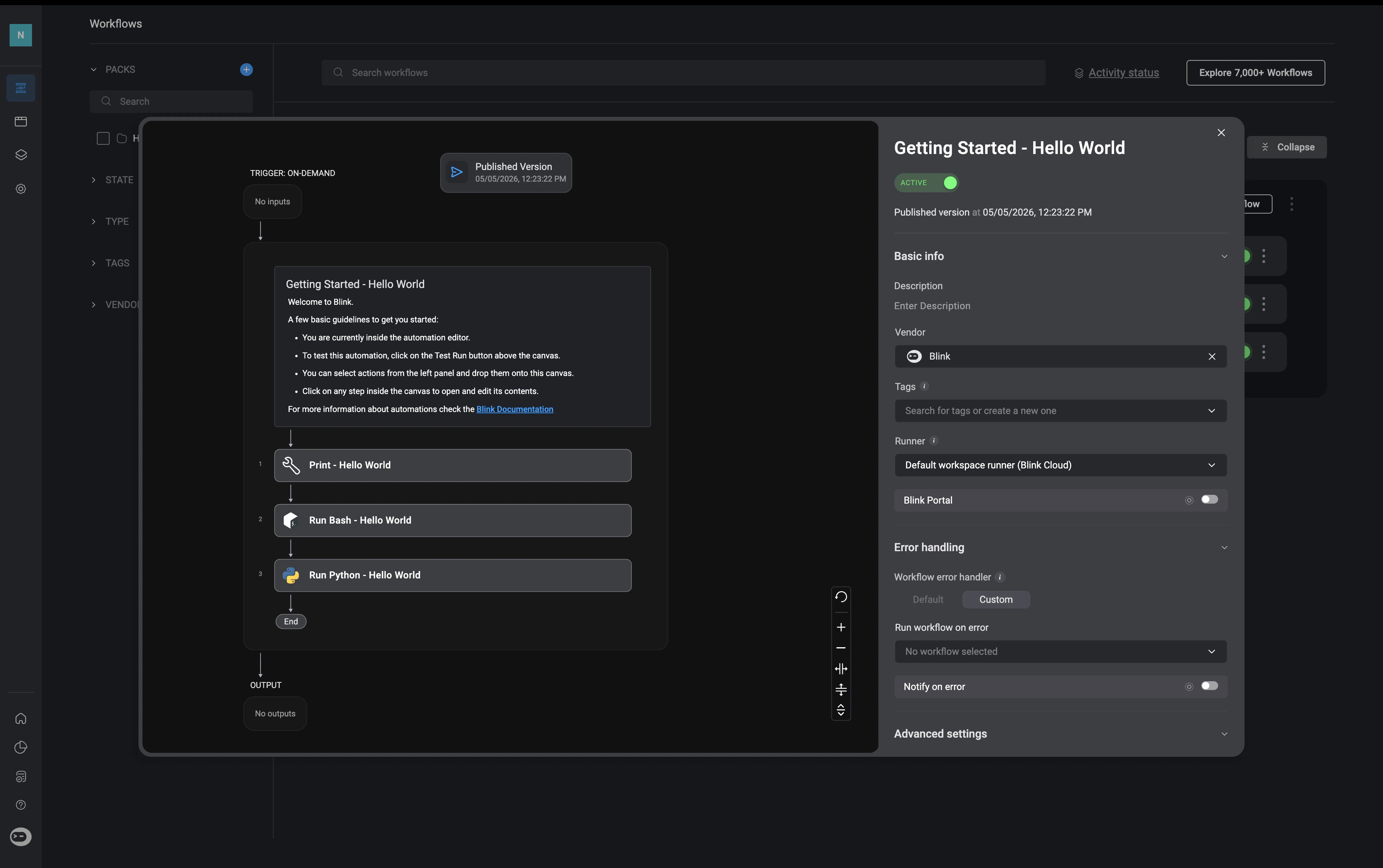
Workflow Overview - Side Panel Details
Please note, this section is broken down into sections, making it easier to find the information
- Basic Info
- Error Handling
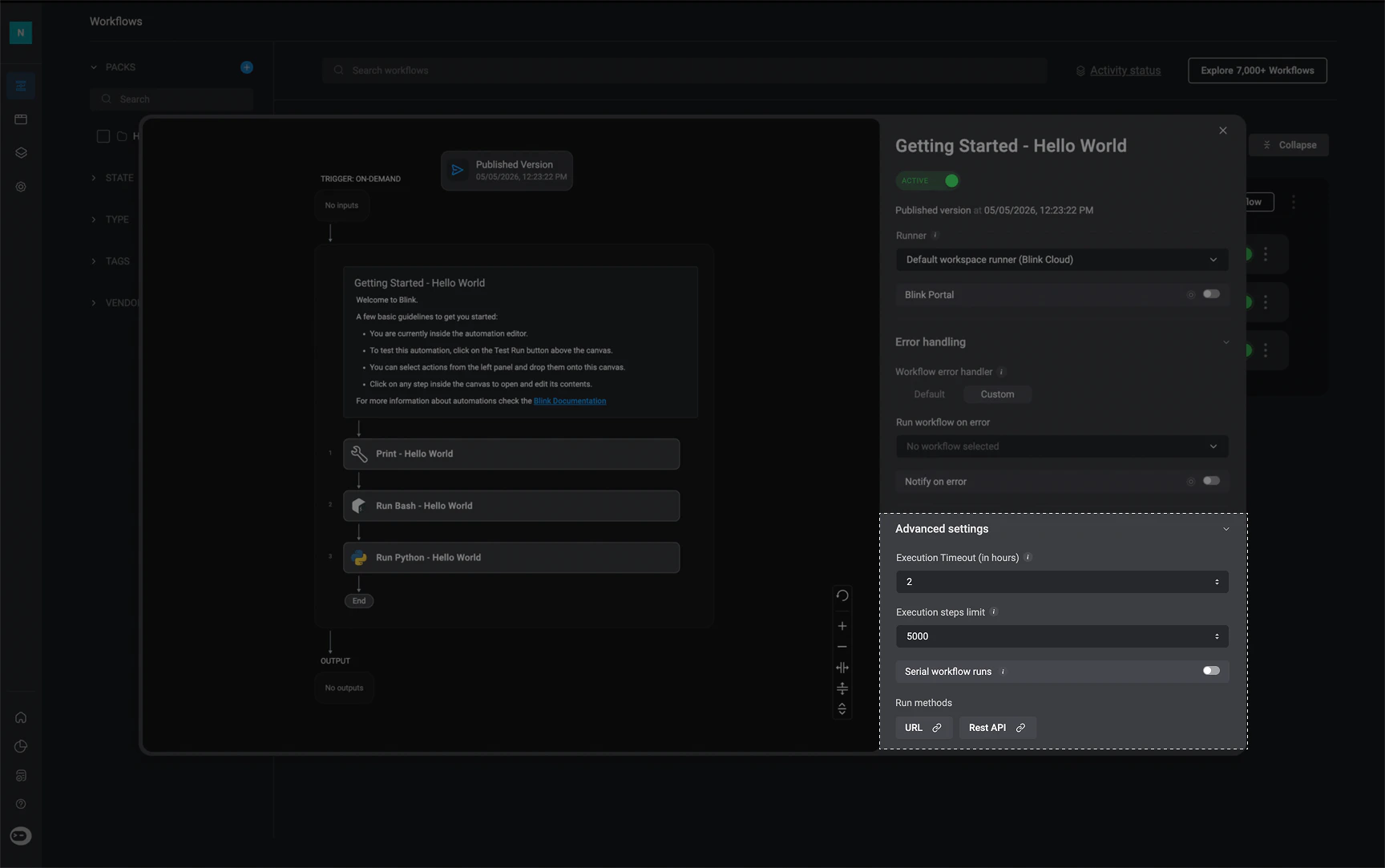
- Advanced Settings
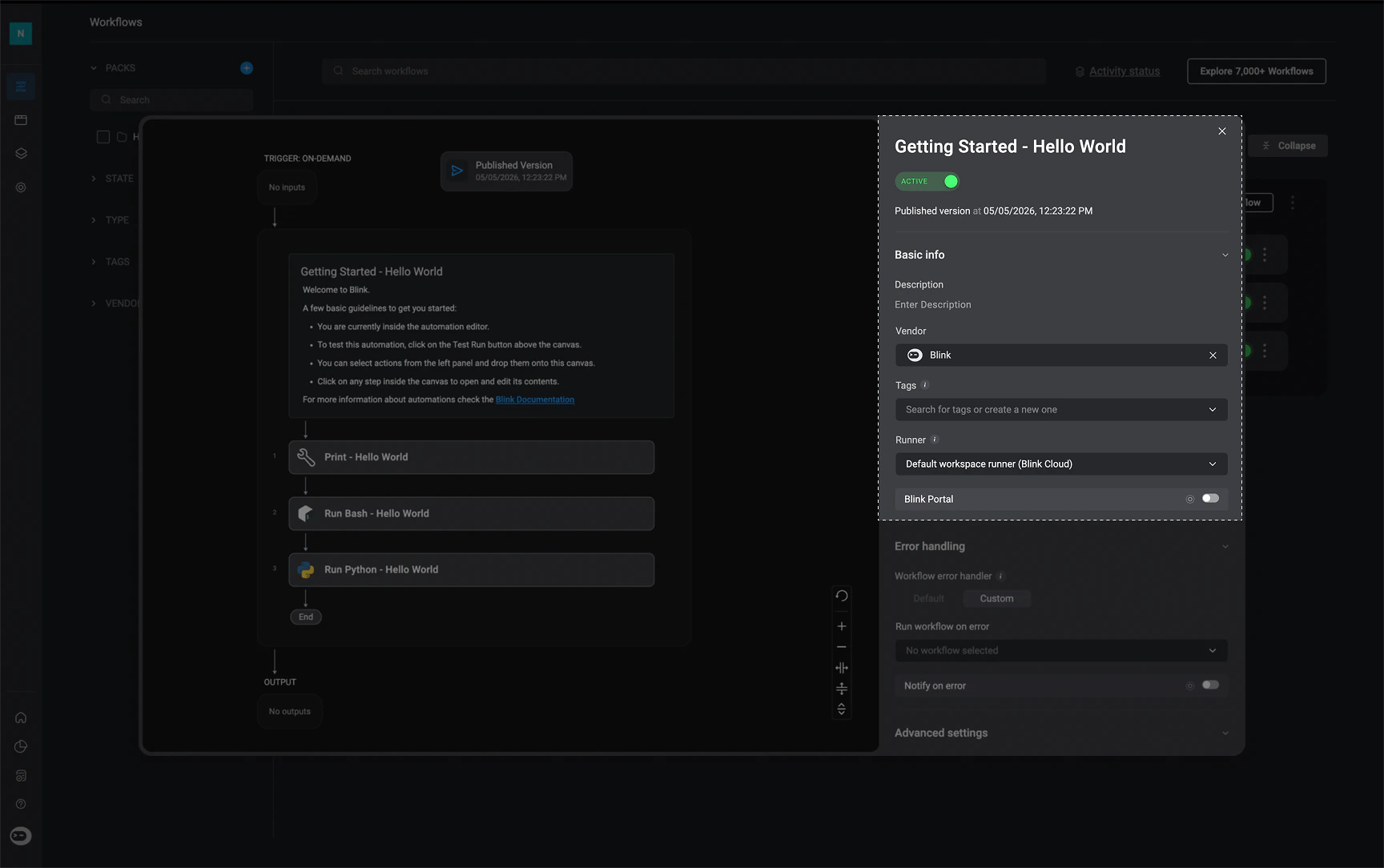
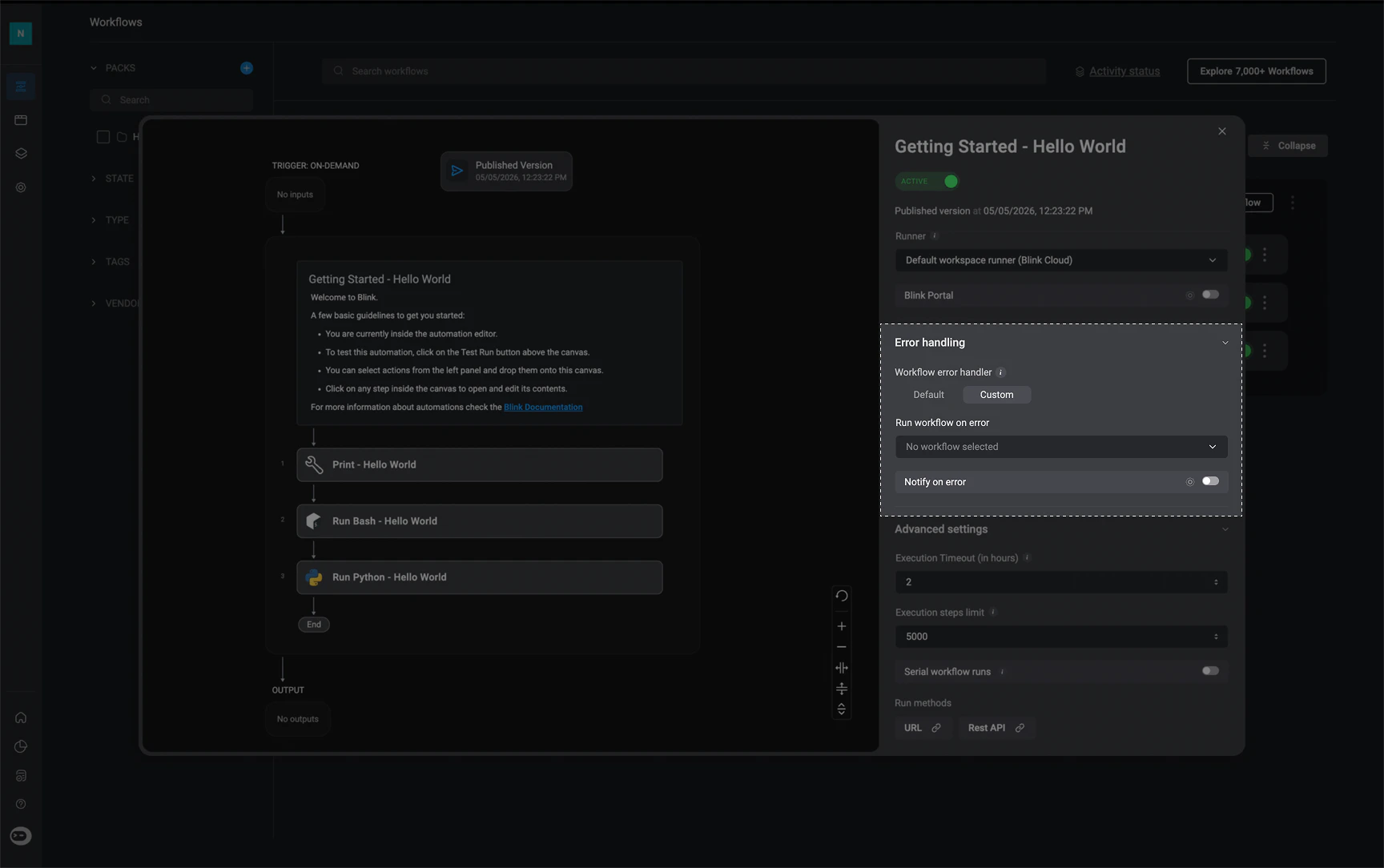
| Parameter | Description |
|---|---|
Workflow name | Name of the Workflow. |
Active/Inactive | Published workflows can be switched between active or inactive mode. |
Date and Time | The date and time of the most recently published version of the selected workflow |
Description | Description of the Workflow. |
Vendor | The Vendor icon associated with the Workflow. |
Tags | Tags used to easily search for the Workflow. |
Runner | Environment in which the Workflow is run. The default runner that is used is Blink-Cloud. |
Agent Blink Ability | When enabled, it adds this workflow as an ability workflow for agents to use. For more information, navigate to step 4 of Building an Agent Documentation A workflow description is required in order to enable this setting. |
Blink Portal | Exposes or hides the Workflow in the Blink Portal. For more information, navigate to the Blink Portal Documentation |
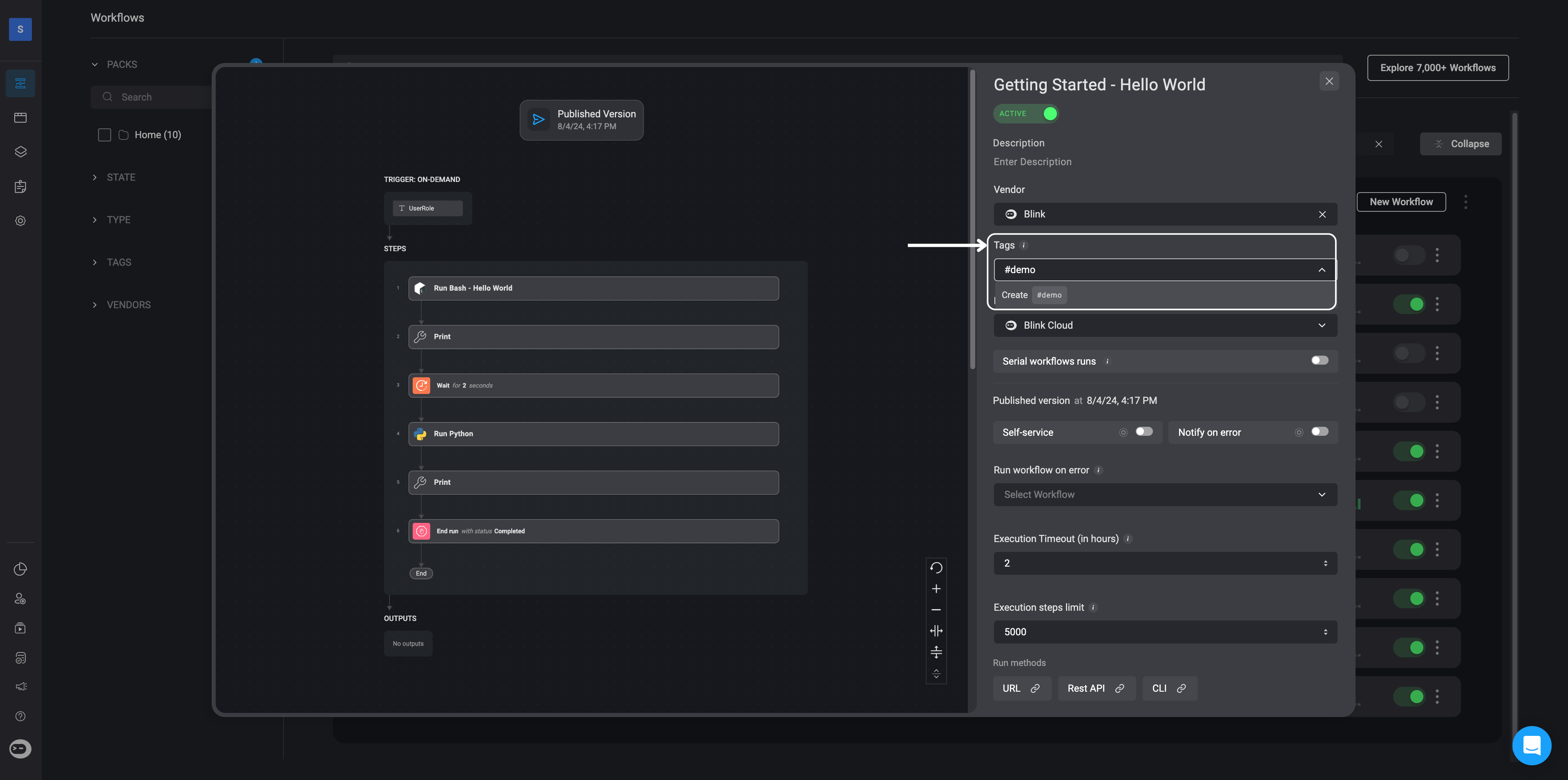
Filtering a Workflow by Tags:
- In the “Tags” section of the Workflow overview, you also have the option to create your own tag(s) for the Automated Workflow by entering a tag name of your choice.
- After creating a tag, you can simply locate it in the “Tags” section on the left-hand sidebar of the workflow page. Use this tag to easily search or filter the desired Workflow in both the workflows list and the self-service portal.