Documentation Index

Fetch the complete documentation index at: https://docs.blinkops.com/llms.txt

Use this file to discover all available pages before exploring further.

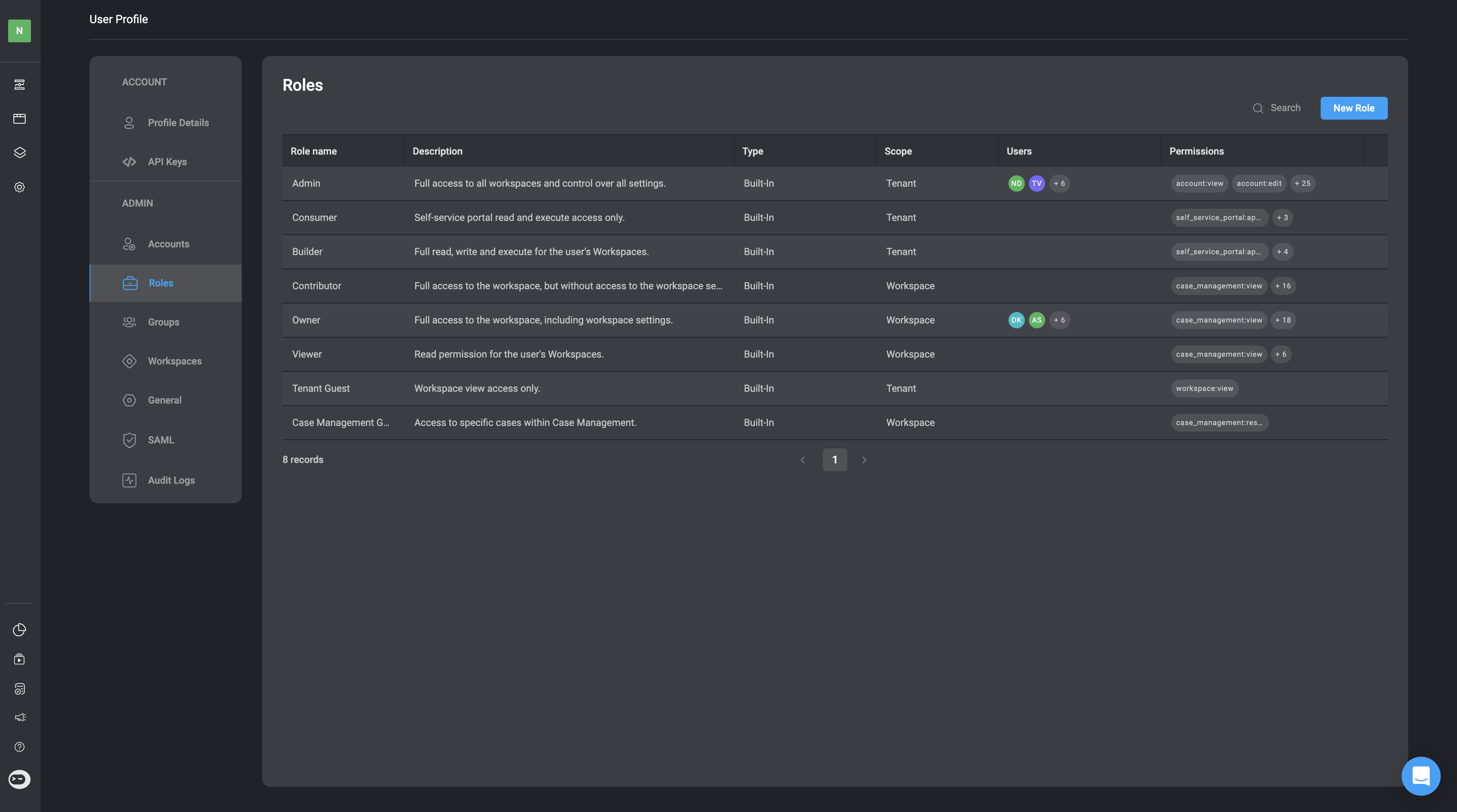
In the Blink Platform, access permissions to Blink resources and their functionality are managed through Role-based Access Control (RBAC) and User Roles. Blink Users are assigned User Roles based on two distinct scopes: the Tenant scope and the Workspace Scope. The Tenant scope covers permissions across the entire tenant, while the Workspace scope focuses on permissions within individual workspaces. Each role has its own set of predefined roles and permissions. Every Blink user has at least one Tenant Role and a separate Workspace role for each workspace they are part of. User Roles can differ between workspaces; for example, you might be an Owner in one workspace and a Contributor in a different workspace. Additionally, you have the option to create your own custom user roles.

Important Key Terms to Understand: RBAC, Scopes and User Roles

  1. Role-Based Access Controls (RBAC) is a system that limits network access based on an individual’s role within an organization. It involves assigning permissions and privileges to ensure users have the appropriate level of access according to their roles and responsibilities.
  2. Scopes - A scope defines where specific tasks a user or service account in an organization can be performed.
  3. User Roles are aggregations of scopes that define what tasks a user can perform based on the access permissions assigned to their role within the organization.

Tenant Role Scope

Under the Tenant Role Scope, you can be assigned a built-in user role as an Admin, Builder, Consumer, Tenant Guest or any custom user role created in your Tenant scope.

1. Admin

As an Admin, you have full access to all Workspaces and control over all tenant settings.
Please note that users assigned an Admin Role in the Tenant Scope have editing permissions across all tenant workspaces.
FeatureDescriptionPermissions
Account SettingsView entities and settingsaccount:view
Account SettingsInvite users to the accountaccount:invite
Account SettingsManage own API keysaccount:api_keys:edit
Account SettingsCreate entities and update settingsaccount:edit
Blink PortalView Appsportal:app:view
Blink PortalView Agentsportal:agent:view
Blink PortalView Servicesportal:service:view
Blink PortalExecute Appsportal:app:execute
Blink PortalExecute Agentsportal:agent:execute
Blink PortalExecute Servicesportal:service:execute
WorkspacesView Workspacesworkspace:view
WorkspacesView Personal Workspaceworkspace:view:personal
WorkspacesCreate Workspacesworkspace:create

2. Consumer

As a Consumer, you have Blink Portal read and execute access only.
FeatureDescriptionPermissions
Blink PortalView Appsportal:app:view
Blink PortalView Agentsportal:agent:view
Blink PortalView Servicesportal:service:view
Blink PortalExecute Appsportal:app:execute
Blink PortalExecute Agentsportal:agent:execute
Blink PortalExecute Servicesportal:service:execute

3. Builder

As a Builder, you have access to workspaces you are a member of and have full access to the Self Service Portal.
PermissionsDescriptionFeature
Account SettingsManage own API keysaccount:api_keys:edit
Blink PortalView Appsportal:app:view
Blink PortalView Agentsportal:agent:view
Blink PortalView Servicesportal:service:view
Blink PortalExecute Appsportal:app:execute
Blink PortalExecute Agentsportal:agent:execute
Blink PortalExecute Servicesportal:service:execute
WorkspacesView Workspacesworkspace:view
WorkspacesView Personal Workspaceworkspace:view:personal
WorkspacesCreate Workspacesworkspace:create

4. Tenant Guest

As a Tenant Guest, you have only access permissions to view Workspaces.
PermissionsDescriptionScope
WorkspacesView Workspacesworkspace:view

Workspaces Role Scope

Under the Workspace Role Scope, you can be assigned a built-in role as an Owner, Contributor, Viewer or Case Management Guest or any custom Workspace user role created in your Tenant. To assign a user a Workspace Role, follow these instructions.

1. Owner

As an owner, you have full access to the workspace and workspace settings.
FeatureDescriptionPermissions
Agents and WorkflowsRead-only access to workflow and agent configurationsagent_workflow:view
Agents and WorkflowsExecute workflows or interact with agentsagent_workflow:execute
Agents and WorkflowsCreate, modify, and configure workflow steps or agent behaviorsagent_workflow:edit
Agents and WorkflowsPublish workflows and agents changesagent_workflow:publish
Agents and WorkflowsReview and approve workflow changesworkflow:approve
Agents and WorkflowsPublish approved workflowsworkflow:publish_approved
Agents and WorkflowsShare workflows and agents to portalagent_workflow:portal_share
Case ManagementView existing casescase_management:view
Case ManagementCreate and edit cases.case_management:edit
Case ManagementClose cases.case_management:close_case
Case ManagementDelete Cases.case_management:delete_case
Case ManagementManage case management settings.case_management:admin
ConnectionsView existing connectionsconnections:view
ConnectionsCreate and edit connectionsconnections:edit
DashboardsView existing dashboardsdashboard:view
DashboardsShare dashboards to portaldashboard:portal_share
DashboardsCreate and edit dashboardsdashboard:edit
Global VariablesView existing global variablesglobal_variables:view
Global VariablesCreate and edit global variablesglobal_variables:edit
RunnersView existing runnersrunners:view
RunnersCreate and edit runnersrunners:edit
TablesView existing tablestables:view
TablesExecute actions and responsestables:execute
TablesCreate and edit tablestables:edit
WorkflowsView existing workflowsWorkflow:view
WorkflowsExecute workflowsworkflow:execute
WorkflowsShare workflows to portalworkflow:portal_share
WorkflowsCreate and edit workflowsworkflow:edit
WorkflowsCan Publish Approved Workflowsworkflow:publish_approved
WorkflowsApprove Workflowsworkflow:approve
WorkflowsPublish Workflowsworkflow:publish
WorkspacesShare workspaces resourcesworkspaces:share
WorkspacesUpdate workspace settingsworkspaces:edit
WorkspacesDelete workspacesworkspaces:delete

2. Contributor

As a contributor, you have full access to the workspace, but without access to the workspace settings.
FeatureDescriptionPermissions
Agents and WorkflowsRead-only access to workflow and agent configurationsagent_workflow:view
Agents and WorkflowsExecute workflows or interact with agentsagent_workflow:execute
Agents and WorkflowsCreate, modify, and configure workflow steps or agent behaviorsagent_workflow:edit
Agents and WorkflowsPublish workflows and agents changesagent_workflow:publish
Agents and WorkflowsReview and approve workflow changesworkflow:approve
Agents and WorkflowsPublish approved workflowsworkflow:publish_approved
Agents and WorkflowsShare workflows and agents to portalagent_workflow:portal_share
Case ManagementView existing casescase_management:view
Case ManagementCreate and edit cases.case_management:edit
Case ManagementClose cases.case_management:close_case
Case ManagementDelete Cases.case_management:delete_case
Case ManagementManage case management settings.case_management:admin
ConnectionsView existing connectionsconnections:view
ConnectionsCreate and edit connectionsconnections:edit
DashboardsView existing dashboardsdashboard:view
DashboardsShare dashboards to portaldashboard:portal_share
DashboardsCreate and edit dashboardsdashboard:edit
Global VariablesView existing global variablesglobal_variables:view
Global VariablesCreate and edit global variablesglobal_variables:edit
RunnersView existing runnersrunners:view
RunnersCreate and edit runnersrunners:edit
TablesView existing tablestables:view
TablesExecute actions and responsestables:execute
TablesCreate and edit tablestables:edit
WorkflowsView existing workflowsworkflow:view
WorkflowsExecute workflowsworkflow:execute
WorkflowsShare workflows to portalworkflow:portal_share
WorkflowsCreate and edit workflowsworkflow:edit
WorkflowsCan Publish Approved Workflowsworkflow:publish_approved
WorkflowsApprove Workflowsworkflow:approve
WorkflowsPublish Workflowsworkflow:publish
WorkspacesShare workspace resourcesworkspaces:share

3. Viewer

As a viewer, you can only observe the mentioned features without the ability to edit or create them.
FeatureDescriptionPermissions
Agents and WorkflowsRead-only access to workflow and agent configurationsagent_workflow:view
Case ManagementView existing casescase_management:view
ConnectionsView existing connectionsconnections:view
DashboardsView existing dashboardsdashboard:view
Global VariablesView existing global variablesglobal_variables:view
RunnersView existing runnersrunners:view
TablesView existing tablestables:view
WorkflowsView existing workflowsworkflow:view

4. Case Management Guest

As a Case Management Guest, you have access permissions to specific cases within Case Management.
FeatureDescriptionScope
Case ManagementEdit only the cases shared with the user and their groups, including any linked entitiescase_management:restricted

Adding a New Custom Role

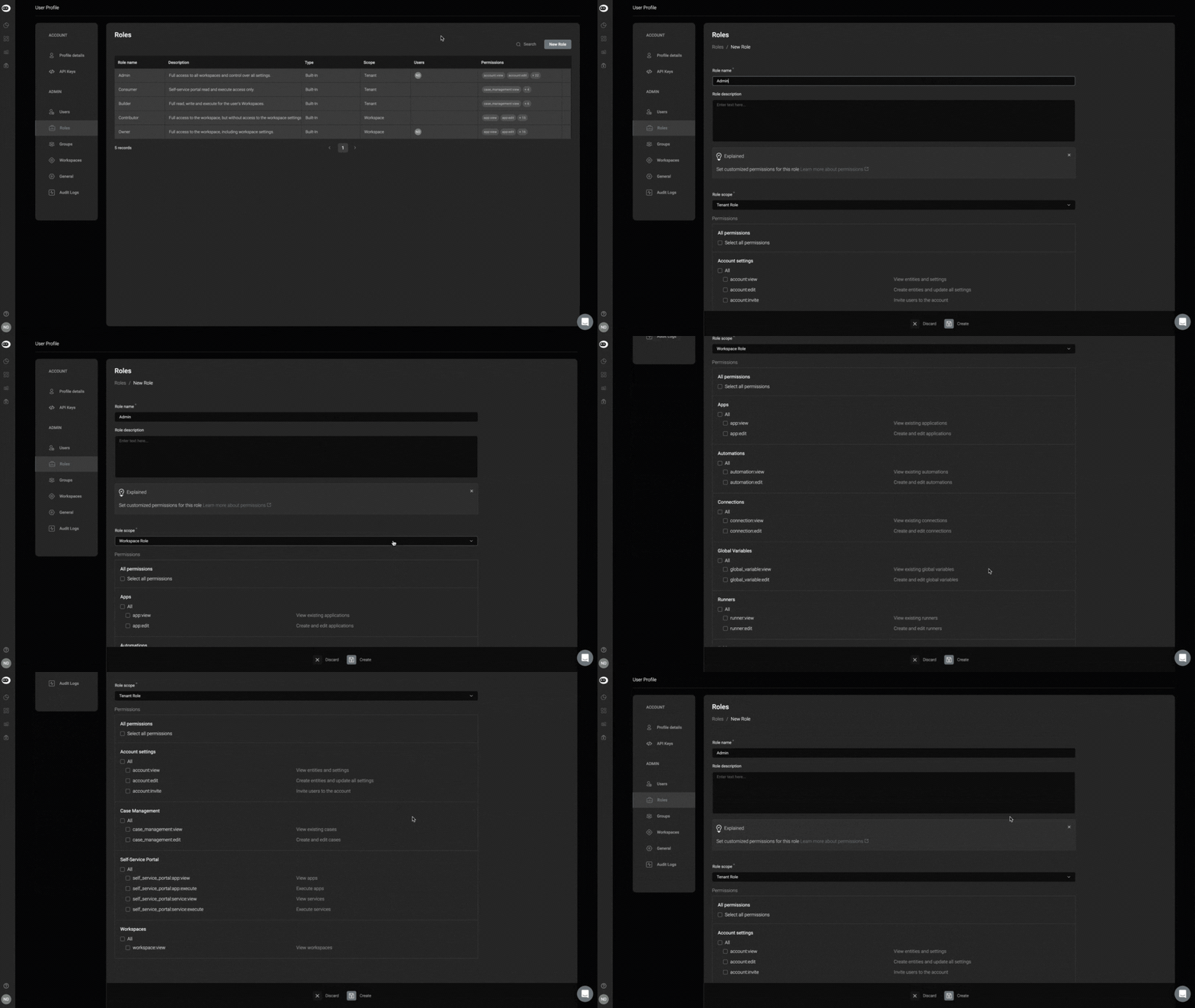
  1. In the top-right corner, click the New Role button.
  2. A dialogue box will open, displaying all user role permissions.
  3. Add a Role Name and a Role Description.
  4. Select a Role Scope by selecting between a Tenant Role or a Workspace Role from the dynamic dropdown.
Please note that Tenant Role or a Workspace Role have different access permissions
FeaturePermissionDescription
Account settingsaccount:viewView entities and settings
account:inviteInvite users to the account
account:editCreate entities and update all settings
Blink Portalportal:app:viewView apps
portal:service:viewView services
portal:app:executeExecute apps
portal:service:executeExecute services
Workspacesworkspace:viewView user’s associated workspaces
workspace:view:personalAccess user’s personal workspace
workspace:createCreate workspaces
FeaturePermissionDescription
Case Managementcase_management:restrictedView and edit only the cases shared with the user and their groups, including any linked entities
case_management:viewView existing cases
case_management:editCreate and edit cases
case_management:close_caseClose cases
case_management:deleteDelete case management entities
case_management:adminManage case management settings, including editing a case, closing a case, and deleting a case
Connectionsconnection:viewView existing connections
connection:editCreate and edit connections
Dashboardsdashboard:viewView existing dashboards
dashboard:editCreate and edit dashboards
Global Variablesglobal_variable:viewView existing global variables
global_variable:editCreate and edit global variables
Runnersrunner:viewView existing runners
runner:editCreate and edit runners
Tablestable:viewView existing tables
table:editCreate and edit tables
Workflowsworkflow:viewView existing workflows
workflow:executeExecute workflows
workflow:editCreate and edit workflows
workflow:publishPublish workflows
workflow:approveReview and approve workflow changes
workspace:shareShare workspace resources
workspace:editUpdate workspace settings
workspace:deleteDelete workspace

  1. Then, select the relevant checkboxes to customize user role permissions and then click the create icon.